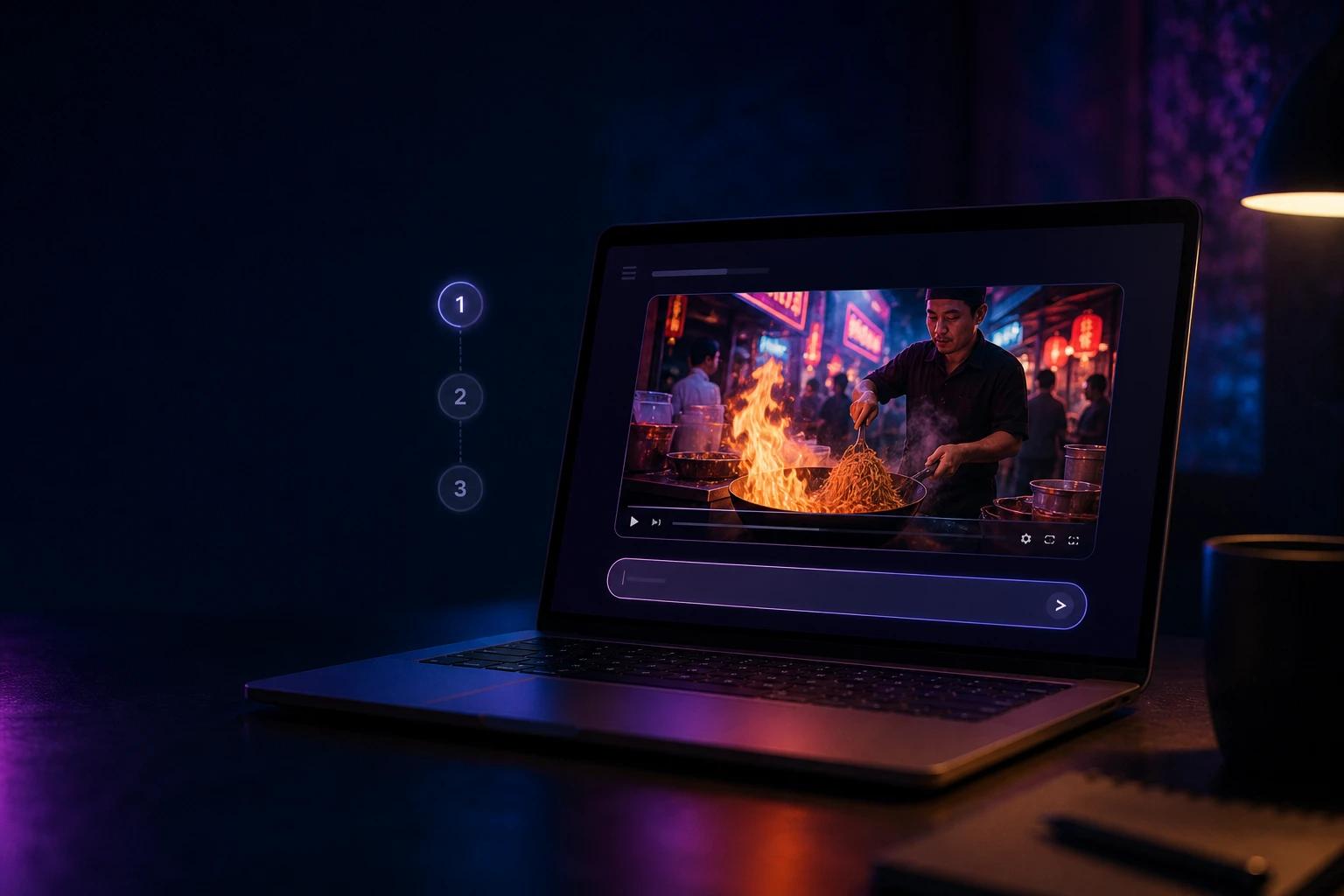
To use Gemini Omni Flash, open a tool that runs it (OmniRender, the Gemini app, Google Flow, YouTube Shorts or the Gemini API), describe your video in plain language, and generate. Then keep talking to it: ask for changes, add reference images, or extend the scene up to 40 seconds. That's the whole loop, and it's what makes Omni different from older AI video tools.
Gemini Omni Flash is Google DeepMind's video model that turns text, images, audio and video into a finished clip with sound. Its current version, Gemini Omni 1.1 Flash, adds scene extension, first and last frame control and 4K output. New to the model? Start with our explainer, What is Gemini Omni?
This guide shows you exactly how to use Gemini Omni Flash, from your first free video to editing, extending and calling it from code.
Where you can use Gemini Omni Flash
You have five main ways to access Gemini Omni Flash. Pick based on budget, device and how much control you want.
| Option | Best for | Cost | Controls |
|---|---|---|---|
| OmniRender | Creators who want full controls in a browser | Free plan, paid from $14/month | Model, ratio, resolution (360p to 4K), length (3–10 s), @-tagged references, first/last frame, edit, extend |
| Gemini app | Google AI subscribers, mobile-first users | Google AI Plus, Pro or Ultra | Chat-based; templates, up to 5 photo references, avatars, scene extension |
| Google Flow | Filmmakers building multi-shot projects | Google AI Plus, Pro or Ultra (Flow credits) | Scene builder and project tools |
| YouTube Shorts / YouTube Create | Quick remixes for Shorts | Free | Simplified, inside YouTube |
| Gemini API / AI Studio | Developers building apps | About $0.10 per second of 720p video | Everything, in code |
If you just want to try it, the quickest no-cost routes are YouTube Shorts and OmniRender's free plan, which needs no card. For the full set of 1.1 Flash controls (references, first and last frame, 4K) without a Google subscription, OmniRender is the simplest option. The rest of this guide uses it for the walkthrough, then covers Google's apps and the API.
How to use Gemini Omni Flash: your first video, step by step
Here's how to make your first Gemini Omni Flash video on OmniRender. It takes a few minutes and works on any device with a browser.
Step 1: Create a free account
Go to omnirender.ai and sign up. There's no waitlist, invite code or download. The free plan includes 160 credits a month, enough for up to 3 videos at 360p.
Step 2: Choose your model
In the prompt box, open the Video model selector. Gemini Omni 1.1 Flash is the default and the one to use for almost everything. The original Gemini Omni Flash is still available if you want to compare results.
Step 3: Write your prompt
Describe the video the way a director would brief a crew. A strong first prompt covers five things:
- Subject: who or what is on screen.
- Action: what happens, in order.
- Camera: framing and movement (close-up, slow dolly-in, handheld).
- Style and light: cinematic, anime, documentary; golden hour, neon, overcast.
- Sound: music, ambience, and any dialogue in quotes.
For example:
Slow dolly-in on a street food vendor in Bangkok at night, flipping noodles in a flaming wok. Neon signs reflect on wet pavement. Handheld documentary feel. He looks up at the camera and says "Best pad thai in the city." Sizzling wok, distant traffic, no music.Need more ideas? Our Gemini Omni prompt guide has 30+ copy-paste prompts.
Step 4: Set ratio, resolution and length
- Ratio: 16:9 for YouTube and websites, 9:16 for TikTok, Reels and Shorts.
- Resolution: 360p for fast, cheap drafts; 720p as the standard; 1080p or 4K for final exports (paid plans).
- Duration: 3 to 10 seconds. Start with 5 seconds while you test an idea.
Step 5: Generate and review
Click Generate. Omni returns your clip with sound already mixed in. Watch it twice: once for the picture, once with headphones for the audio. Note what you'd change rather than starting a brand-new prompt.
Step 6: Edit with a sentence
This is where Gemini Omni Flash shines. Instead of rewriting your prompt, ask for one change at a time:
- "Make it golden hour."
- "Swap his apron for a red one. Keep everything else the same."
- "Change the camera angle to a low shot from behind the wok."
Omni changes only what you asked for and keeps the rest of the scene.
Step 7: Extend the scene (optional)
Happy with the clip but want more? Extend it. Gemini Omni 1.1 Flash continues the video from where it ends, in 10-second steps, up to 40 seconds in total. Tell it what happens next, for example: "He plates the noodles and hands them to a customer, who takes a bite and laughs."
Step 8: Download
When you're happy, download the video from your media gallery. Every clip carries Google's invisible SynthID watermark, but no visible logo, and paid plans include a commercial licence.
5 Gemini Omni Flash workflows worth learning
Once you've made a text-to-video clip, these five workflows cover most real projects.
1. Image to video: animate a photo
Upload a photo, product shot or illustration, then describe the motion. Be specific about what moves and how the camera behaves. "Make it move" gives weak results; "the camera slowly orbits the sneaker as dust drifts through a beam of light" gives strong ones.
If you only want the image to guide the scene, say so: "Use the drawing only as a guide for movement. Don't show the drawing in the final video."
2. Reference to video: keep characters and products consistent
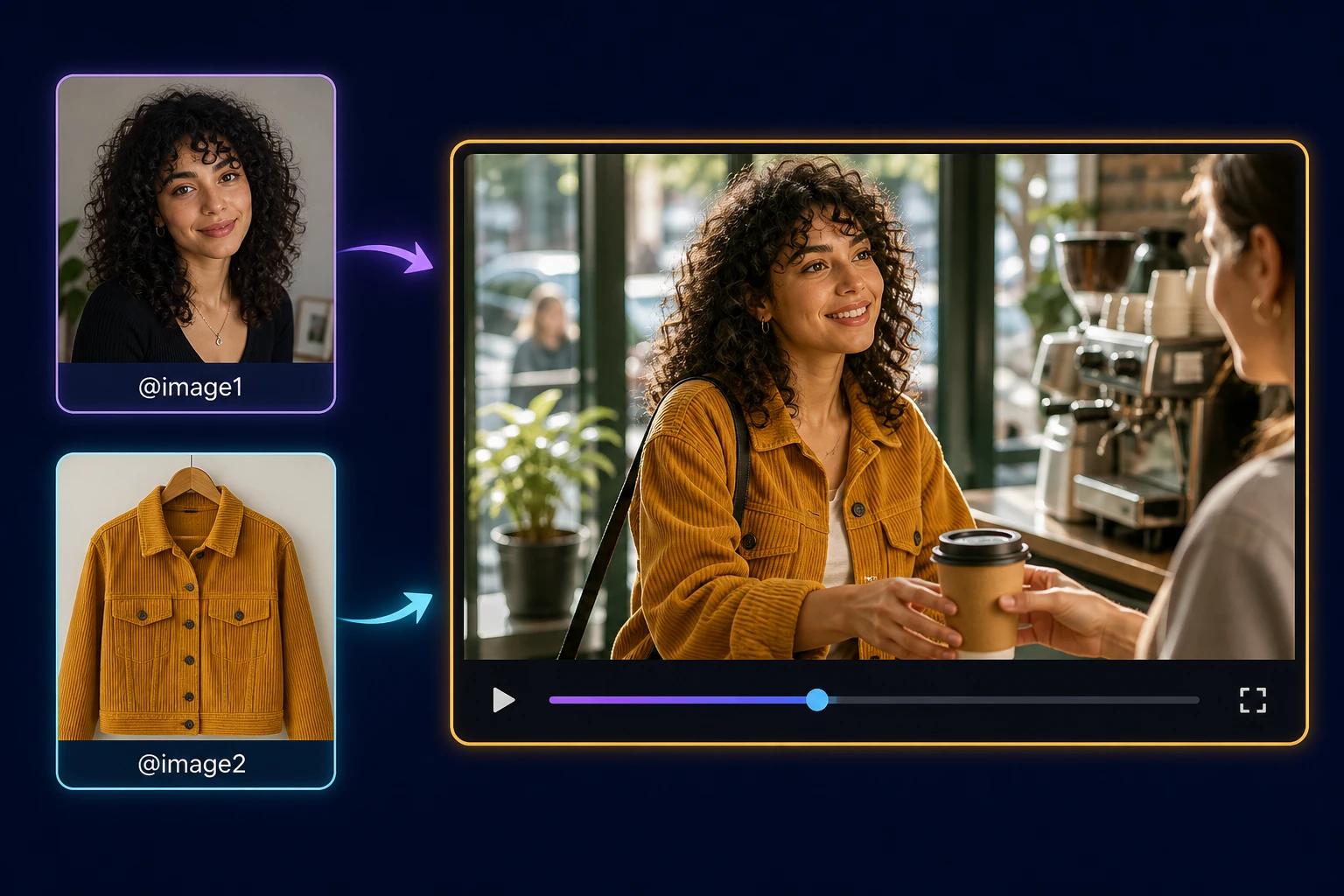
This is how you put your character, product or outfit into a scene. On OmniRender, click + References, drop in your images (and up to 3 short video clips), then tag each one in the prompt with @:
@[image1] walks into a sunlit café wearing the jacket from @[image2]. She orders a coffee and smiles at the barista. Warm morning light, shallow depth of field, soft acoustic music.Omni works out each reference's role (person, clothing, product, style) and keeps it consistent across the clip. Video references are best for likeness and motion; their audio is ignored.
3. First and last frame: control exactly where a shot starts and ends
Upload two images and choose First → last frame. Then describe the move between them: "The camera pushes through the window and rises above the rooftops in one continuous shot." This is the best way to make transitions, product reveals and seamless loops. For a loop, use the same image as both first and last frame.
4. Video editing: change a clip with one sentence
You can edit clips Omni generated, or your own footage (up to 10 seconds; not available for uploaded videos in the EEA, Switzerland and the UK). Keep edit prompts short. Long, detailed edit prompts tend to change more than you wanted. Google's own documentation recommends edits as simple as these:
- Restyle: "Make this video anime."
- Add: "Put a fashionable hat on this person."
- Remove: "Make the phone invisible. Keep everything else the same."
- Relight: "Change the lighting to be more dramatic."
- Re-shoot: "Change the camera angle to over his shoulder."
The phrase "Keep everything else the same" is Google's recommended add-on for precise, single-detail edits.
5. Scene extension: build a 40-second sequence
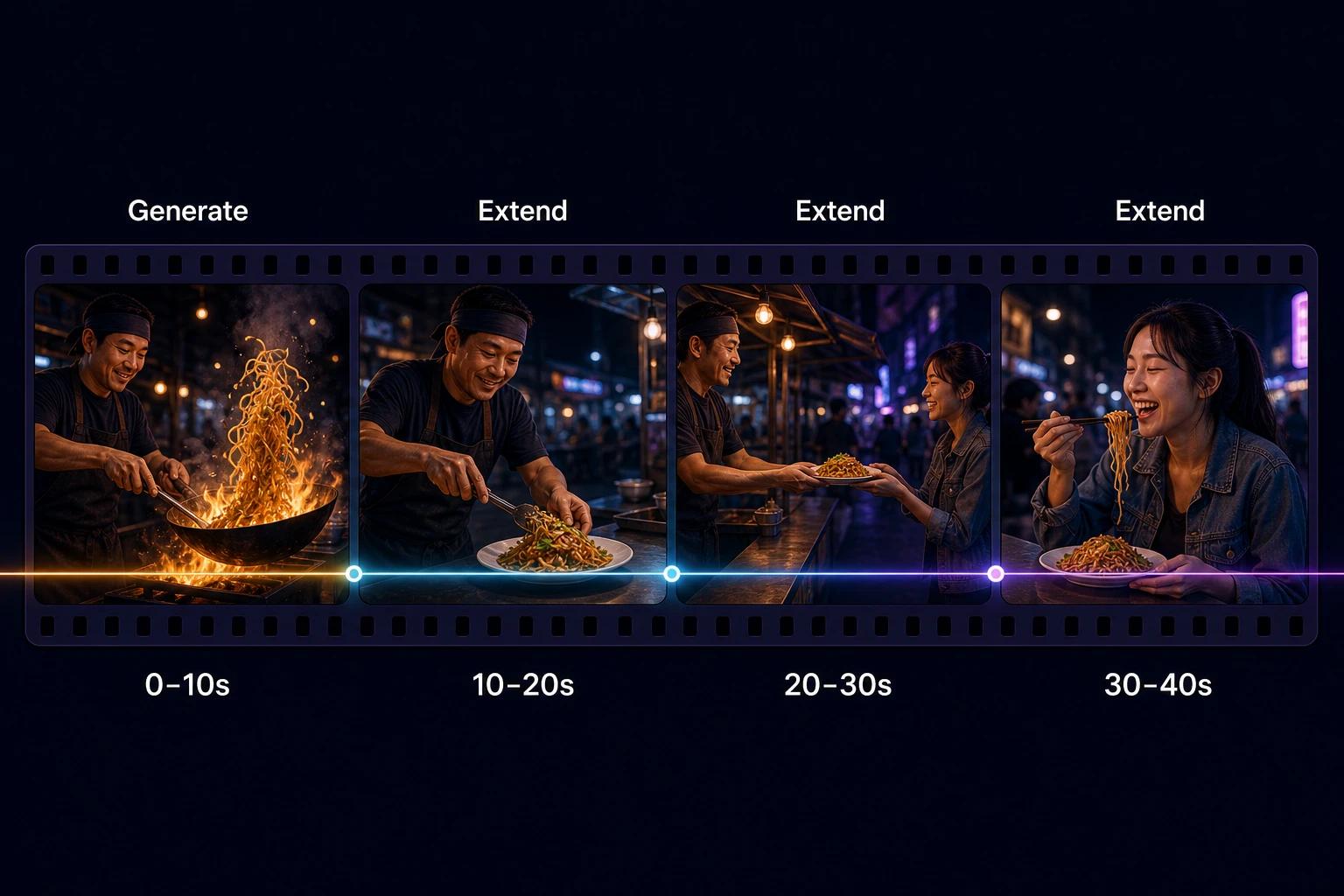
Generate a strong 10-second opening, then extend it three times. Each extension reads up to the last 10 seconds of footage to keep motion, characters and audio consistent. Tips:
- Say whether the shot continues or cuts: "Cut to the same characters in the next scene."
- Describe the audio change you want: "The music builds into the chorus."
- Add a reference image to bring in a new character: "The woman from @[image1] enters and waves."
- Timestamps restart at 0 for each extension, so "after 2s" means two seconds into the new segment.
How to use Gemini Omni in Google's apps
If you already pay for Google AI, you can use Omni inside Google's own products. Here's what to expect in each.
Gemini app
Omni has replaced Veo as the video model in the Gemini app, on web and mobile, for Google AI Plus, Pro and Ultra subscribers aged 18+.
- Open the Gemini app or go to gemini.google.com and pick the video creation option (Google's direct link is gemini.google.com/veo).
- Type your prompt, or start from a premade template or a video from your gallery.
- Attach up to 5 photos as references if you want specific people, places or products.
- Ask for edits in the same chat, or ask Gemini what happens next to extend the scene.
The Gemini app also offers AI avatars: an optional digital version of you, so you can appear in videos with your own look and voice without uploading photos each time. Only you can use your avatar.
Google Flow
Google Flow is Google's AI filmmaking studio. It runs Omni 1.1 Flash for AI Plus, Pro and Ultra subscribers worldwide and uses Flow credits. Choose it if you're building a multi-shot film and want project and scene-management tools.
YouTube Shorts and YouTube Create
Omni is free inside YouTube Shorts and the YouTube Create app. It's the easiest way to remix a Short or create a quick vertical clip, but you get fewer controls than in a dedicated studio and your output lives inside YouTube's workflow.
Which should you choose?
If you want the Gemini assistant plus Omni and other Google AI perks, a Google AI plan makes sense. If you only need video, want 4K and reference tagging without a Google subscription, or want one-time credits that never expire, OmniRender is the more direct route.
For developers: Gemini Omni Flash API quickstart
Gemini Omni Flash is available through the Gemini API's Interactions API under the model ID gemini-omni-1.1-flash. The old gemini-omni-flash-preview ID could be retired as early as September 30, 2026, so move any early integrations to the new ID. You need an API key on the paid tier; there's no free tier for Omni.
1. Install the SDK and set your key
pip install google-genai
export GEMINI_API_KEY="your-key"
2. Generate a video from text
import base64
from google import genai

client = genai.Client()

video = client.interactions.create(
    model="gemini-omni-1.1-flash",
    input="A paper boat drifting down a rain-soaked city gutter, low macro shot, single continuous shot.",
    response_format={"type": "video", "aspect_ratio": "9:16", "resolution": "720p"},
)

with open("boat.mp4", "wb") as f:
    f.write(base64.b64decode(video.output_video.data))
3. Edit it in a follow-up turn
edit = client.interactions.create(
    model="gemini-omni-1.1-flash",
    previous_interaction_id=video.id,
    input="Make the boat bright yellow. Keep everything else the same.",
)
The previous_interaction_id keeps the video in context, so you never re-upload it. Other useful options:
- Resolution: 360p, 720p (default), 1080p or 4k (the last two are upscaled).
- Aspect ratio: 16:9 (default) or 9:16.
- Large files: set
"delivery": "uri"in response_format for videos over 4 MB, then download the file when it's ready. - Images and video: pass them in the input list and reference them with tags like
<IMAGE_REF_0>,<FIRST_FRAME>and<LAST_FRAME>. - Task hint:
generation_config.video_config.taskaccepts text_to_video, image_to_video, reference_to_video, edit and extend. Google recommends relying on the prompt first.
Cost is about $0.10 per second of 720p output. Full details are in Google's Omni API docs and our Gemini Omni API page.
Tips to get better results (and save credits)
- Draft at 360p, finish at 720p or 4K. 360p renders faster and costs less. Lock the idea first, then re-render or upscale the keeper.
- Edit, don't restart. If 80% of a clip works, ask for the 20% change. A new prompt throws away everything that worked.
- Ask for one continuous shot when you need it. By default Omni may plan several shots. Add "single continuous shot, no scene cuts" for one unbroken take.
- Direct the audio. Omni picks a soundtrack if you don't. Say "no music, just realistic sound," "upbeat synth-pop," or "no dialogue."
- Write exclusions into the prompt. There's no negative-prompt field, so write "no text on screen" or "no extra people" directly.
- Use timestamps for pacing. Lines like "[0-3s] she opens the door, [3-6s] the dog runs in" give you precise control over a 10-second clip.
- Use high-resolution reference images. Sharp, well-lit references produce more faithful characters and products.
- Write in English for the most reliable results. Other languages often work, but English is the only one Google has fully evaluated. Dialogue can still be in other languages.
Troubleshooting common problems
| Problem | Likely cause | Fix |
|---|---|---|
| Unwanted scene cuts | Omni plans multiple shots by default | Add "single continuous shot, no scene cuts" |
| An edit changed too much | Edit prompt too long or detailed | Shorten it and add "Keep everything else the same" |
| Character looks different between clips | No reference provided | Add a reference image or video and tag it |
| Can't edit or extend my own upload | Regional limit (EEA, Switzerland, UK) or clip longer than 10 s | Generate the clip with Omni, or trim the upload to 10 s |
| Prompt blocked | Safety filters, or a recognizable person in the reference | Rephrase; use an original or consenting likeness |
| Unwanted music or voices | Audio not specified | Describe the soundtrack, or add "no music" / "no dialogue" |
Gemini Omni Flash FAQ
Is Gemini Omni Flash free to use?
Yes, with limits. You can use it free in YouTube Shorts and YouTube Create, and on OmniRender's free plan (160 credits a month, up to 3 videos at 360p, no card). The Gemini app and Google Flow require a Google AI Plus, Pro or Ultra plan, and the API is paid only.
How do I access Gemini Omni Flash?
Sign up at OmniRender and it's the default model in the prompt box. Alternatively, open the Gemini app with a Google AI subscription, use Google Flow, remix a YouTube Short, or call gemini-omni-1.1-flash through the Gemini API.
What's the difference between Gemini Omni Flash and Gemini Omni 1.1 Flash?
Gemini Omni 1.1 Flash is the newer version, released August 27, 2026. It adds scene extension up to 40 seconds, first and last frame control, video references and 360p-to-4K output. The original Omni Flash makes single 720p clips of up to 10 seconds. More detail on our Gemini Omni Flash and Gemini Omni 1.1 Flash pages.
How long does a Gemini Omni Flash video take to generate?
It depends on length, resolution and current demand. Short 360p drafts are the fastest, and 1080p or 4K renders take longer because they're upscaled.
Can I edit my own videos with Gemini Omni Flash?
Yes, uploaded clips of up to 10 seconds can be edited and extended, except for users in the EEA, Switzerland and the UK. Videos generated by Omni can be edited everywhere.
Can Gemini Omni Flash make vertical videos?
Yes. Choose 9:16 for TikTok, Instagram Reels and YouTube Shorts, or 16:9 for landscape.
Can I use Gemini Omni Flash videos commercially?
On OmniRender, all paid plans include a commercial licence. If you use Google's apps or the API, check Google's terms for your plan and use case.
Does Gemini Omni Flash add a watermark?
Every Omni video carries SynthID, an invisible watermark that identifies it as AI-generated. OmniRender adds no visible watermark, on any plan.
Start using Gemini Omni Flash today
You now know the full workflow: prompt, generate, edit, extend. The fastest way to get good is to make ten short clips and edit each one twice.
Create your free OmniRender account and make your first Gemini Omni video today. Then level up your prompts with the Gemini Omni prompt guide.
Sources
- Generate and edit videos with Gemini Omni Flash, Gemini API docs
- Gemini Developer API pricing, Google
- Gemini Omni in the Gemini app, Google
- Introducing Gemini Omni, Google
- Gemini Omni 1.1 Flash lets you build with more control, Google
- Gemini Omni prompt guide, Google DeepMind