Need a video today, but don’t want to spend the day learning a new editor? AI video generators now cover everything from short product clips to avatar-led training. Here are seven named tools, with the strengths, costs, and workflows that can help you find a fit.
1. OmniRender — synchronized scenes for social and product videos
OmniRender is an independent, browser-based app for turning prompts and image references into short videos. Its Gemini Omni model can generate music, sound effects, and lip-synced dialogue with the picture, which suits social posts, product ads, and small production workflows.
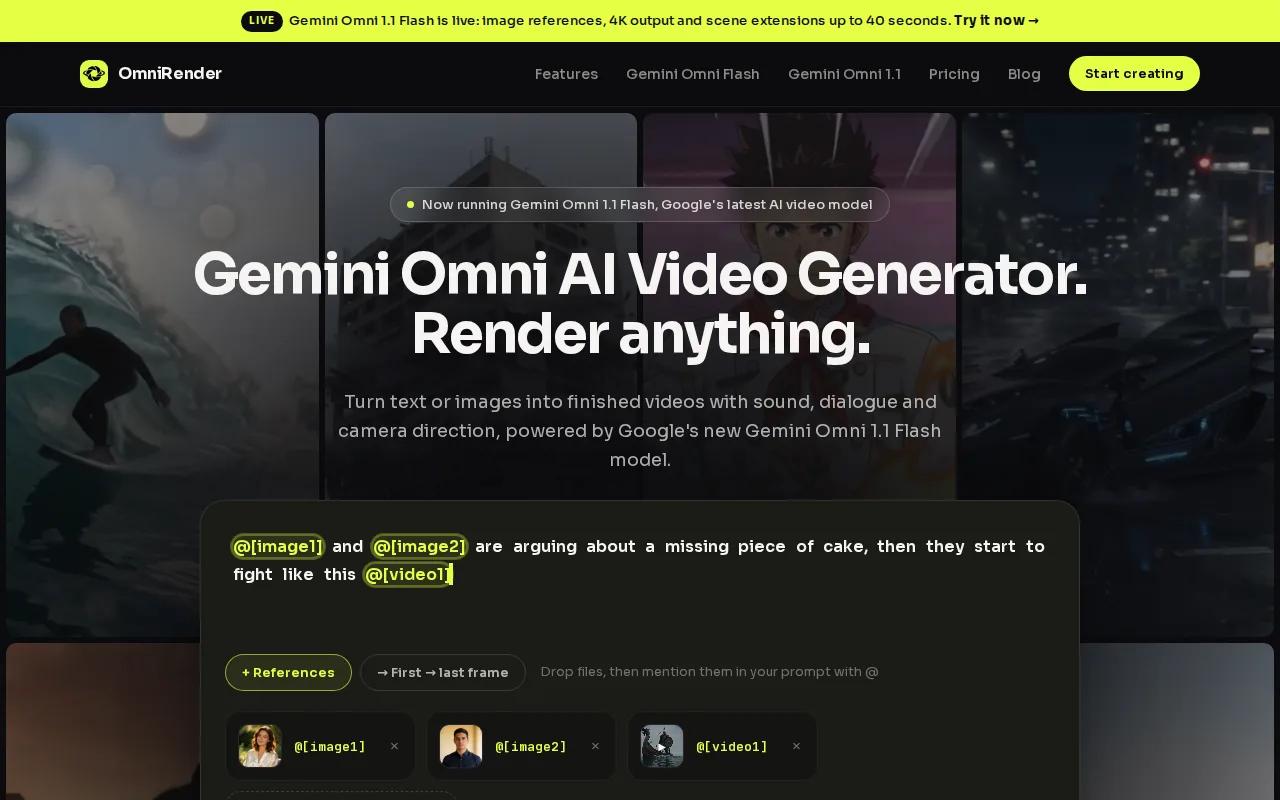
Start with a text prompt, or attach an image to guide the scene. You can ask for a vertical 9:16 clip for a Short, Reels, or TikTok post. For a product ad, an image reference can help anchor the look of the item while the model adds motion. You can also make a change by describing it in a sentence, then extend a generated scene to a total of up to 40 seconds.
OmniRender runs in a browser, with no software download required. The app uses Gemini Omni models, but OmniRender is independent; its features and plans are separate from the underlying technology, and it isn’t affiliated with or endorsed by Google. Check current pricing and plan details before use; commercial usage terms for free and paid plans should be confirmed in the current terms before publishing client work.
OmniRender’s credit system means the output settings affect how quickly you use credits. A draft can help you assess the movement before spending credits on a final version. If you’re ready to try that workflow, start making videos with OmniRender.
Good fit: creators and small teams who want sound with the generated scene, consistent characters, or quick edits through prompts. The free tier is useful for trying the workflow; check current plan details and licensing terms before choosing a plan for your needs.
2. Runway: granular control for filmmakers and editors
Runway is an AI video workspace for filmmakers and editors who want to refine generated footage and existing clips. You can start with a text prompt, an image, or video, then make targeted changes to the result.
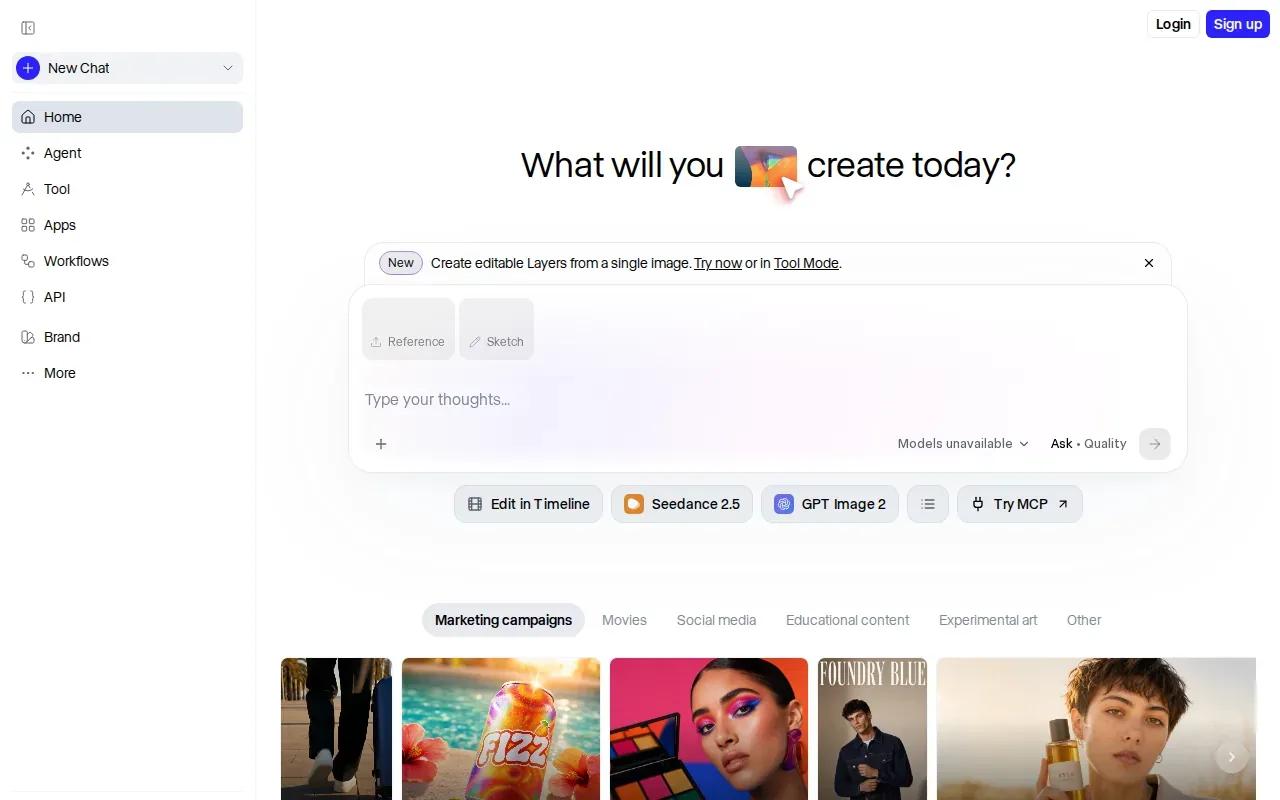
For example, you can prompt a new scene, then adjust its lighting or swap the backdrop. Runway also supports object removal and changes to elements in existing footage. Reference images can help keep a character’s look steady across several shots. On supported models, you can generate dialogue or music with the clip, or add voiceover and music afterward.
That editing focus makes Runway a useful option when a shot is close but needs a specific fix. It also brings together Runway’s own models and third-party models, so you can try different looks in one workflow. The trade-off is that model choice and clip settings affect credit use, so check the cost shown for a generation before you run a batch.
Runway’s free plan includes 125 one-time credits. Standard is $15 per month when billed monthly, with 625 credits each month. Pro is $35 per month, and Max is $95 per month; annual billing has lower monthly equivalents. The plans vary in credits and included features, so compare the amount of video you expect to generate with the plan’s credit allowance.
Pick Runway if you want a hands-on process for generating and revising footage. For a single quick social clip, its extra editing choices may be more than you need.
3. Synthesia: polished avatar videos for enterprise teams
Synthesia makes avatar-led videos for business use. It’s aimed at learning and development teams, HR departments, and internal communications staff who need repeatable videos with a presenter.
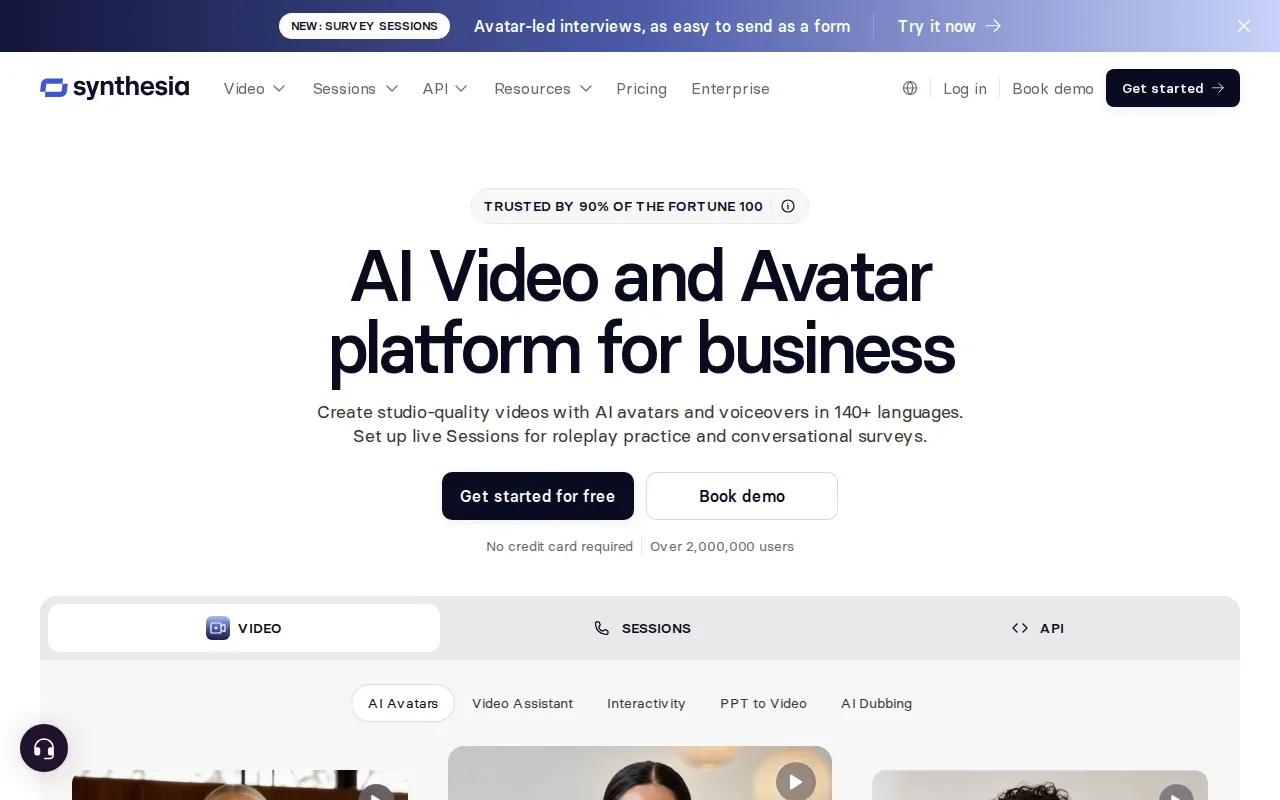
You can turn a prompt, link, or file into a video, then use avatars and voiceovers to present the material. The platform supports more than 140 languages for video creation and can translate existing videos. Brand controls help teams keep company colors and fonts consistent. If you’re updating a training module, you can edit the source video and update shared links or embeds without uploading a new copy to each location.
Synthesia also connects with learning management systems. Teams can embed videos in courses or export SCORM packages, including translated versions. That can help when a training update needs to reach staff in several regions. For internal use, its avatar role-play and interactive features can support practice for sales calls or customer conversations.
Security and consent matter when a video uses a real person’s likeness. Synthesia says it has certifications including SOC 2 Type II and ISO 27001, and requires a live consent recording for a Personal Avatar. Those controls are relevant for organizations with legal or security review needs. Its Starter plan is $29 per month, with enterprise pricing available for teams. Synthesia allows commercial use.
Synthesia makes more sense for planned training, onboarding, and internal updates than for a cinematic scene or a product shot that needs natural camera motion. Choose it when a presenter and a repeatable script are central to the video.
4. HeyGen: avatar-led videos for localization at scale
HeyGen focuses on avatar-based videos and localization. It suits marketing teams that need to adapt a presenter-led message for audiences in different languages.
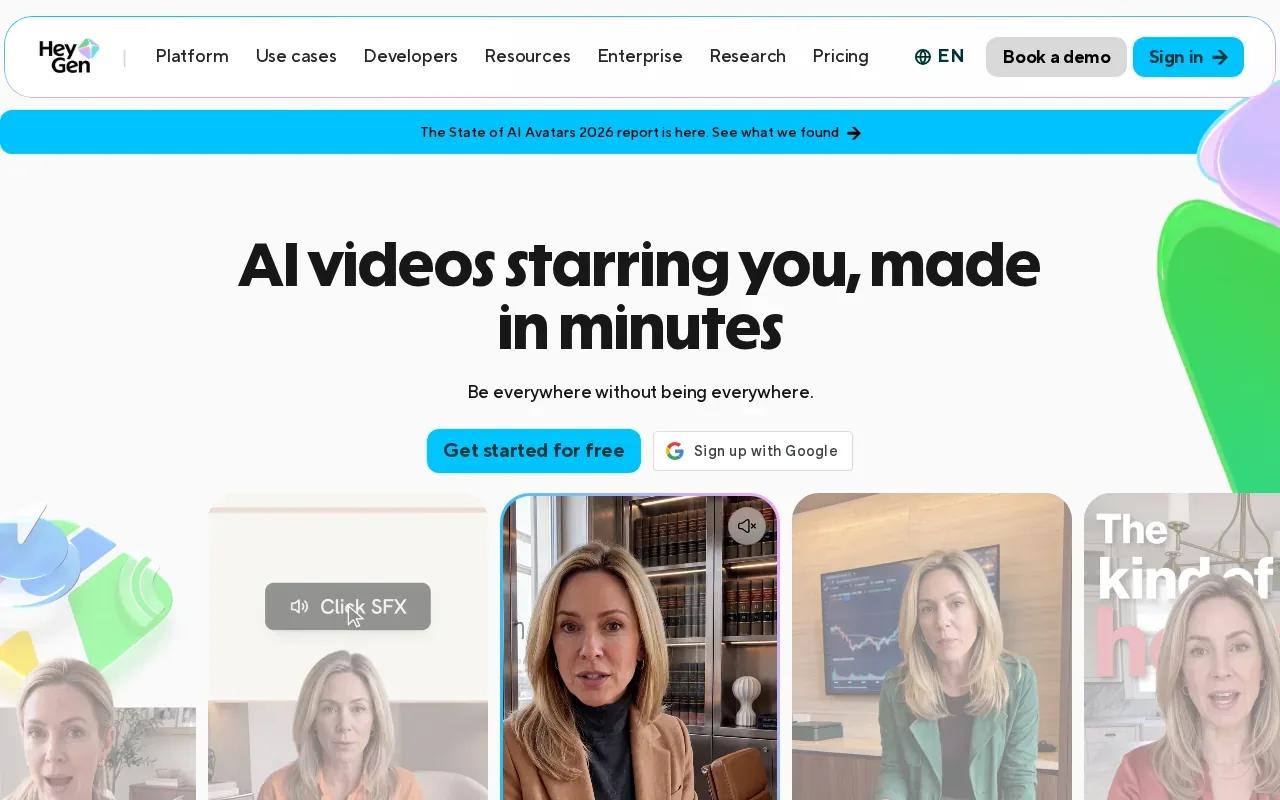
You can start with a script, image, audio file, or existing video. HeyGen can make avatar-led clips, translate video, and sync translated speech to the presenter’s lip movements. Its listed language and dialect support exceeds 175, and its tools include voice cloning and controls for a speaker’s tone, delivery, and gestures.
For a campaign, that means you can prepare one message, then make versions for different markets without filming each one again. A team can also bring in a video or presentation and turn its content into a presenter-led explainer. The text-based editor gives you a way to revise words and delivery without treating every change as a fresh shoot.
HeyGen’s Creator plan starts at $29 per month. Other listed plans include Pro from $49 per month and Business at $149 per month plus $20 per seat each month; Enterprise pricing is custom. A free plan is also available. Plan details and limits can vary by product, so check the current plan terms against your expected volume.
Custom avatars require identity verification from the person shown, and HeyGen describes moderation checks for generated content. That makes consent and acceptable-use rules part of the workflow, not an afterthought. Consider HeyGen when the speaker’s identity and language versions matter more than generated camera scenes.
5. Pika: approachable experiments for shareable social clips
Pika is designed for approachable, fun video experiments. It’s aimed at social media creators and hobbyists who want to test visual ideas without building a complex production workflow.
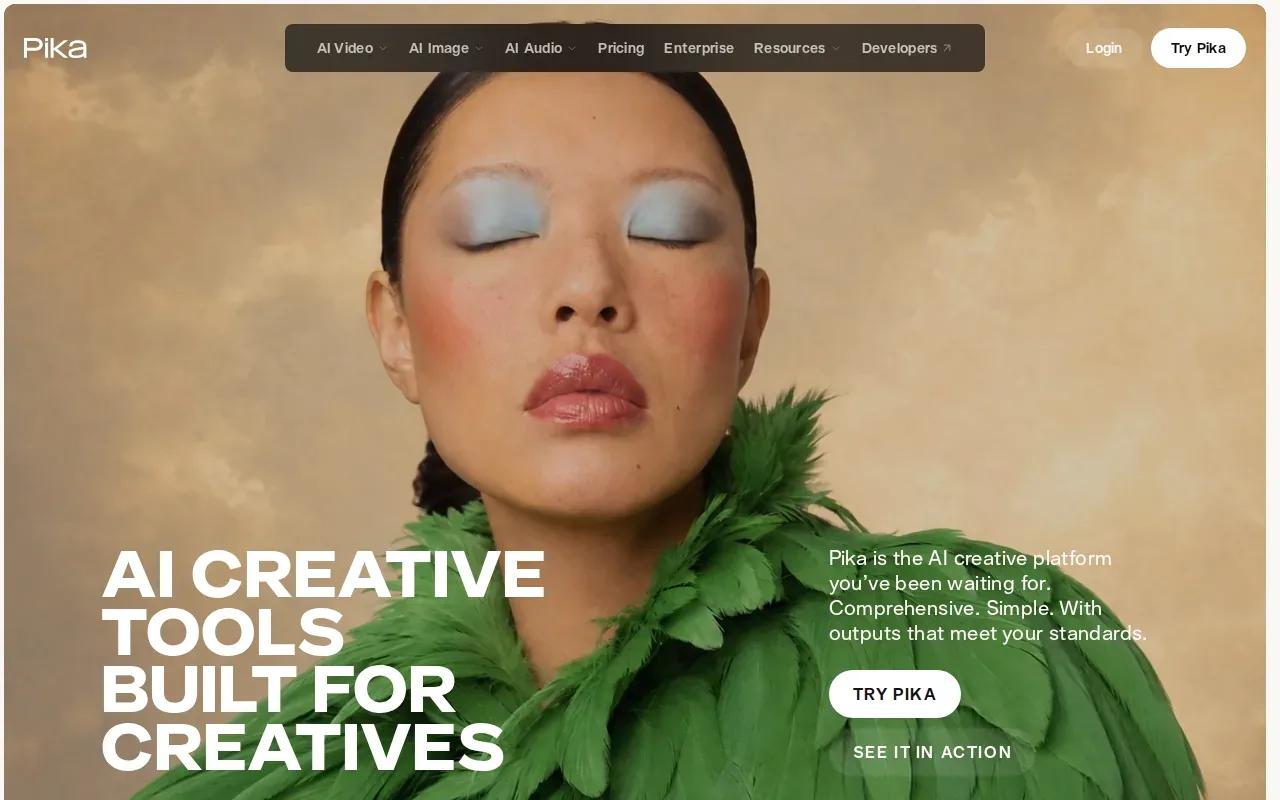
The useful starting point is the idea itself: try a short prompt for a visual gag, a stylized clip, or a quick post. A low-friction tool can help you explore several creative directions before you settle on one. That’s a different job from building a consistent presenter library or shaping a film scene frame by frame.
Pika has a free tier with watermarks. Paid plans start at $10 per month; listed options include Standard at $10 monthly, Pro at $35 monthly, and Fancy at $76 monthly. If your clip will appear in a paid campaign, check the plan and usage terms before publishing. The watermark on the free tier is also worth considering when you’re preparing a polished brand post.
Use Pika when you want to experiment with shareable clips and can accept the limits of a free plan while you test. If your job needs a specific product image, coordinated dialogue, or a controlled edit, compare that workflow with tools built around references or scene revisions.
6. Krea: a shared workspace for exploring video models
Krea brings image, video, and 3D generation into one creative workspace. It suits creators who want to explore different video models and move through quick edit or enhancement loops.
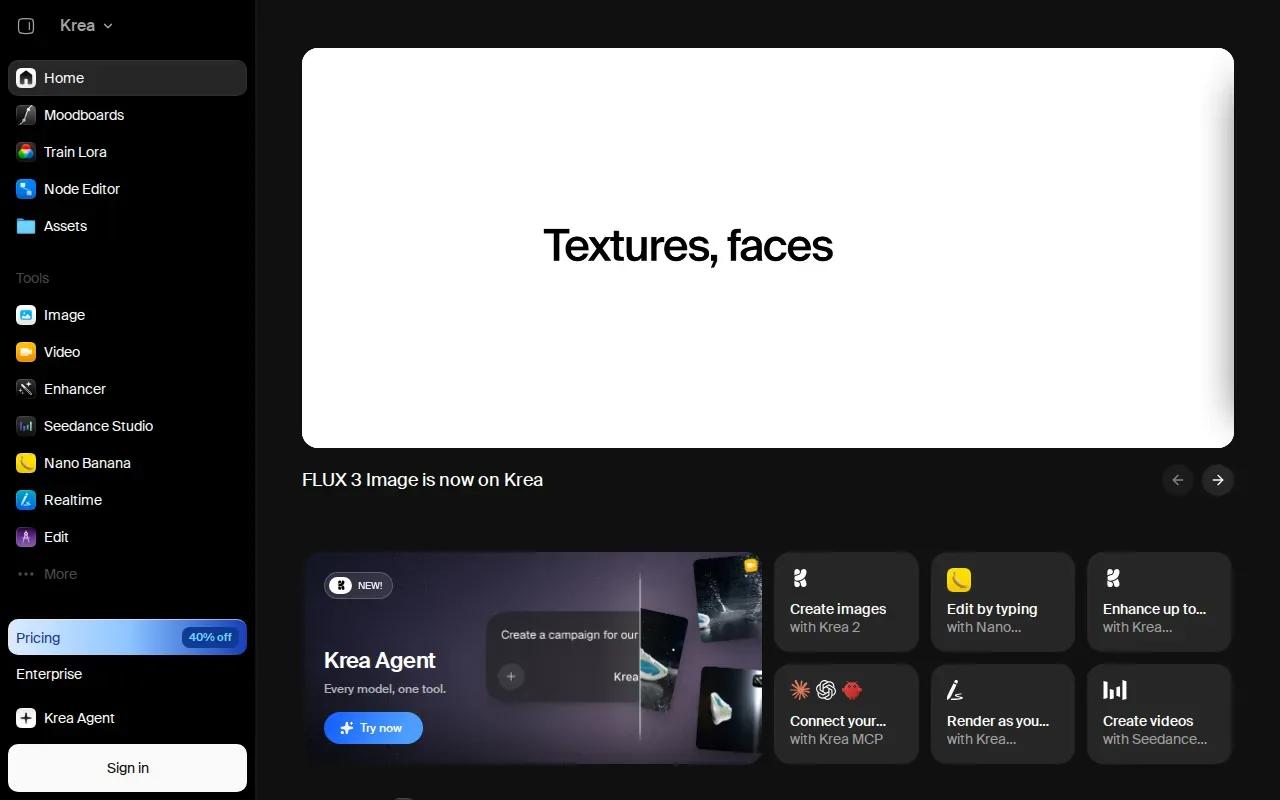
Its model selection spans different generation styles and settings. Krea’s video models include text-to-video and image-to-video workflows, plus options that use start and end frames or image, video, and audio references. Some models support synchronized audio. So you can compare the available paths for a shot instead of assuming every model behaves the same way.
That flexibility is useful when you’re exploring a look. Start from a still if you already have a clear art direction; start from a prompt if you’re still searching for the scene. If one model gives you the right composition but weak movement, trying another model in the same workspace can be more direct than moving files between separate services.
Krea’s stated fit is a single subscription across many video models, with realtime enhancement and editing loops. Check Krea’s current plan and model access before you commit. A shared model workspace can make sense for a creator who wants to experiment often, but a focused tool may be easier if you already know the exact output you need.
7. DaVinci: access to multiple generative models in one platform
DaVinci is a multi-model creative platform for generating images and videos. DaVinci offers access to Sora, Veo, Kling, Flux, and more than 50 models in one place.
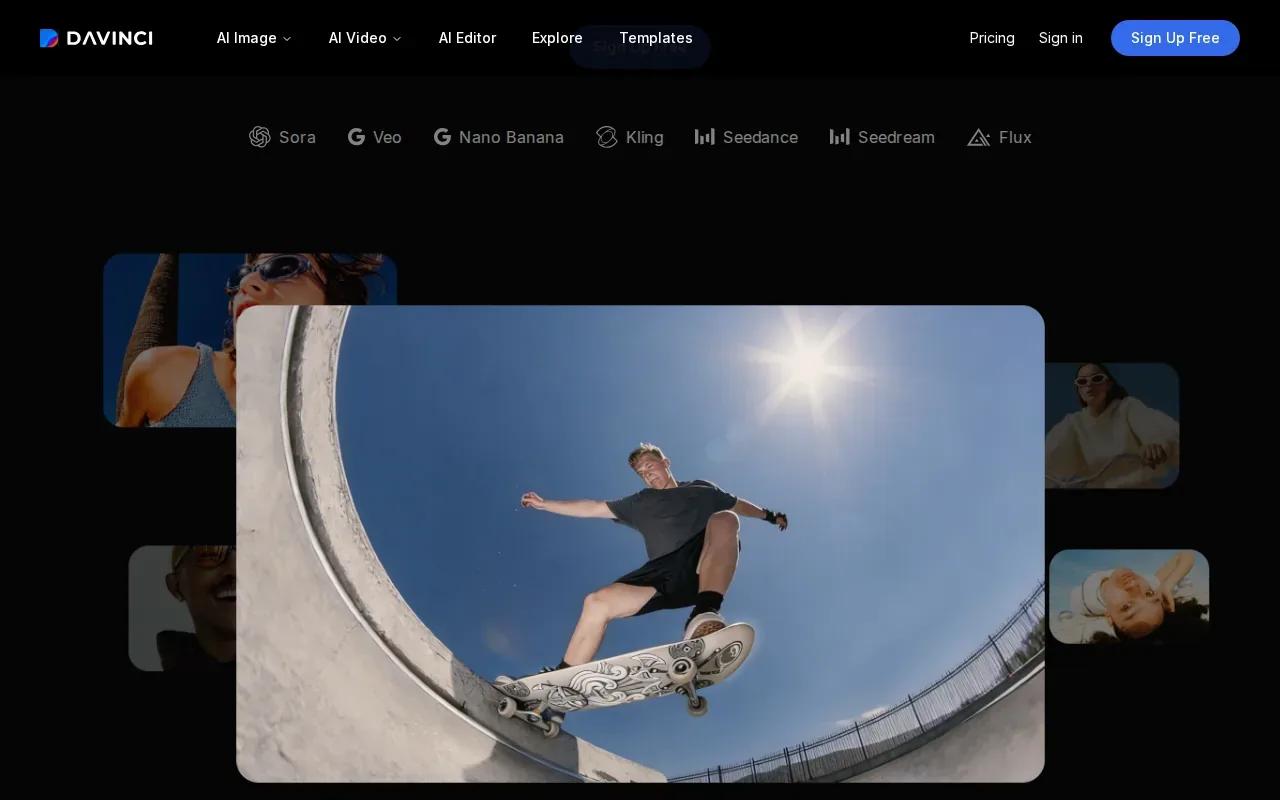
Its workflows include turning product photos into short commercial videos, resizing designs for different channels, and upscaling assets for high-resolution placements. The service also has mobile apps, so you can work with its image, video, and audio model set from a phone. That can suit a marketer who needs to adapt an asset for a social post while away from a desktop.
DaVinci’s broad model access may suit someone who wants to compare outputs without managing several separate accounts. The trade-off is simple: a wide model catalog still asks you to choose which model fits the task. For a product ad, begin with the source photo and the channel’s frame shape. For an image-led concept, compare a few outputs before building the rest of the campaign around one result.
| What you need | Tools in this list to consider | Why they may fit |
|---|---|---|
| Sound-synced short scenes | OmniRender | Generates music, effects, and lip-synced dialogue with video. |
| Detailed footage edits | Runway | Supports changes to lighting, backdrops, and objects. |
| Training with a presenter | Synthesia | Supports avatar videos and LMS workflows. |
| Translated avatar videos | HeyGen | Focuses on avatar-led localization and lip sync. |
| Multi-model exploration | Krea or DaVinci | Both bring access to multiple creative models in one workspace. |
DaVinci says users retain ownership of what they create and describes clear usage rights. Check the terms for the specific model and output you plan to use, especially for paid client work. Check DaVinci’s current plan against the number of models and generations you expect to use.
How to choose an AI video generator
There isn’t one useful score for every project. A model that handles a talking avatar well may not follow a film-style camera prompt or keep a product image consistent. Judge each tool against the clip you need, not against a demo made for a different job.
- Check the image and motion. Look for stable faces and objects across the clip. For action, watch whether movement stays natural rather than repeating or freezing.
- Match the input to your control needs. Text-to-video gives you room to explore. Image-to-video starts from an existing look. Reference uploads can help keep a subject consistent.
- Set the output before spending credits. Choose the frame shape for the destination. Use a short, lower-resolution draft to test the prompt, then render the version you intend to publish.
- Check sound and speech. Some workflows generate audio with the picture; others let you add it later. For dialogue, write the exact line and review the lip sync before using the clip.
- Review rights and consent. Read the terms for commercial use. If a real person’s likeness or voice is involved, get consent and follow the service’s rules.
For prompt quality, describe the subject and the action in plain terms. Add the setting and the camera movement you want. If the first output misses, change one part of the prompt at a time so you can see what affected the result. Keep prompts focused; extra instructions can compete with the main action.
Budget by actual output, not by the monthly plan alone. Credit costs can depend on the model, duration, and resolution. If you need many language versions, compare the time and plan cost for avatar localization. If you need a few product clips, compare whether the generator starts with your product image and supports the edits you expect.
Frequently asked questions
What should I look for in an AI video generator?
Start with the kind of video you need. Check motion quality and prompt following for generated scenes, then look at reference inputs if you need a stable product or character. For presenter videos, check language support and lip sync. Also compare output resolution, credit use, editing options, and commercial-use terms before choosing a paid plan.
Can AI video generators make videos with sound?
Yes, some can generate sound with the video, while others let you add audio after the clip is made. OmniRender’s Gemini Omni workflow generates music, sound effects, and lip-synced dialogue with the picture. Runway supports audio generation on selected models. Check the model settings you plan to use, since audio support can vary.
Can I use AI-generated videos for commercial projects?
That depends on the service and its terms. OmniRender’s pricing information says its plans include a commercial licence, while Synthesia’s supplied product details explicitly allow commercial use. Other tools may have plan-specific terms. Read the current terms for the exact tool, model, and output before using a clip in an ad or client project.
How can I get better results from text-to-video prompts?
Describe one clear action, the setting, and the camera movement. Add a reference image when the subject or product needs to keep a specific look. For dialogue, write the exact line and check the lip sync in the result. If a draft misses, adjust one instruction at a time instead of rewriting the whole prompt.
Which AI video generator is easiest for social clips?
It depends on the clip. OmniRender supports vertical output and combines generated video with sound, which can suit short social scenes. Pika is geared toward approachable, shareable experiments. For a presenter-led post in another language, HeyGen or Synthesia may be a closer fit. Try a short draft before settling on a paid workflow.
Conclusion
For short social and product videos that need generated sound, lip sync, and prompt-led edits, start with OmniRender’s free plan and test one draft at 360p. If your main need is avatar localization or detailed footage editing, compare HeyGen or Runway against that workflow. Check the relevant usage terms before publishing, then move to a paid plan only if its resolution and credit allowance fit your project.