An AI video prompt generator turns written scene directions into video, but the tools differ in how much control you get after the first render. Here are five options to compare, with OmniRender first for creators who want prompt-based edits and synced dialogue in one browser workflow.
We analyzed 48 comments and questions from YouTube, Reddit and Quora about AI video prompt generators and found that 27% mentioned clear and detailed prompt structure.
1. OmniRender
OmniRender is a browser-based video creation app. It’s an independent app, not a Google product or an app endorsed by Google. Type a scene prompt or add image references, then generate a short video with music, sound effects, and lip-synced dialogue.
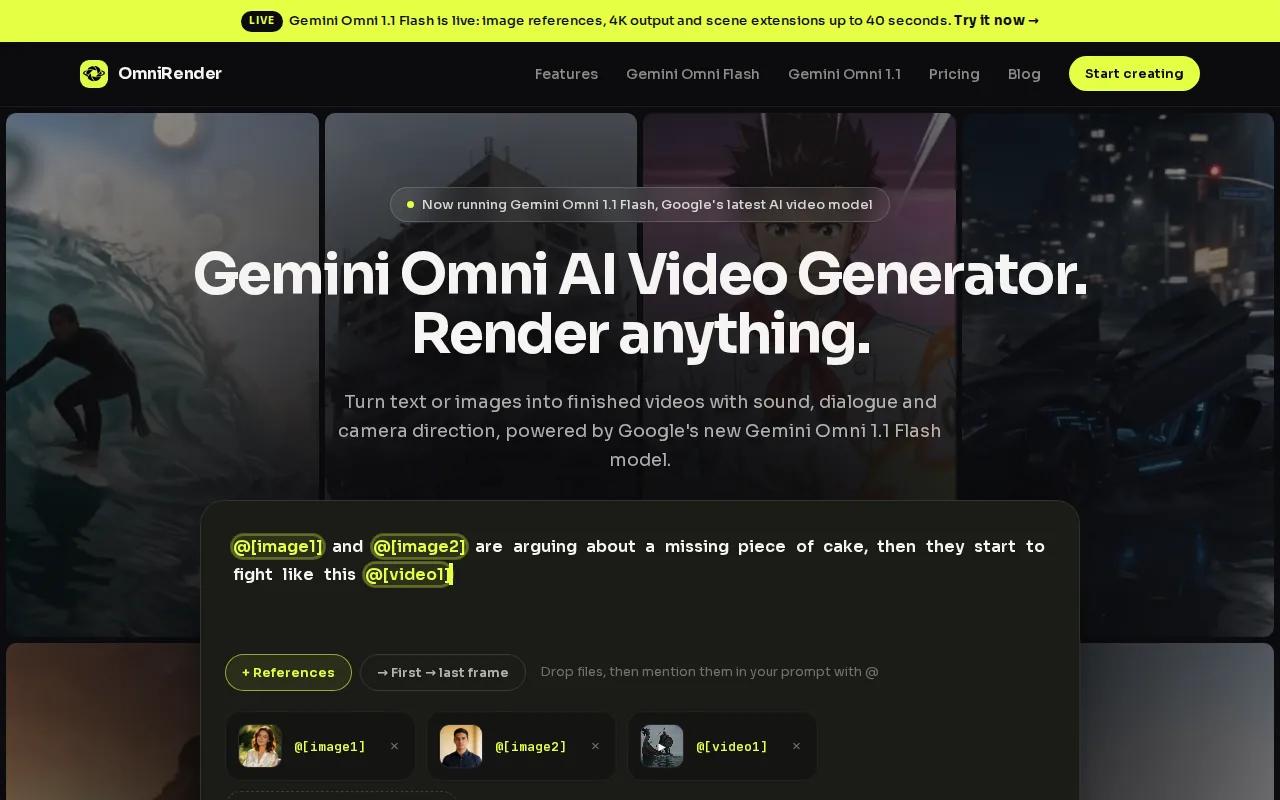
It’s a fit for social creators, marketers, and small production teams who want to revise a shot without rebuilding it from scratch. You can describe a change in a prompt, extend a scene, or keep a character consistent across short clips. For example, start with a product image, then ask for a closer camera move or a warmer light.
Check the OmniRender creation page for current plan details before budgeting a campaign. Confirm credit allowances, resolution limits, and commercial usage rights before choosing a plan; free-versus-paid licensing terms should be checked directly.
For a longer sequence, you can extend a generated scene in stages. The AI video extension guide explains how to keep a continuation aligned with the clip that came before it.
2. OpenArt
OpenArt combines prompt-led video editing with tools for restyling existing footage. It suits creators who already have a clip and want to change its look while keeping the action. Its video tools can restyle footage, replace a background, adjust lighting, or change a character while preserving the original movement.
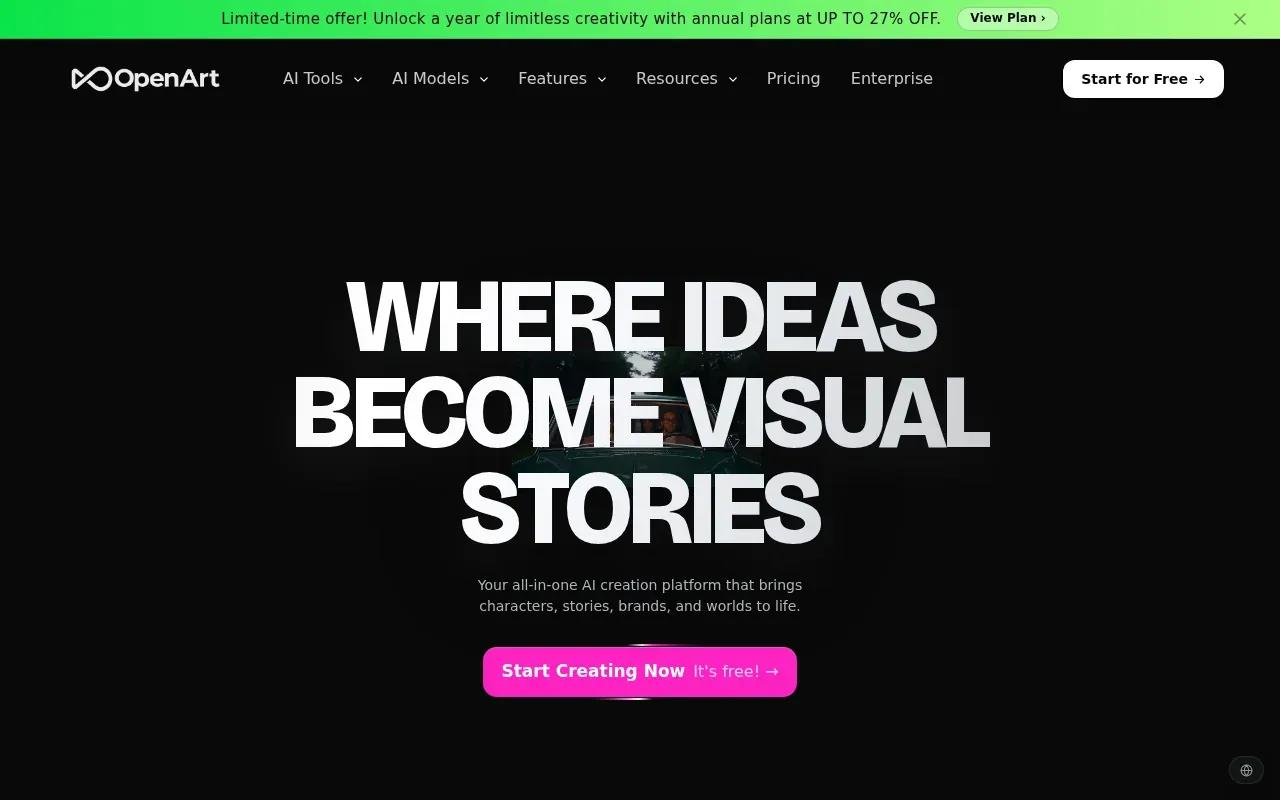
That can help when a brand has one product shot but needs several visual versions for different social posts. Describe a style such as claymation or cyberpunk, then review the result across the full clip. OpenArt also supports lip sync and prompt-based scene edits, and its stated output resolution reaches 4K.
Prompt wording still matters. Prompt engineering is the practice of shaping instructions to guide a model’s output, as described in Wikipedia’s overview of prompt engineering. For a restyle, name what should change and what should stay: for example, keep the subject’s movement while changing the background and visual style.
OpenArt’s focus here is video-to-video work. If you need a fresh clip from a text prompt, check that the specific workflow you plan to use supports that starting point.
3. Krea
Krea is a wider creative suite for generating, editing, and enhancing images, videos, and 3D content. It may suit a creator who moves between formats during one campaign, such as starting with a still image and later working on video or 3D assets.
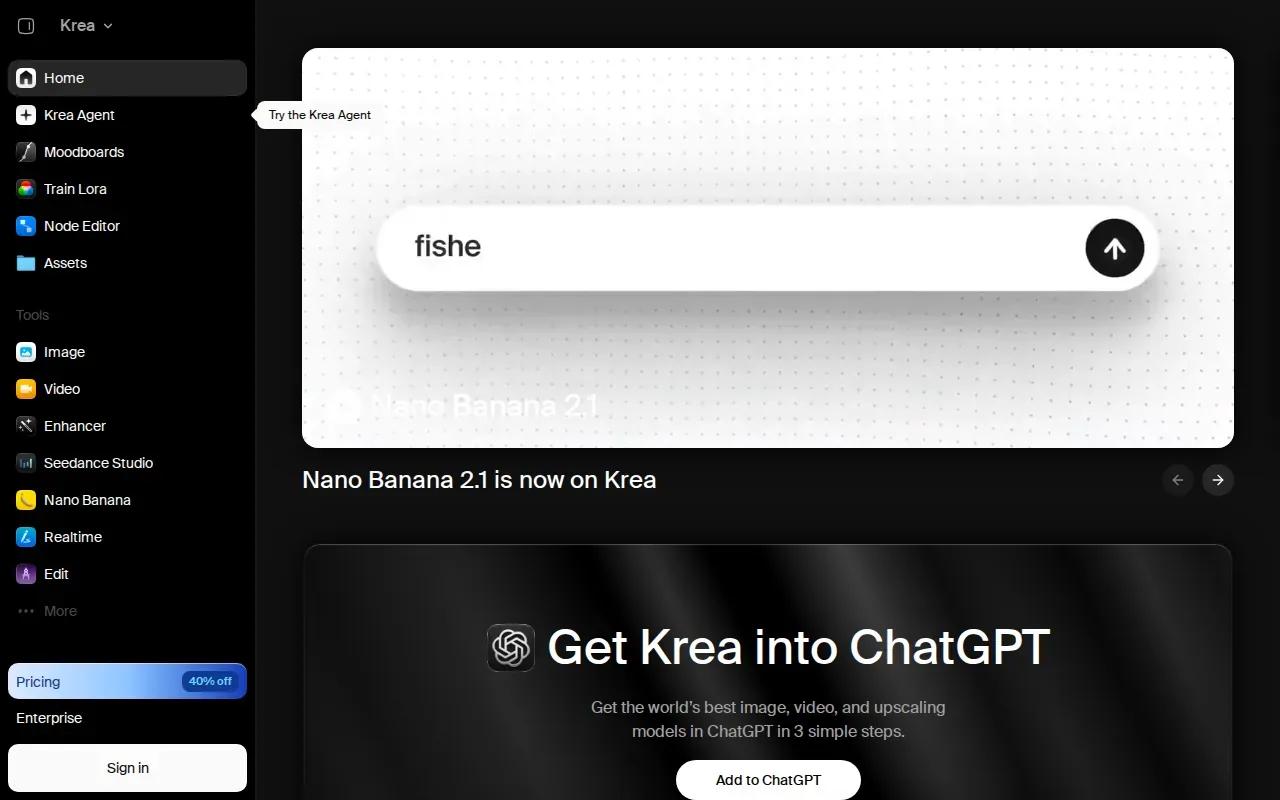
That broader scope changes how you might use it as an AI video prompt tool. It’s less about a single prompt box and more about keeping several kinds of visual work in one creative workflow. If your task is a short social clip, keep the prompt focused on the subject, movement, framing, and mood. If the project also includes stills or 3D work, Krea’s range may be more relevant.
When you test any generation workflow, compare the same scene idea across a few prompt versions. Change one detail at a time, such as camera movement or lighting. That makes it easier to see whether the result improved because of clearer direction or simply because the whole prompt changed.
If you want copy-ready starting points for ads, anime, or educational clips, OmniRender’s AI video prompt examples show how to describe action, camera moves, timing, and sound.
4. DaVinci
DaVinci gives users access to multiple generative models in one platform. Its services include Sora, Veo, Kling, Flux, and more than 50 other models. It’s worth considering if you want to test different model options without treating each generation task as a separate tool choice.
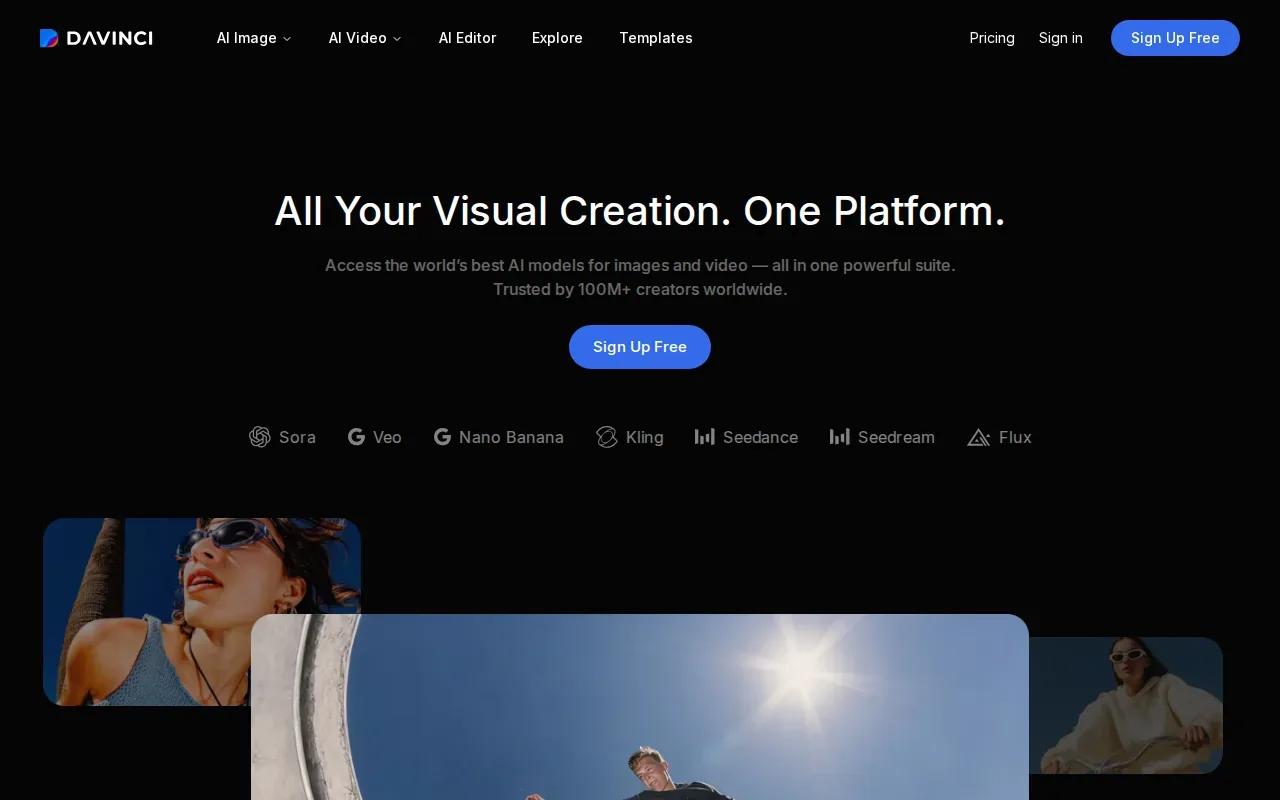
For a product ad, you could compare how different models interpret the same scene direction. Keep the core prompt steady, then change the model. Look at the subject’s motion and how well the shot fits the edit you have in mind. A wide choice of models can help with exploration, but it also makes a clear test plan useful.
Before you settle on a workflow, verify the model and output settings available for your specific project. Treat each model as its own workflow rather than assuming one set of controls applies to all.
DaVinci’s main appeal in this shortlist is model choice. If your priority is editing a finished clip through a sentence, compare that task directly in the tool you plan to use.
5. JXP AI Video Generator
JXP AI Video Generator is a free-to-start option for making AI videos and images. It provides access to Seedance 2.5, Wan 3.0, Minimax H3, and other models in one place. That makes it worth a look if you want to try more than one generation model before choosing a regular workflow.
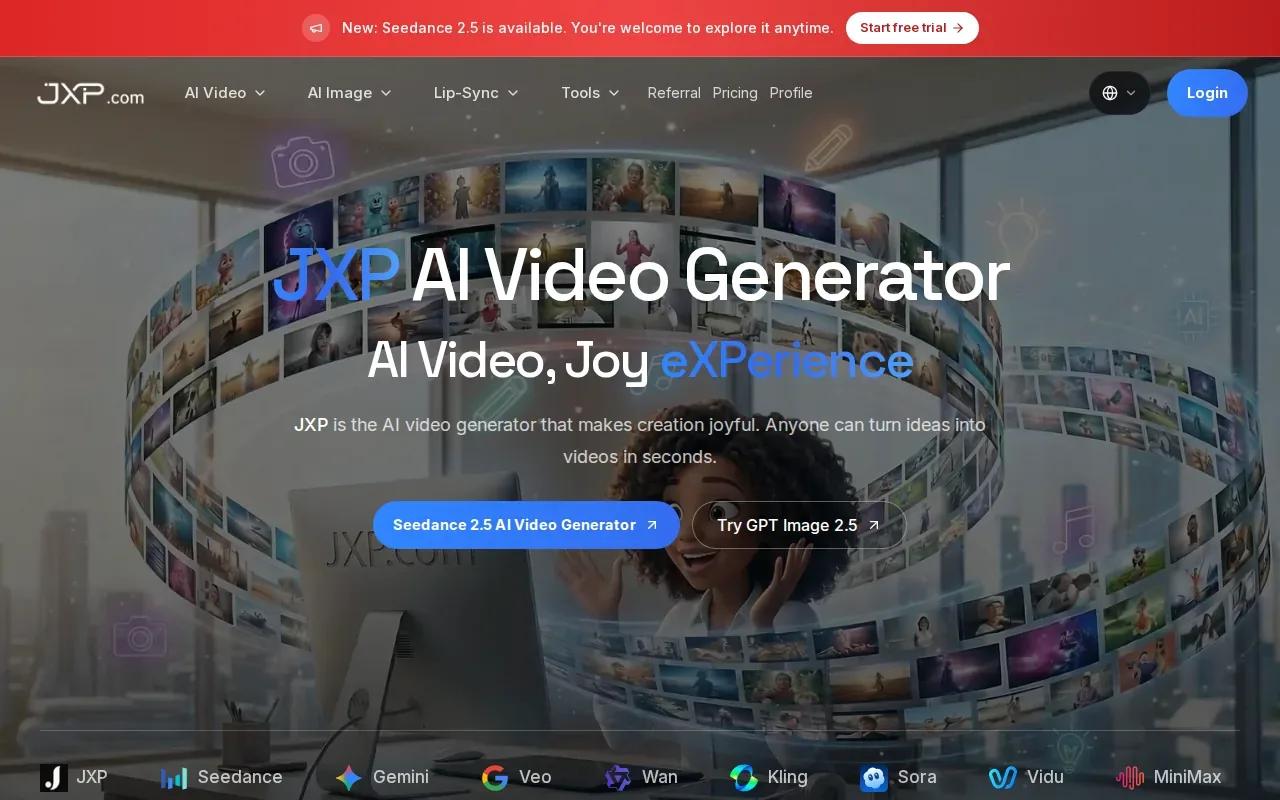
For social content, test a short prompt with a clear subject and one action. Then try a second version that changes the visual mood or camera direction. Keep notes on which model produced the sort of motion you need. A free starting point can lower the cost of testing, but check the current plan terms before you rely on a specific output volume.
As with any generated video, check usage rights before publishing work for a client or using it in an ad. Copyright covers legal rights in creative works; the general definition of copyright is only background, not a substitute for checking a tool’s terms or the rights to your source material.
6. M Studio
M Studio brings storyboarding, text-to-video generation, voice, sound design, and export into one workspace. It’s aimed at people building a film workflow rather than making only a single isolated clip. The storyboard can give a project a visual plan before you generate its video scenes.
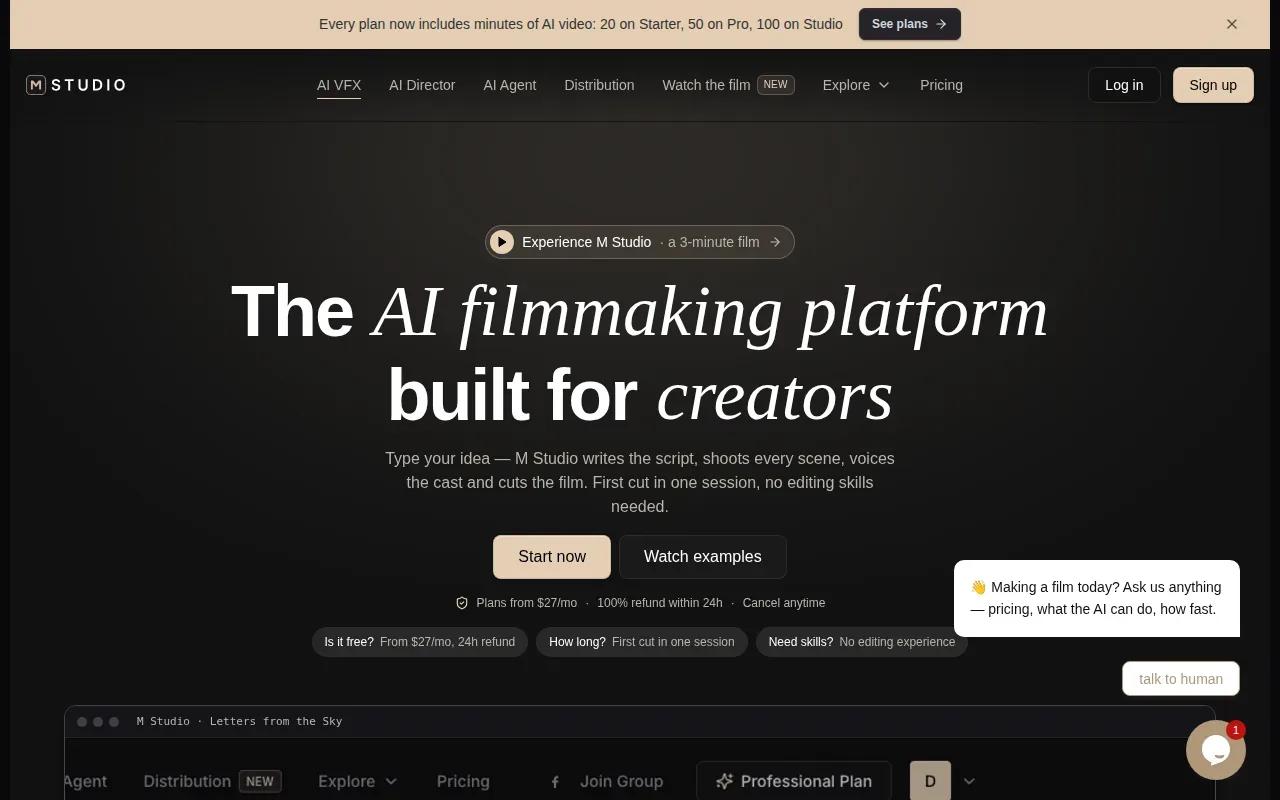
That setup may help an independent filmmaker map a sequence before moving into generated footage. It also keeps sound and export in the same stated workspace, so the path from a written scene idea to a complete film has fewer separate handoffs. Think of it as a production space, not only a prompt generator.
| Project need | What M Studio covers | Why it may fit |
|---|---|---|
| Plan a sequence | AI storyboards | Lay out scenes before generating footage |
| Make scenes | Video from text | Turn written scene ideas into video |
| Finish a film | Voice, sound design, and export | Keep more of the stated production workflow in one workspace |
If you only need one short social post, a full filmmaking workspace may be more than the task calls for. If your project starts with storyboards and needs sound and export too, its scope lines up more closely with the job.
FAQ
What does an AI video prompt generator do?
An AI video prompt generator turns written directions into a video clip. You describe the scene, subject, action, and visual style, then the tool interprets those directions as moving images. Some tools also let you start with an image or edit an existing clip. Check which inputs and controls your chosen tool supports.
How do I write a clear video prompt?
Start by naming the subject and one main action. Add the camera movement or framing you want, then describe lighting and mood. If the video needs dialogue or sound, say so directly. Keep the first version focused; after you see the render, change one detail at a time to guide the next result.
Can I use these tools for free?
Some tools in this shortlist have free access or are free to start. OmniRender’s free plan includes a few 360p videos each month with no card required, while JXP AI Video Generator describes its service as free to start. Check each tool’s current limits and terms before planning a paid project around free access.
Can I use AI-generated video in an ad?
You may be able to, but check the tool’s licence and the rights to any images, video, or voices you supply. OmniRender says every plan includes a commercial licence. Rules can differ by tool and use case, so review the current terms before publishing an ad or client work.
Conclusion
If you want to generate short clips and revise them with prompt-based edits, start with OmniRender. Create a free account, test a 360p video, and check the current plans if you need higher resolution or more output.