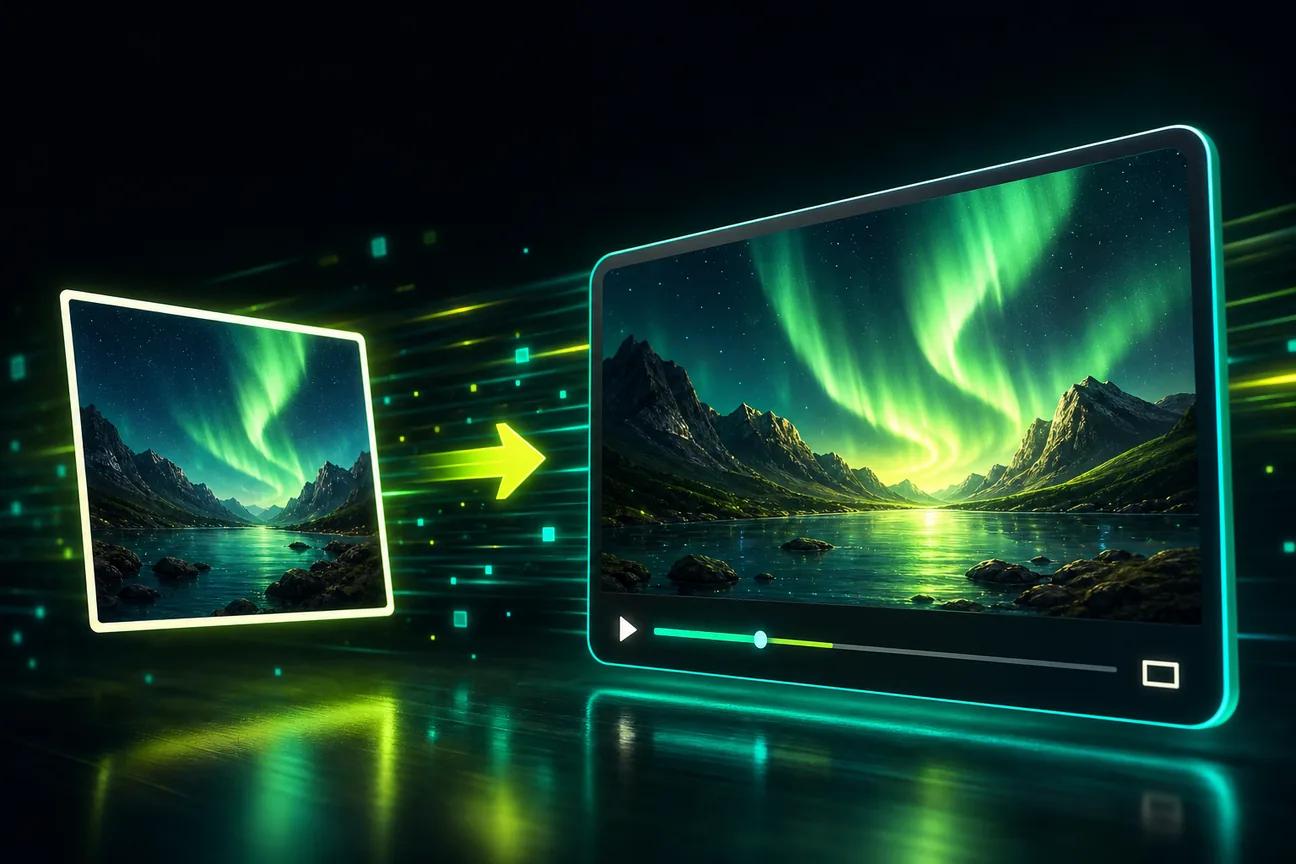
A single photo can become a moving clip with a clear prompt and a few minutes in your browser. Here are ten free or free-to-try options, with the limits that matter when you want to post, pitch, or publish the result.
We analyzed 51 comments and questions from YouTube, Reddit and Quora about FREE photo-to-video AI tools and found that 16% mentioned inconsistent visual quality across clips.
1. OmniRender: browser-based image-to-video creation
OmniRender is an independent browser app for turning text and image references into short videos with sound. Add a photo, describe the motion, then generate a clip with music, sound effects, or lip-synced dialogue. It’s a useful starting point for social posts, product ads, and short film scenes.
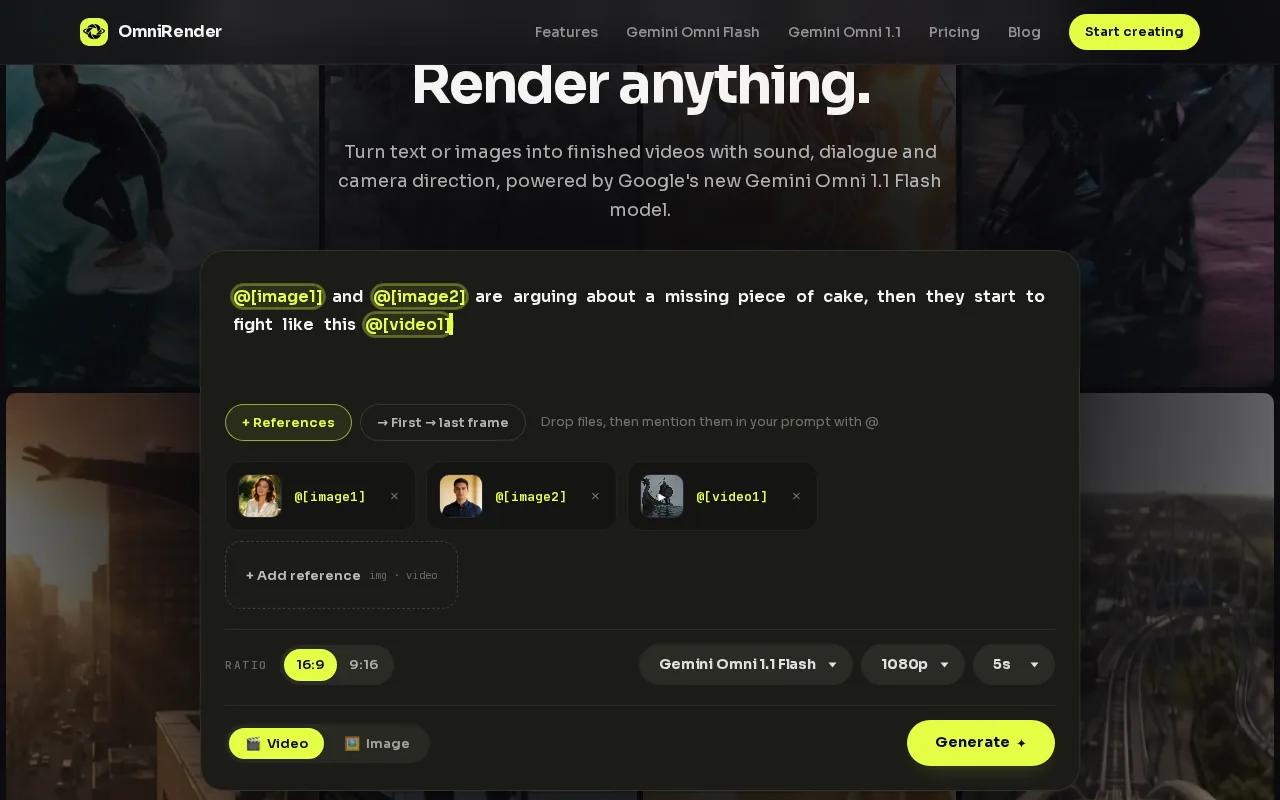
OmniRender uses underlying AI technology; the app isn’t owned or endorsed by Google. Check current plan details for access, resolution, and credits before choosing a workflow. The app gives you a way to test image-to-video before you decide if you need a paid plan.
When a first draft needs a change, prompt-based editing and scene extensions can help you keep working in the same browser workflow. You can also set a vertical or horizontal frame for your intended post. Check the current plan terms before using free output in paid campaigns, since commercial licensing should be clear before publication.
For a closer look at the app and its current access, visit OmniRender’s video creation workspace.
2. Runway: a one-time credit pool for short clips
Runway’s free plan gives you 125 credits once, enough for about 25 seconds of Gen-4 Turbo video. That makes it suited to a few short experiments rather than a steady monthly posting routine.
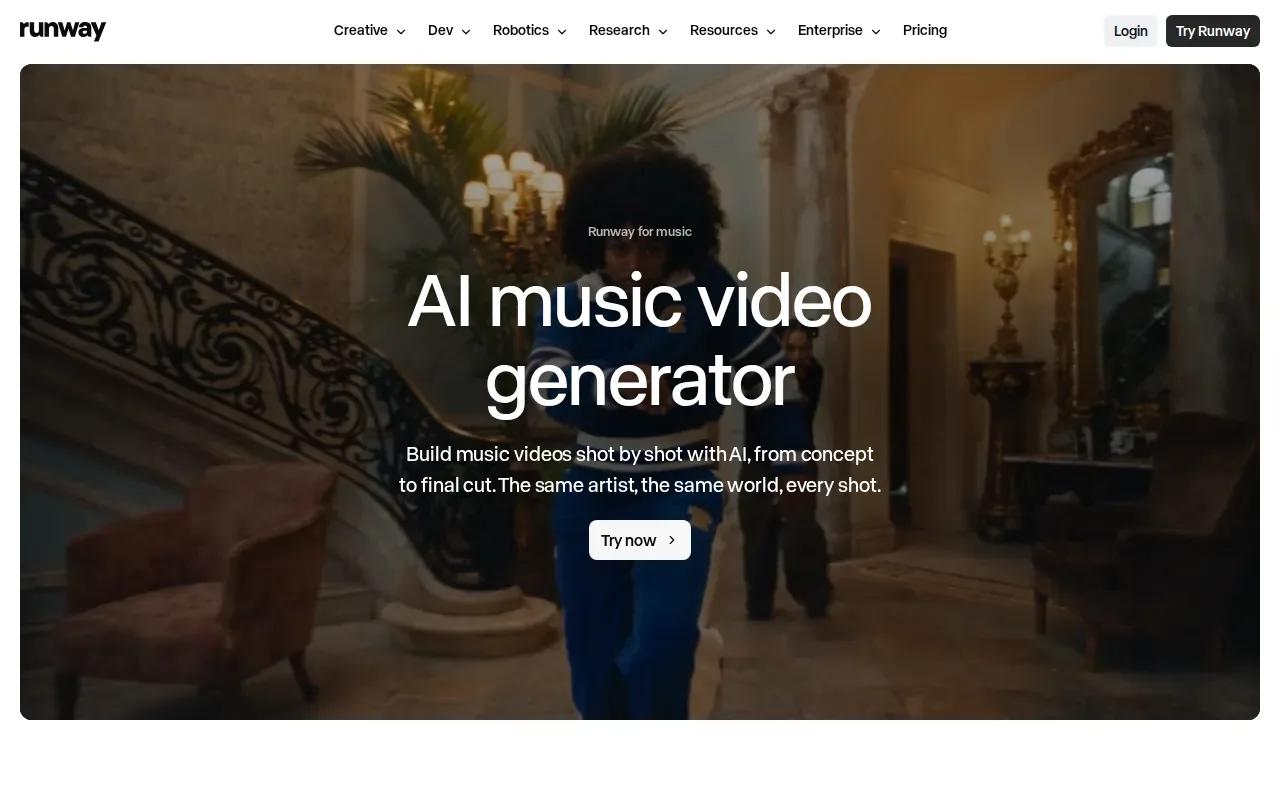
Try a photo with one clear action, such as a slow camera push toward a product or a breeze moving through a landscape. Keep the motion request focused so the short render has a clear job. Runway’s free tier is for non-commercial use, so don’t treat a test credit pool as a license for an ad.
If your clip is for a client or a campaign, check the applicable terms before you build the final cut around it.
3. Pika: monthly credits for quick animated images
Pika’s free access includes 150 monthly credits, with clips capped at four seconds and limited resolution, plus a watermark. It fits quick motion tests, reaction visuals, or a brief loop for a social post.
A short limit changes how you should plan the prompt. Ask for one action, like a person turning toward the camera, rather than a full scene with several changes. If you need spoken dialogue or a longer story beat, compare the clip cap with the length your edit needs before spending credits.
4. NemoVideo: a free option to check for longer clips
NemoVideo’s free tier gives 100 credits once. Those credits can produce clips longer than 15 seconds without a watermark. It’s worth checking when one image needs more screen time than a short loop allows.
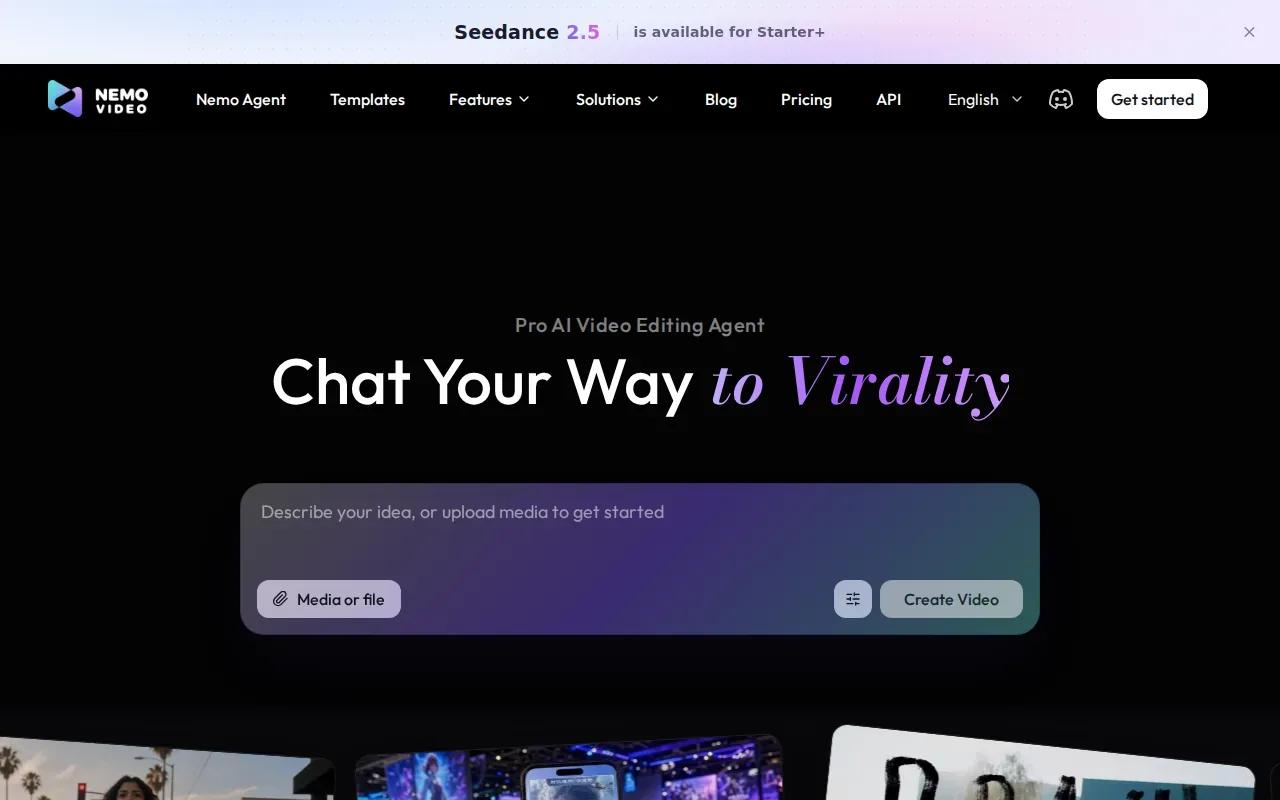
NemoVideo also supports character consistency across a 12-second clip. That can help when a subject needs to stay recognizable through one continuous shot. A credit pool that doesn’t refresh monthly is best treated as a one-off test, so plan your prompt before generating.
For a longer output, check the final duration and quality in the preview before building it into a larger edit.
5. HeyGen: lip-synced presenter videos from images
HeyGen’s free plan includes three videos each month, up to three minutes per video, at 720p with a watermark. It suits a presenter-style clip where a photo needs to speak to viewers rather than simply move through a scene.
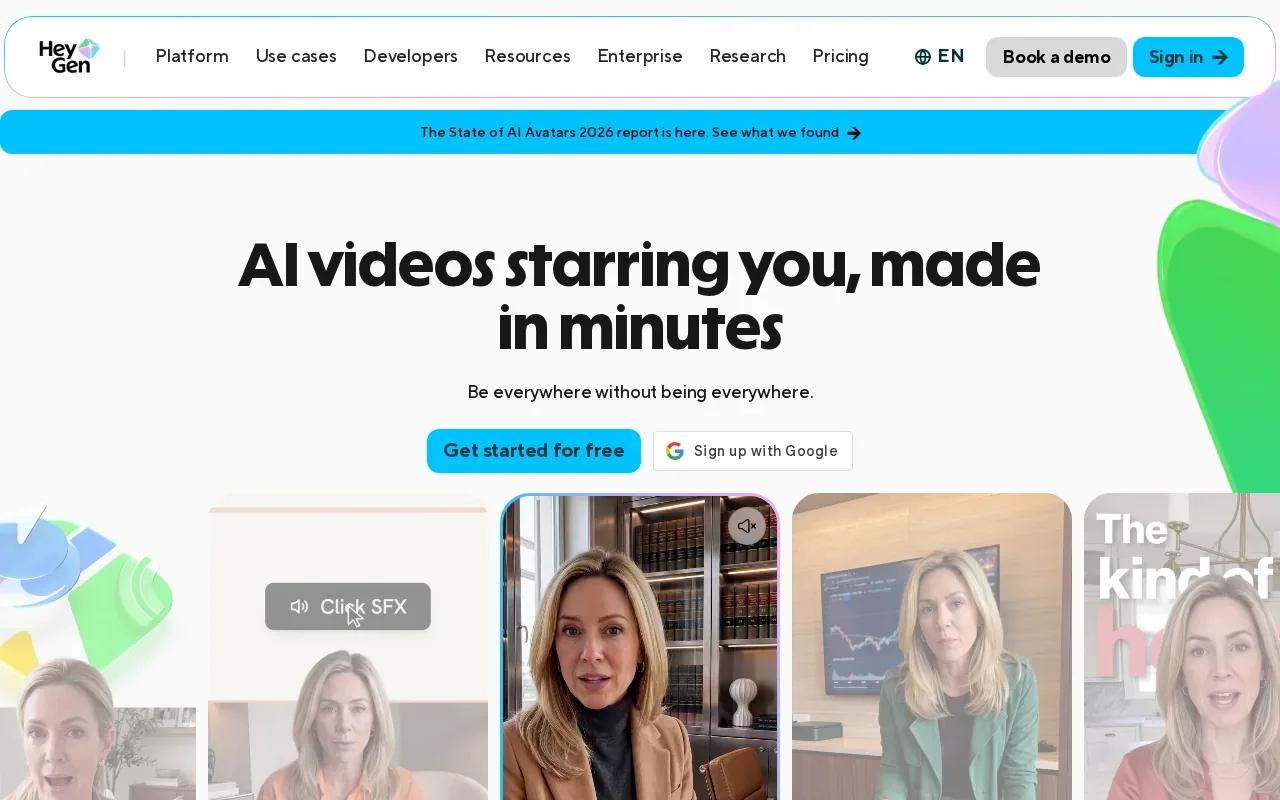
HeyGen supports lip sync.
For product explainers or a short narrated post, write a script that fits the clip length and check the watermark before export. A free draft can help you judge the delivery, but the watermark may not fit a finished brand asset.
6. CapCut: a free editor for finishing social clips
CapCut’s free desktop editor supports exports up to 4K without a watermark. It’s a useful finishing step when an AI-generated clip needs tighter timing, captions, text, or a music track before it goes to social.
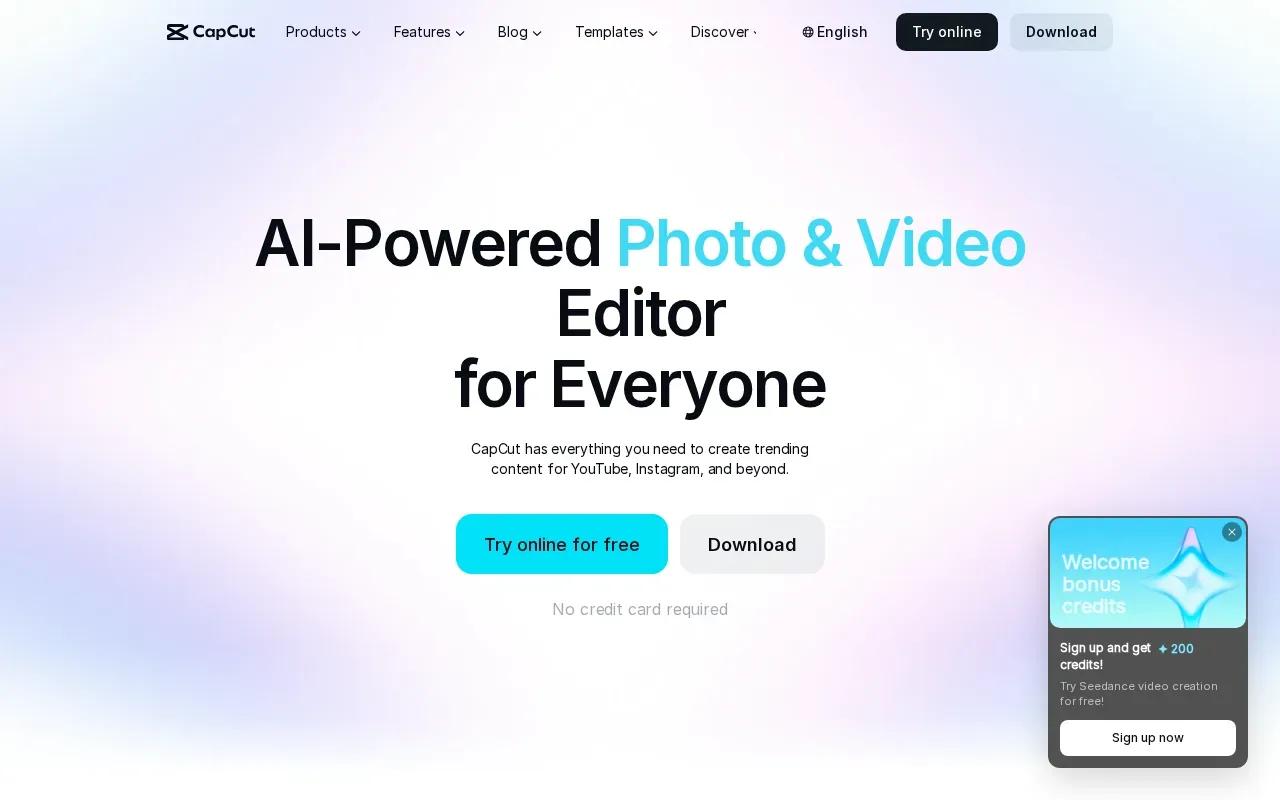
CapCut also has image-to-video tools and editing features for audio, subtitles, and overlays. Think of it as a place to shape the final cut: trim the opening, set the pace, then check how captions sit on a vertical frame. Commercial use is available.
For a clean export, check the chosen template and effects before you render. Desktop exports are watermark-free, though some Pro templates or effects can add watermarks. Avoiding those assets keeps the output rules easier to assess.
7. InVideo: a template-led route to image-based videos
InVideo’s free plan provides 10 AI minutes per week and four exports per week. Exports are watermarked, limited to 720p, and don’t include commercial rights. It’s a fit for testing a template-led video or roughing out a narrated concept.
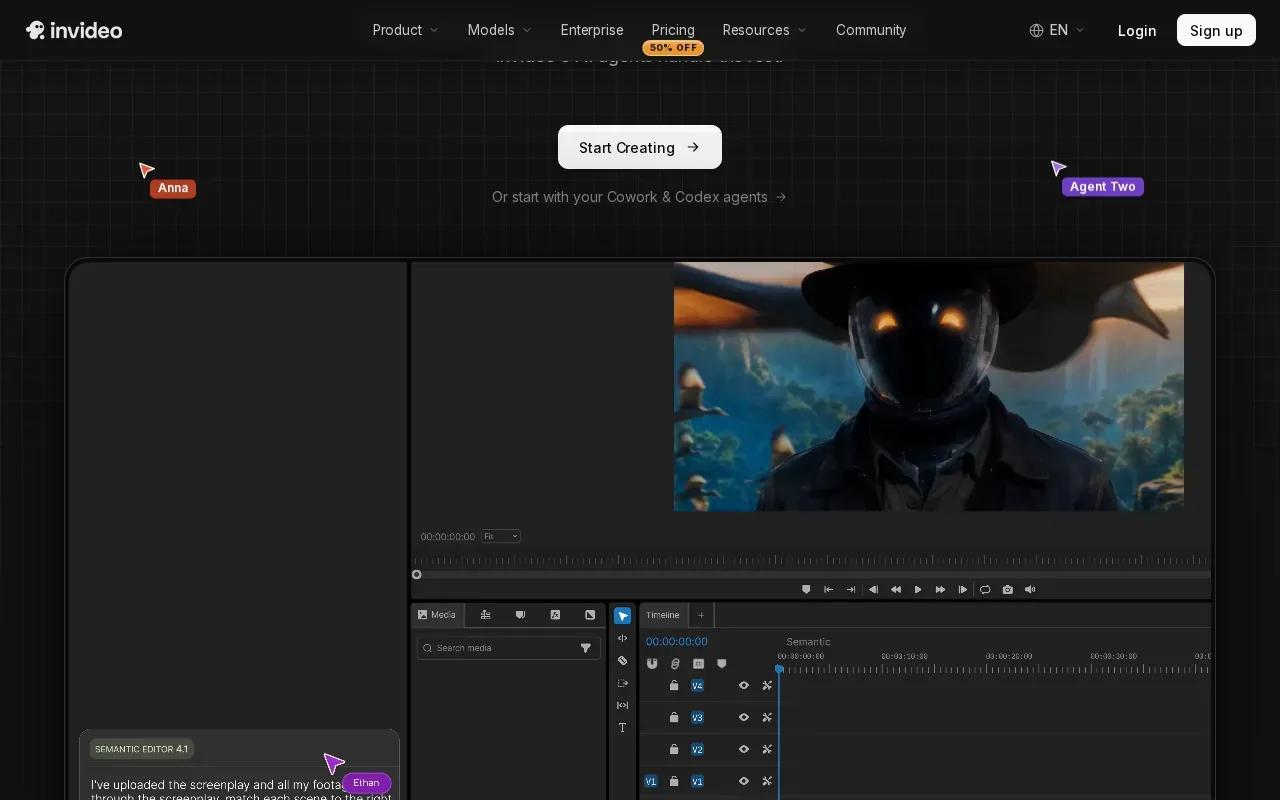
Use the image as one scene in a larger story, then review how the template handles pacing and text. The free export cap means you’ll want to make edits before downloading, rather than spending an export on each small revision.
If you’re making an ad, treat the watermark and rights limits as a clear stop sign for the free tier. Use it to check a direction, not as the finished campaign file.
8. Krea: image and video creation in one workspace
Krea brings image and video creation, editing, and enhancement into one workspace.
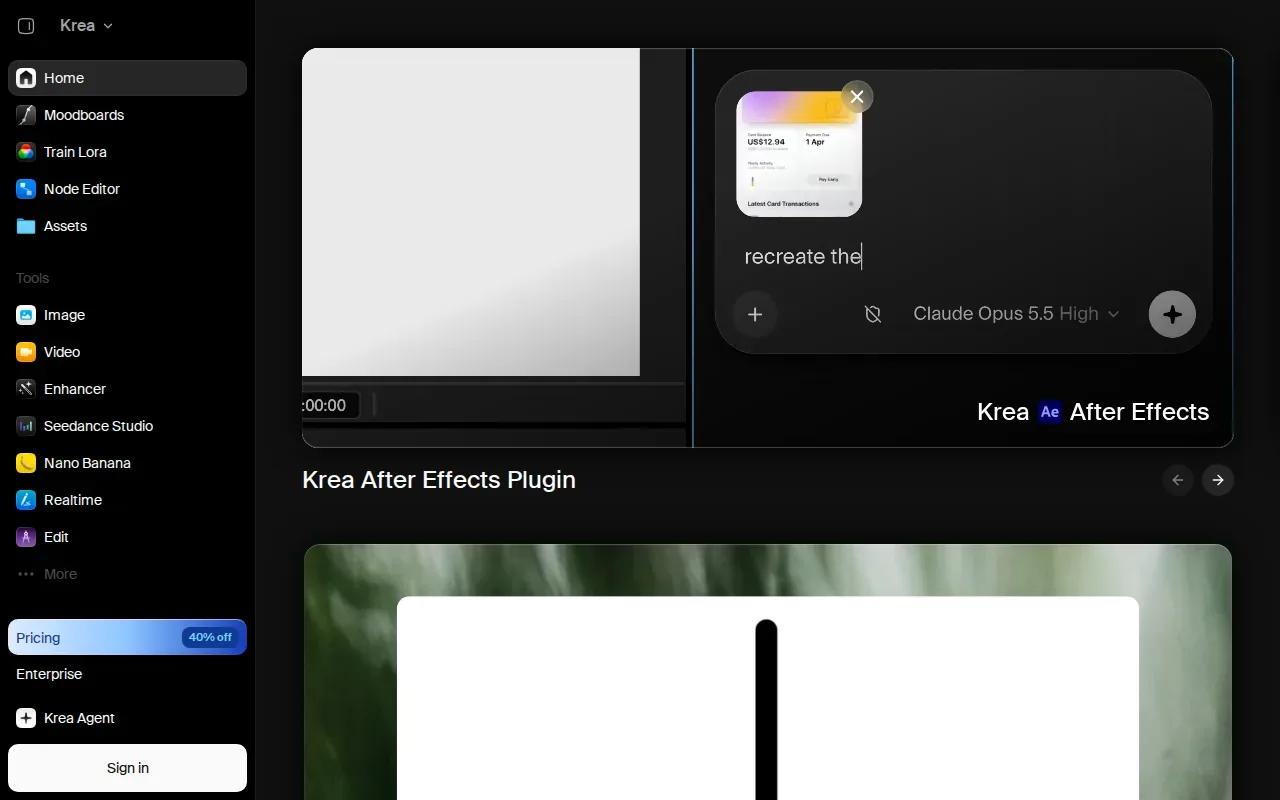
It may suit a creator who wants to shape a still image before animating it, then refine the video in the same creative environment. That image-first workflow helps when the source photo needs adjustment before motion is added.
Before you commit a project, confirm which features are included in free access and what the export settings allow. Those details determine whether Krea is a quick test space or part of your regular workflow.
9. PixVerse: short clips with a low-resolution free export
PixVerse’s supplied free-tier details describe five-second clips at 360p with watermark-free exports. That gives you a quick way to test motion while keeping the downloaded clip free of a visible mark.
A five-second limit works for a single camera move or a small change in a still scene. It’s less suited to a long product story without extra editing. The low resolution is also something to check against your final use, especially if you plan to crop or enlarge the clip.
Keep the source image and prompt focused. A simple action is easier to judge in a short, low-resolution preview than a scene with several moving subjects.
10. OpenArt: image-to-video with voiceover and lip sync
OpenArt supports videos up to 15 seconds and up to 4K resolution, plus AI voiceovers with lip sync. It also supports consistent characters, which can help when a recurring subject needs to look alike across scenes.
OpenArt’s tools suit short narrative clips, character-led social posts, or a spoken line attached to a still image. You can use a reference image as the starting point, then add voice and refine the result.
OpenArt gives you several pieces of the workflow in one place. Check the plan and export details before deciding whether it suits a free-only production.
Free photo-to-video AI tools compared
Pick based on the final file you need, not the word “free.” A personal draft, a client preview, and a paid ad have different requirements. In particular, check the resolution, watermark, clip length, export count, and license before you commit to a workflow.
| Tool | Useful for | Free access detail to weigh |
|---|---|---|
| OmniRender | Photo-led clips with generated sound and dialogue | A few 360p videos each month; confirm commercial terms |
| Runway | Testing a few short generations | 125 one-time credits; non-commercial free use |
| Pika | Brief animated images | 150 monthly credits; up to four seconds; watermark |
| NemoVideo | Longer clips and character continuity | 100 one-time credits; clips beyond 15 seconds; no watermark |
| HeyGen | Speaking photo avatars | Three videos monthly; 720p; watermark |
| CapCut | Editing and finishing social clips | Desktop export up to 4K; no watermark in supplied plan details |
| InVideo | Template-led drafts | Four exports weekly; watermarked 720p; no commercial rights |
| Krea | Image and video work in one space | Check current free access and export terms |
| PixVerse | Short, watermark-free motion tests | Five-second clips at 360p |
| OpenArt | Voiceover, lip sync, and character continuity | Up to 15 seconds and 4K; confirm free access terms |
A simple workflow works across most image-to-video tools: upload a photo, describe the motion, and add dialogue or sound only if the tool supports it. Set the aspect ratio and duration before generating. Then preview the clip, download it, and finish the timing or captions in an editor if needed. For more prep and export detail, see how to turn a photo into a video.
For smoother motion, describe what changes and what stays still. “The camera slowly moves closer while the subject remains still” gives clearer direction than “make this cinematic.” A useful camera-move prompt guide can help you think through motion before you render.
One caution applies to every service: don’t upload a private or sensitive photo unless you’re comfortable with that service’s data terms. Review its privacy policy first. Also, don’t assume a watermark-free export means commercial use is allowed. Check the license for the exact free plan you’re using.
Ready to turn a reference photo into a short clip with sound? Try OmniRender free and test a simple prompt in the browser.
FAQ
Can I turn a photo into a video with AI for free?
Yes, several tools provide free access or free credits for image-to-video tests. The limits differ: some give a monthly credit pool, while others provide a one-time amount or restrict clip length and resolution. Check watermarks and commercial terms before you use a generated clip in a client project or ad.
Which free photo-to-video AI tool has no watermark?
NemoVideo and PixVerse are listed here with watermark-free free exports. CapCut’s supplied plan details also say its desktop editor exports without a watermark, though some Pro templates or effects may add one. Check the selected assets and current plan terms before downloading a final video.
Can free AI photo-to-video clips be used in ads?
Don’t assume a free clip is cleared for advertising. Runway’s free tier is stated as non-commercial, and InVideo’s free plan has no commercial rights. Other plans may have different rules, so read the current license for the exact service and tier before publishing a paid campaign.
How do I get smoother motion from a still image?
Describe one main movement and keep the rest of the scene steady. For example, ask for a slow camera push toward a still product, or gentle wind moving a subject’s hair. Set the clip length and frame shape before generating, then review the preview and adjust the prompt if the motion feels too busy.
Can AI make a photo talk with lip sync?
Yes. HeyGen and OpenArt are among the options here with lip-sync features. HeyGen can animate a photo avatar from a script, while OpenArt supports AI voiceovers with lip sync. A clear face with a visible mouth gives the tool a better starting point for a speaking clip.
Conclusion
Start with OmniRender if you want to test a photo-based clip with generated sound in your browser. Review its free-plan terms before using output commercially, then try one short prompt and see if the motion fits your project.