A realistic AI video generator can turn a prompt or photo into a short clip, but the right tool depends on what you need to control. Here are five named options, with a closer look at character continuity, editing, sound, and output quality.
We analyzed 56 YouTube comments about realistic AI video generators and found that 25% mentioned high-quality realistic output.
1. OmniRender: synchronized audio and prompt-based scene control
OmniRender is an independent browser app for making short videos from text prompts and image references. Its underlying video model is Gemini Omni 1.1 Flash. OmniRender sets its own app features and plans, and it isn’t a Google product or an endorsement by Google.
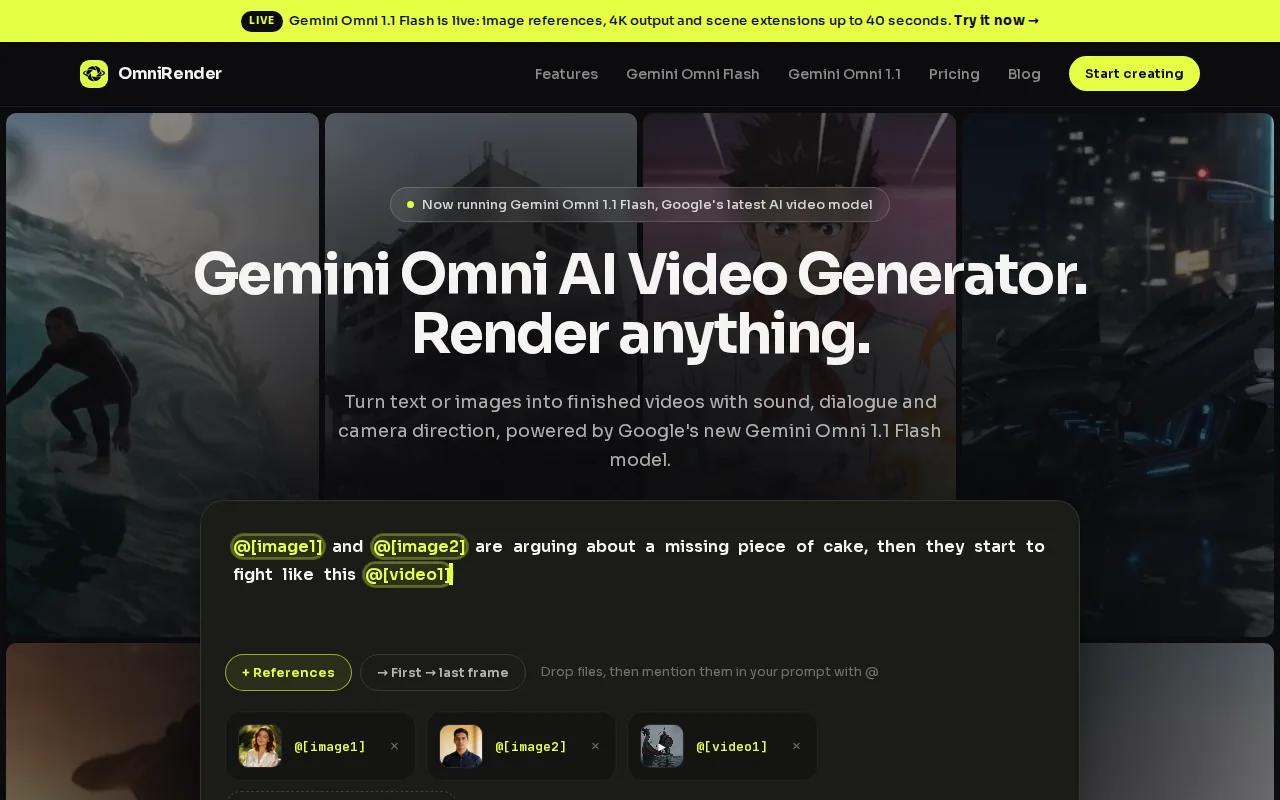
It fits social creators, marketers, small production teams, and filmmakers who need a character or product to carry through a scene. You can describe the shot, attach a reference image, and generate a clip with music, sound effects, or lip-synced dialogue. Put spoken words in quotes when you want a character to say them.
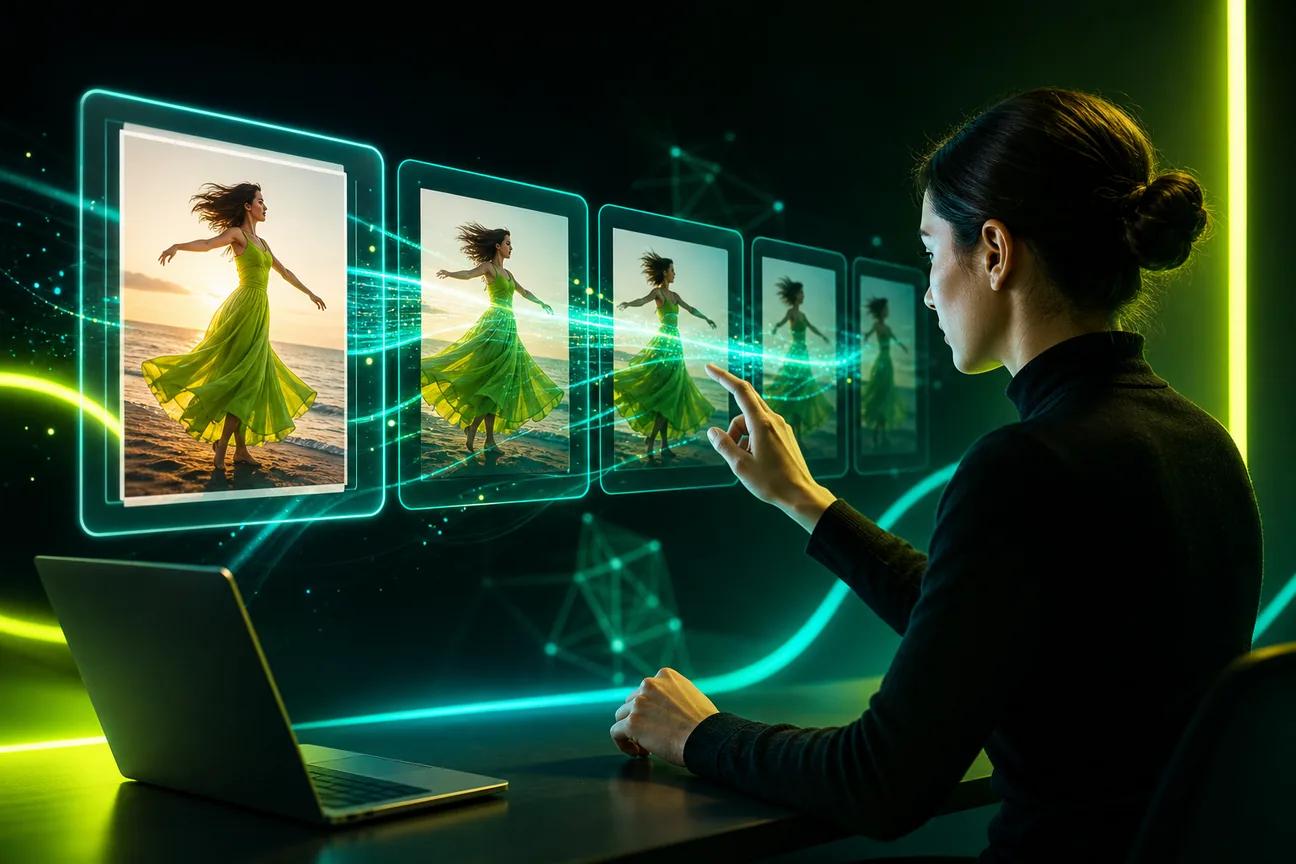
The workflow is made for iteration. After a generation, describe a change in plain language, such as changing the light or adjusting a detail while keeping the rest of the scene. You can also extend a generated clip in steps, up to 40 seconds total. For a short product spot, that means you can start with a still image, direct the motion, then ask for a focused edit instead of rebuilding the prompt from scratch.
Check OmniRender’s current plan pricing, credit allowances, resolution limits, and commercial usage terms before choosing output settings. Free-versus-paid licensing terms may be unclear, so confirm the terms for your specific use. Learn more about the Gemini Omni 1.1 Flash features before choosing output settings.
2. Runway: timeline-led prompting and 4K upscaling
Runway’s interface is built around a timeline and prompt editor, rather than a single text box. That setup can suit you if you prefer to direct a clip while working in a visual editing space.
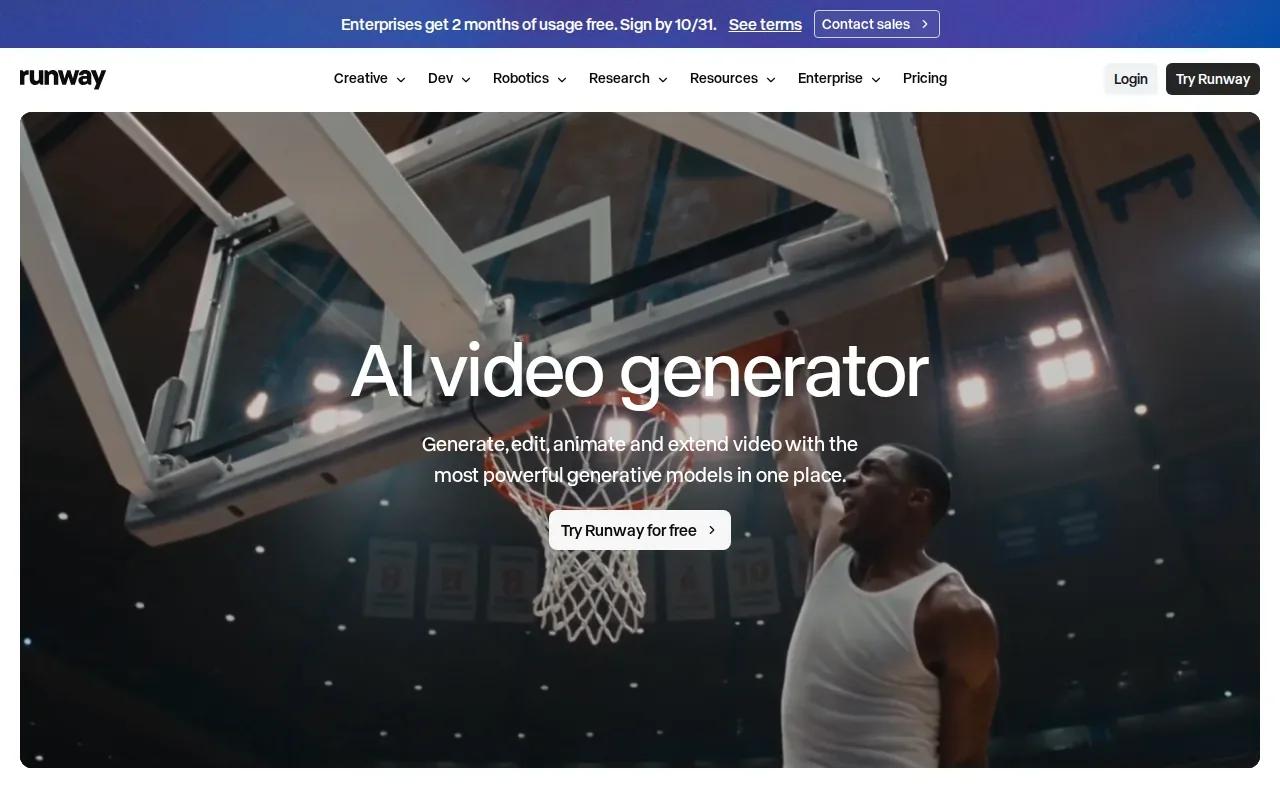
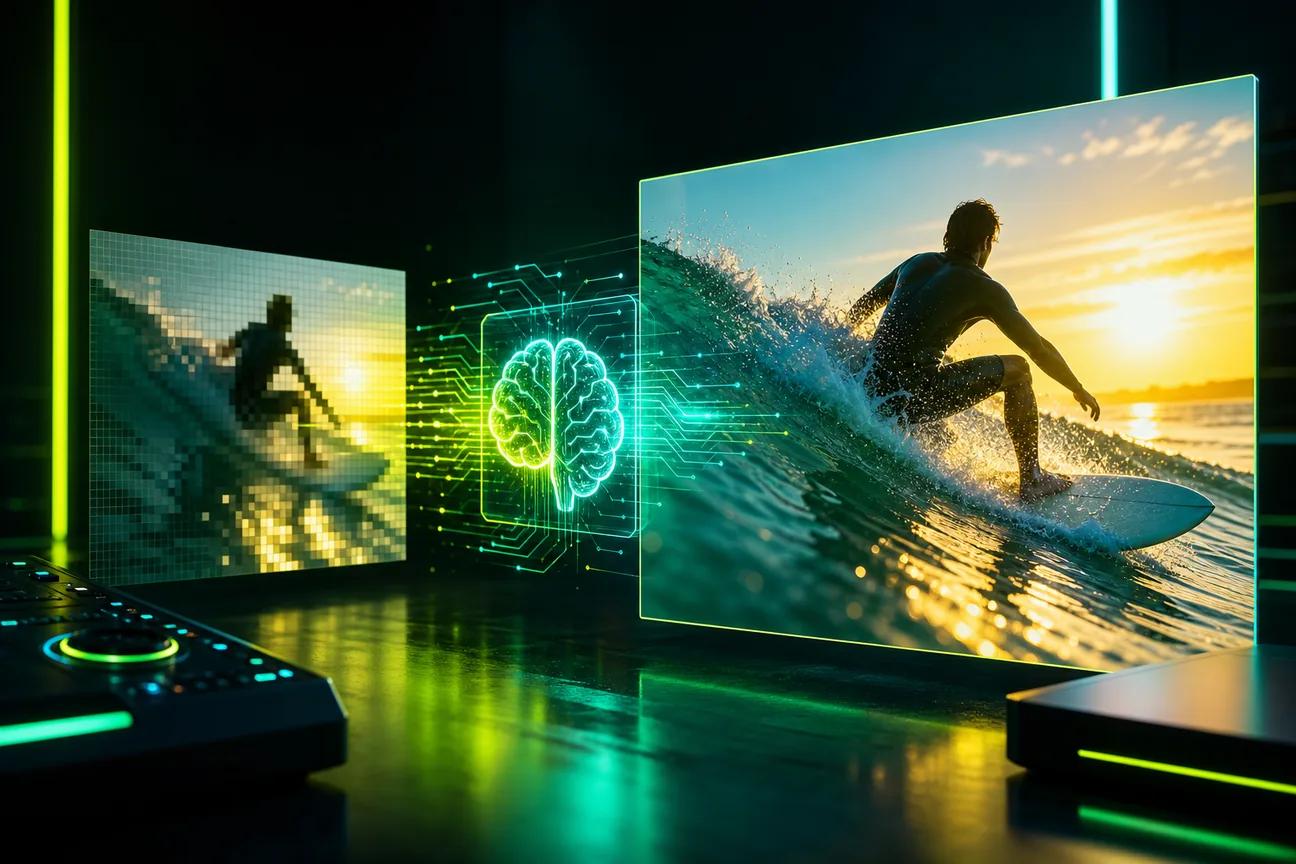
Runway supports 4K upscaling, with a stated resolution limit of 4K. The timeline prompt editor gives you a place to refine directions as you work on a clip. Those details make Runway worth considering when resolution and timeline-based control are central to your workflow.
Keep the kind of quality in view. Upscaling can raise output resolution, but a 4K file alone doesn’t tell you whether a face, hand, or product stays true across frames. Review the motion and subject details at full speed before treating a shot as ready to publish. For an ad, check that the product’s shape and key visual marks still match your source image.
When you compare tools, separate output size from continuity and control. Test a representative prompt before building a whole campaign around any one workflow.
3. OpenArt: multi-scene stories with consistent characters
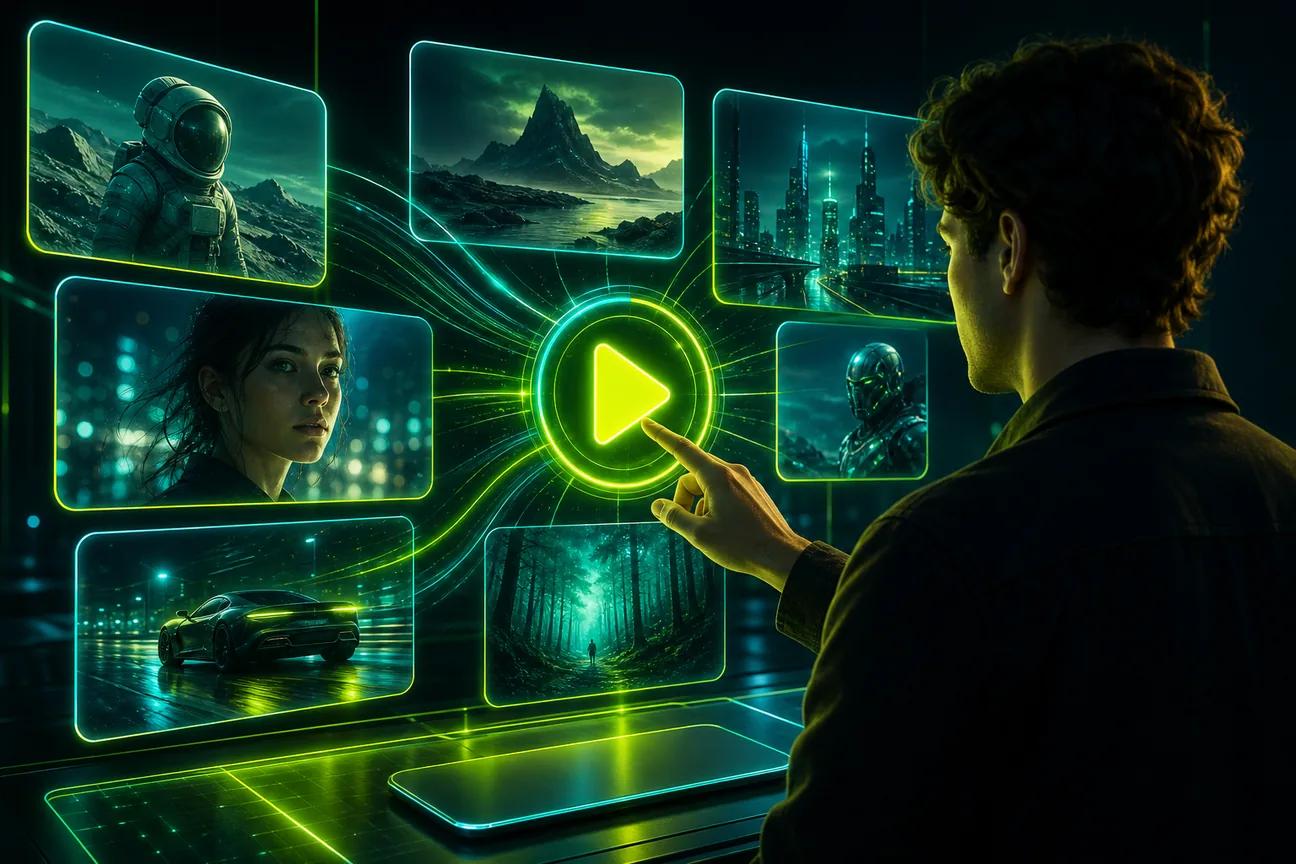
OpenArt’s Director mode turns a prompt into a multi-scene video, with the same characters, voices, and music across scenes. The stated maximum for a Director video is up to five minutes. That makes it a fit for a story, trailer, or longer branded sequence where a single short shot won’t cover the idea.
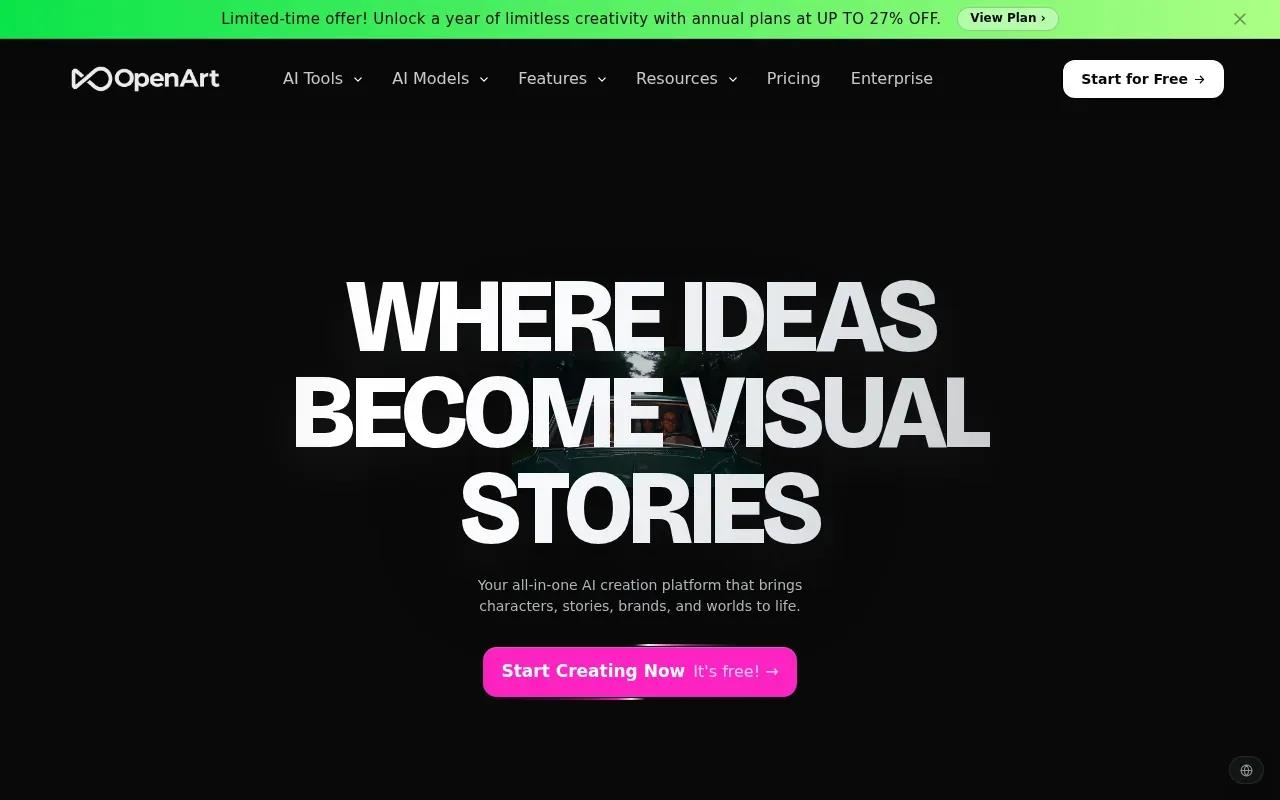
You can direct through chat and edit a scene with text. The same character can appear in multiple scenes, which helps when you need a continuing story rather than a set of unrelated clips. For example, a short campaign could follow one character as they move from an opening scene into a product moment.
OpenArt also describes creating videos up to 15 seconds long in up to 4K resolution. Those clip limits differ from Director’s stated multi-scene length, so check which creation mode fits your project before you plan a sequence. A longer story may call for Director, while a single social post may need a shorter generation.
Consider this option when scene structure matters as much as an individual shot. Write down the order of events first, then see whether the generated scenes preserve the same character and tone.
4. Krea: a creative workspace for generating and enhancing visuals
Krea is a workspace for generating, editing, and enhancing images, videos, and 3D visuals. It may suit creators who want video work alongside other visual tasks in one creative space.
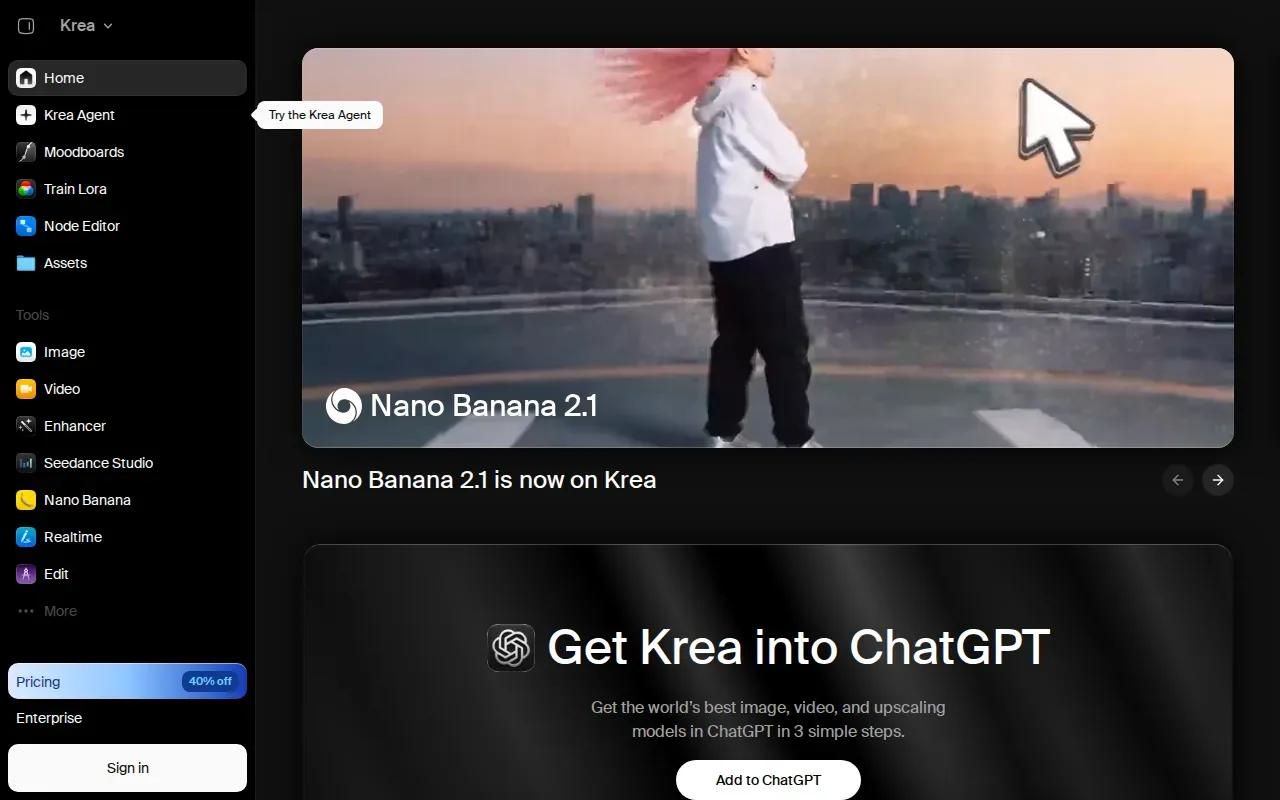
That broader mix can be useful when a project starts as an image concept and grows into motion. You might work on a still visual, edit it, then bring video into the same set of creative tasks. Krea includes image, video, and 3D capabilities.
So match the tool to the job you can verify. If your brief depends on lip sync or keeping the same face across several scenes, test those needs directly before you commit. If you’re mainly looking for a place to work across visual formats, Krea’s image, video, and 3D scope is the key distinction.
For a short social clip, judge the result by whether the motion supports the image rather than by how many creative formats the workspace can handle.
5. OmniVideo: a text-to-video option to investigate
OmniVideo is a text-to-video and image generator described as powered by Google’s Gemini Omni Video model. It may be worth investigating if you want to try turning a written prompt into a clip.
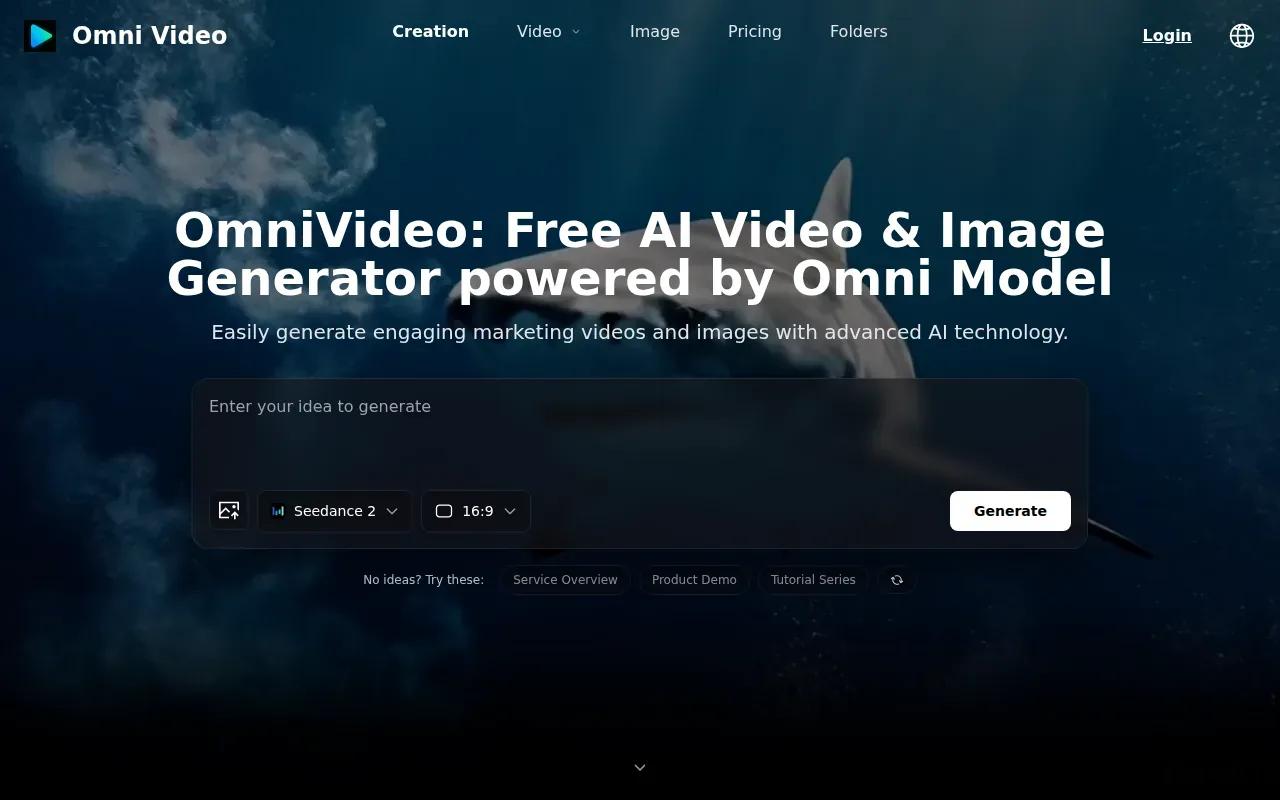
OmniVideo offers free AI video and image generation from text prompts in seconds. That makes it a possible starting point for prompt experiments.
For a first test, use a prompt with one clear subject and one action. Then watch the full clip for changes in the subject’s appearance or movement. If the project needs spoken dialogue or several connected scenes, make sure the specific workflow you plan to use can handle those needs before you build around it.
When testing image-based creation, use only images you have rights to use and avoid deceptive, harmful, or rights-violating video use.
Compare the realistic AI video generators at a glance
Compare the workflow, not only the resolution label. A tool with a high output size may still need extra review if your subject must stay the same or your video needs dialogue. For a broader look at video workflows, see AI video generators compared.
| Tool | What stands out | Consider it for |
|---|---|---|
| OmniRender | Prompt edits, consistent characters, synced generated audio, and scene extensions | Social clips, product ads, or short scenes with dialogue |
| Runway | Timeline prompt editor and 4K upscaling | Timeline-led work with high-resolution output |
| OpenArt | Director mode for multi-scene stories with consistent characters, voices, and music | Stories and longer sequences |
| Krea | Generation, editing, and enhancement across images, video, and 3D | Creative work across visual formats |
| OmniVideo | Text-prompt video and image generation | Testing prompt-led generation |
What to check before you choose
Before you start a paid workflow, write down what the finished clip must do. Keep the test short and use the same prompt or reference image when comparing tools. That way, you’re comparing the output rather than changing the brief each time.
- Character continuity: Does the face or product stay recognizable across the clip?
- Prompt editing: Can you ask for a change without regenerating the whole scene?
- Sound: Does it generate the speech or other audio your clip needs?
- Output: Does the resolution and clip length fit the channel where you’ll post?
- Usage rights: Review the current terms before using generated content in an ad or client project.
Don’t start with the largest output setting by default. First check whether the scene works, then choose the resolution that fits delivery. That small test can save time when a prompt needs another pass.
FAQ
What makes an AI video look realistic?
Realistic-looking video depends on whether motion, lighting, and subject details feel consistent from frame to frame. A sharp output size helps with detail, but it doesn’t guarantee that a face or product stays unchanged. Review the full clip at normal speed, then inspect any detail that matters to the viewer.
Can I make an AI video from a photo?
Yes, some video tools accept an image reference as a starting point. Add a prompt that says what should move and how the camera should behave. Use a photo you have the right to upload, then check that the generated clip keeps the subject’s key details intact.
Can AI video generators make dialogue with lip sync?
Some can. OmniRender can generate lip-synced dialogue with the video, along with music and sound effects. Put the line you want spoken in quotation marks in your prompt. Always watch the finished clip with sound to check that the words and mouth movement fit your intended scene.
Do AI video generators support 4K output?
Some options in this shortlist state 4K output or 4K upscaling. The distinction matters: upscaling raises the resolution of a generated clip, but it doesn’t by itself prove that every detail will look natural. Check the tool’s current output settings and review a sample before you plan a 4K delivery.
Can I use AI-generated video in an ad?
Check the tool’s current terms and the rights for every image or other asset you provide. OmniRender’s site says its plans include a commercial licence, but you should still review the terms for your intended use. Keep the source rights clear, especially when you use a person’s likeness or a client’s product image.
Conclusion
If you need character consistency with prompt-based edits and generated sound, start with OmniRender. Create a free account, test one short prompt or image reference, and review the result before choosing a paid plan.