A still photo can become a moving scene, but the right AI photo animator depends on what you need the clip to do. Here are 10 named tools for portrait motion, stylized effects, product clips, and more controlled video workflows. Check the free limits and output settings before you build a repeatable process.
We analyzed 69 comments and questions from YouTube, Quora and Reddit about AI Photo animation and found that 16% mentioned limitations of the tool.
1. OmniRender
OmniRender is an independent, browser-based app for turning prompts and image references into short videos. It suits creators who want to animate a product photo, make a social clip, or add spoken dialogue without downloading editing software.
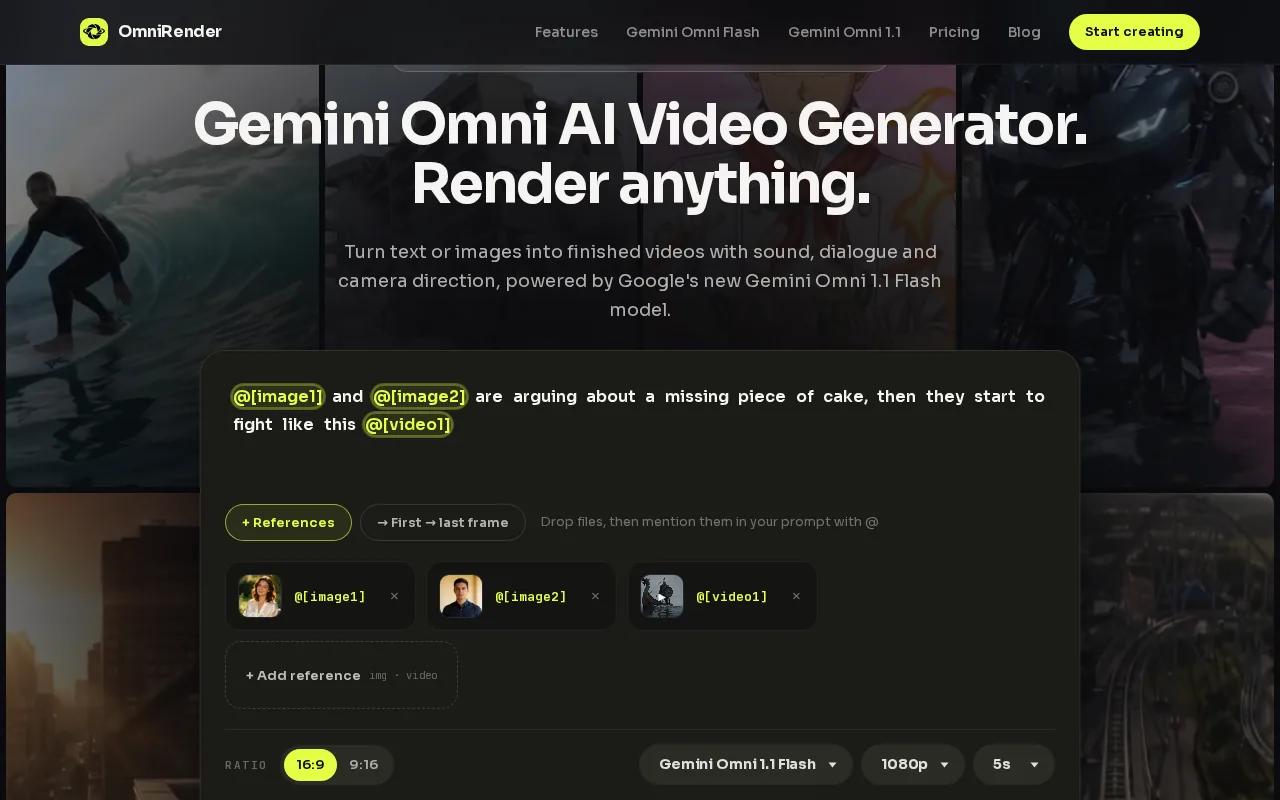
The app uses Google DeepMind’s Gemini Omni models, but OmniRender is not a Google product or an endorsed service. Its current Gemini Omni 1.1 Flash model can generate video with music, sound effects, and lip-synced dialogue. You can also ask for a change in plain language, then extend a scene in steps up to 40 seconds total.
For a first test, attach a clear portrait or product image and ask for one action with a simple camera move. You can start with a few 360p videos each month on the free plan, with no card required. Paid plans start at $14 per month and include higher resolution options; verify the plan and usage terms that fit your project before publishing commercial work.
If you want the basics before choosing a tool, this photo animation walkthrough covers image prep and motion prompts. For product teams, OmniRender’s image references and conversational edits can keep a quick ad draft in one browser workflow.
2. Vidu: Fast image-to-video tests for portraits and characters
Vidu is an image-to-video tool for short animations of portraits, characters, sketches, and artwork. It can suit creators who want to test a few kinds of movement on a still image before settling on a direction.
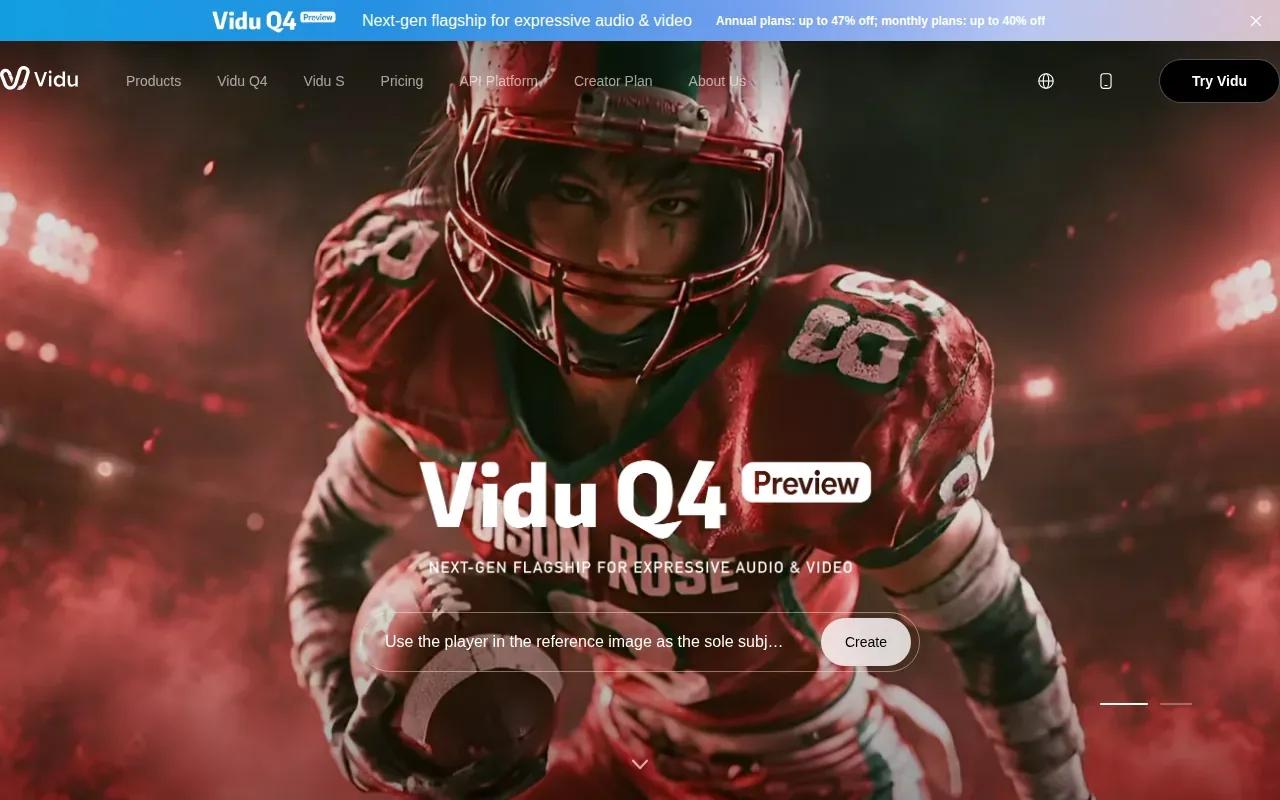
You can upload an image, describe the movement, and set options such as duration and resolution. Vidu also supports start and end frames, so you can give a clip two visual anchors and ask the model to generate the transition between them. For a character that needs to stay consistent across views, its reference-to-video workflow uses multiple angles as guides.
That extra control helps when the clip needs a defined opening and finish, such as a portrait turning toward a window. Motion amplitude and audio options give you more settings to test, though the right choice still depends on the image and prompt. Vidu also describes templates for effects such as a hug or kiss.
Try a small movement first. A subtle expression or object shift is easier to judge than a busy scene with several actions.
3. Pika: Stylized motion and shareable transformations
Pika is a fit for stylized image animation and playful effects, rather than a strict attempt to preserve photo realism. It may suit a social post where the transformation itself is the point.
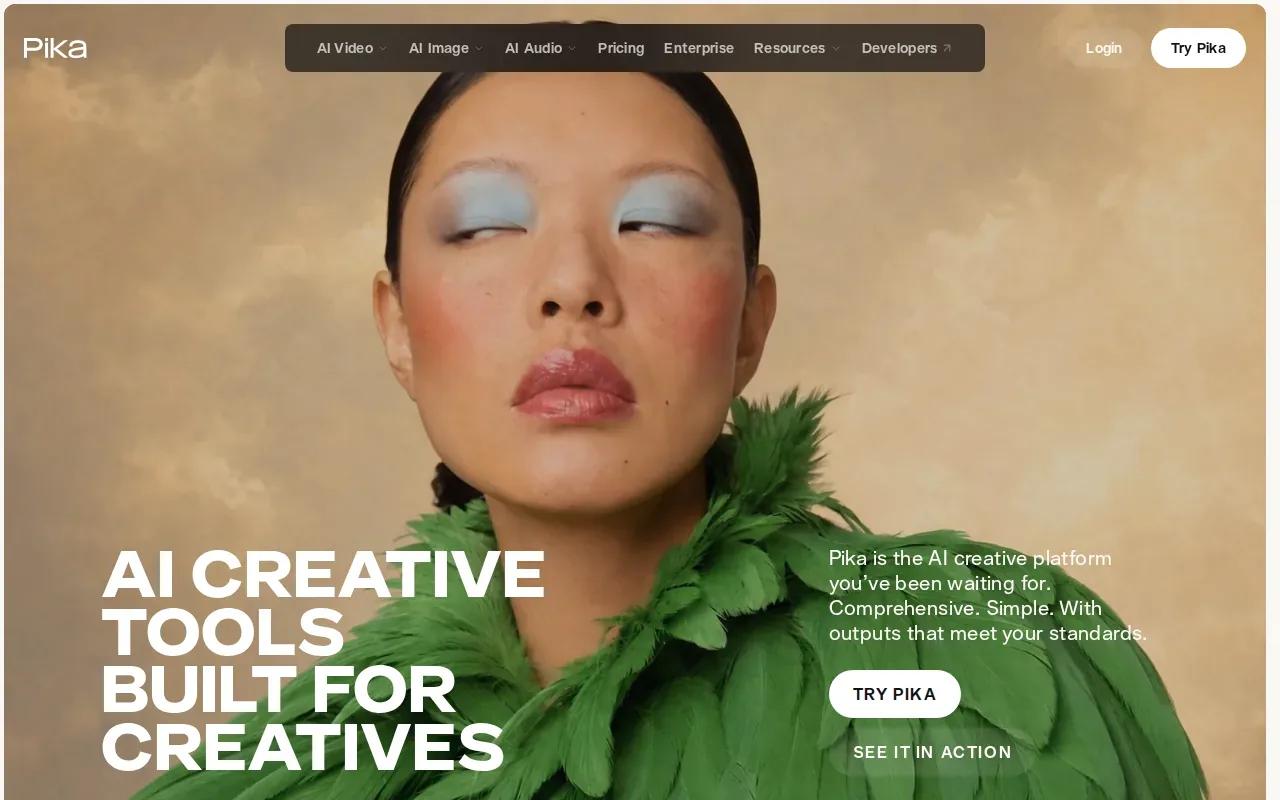
Its image-to-video features include effects such as melting or exploding a subject. That gives you a different creative direction than a restrained camera push or a gentle portrait movement. For example, a creator might use a dramatic transformation on an illustrated character, then compare it with a quieter version before posting.
Pika uses a monthly credit model, and free access is available at 480p. That can be enough to check whether an effect fits your idea, but resolution matters if the finished clip needs a crisp full-screen look. Check the current plan details and available settings before relying on it for a campaign.
Choose Pika when you want an obvious visual effect. If you need a face or product to stay close to the source photo, keep that test focused and inspect the result before sharing.
4. Google Veo: Cinematic camera motion and reference fidelity
Google Veo is aimed at image-to-video work where camera behavior, reference fidelity, and cinematic movement matter. It is a candidate for a more directed shot, especially when the source image needs to guide the look of the clip.
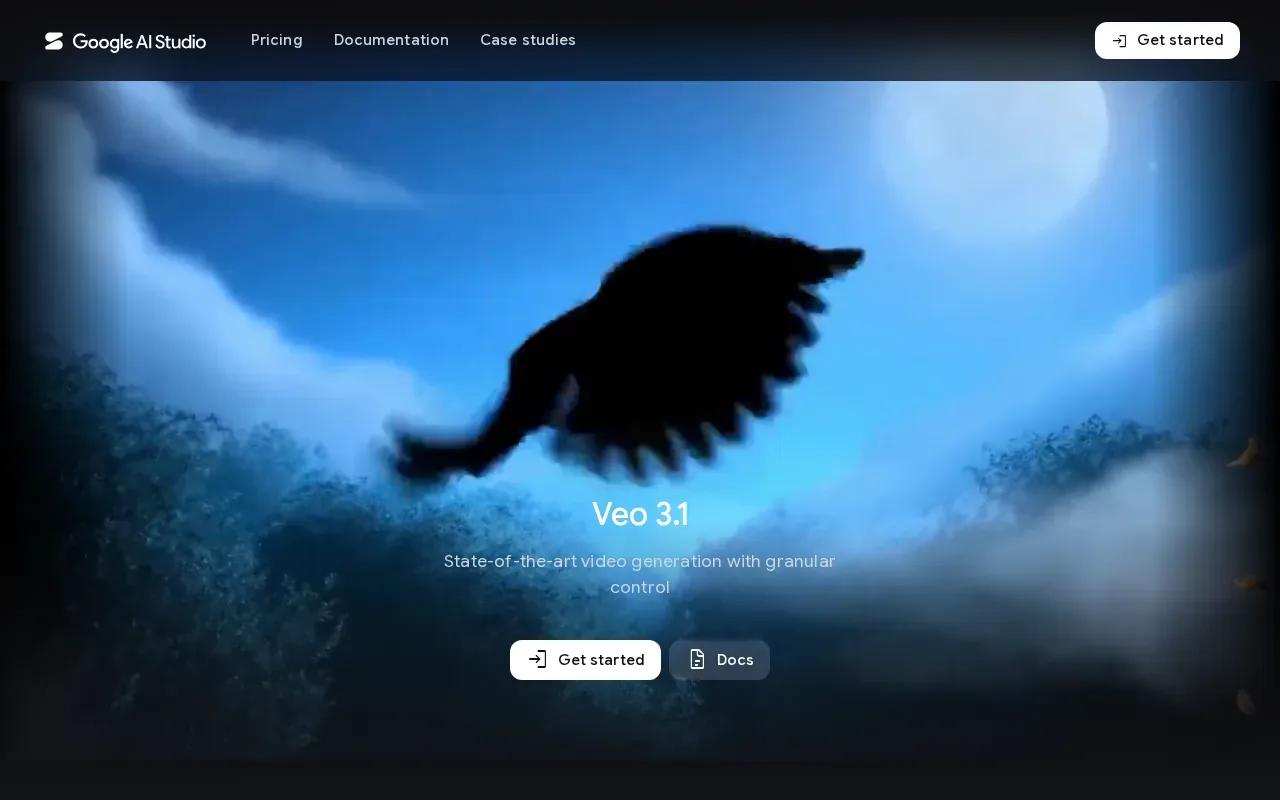
Veo 3.1’s documented controls include reference ingredients, first-and-last-frame generation, scene extension, object insertion, and native audio. First and last frames can define where the shot begins and ends, while reference images help set visual direction. Those controls give you more ways to shape a scene than a single general motion request.
For a product image, you might set a clear opening frame and describe a slow camera move toward the item. For a portrait, keep the movement modest and state which details should remain unchanged. The model’s cinematic options do not remove the need to review the middle of a clip for shifts in identity or shape.
Consider Veo when the intended shot needs more visual direction than a quick effect. Test the same image with a restrained prompt before adding complex movement or sound.
5. PixVerse: Multiple variations and an API-oriented workflow
PixVerse supports image-to-video generation, effect-led outputs, and an API-oriented workflow. It can fit teams that want to test several visual treatments or connect generation to a larger creative process.
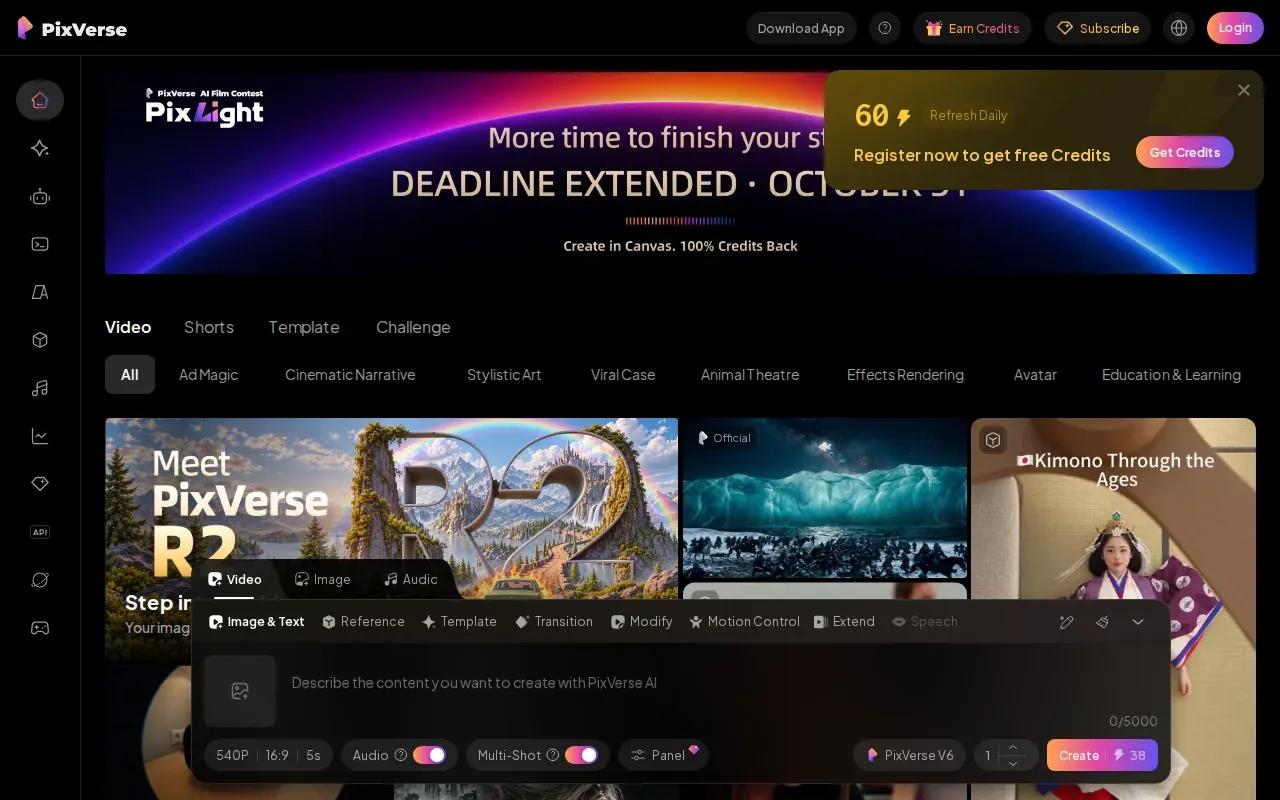
Multiple variations are useful when the same source image needs more than one creative direction. A shop could test a gentle camera move against a more dramatic effect, then review which version fits the campaign. The point is to compare actual clips, not assume that a single prompt will land on the right motion.
PixVerse offers multiple variations and API access, which can suit workflows that need creative iteration.
Use PixVerse when variation or API access matters to the job. For one carefully directed portrait, a workflow with specific reference controls may be a better starting point.
6. Kaiber: Beat-led visuals and frame-to-frame transitions
Kaiber is a creative workspace with Canvas, Beat Sync, and Editor. It suits music-led visuals or a clip built around a transition between two still images.
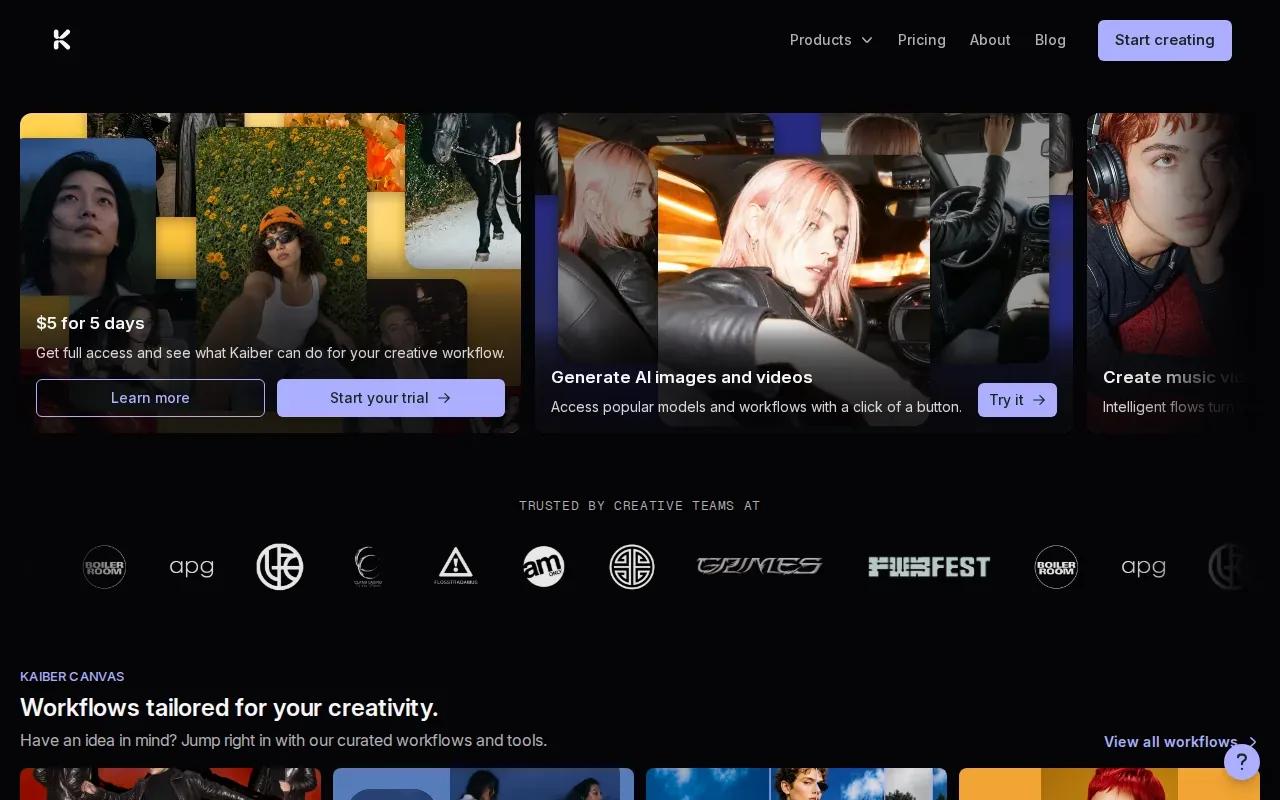
In its frame-to-frame workflow, you set two images as anchors and generate a transition between them. That can help when you already know the opening and closing look of a scene. Beat Sync is designed to match visuals to music, while Canvas and Editor support the creation and refinement workflow.
Think of a music visual that starts on an album-style image and ends on a changed scene. Two anchor images give the transition a clear direction; a beat-led approach can then help shape the feel of the clip. The result still needs a watch-through to check whether the visual shift feels intentional.
Kaiber is worth considering when music or an image-to-image transition drives the idea. If the main goal is a short product ad, compare the editing steps with the needs of your posting workflow.
7. Seedance 2.5 by ByteDance: Reference-driven clips with audio controls
Seedance 2.5 by ByteDance supports reference-to-video creation, audio controls, and localized editing. It may suit a creator who wants to guide a clip with several reference inputs rather than rely on one still alone.
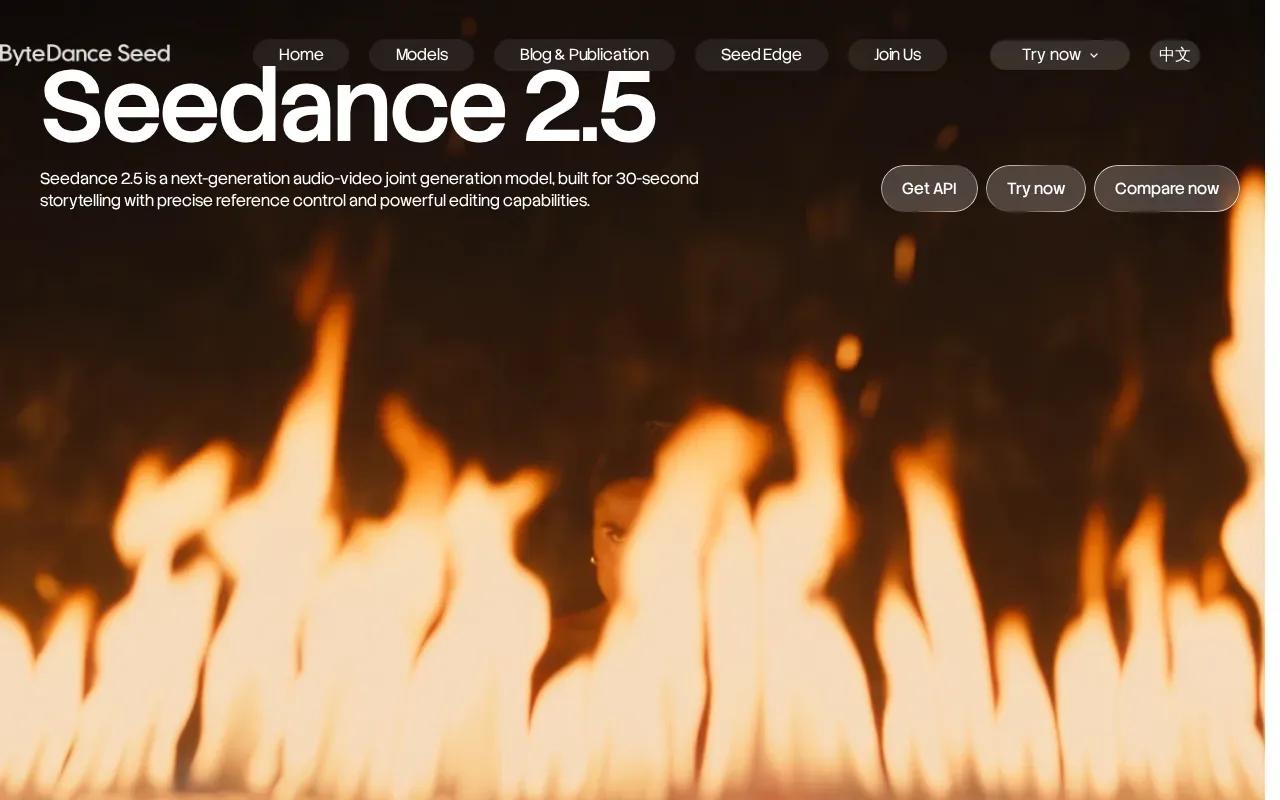
Seedance 2.5 supports up to 50 multimodal inputs and standard generations up to 30 seconds. Those inputs can give a project more reference material to work with, while localized editing lets you adjust a specific part of a clip. Audio control is also part of the workflow.
More reference inputs can help communicate what you want, but they also make it important to keep the brief clear. Pick reference material that supports the same subject and visual direction. Then review the full clip for consistency, especially where the shot changes or an edit affects a local area.
Consider Seedance 2.5 when your project calls for reference-driven generation or a longer standard clip. Confirm the current controls in your workspace before planning a fixed production process.
8. Veo3 AI: An option to investigate for native-audio generation
Veo3 AI describes a video-generation service with 4K video and native audio. It may interest creators looking for a prompt-led clip that includes sound as part of the generated result.
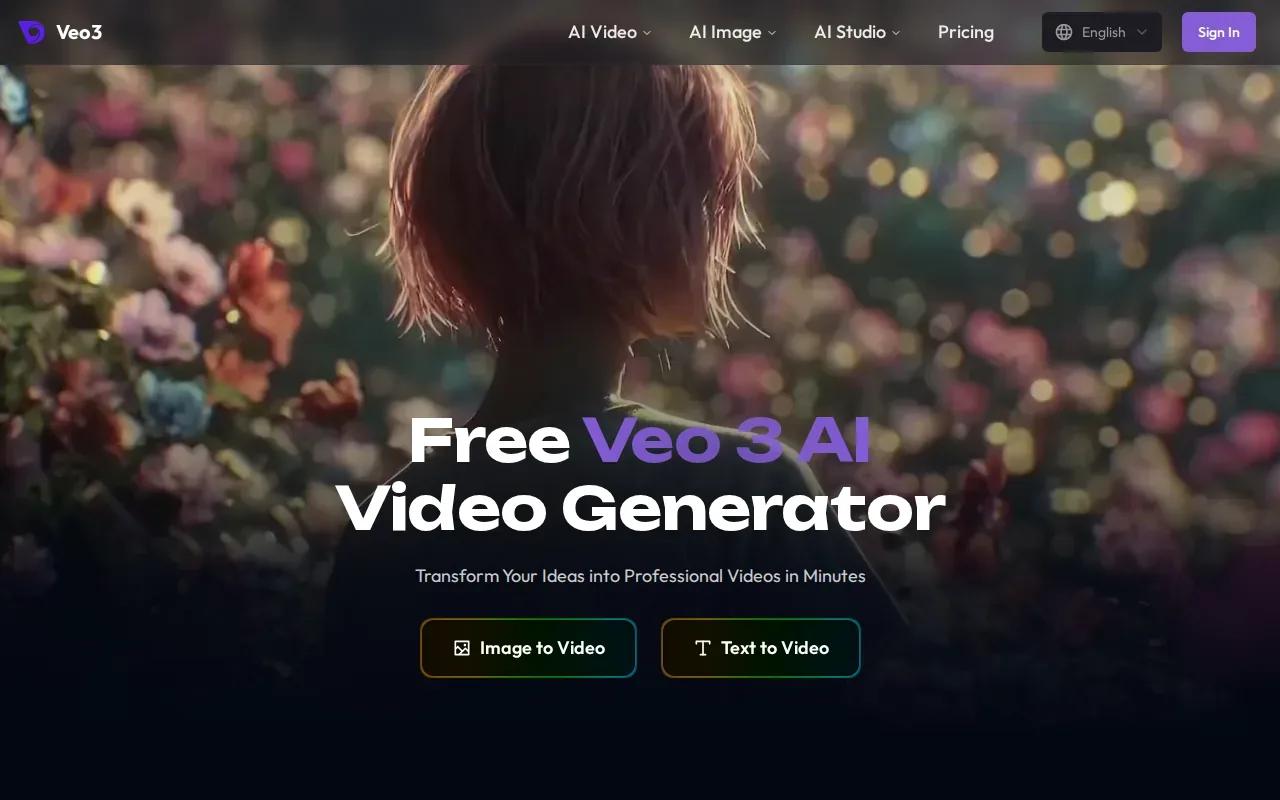
It also mentions realistic physics and a free starting option. Those are useful points to check against the task at hand: a product shot may need believable object movement, while a social clip may depend more on the sound. Test the specific image and prompt you plan to use rather than judging from a general description.
Keep the naming clear: Veo3 AI is listed here as its own option. Google Veo, covered above, is a separate named option in this shortlist. Don’t assume they share the same access, controls, or model details.
Before you settle on Veo3 AI, confirm the output settings and free access available to your account. Native sound can help when audio belongs in the first draft, but it is still worth listening through before you publish.
9. DomoAI: A creative studio for generating and stylizing video
DomoAI is an AI creative studio for creating videos from text, images, or footage. It brings video generation, stylizing, and upscaling together.
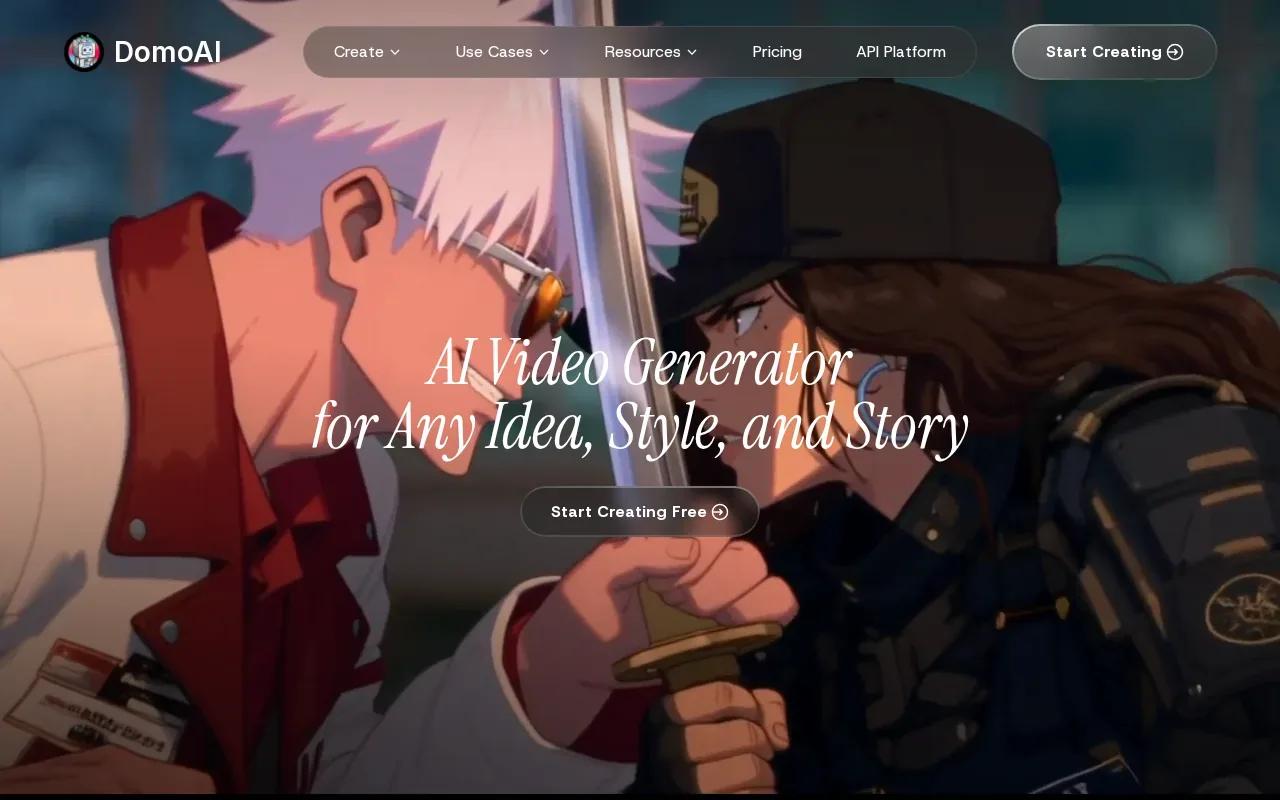
For an image-based project, you can use DomoAI to create a video from an image. The studio also supports creating videos from text or footage.
DomoAI combines generation, stylization, and upscaling in one creative studio. Which capabilities matter most depends on the creative task.
When comparing tools, consider whether creating from text, images, or footage and the available stylizing and upscaling workflow fit your needs.
10. Kapwing AI Video Generator: Browser-based generation with multiple models
Kapwing AI Video Generator runs in a browser and supports image-to-video generation with multiple models. It may suit creators who want to generate a clip, then add text or other edits on the same canvas.
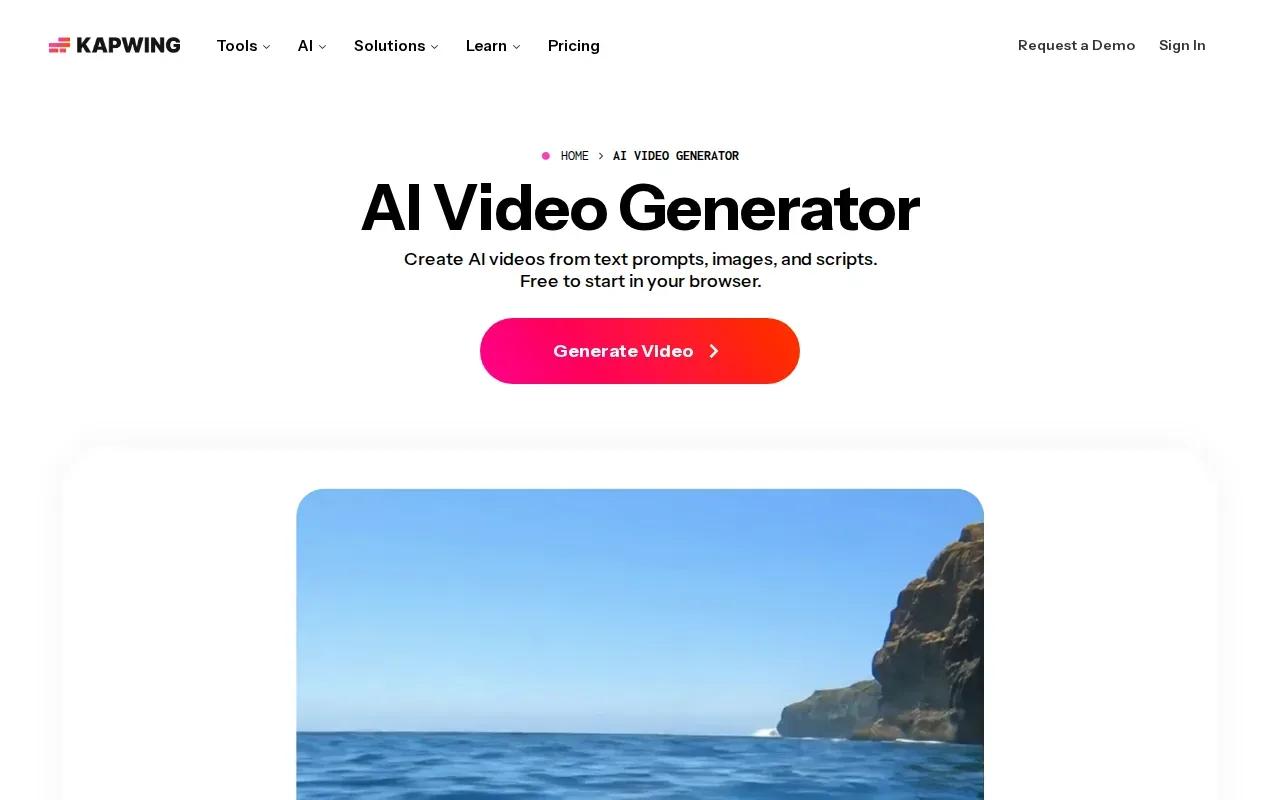
Kapwing supports image-to-video generation with AI models including Veo, Kling, Seedance, and MiniMax, with clips up to 30 seconds.
After generation, the editor can add elements such as subtitles, music, or branded overlays. That can help when a social post needs captions or a product clip needs a graphic before export. Kapwing also describes exports in formats including MP4, with several aspect ratios for common posting needs.
Free access is available to try. Check the options for your chosen model and settings before producing a batch. The browser-based edit flow is the key reason to consider it alongside a generation-only workflow.
Quick Comparison: Which AI Photo Animator Fits Your Workflow?
The right AI photo animator is the one that matches the image and the kind of motion you need. Use this table to narrow the shortlist by workflow, then test the same source image in your finalists.
| Tool | Good fit when you need | Detail to check in a test |
|---|---|---|
| OmniRender | Image references, generated sound, lip-synced dialogue, or prompt-based edits | Resolution and plan terms for your intended use |
| Vidu | Portrait or character motion with start/end frames or reference images | Whether the subject stays consistent through the movement |
| Pika | Stylized effects and shareable transformations | Whether the free 480p result is clear enough for the post |
| Google Veo | Reference-led cinematic motion and native audio | Whether the camera move preserves the details you care about |
| PixVerse | Multiple variations or an API-oriented workflow | Which generated variation fits the campaign direction |
| Kaiber | Beat-led visuals or a transition between two images | Whether the transition feels right with the music |
| Seedance 2.5 by ByteDance | Reference-driven video with audio controls and localized edits | Which references are needed to guide the scene clearly |
| Veo3 AI | Prompt-led video with native audio and 4K output | Available settings and free access for your account |
| DomoAI | Generation, stylizing, or upscaling within one creative studio | Model, length, aspect ratio, and audio settings |
| Kapwing AI Video Generator | Browser-based generation followed by timeline edits | Credit use for the selected model and export shape |
For a simple comparison, use the same image and a prompt with one action. Note whether the face, product outline, or background shifts. If your clip needs sound, include that in the test instead of treating it as a later extra.
OmniRender is a sensible place to start when your workflow needs image references plus generated sound or dialogue. You can compare its outputs with the priorities in this image-to-video tool comparison, then try the workflow on one image before committing to a larger batch.
FAQ
What does an AI photo animator do?
An AI photo animator turns a still image into a moving video clip. You provide a photo and, in many workflows, describe the movement or camera action you want. The model generates new frames based on that input. Some tools also add sound, support visual references, or let you edit parts of the result.
How do I get natural movement from a photo?
Start with a sharp image where the main subject is easy to see, then ask for one small movement. A gentle head turn or slow camera push is easier to assess than several actions at once. Name the details you want to preserve, such as a person’s face or a product’s shape, and review the full clip before sharing.
Can I animate an old or low-resolution photo?
Yes, some tools describe workflows for old photos or archive images, but the result depends on the source image. Clearer faces and less clutter give the model better visual cues. If the image is damaged, a restoration step may help before animation. Keep the requested movement restrained so the clip doesn’t draw attention to flaws in the source.
Are AI photo animator tools free?
Some tools have free access or a free tier, but limits vary. OmniRender’s free plan includes a few 360p videos each month without a card, while Pika’s free access is described at 480p. Other tools may use credits or plan-based access. Check current resolution, generation limits, and usage terms before you rely on a free tier.
Can I use AI-animated photos in commercial content?
Check the terms for the tool and plan you’ll use before publishing an ad or other paid work. Don’t assume a free test grants the same rights as a paid plan. Also make sure you have permission to use the photo, especially when it shows another person or private material. Keep a copy of the relevant terms with the project files.
Conclusion
If your clips need image references, generated audio, or dialogue, start with OmniRender and test one short draft before building a larger workflow. The independent app has a free plan for trying 360p output; open OmniRender and see whether its controls fit your next clip.