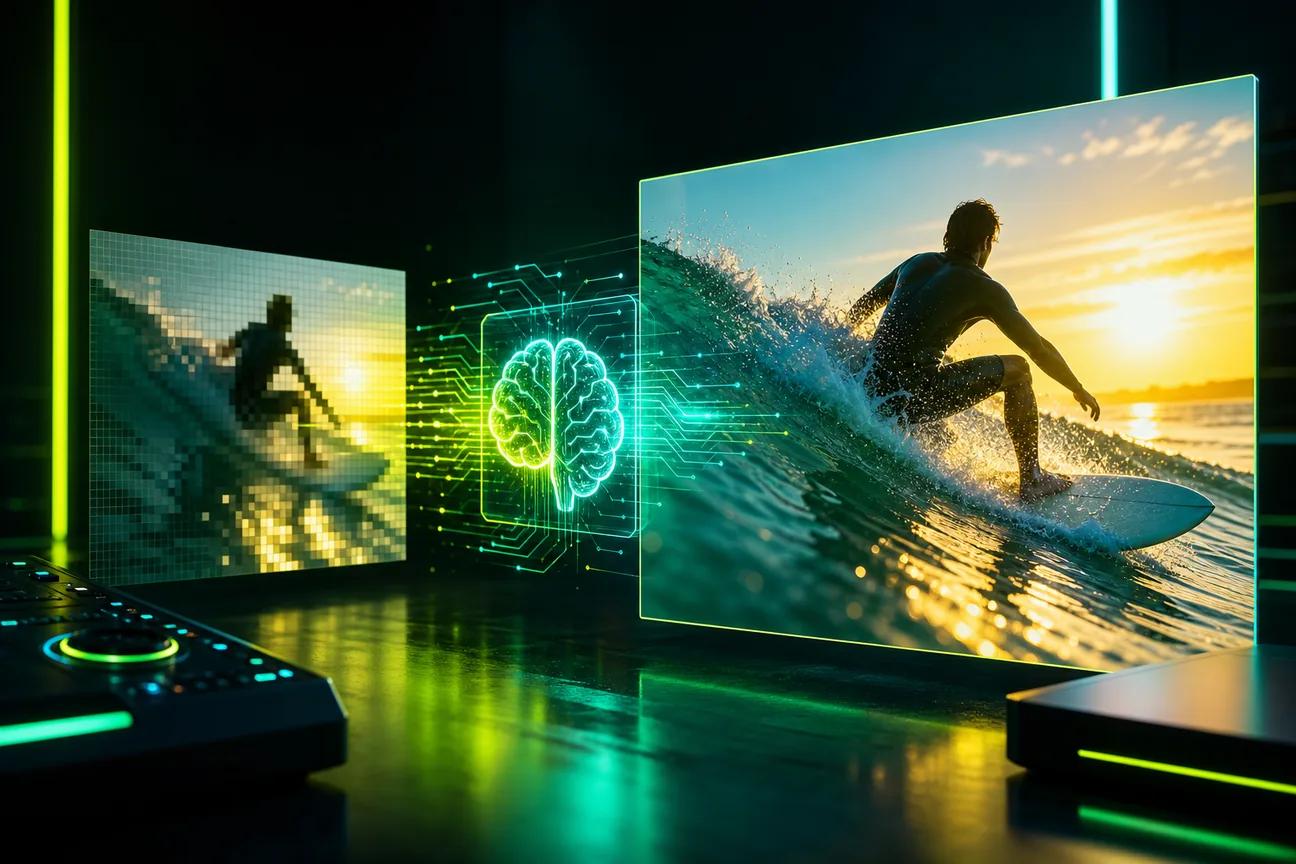
A sharper export can help, but upscaling can’t recover every detail that wasn’t captured in the first place. AI video upscaling software uses learned models to raise a video’s resolution and add or refine detail. Here are 10 tools with different workflows, from footage restoration to AI video creation.
We analyzed 53 comments and questions from YouTube and Quora about AI video upscaling software and found that 17% mentioned slow processing speed.
1. OmniRender
OmniRender is a browser-based AI video creation app, not a tool for restoring existing footage. It turns prompts and image references into short videos with generated sound, dialogue, and lip sync.
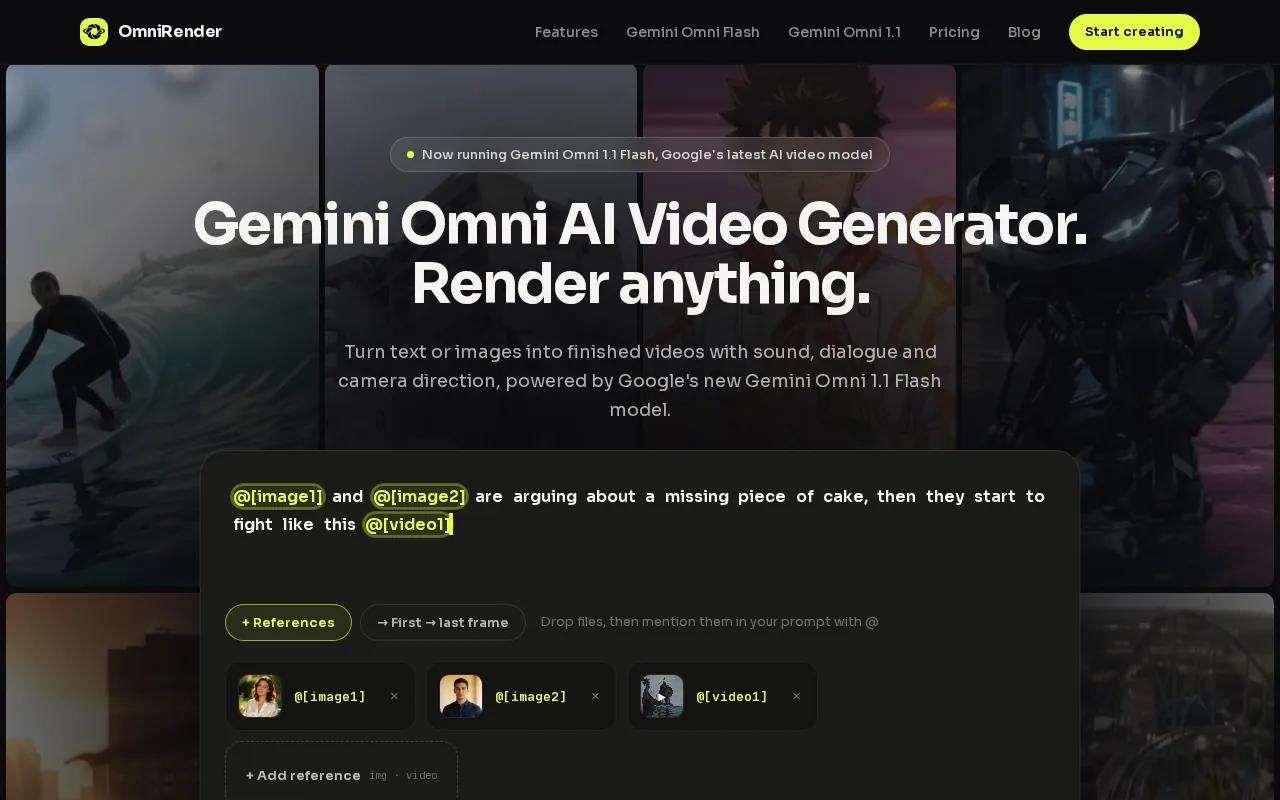
For a product clip, you can attach an image reference, describe the camera move, then generate a short video. You can ask for edits in plain language and extend a generated scene up to 40 seconds. That makes OmniRender useful when you need a new video, rather than a higher-resolution copy of an old one. The image-to-video generator comparison covers more tools for that creation workflow.
OmniRender is an independent app that uses Gemini Omni models; its features and plans are separate from the underlying technology. Check the site for current pricing, credit allowances, and resolution limits. Free-versus-paid commercial usage rights are unclear, so check the terms for your intended use before publishing.
2. HitPaw VikPea: desktop, web, and mobile workflows
HitPaw VikPea, also called HitPaw Video Enhancer, is an AI video enhancer for PC, Mac, web, and mobile. It can upscale video to 4K or 8K and colorize footage. The range of access options may suit you if you move between a desktop edit and a quick mobile task.
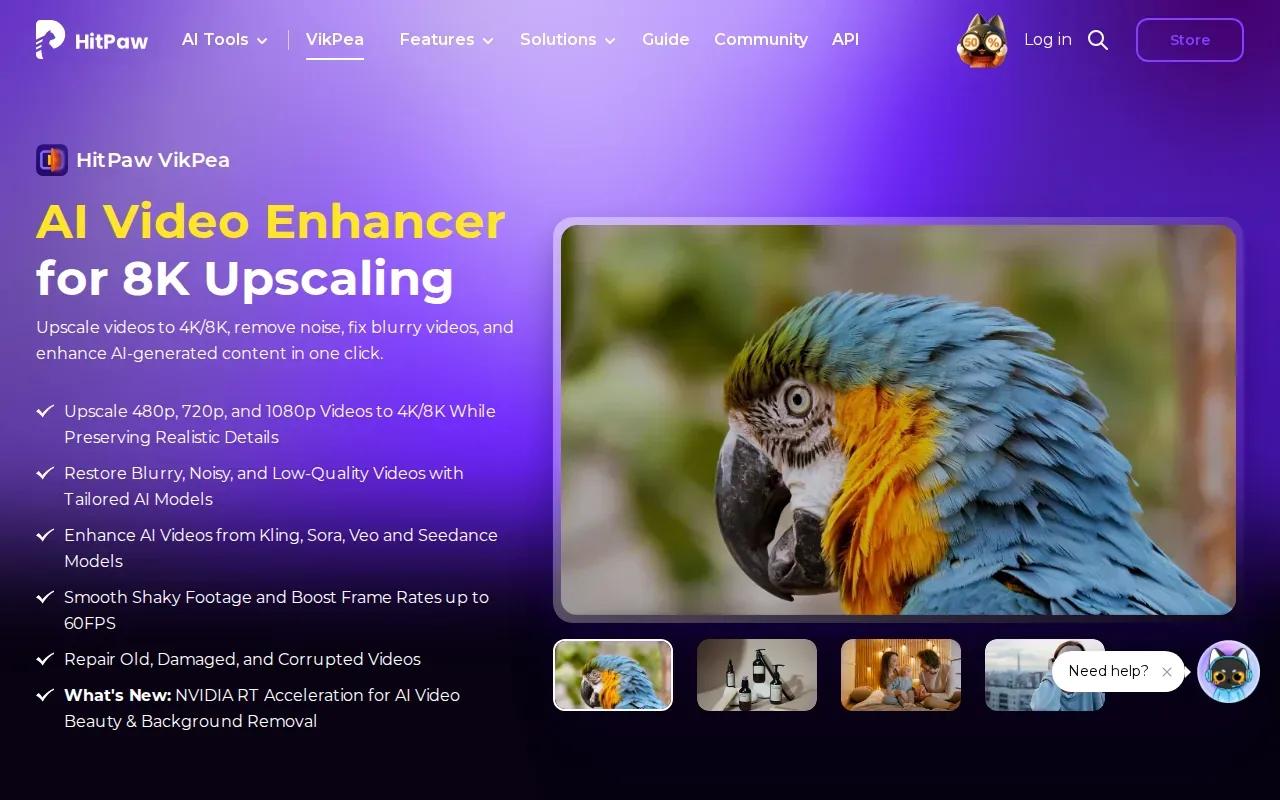
Think of a low-resolution family clip that needs color and a larger export. VikPea can upscale video and colorize footage, so you can assess the restored version without treating resolution as the only measure of quality. Its listed maximum is 8K, while its platform support gives you more than a desktop-only workflow.
Try a short sample first. Upscaling can make edges look sharper, but it can’t guarantee that every new detail matches the original scene.
3. AVCLabs AI Video Enhancer: neural-network enhancement up to 8K
AVCLabs AI Video Enhancer uses neural networks to enhance video up to 4K or 8K. It’s a desktop-style choice to consider when your source clips need more than a resolution bump: its functions include noise reduction, deblurring, color enhancement, and colorization of black-and-white footage.

For an old clip with visible grain, you can weigh the full restoration set against the need for a higher-resolution file. The tool also lists stabilization and object removal among its features. Those functions address different problems, so judge each change on its own rather than assuming a single enhancement setting will fix everything.
Compare the output on a sample before processing a full archive.
4. TensorPix: online upscaling for cloud-based workflows
TensorPix is an online video enhancer with a free tier. Its product details describe resolution upscaling by 400%, making it worth considering when you’d rather work in a browser than set up a desktop process.
A cloud-based workflow can be handy when you need to test an enhancement from a machine that isn’t your editing workstation. TensorPix’s stated upscaling claim gives you a starting point, but the final look still depends on the source clip. Check a representative section for fine edges and motion before sending a longer file through.
TensorPix has a free tier, and paid plans start at US$12 per month for 12 credits. The credit allowance matters if you expect to process several clips, so estimate your planned use before choosing a paid plan.
5. Vmake AI Video Quality Enhancer: browser-based sharpening and color
Vmake AI Video Quality Enhancer is a web-based tool that uses proprietary AI for video enhancement. Its focus is on sharper details and more vivid color, which may help when a clip looks soft or dull before you share it.

Because it runs in a browser, Vmake can suit a quick enhancement task where installing desktop software isn’t part of the plan. Its subscription starts at $9.99 per month. Before you pay, try a short clip with the same lighting and motion as your main footage, then inspect faces and fast-moving edges at normal playback speed.
Color changes can make a scene feel different even when the details look sharper. Compare the result with the source so skin tones and familiar objects still look right.
6. Fotor AI Video Enhancer: a straightforward HD-to-4K option
Fotor AI Video Enhancer analyzes video frames, reconstructs missing detail, and raises resolution to HD or 4K. Fotor describes the process as a few clicks, without complex editing controls, so it may suit a one-off export more than a hands-on restoration workflow.
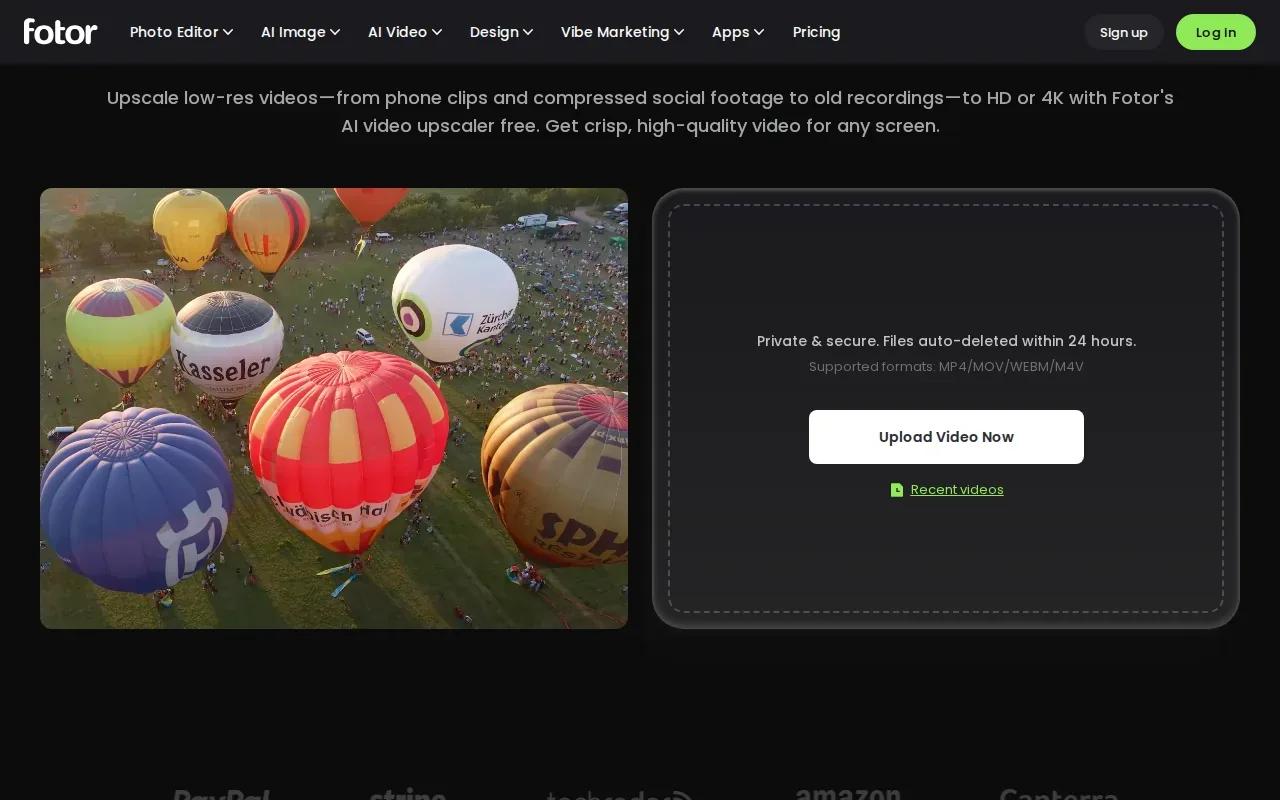
That simple path can be useful when your goal is clear: prepare a small clip for a larger screen or a higher-resolution post. Start with a short section and check whether the result preserves the scene’s texture. AI reconstruction can add detail, but that detail is generated from patterns in the frames, not recovered from an untouched original.
If you already use Fotor for other creative tasks, keeping the enhancement in a familiar browser workflow may feel straightforward. The key test is whether the result looks natural at the size where people will watch it.
7. Krea: video enhancement within a broader creative suite
Krea is a creative suite for generating, editing, and enhancing images, videos, and 3D work. Its wider scope may suit a creator who wants enhancement as part of a larger set of visual tasks, rather than a tool focused only on video restoration.
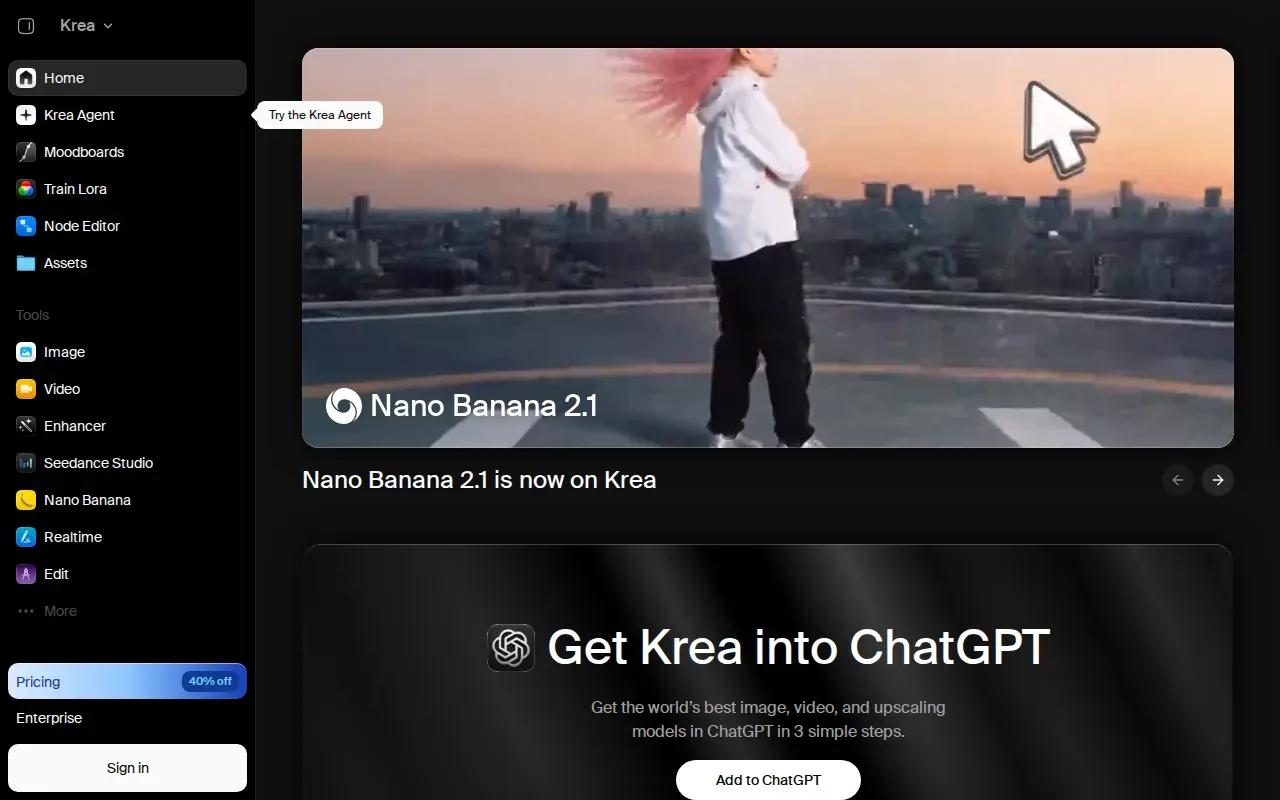
That distinction helps set expectations. If your work mixes visual formats, one suite for several kinds of creation may fit the day better. If you only need to clean up a batch of old footage, compare the specific video functions and output against a dedicated enhancer before settling on a workflow.
Look closely at the result in motion, not only on a still frame. A sharp-looking paused image can hide flicker or uneven detail once the clip plays.
8. DaVinci Resolve Studio by Blackmagic Design: upscaling alongside professional editing
DaVinci Resolve Studio is Blackmagic Design’s editing software, made for film, post-production, and broadcast work. Its place on this list suits editors who want to keep enhancement beside the rest of a professional video workflow.
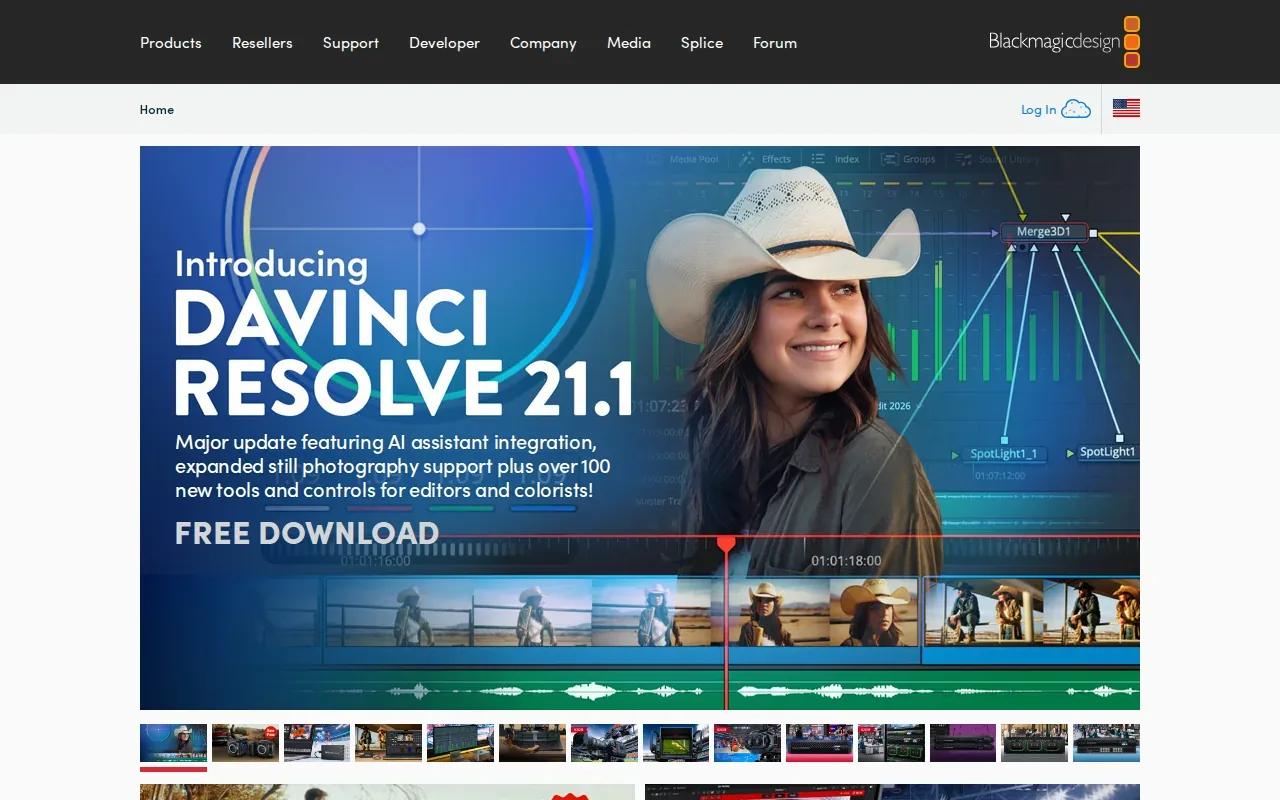
For a project already being cut in Resolve, keeping edits and finishing work within the same software can reduce the need to move between separate apps. Blackmagic Design makes products for feature film, post, and broadcast industries. That context makes this option worth evaluating for a team with an established editing process.
Check that the version and feature set you plan to use match your enhancement needs. The listed information here establishes Resolve Studio as a professional editing option, not a guarantee that every source clip will improve in the same way.
9. Pixop: cloud enhancement for broadcasters and media teams
Pixop is a cloud video enhancement service aimed at broadcasters and media companies. Its workflow can integrate with existing systems to deliver UHD HDR from HD pipelines, without costly infrastructure upgrades.

That focus makes Pixop a different kind of pick from a simple browser enhancer. A media team can assess whether its cloud approach fits the way footage moves through the current pipeline. The intended audience is professional, so this is more relevant when you manage a library or broadcast workflow than when you have one personal clip to fix.
For a team considering an update to its video process, start by mapping where files enter and leave the pipeline. Then check whether the service’s UHD HDR output goal matches the format and quality target for your content.
10. VideoProc Converter AI: GPU-accelerated enhancement and conversion
VideoProc Converter AI combines video enhancement with conversion and editing tools. It uses GPU acceleration and describes video upscaling by 400% to HD or 4K, alongside noise removal, sharpening, stabilization, and frame interpolation.
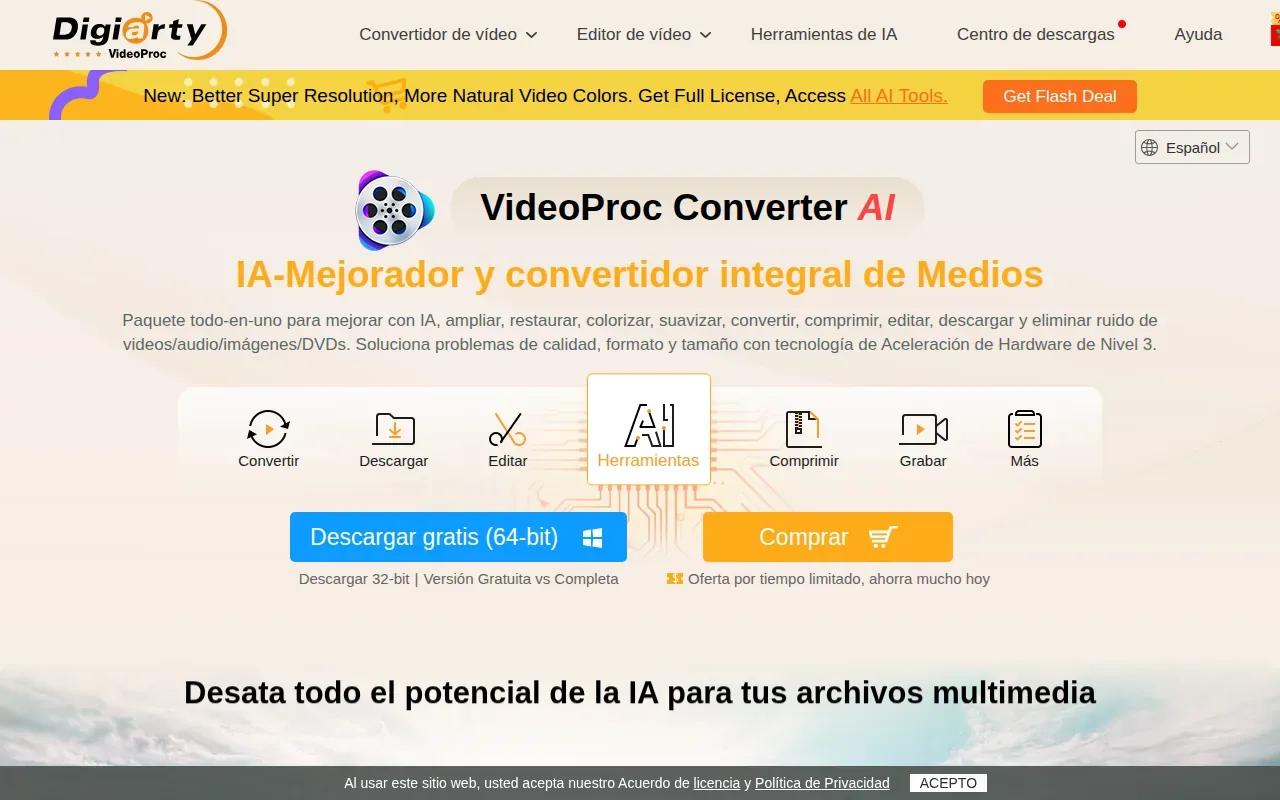
It may suit you when enhancement is only one part of the job. For instance, you can assess whether a clip needs a larger output, then use the same software for conversion or compression. VideoProc also states support for Intel, NVIDIA, AMD, and Apple silicon hardware acceleration. Processing time can depend on your computer and graphics card.
| Workflow need | VideoProc function to assess | Sample check |
|---|---|---|
| Low-resolution footage | Super Resolution | Do edges and fine detail look natural? |
| Shaky camera footage | Stabilization | Does the crop still frame the subject? |
| Choppy motion | Frame interpolation | Does movement look smooth at normal speed? |
| Mixed file formats | Conversion and batch processing | Does the exported file suit your playback or sharing needs? |
VideoProc’s purchase options include lifetime licenses and a yearly subscription. Check the license terms against the computers you plan to use before you buy.
How to choose an AI video upscaler
Start with the source and the job. A blurry archive clip needs a different workflow from a new social ad, and a bigger resolution alone won’t fix a shaky camera or noise.
- Check the source. Try a short section that includes motion, faces, and fine edges.
- Match the output. Pick a resolution that fits where the video will appear, rather than selecting the largest number by default.
- Choose the workflow. A desktop tool may fit repeated restoration; a browser or cloud tool may be easier for a quick task.
- Review the result. Look at moving footage for flicker or odd detail, not only a paused frame.
- Check the license and cost. Confirm the terms for your intended use and compare subscription credits with one-time purchase options.
If you’re making a new clip instead of repairing an old one, OmniRender may be a better fit than a restoration tool. It can turn a prompt or image reference into a short video. For a broader look at creation workflows, see AI Video Generators: 7 Tools Compared.
FAQ
What does AI video upscaling do?
AI video upscaling raises a video’s output resolution and may add or refine detail by analyzing its frames. It doesn’t restore the exact information missing from the source. The result depends on the footage and the tool, so test a short clip before processing a whole archive.
Can AI upscaling make old videos look like 4K?
Some tools can export enhanced footage at 4K, but a 4K file isn’t the same as footage originally captured in 4K. The software estimates detail from the existing frames. Check faces, fine edges, and motion to see whether the larger output looks natural.
Is there free AI video upscaling software?
Some tools in this shortlist have free access, including TensorPix. OmniRender creates new videos rather than restoring existing clips. Check each service’s current access terms before you start, and treat a free output as a test of its workflow and results.
Should I use a desktop or cloud video enhancer?
Choose based on your workflow. Desktop software may make sense when you process footage on a regular workstation or need related conversion tools. A cloud option can be easier when you want browser access. In either case, test a representative clip and review the export before committing to a full batch.
Conclusion
For existing footage, compare a few enhancers using the same short source clip, then choose the one that keeps motion and detail looking natural. If you need a new prompt-led video instead, consider OmniRender, an independent app for video creation.