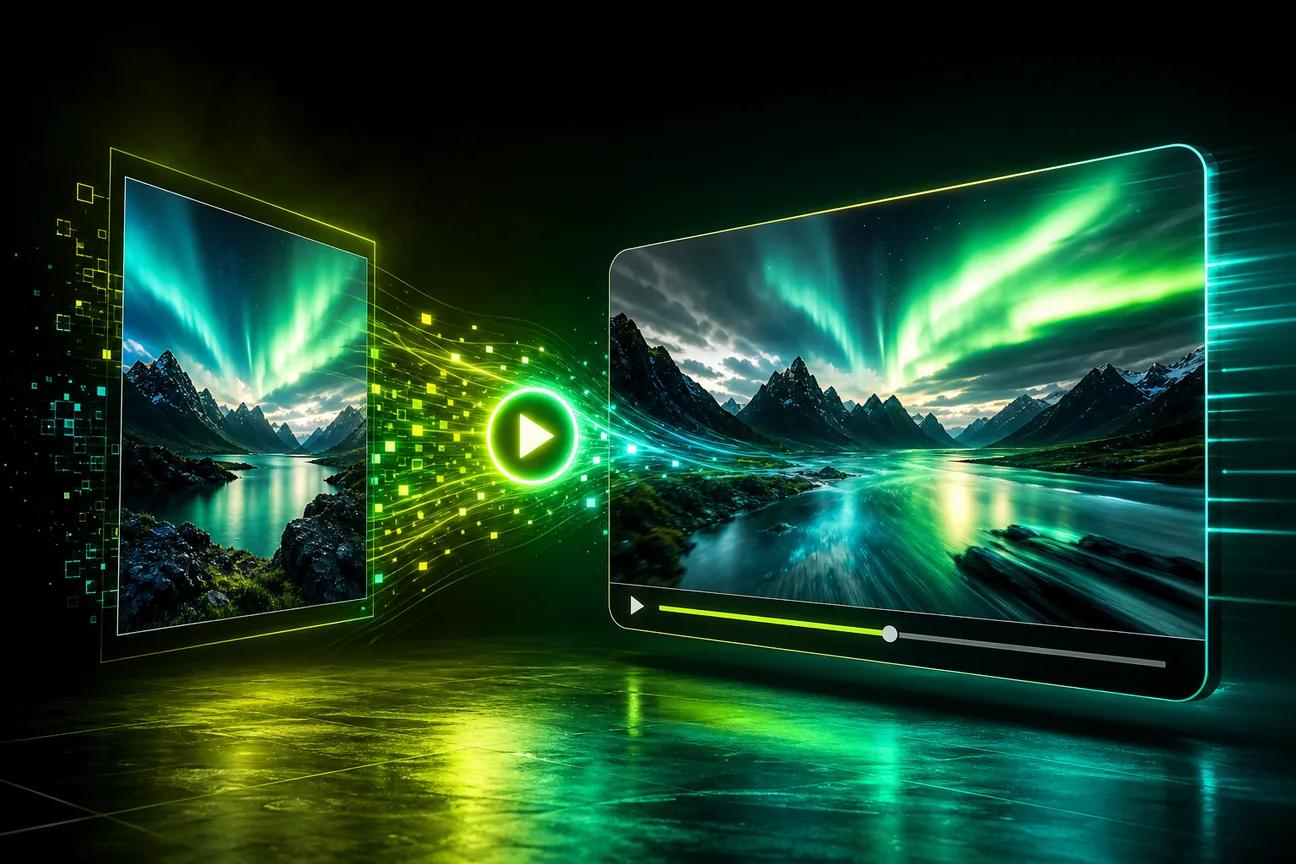
A good image-to-video AI generator can turn one still into a short clip without a full video shoot. The right pick depends on what you need next: synced speech or a particular model.
We analyzed 64 comments and questions from Reddit, YouTube and Quora about image to video AI generators and found that 25% mentioned free or open-source image-to-video tools.
Here are ten options, with OmniRender first and the trade-offs that matter for everyday projects.
1. OmniRender
OmniRender is a browser-based app for turning text prompts and image references into short videos. It’s a fit for creators making social clips, product ads, or scenes with a consistent character and spoken dialogue.
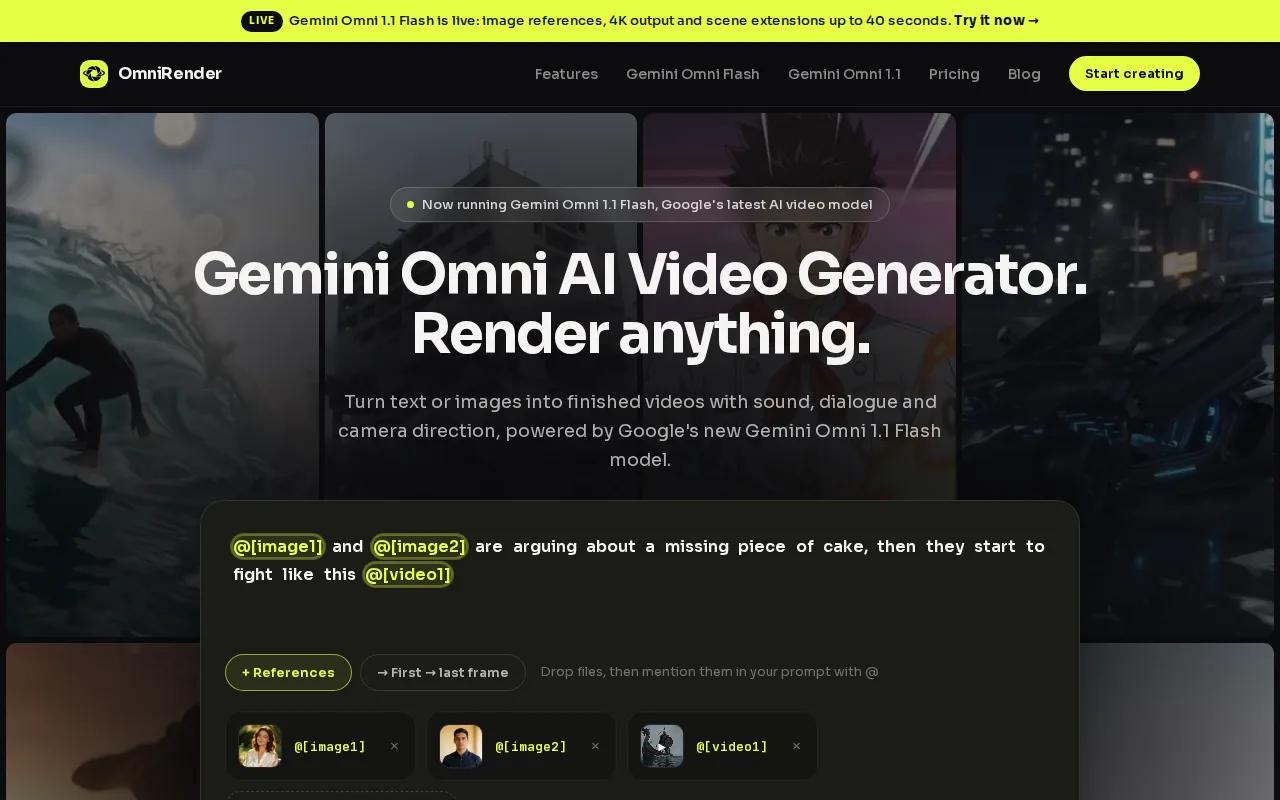
OmniRender is an independent service, not a Google product or an endorsed service. Its current model can generate native sound, music, effects, and lip-synced dialogue. You can also ask for an edit in plain language or extend a clip, with continuations available up to 40 seconds total.
Check OmniRender’s plan details for current pricing, output limits, and resolution options. Free-versus-paid commercial usage rights are unclear, so confirm licensing directly before using generated videos commercially. Check the OmniRender plans and free access against your workload before you commit.
2. Kling: high-fidelity face and body detail
Kling is an image-to-video option for scenes where a person’s face and body need to stay visually consistent through the clip. That makes it worth considering for a portrait animation or a character shot where a large shift in appearance would spoil the result.
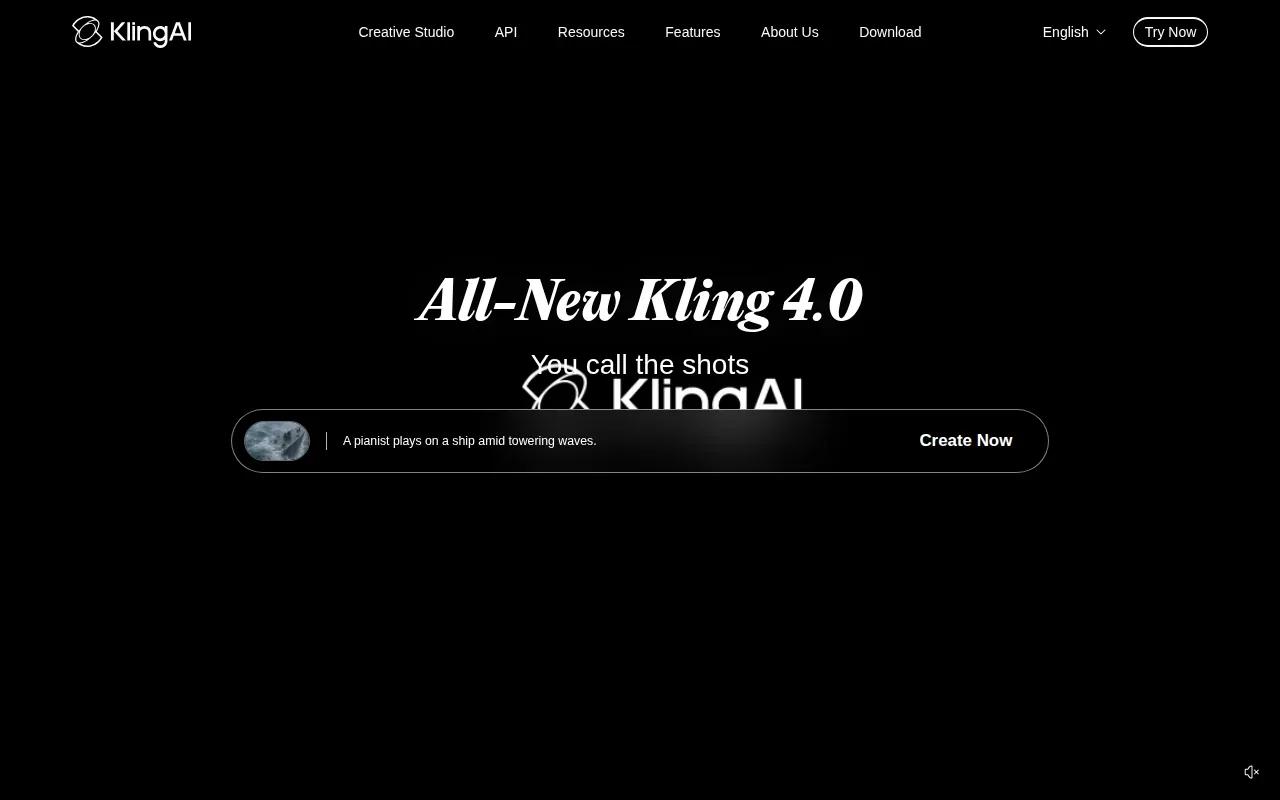
The verified capability notes say Kling preserves face and body detail with high fidelity. Its listed maximum resolution is 720p. The same notes mark scene extension and lip sync as unavailable, so plan for a short, self-contained shot rather than a continuing scene with spoken dialogue.
Write a prompt that asks for one clear movement, such as a slow turn or a small camera push. Fewer simultaneous actions give you a cleaner way to judge whether the character stays on model.
3. Runway: generated audio alongside video
Runway pairs video generation with native audio, which can help when you want a clip with sound from the first draft. Its audio generation can produce ambient sound, dialogue, or a music bed alongside the video.
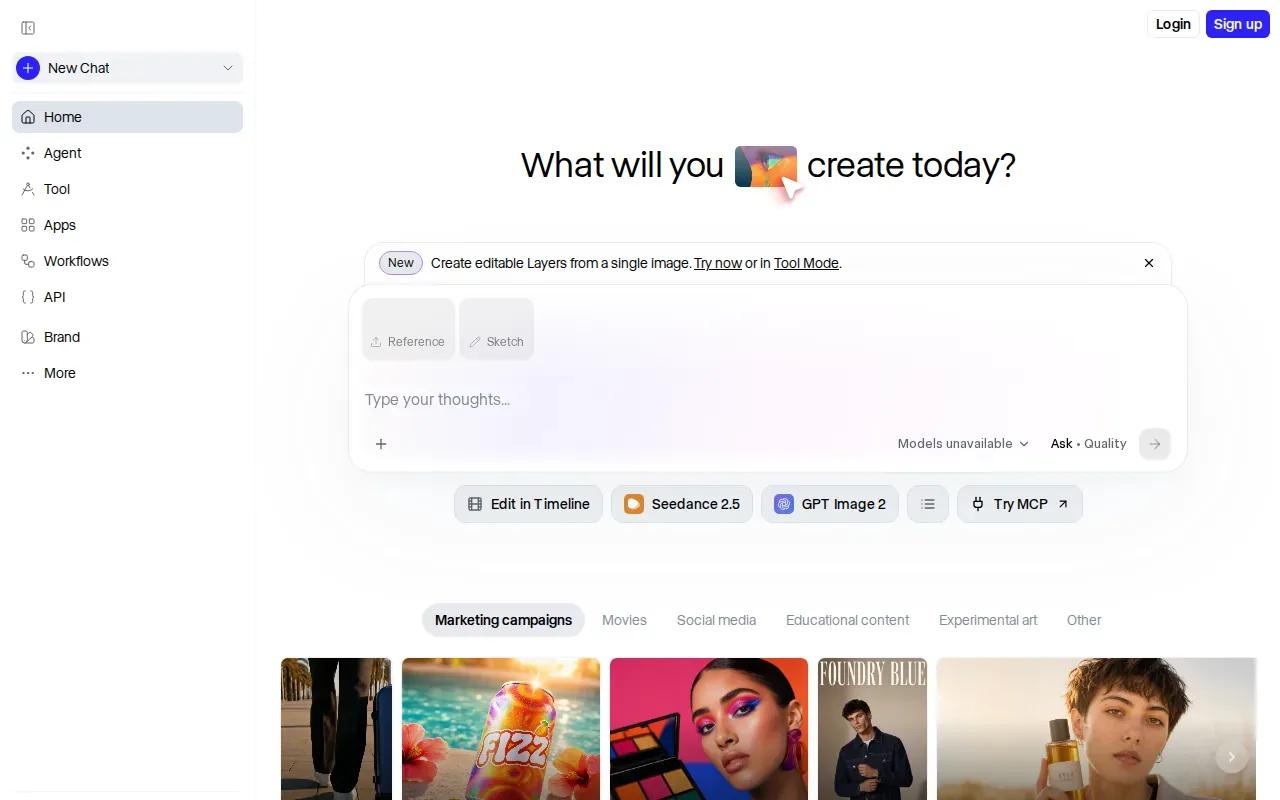
That can save a separate audio pass for a quick social concept or rough ad. You can also choose to generate without audio when you plan to score the clip yourself. Runway’s listed maximum resolution is 720p; the verified capability notes don’t include scene extension or lip sync.
Runway uses credits for generation. Credits vary by model and settings, which makes the estimate shown before generation useful when you’re testing more than one idea.
4. Pika: an accessible entry point with a free tier
Pika gives you a small free allowance to try short video generations. The stated free tier includes 80 credits per month, 480p output, and a watermark. Paid plans start at $8 per month.
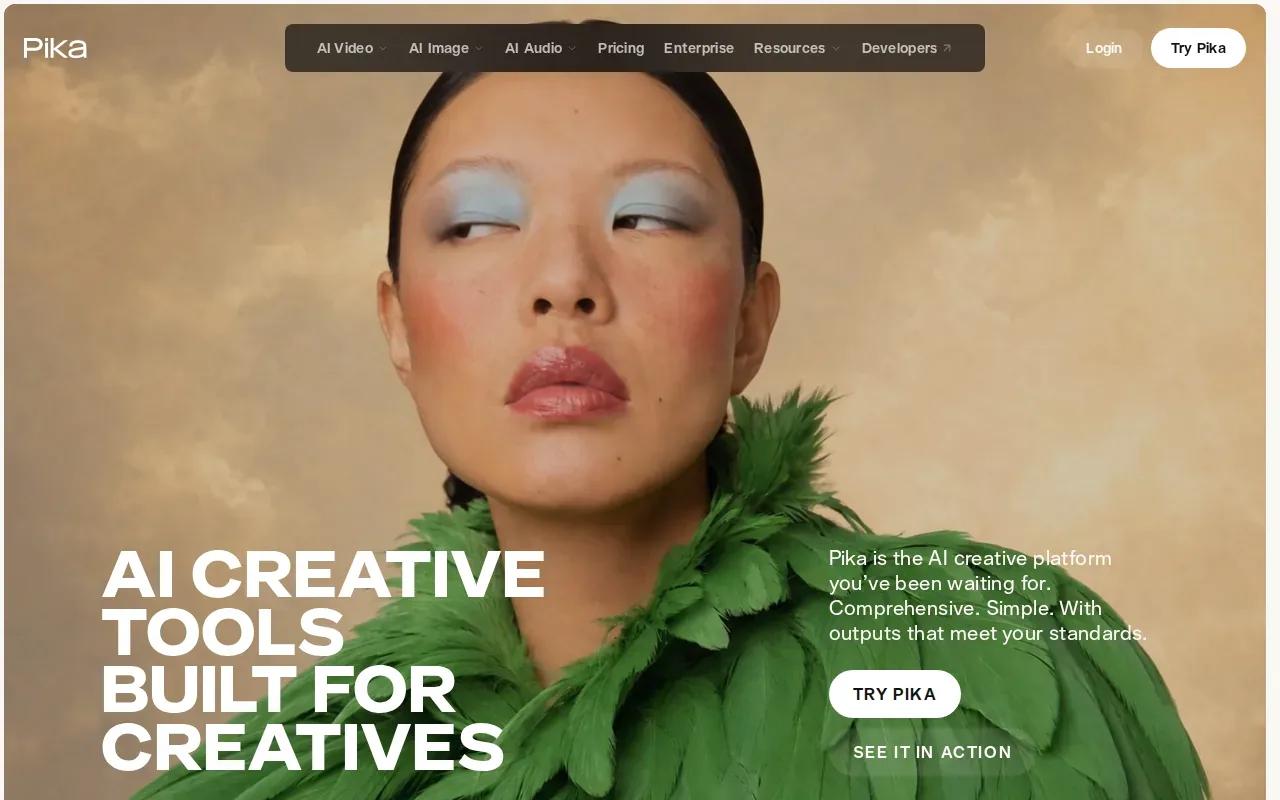
For commercial use, Pika requires Pro, priced at $28 per month. Check that requirement before making a clip for an ad or client project. Pika’s listed maximum resolution is 480p, and the verified notes don’t mark scene extension or lip sync as available.
That makes Pika a sensible place to test an idea for personal use, as long as the free output limits suit your draft.
5. OpenArt Director: a multi-asset creative workspace
OpenArt Director brings image, video, voice, and audio work into one creative workspace. It may suit you when a project starts with a storyboard or reference image and then grows into a sequence of shots.
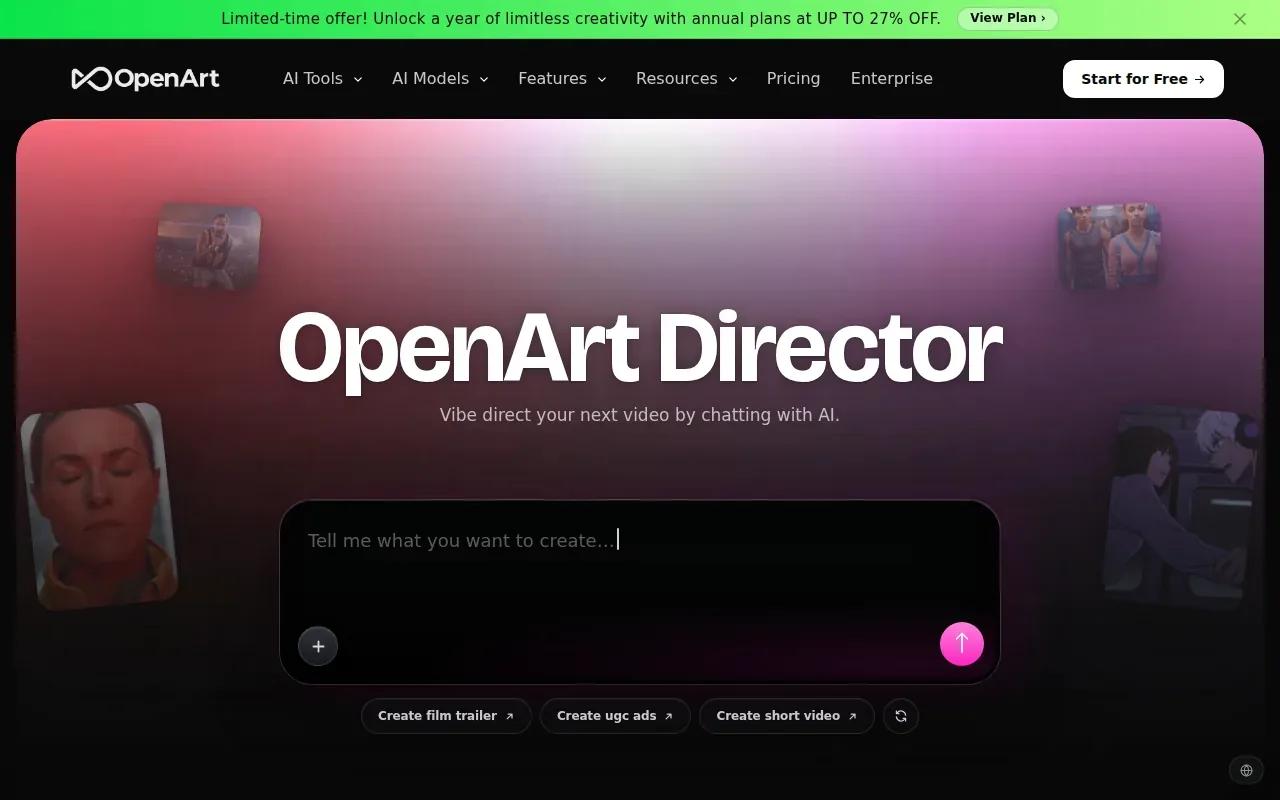
OpenArt Director supports video clips up to 15 seconds and output up to 4K. OpenArt users own their generated assets, and commercial use starts on the Advanced plan at $29 per month.
Those extra controls may help with a campaign that needs more than one isolated clip. Prompt-based editing, scene extension, and lip sync are unavailable in this workflow, so check the exact workflow before choosing it for dialogue-led work.
6. Krea: create and refine across visual formats
Krea is a visual creation workspace for generating, editing, and enhancing images, videos, and 3D work. It’s worth a look if your project moves between still images and video, or if you want to improve a source image before animating it.
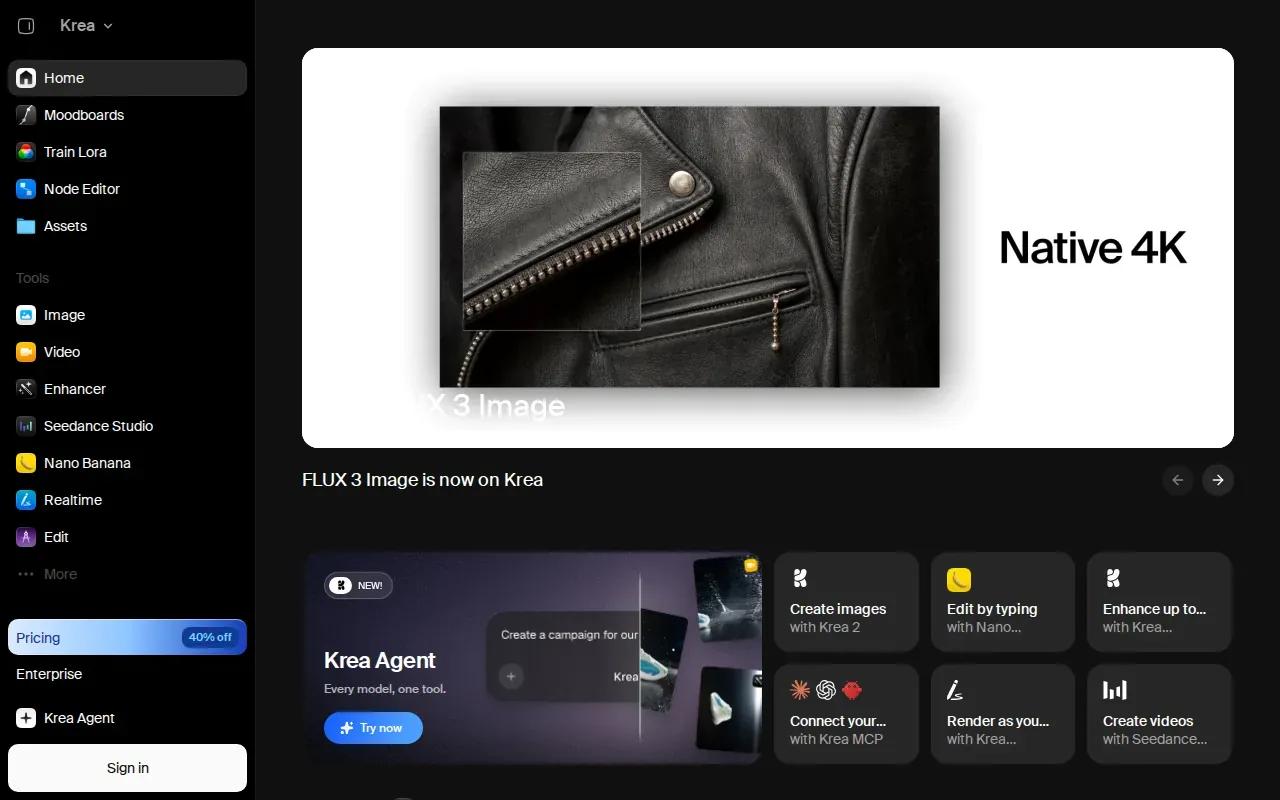
Krea can generate, edit, and enhance images, videos, and 3D work, making it an option for projects that span more than one visual format.
Use the image tools to prepare the frame, then check the available video model and output settings for the clip you need. Krea’s model selection is a useful starting point when your work spans more than one visual format.
7. DaVinci: access to multiple AI models in one platform
DaVinci puts access to more than 50 AI models in one platform. The named models include Sora, Veo, Kling, and Flux, which can help if you want to compare model options without building a separate workflow around each one.
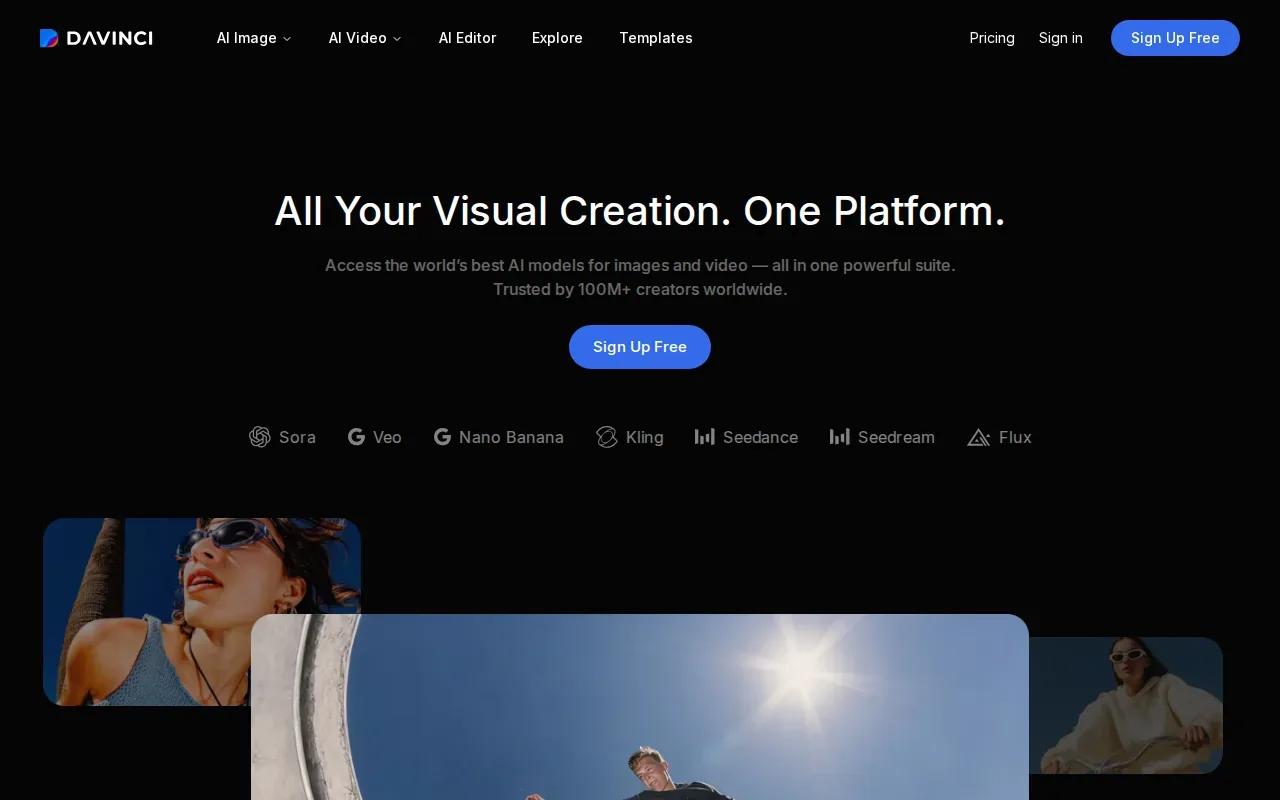
DaVinci also describes turning product photos into short commercial videos and resizing creative for different platforms. That suits a marketer who starts with one product image and needs versions for a storefront or social placement.
For paid campaigns, review the terms tied to the specific model and output you plan to use. A model catalog is useful, but licensing still deserves a quick check.
8. JXP AI Video Generator: multi-shot video generation
JXP AI Video Generator brings image-to-video and text-to-video workflows together with multi-shot generation and dynamic camera control. It may fit a creator who wants to plan several shots or direct movement without writing a highly technical prompt.
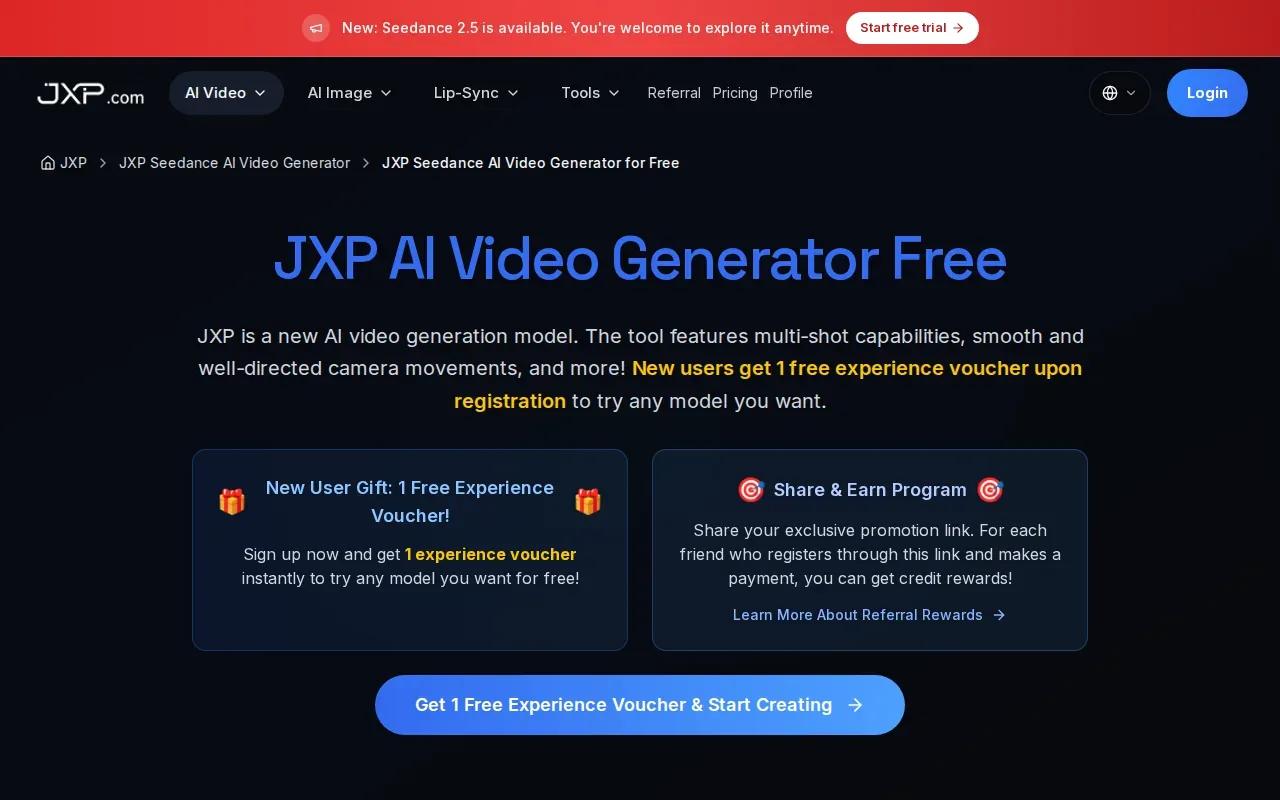
JXP says it gives access to models including Seedance 2.5, Wan 3.0, and Minimax H3. It’s free to start, and the generation estimate can change with the selected model and settings. The service says commercial use depends on your plan, the model, and the rights attached to your source material.
For a product sequence, make the key action clear in each shot, then check the displayed credit cost before you generate. Only upload images or clips you own or have permission to use.
9. OmniVideo: a free-start option powered by Gemini Omni Video
OmniVideo is a free-start video and image generator powered by Google’s Gemini Omni Video model. Its workflow can generate videos and images from text prompts, which gives you a way to try prompt-led creation before choosing a paid plan elsewhere.
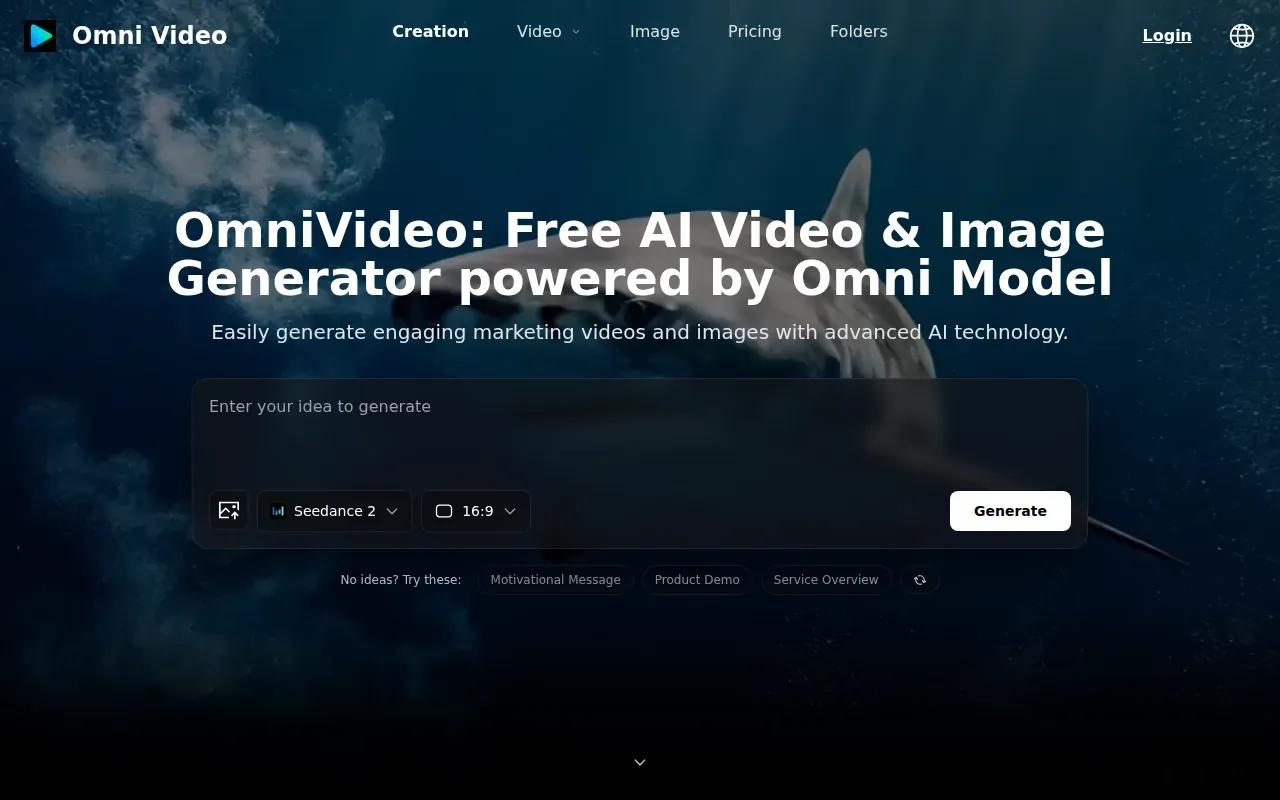
If you already have a still image, check that the current generation flow supports the exact image-to-video task you have in mind. OmniVideo offers text-prompt generation and free access. Check its current output settings and credit allowance before planning a project.
That distinction matters. A free starting point is useful for exploration, but it doesn’t tell you how many finished clips a larger project can support.
10. PixVerse: video generation and interactive-world ambitions
PixVerse works on AI video generation and production, with research that extends into real-time worlds and interactive entertainment. Its generation interface includes settings such as aspect ratio and duration, along with options for multi-shot work.
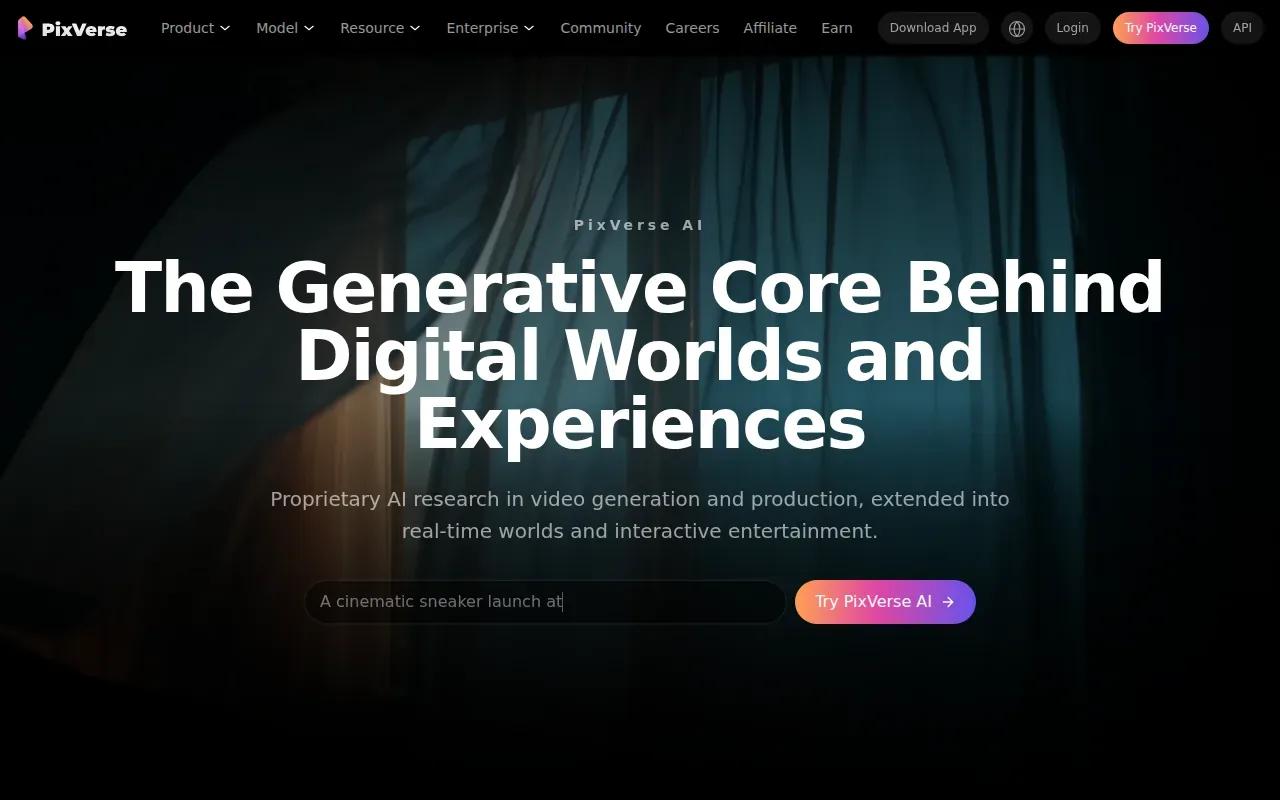
That broader direction may interest creators who want to explore more than a single animated still. For a straightforward product image, keep the prompt focused on the product’s motion and the camera move. Then review the result for changes to shape, label, or framing.
PixVerse is one to consider when you want to experiment with video concepts that may lead toward interactive formats.
Image to video AI generator comparison table
Use this table to narrow the shortlist by workflow and stated output limits. Check the plan and model terms before using any generated clip in paid work.
| Option | Useful for | Stated video details | Commercial-use note |
|---|---|---|---|
| OmniRender | Dialogue, editing, and extending clips | Up to 4K upscaled; extensions up to 40 seconds total | Plan details include a commercial licence on every plan |
| Kling | Preserving face and body detail | Maximum 720p; no scene extension or lip sync | — |
| Runway | Video with generated sound | Maximum 720p; no scene extension or lip sync | — |
| Pika | Trying a free tier | 480p; free plan has 80 monthly credits and a watermark | Pro required, stated at $28/month |
| OpenArt Director | — | — | Advanced plan starts commercial use, stated at $29/month |
| Krea | Working across visual formats | — | — |
| DaVinci | Accessing multiple models in one platform | — | — |
| JXP AI Video Generator | Multi-shot clips and camera control | Model and settings affect credit cost | Depends on plan, model, and source rights |
| OmniVideo | Trying text-prompt video generation | Free to start; check current output settings | — |
| PixVerse | Video concepts and interactive-world work | Multi-shot option available | — |
AI generation can make a first motion draft without a camera setup or a full edit. But check the final clip closely, especially faces, hands, and product details. A platform’s usage terms and the question of copyright ownership are separate; consult copyright information before relying on a generated clip.
OmniRender combines image references, prompt-based edits, scene extensions, and synced dialogue.
Frequently asked questions
Can I turn an image into a video for free?
Yes, several tools have free access or a free tier, but the limits differ. Check OmniRender’s current plan details for its free access and usage limits. Pika lists 80 monthly credits at 480p with a watermark. Check the current credit allowance and usage terms before making a clip for a client or ad.
What image works best for an AI video generator?
A clear image with one main subject gives the model less visual clutter to interpret. For a product shot, choose a frame where the shape and label are easy to see. For a portrait, use a clear face and avoid asking for several large movements at once. Then describe what should move and what should stay still.
How do I prompt an image-to-video tool?
Say what moves, how the camera moves, and what must stay consistent. For example, describe a slow camera push while a person turns toward the window, with their face and clothes unchanged. Keep the first prompt focused. If the motion is off, adjust one detail and generate another draft.
Can an AI-generated video be used in an ad?
Sometimes. Commercial use depends on the tool, plan, model, and source material. Check OmniRender’s current commercial-use terms before publishing; Pika requires Pro for commercial rights. Read the current terms for your chosen tool before publishing paid or client work.
How long can an image-to-video clip be?
It depends on the platform and model. OmniRender generates short takes that can be extended to 40 seconds total. OpenArt Director’s stated video generation supports clips up to 15 seconds. Other options may have different limits by model or settings, so confirm the duration in the generation interface before spending credits.
Conclusion
For a browser-based workflow with image references, synced sound, conversational edits, and scene extensions, start with OmniRender’s free plan. Try one still at 360p, check that the motion fits your idea, then review OmniRender’s plans if you need more output or higher resolution.