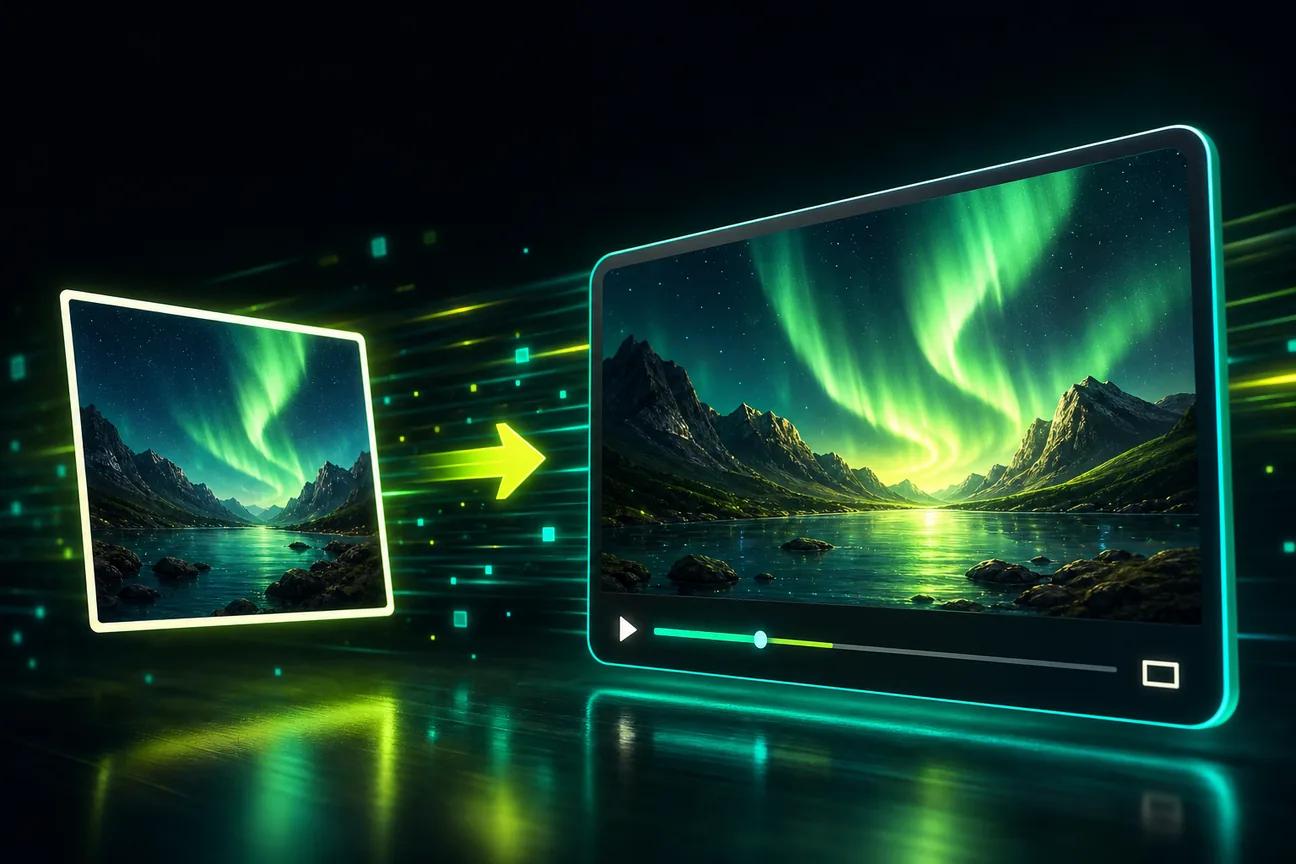
Making a product video can start with a photo and a clear prompt, not a camera crew. An AI product video generator can turn that starting point into a short ad, demo, or social clip. Here are 10 named tools, with the kind of work each one suits.
We analyzed 55 comments from Reddit and YouTube about AI Product video generators and found that 16% mentioned inconsistent visual quality.
1. OmniRender
OmniRender is a browser-based video and image creation app powered by AI models. It’s an independent app, not a Google product or an endorsement by Google. You can start with text or image references, then make short videos with music, sound effects, or lip-synced dialogue.
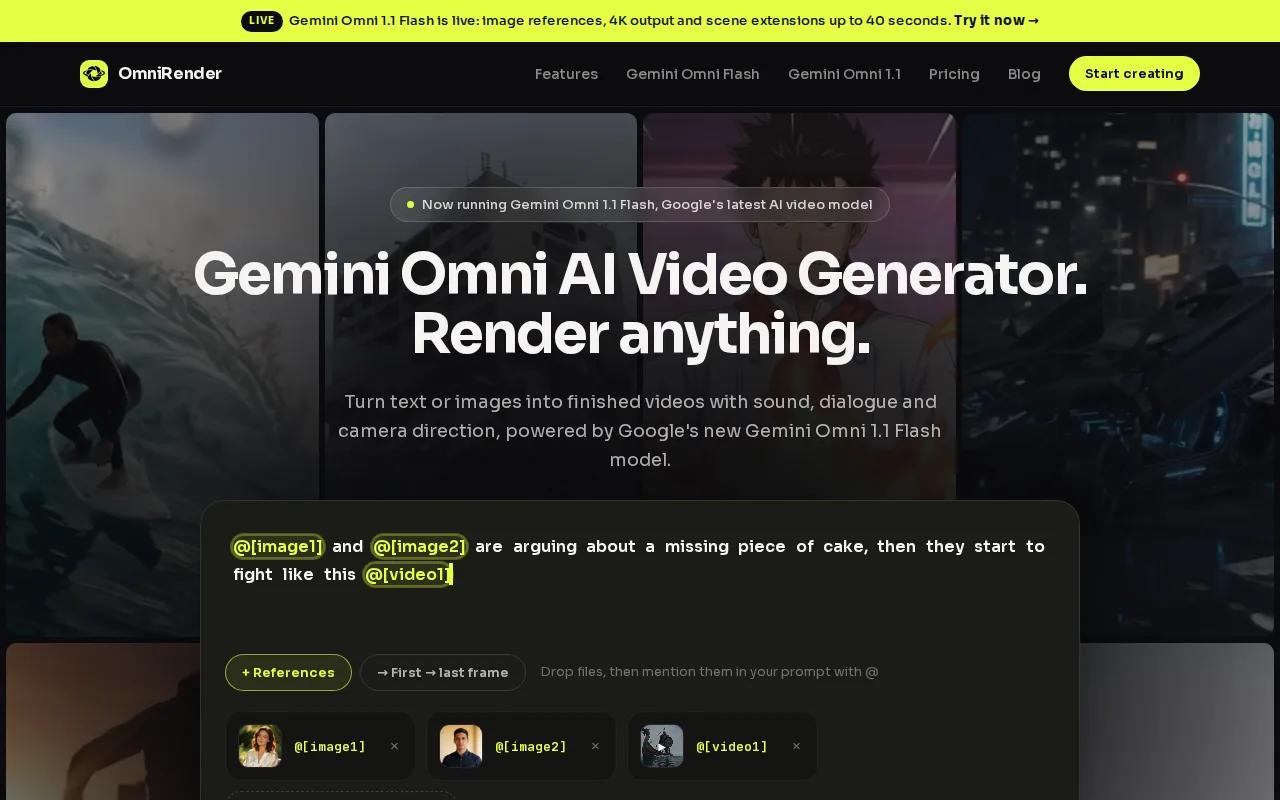
For a shop owner, that means you can attach a product photo, describe the shot, and generate a short promotional clip in your browser. You can also edit a generated video by describing a change, or extend a scene.
Check OmniRender’s website for current pricing, credit allowances, and resolution limits before choosing a plan. Its free-versus-paid licensing terms are unclear, so confirm the commercial usage rights that apply before publishing. Start at OmniRender’s video creation page if you want to test the workflow.
2. Runway Gen-4.5: Consistent characters and scenes
Runway Gen-4.5 is a video option known for keeping characters and scenes consistent across clips. It also includes an editing suite. That combination can suit a product campaign that needs several shots with the same person, setting, or visual style.
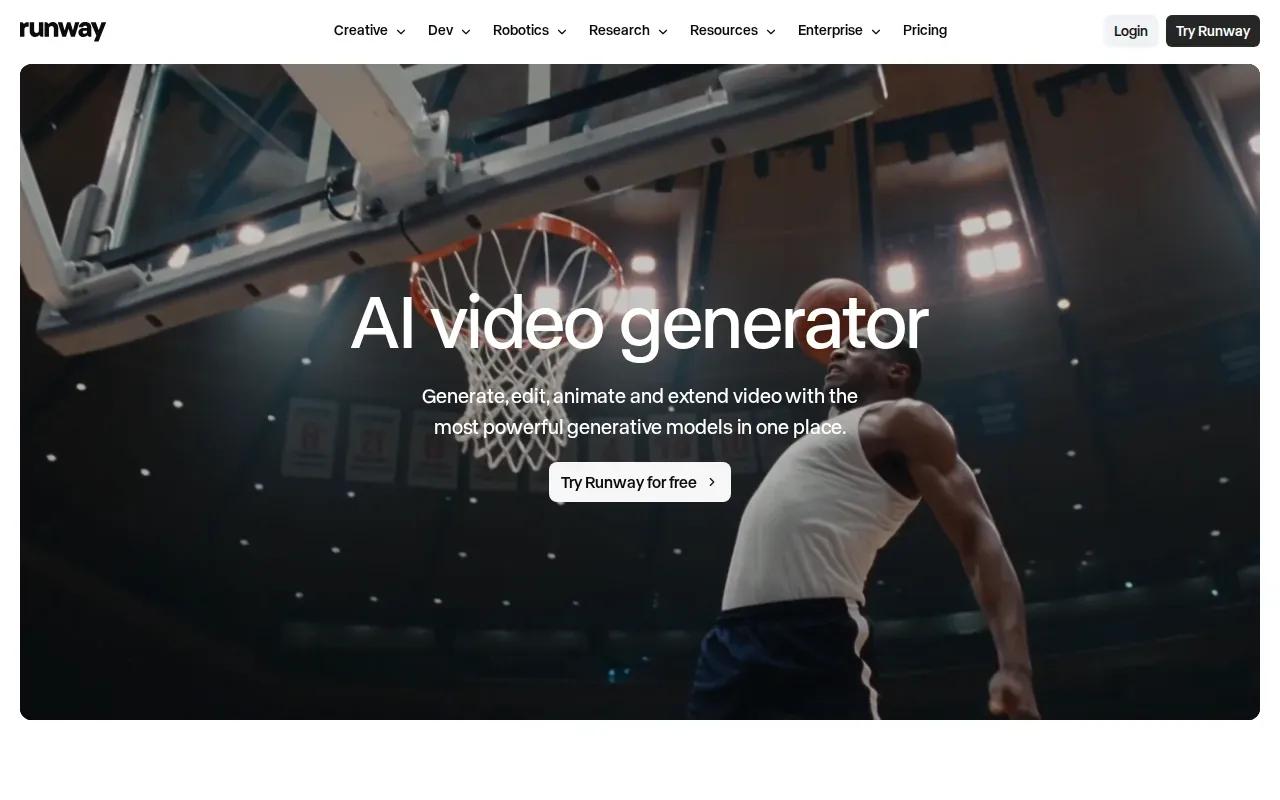
For example, you might plan one clip around a product detail, then another around its use. Consistency matters when those shots need to feel like parts of the same campaign. Runway has a free tier; its starting price is $12 per month with annual billing. Commercial usage rights are unlocked with paid plans.
Before building a full campaign, test the same character or scene across a few short clips. That quick check can show whether the visual continuity fits your brief.
3. Google Veo 3.1: Realistic video with synchronized audio
Google Veo 3.1 is a generative video model with native synchronized audio. It’s suited to product concepts where the sound should feel tied to the action, such as a close-up shot with a clear sound cue.
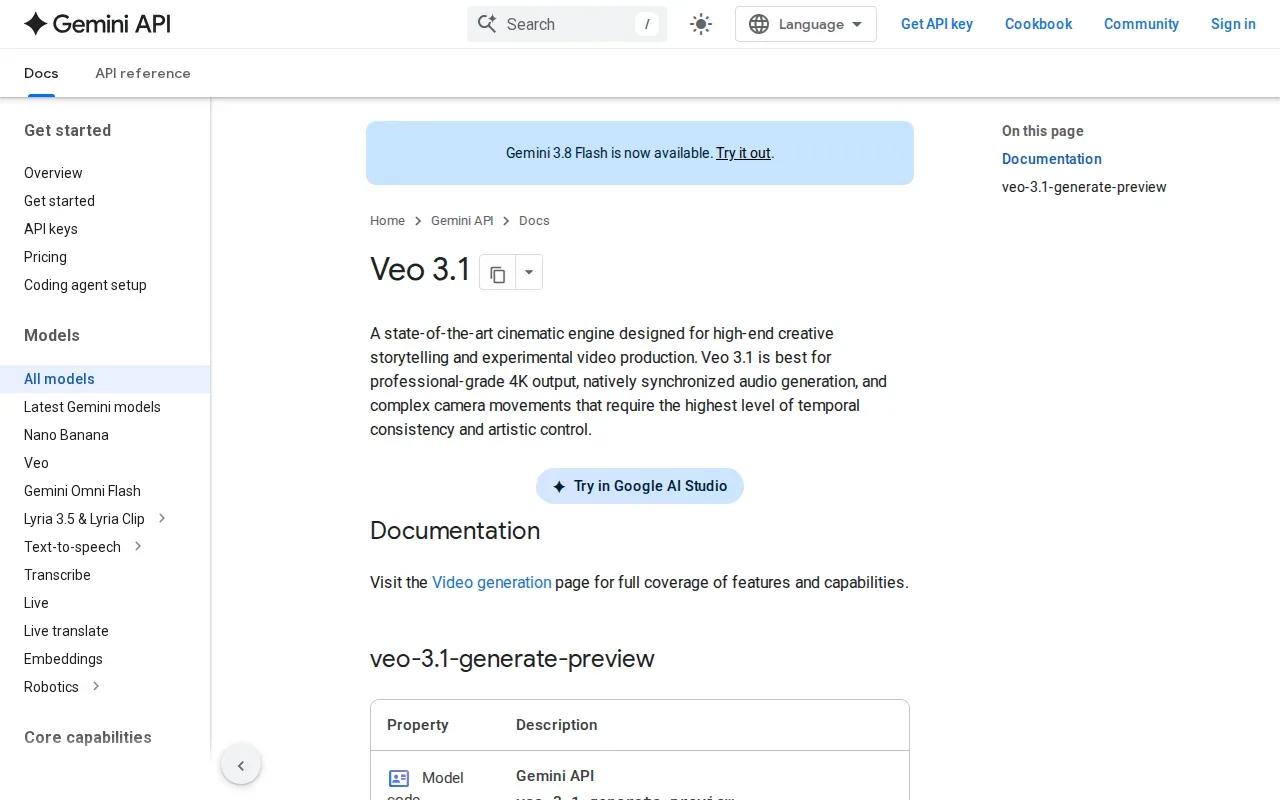
Veo 3.1 has a free tier, and its starting price is $19.99 per month. Commercial usage rights are unlocked with paid plans. Those plan and licensing details matter if you’re making ads for a brand. Check the terms for the plan you’ll use before you schedule a campaign or share final files with a client.
Use it when realism and synchronized sound are central to the concept. For a simple product still that only needs motion, compare it with image-focused tools before committing to a workflow.
4. InVideo AI: Script-to-finished marketing videos
InVideo AI assembles finished videos from a script, AI voiceover, and stock footage. Its workflow also brings in music, transitions, and captions. That makes it a fit for a marketer who has a message ready but doesn’t want to assemble every scene by hand.
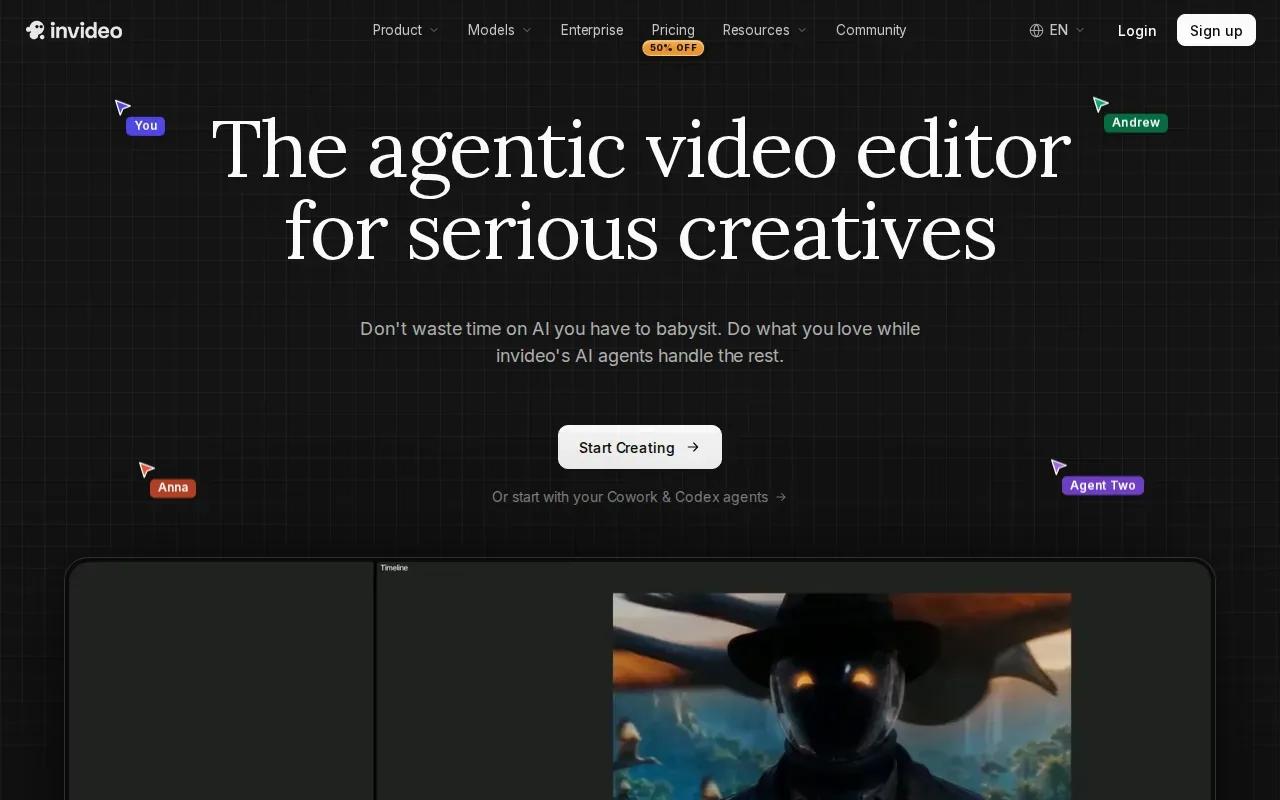
Picture a short SaaS explainer: start with a script that names one user problem, then let the tool shape the video around that message. InVideo AI’s starting price is $25 per month. The final cut still needs a human check. Confirm that the footage matches your product, then review every caption and spoken claim.
If your main goal is a product-focused ad, compare the script-led approach with tools that start from a product image. OmniRender also has a comparison of AI video ad tools for campaign planning.
5. Pika 2.5: Short, stylized product clips
Pika 2.5 is a choice for short, stylized clips. Its free Basic plan includes 80 monthly credits, watermark-free downloads, and commercial use. The stated resolution limit is 480p, so check whether that output suits the channel and final placement you have in mind.
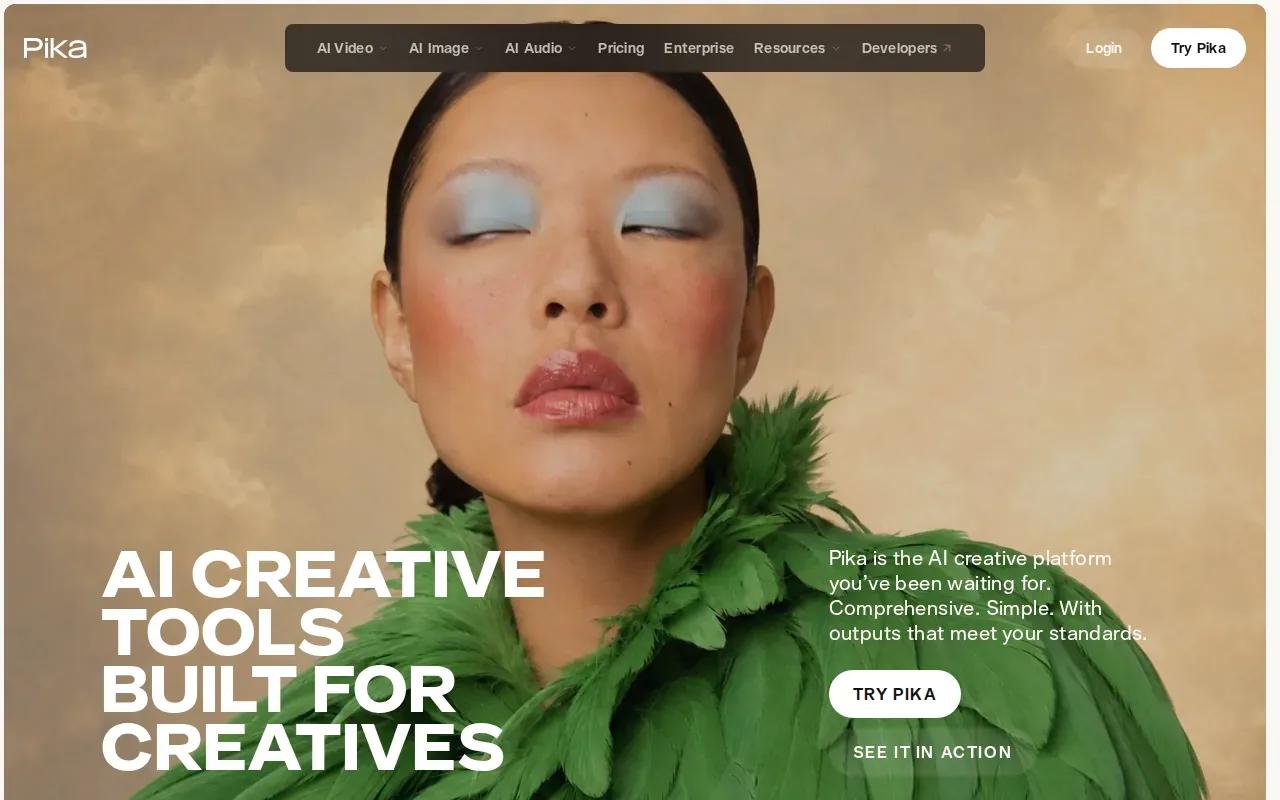
For a social post, a short, visually bold product moment may be enough to test an idea. Treat the free plan as a way to explore that look, then judge the result at its available resolution before using it in a larger campaign.
When you need more detail in the final image, compare the output with your target export requirements first. A strong concept still needs a resolution that works for the intended screen.
6. HeyGen: Presenter-led product marketing
HeyGen makes presenter-led marketing videos. It can generate an AI presenter from a short reference clip, which can suit a product announcement or a spoken feature overview. Its starting price is $24 per month with annual billing, and it doesn’t have a free tier.
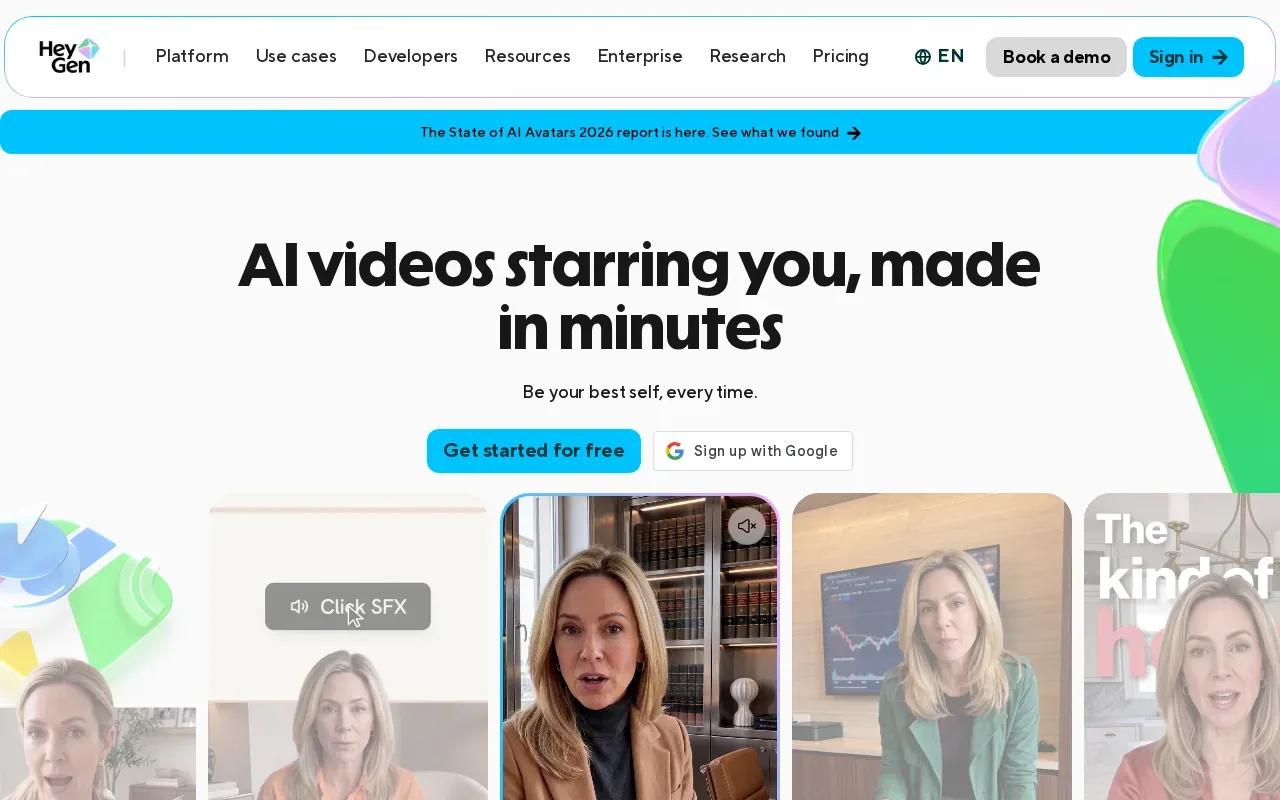
This format works best when a person needs to explain the product, rather than when the product itself needs a cinematic close-up. Write a focused script and keep each section tied to one point. If you’re weighing avatar videos against generated dialogue, this comparison of AI talking video tools covers presenters, synced dialogue, and scene control.
Plan the presenter’s role before you write the script. A host can guide a demo, but the product still needs clear screen footage or supporting visuals to show what it does.
7. Synthesia: Avatar-led training and explainers
Synthesia is built around avatar presenters and a slide-deck-style editor. It suits internal training or explainers where the same message needs a clear, repeatable format. Its starting price is $14 per month with annual billing, and a free tier is available.
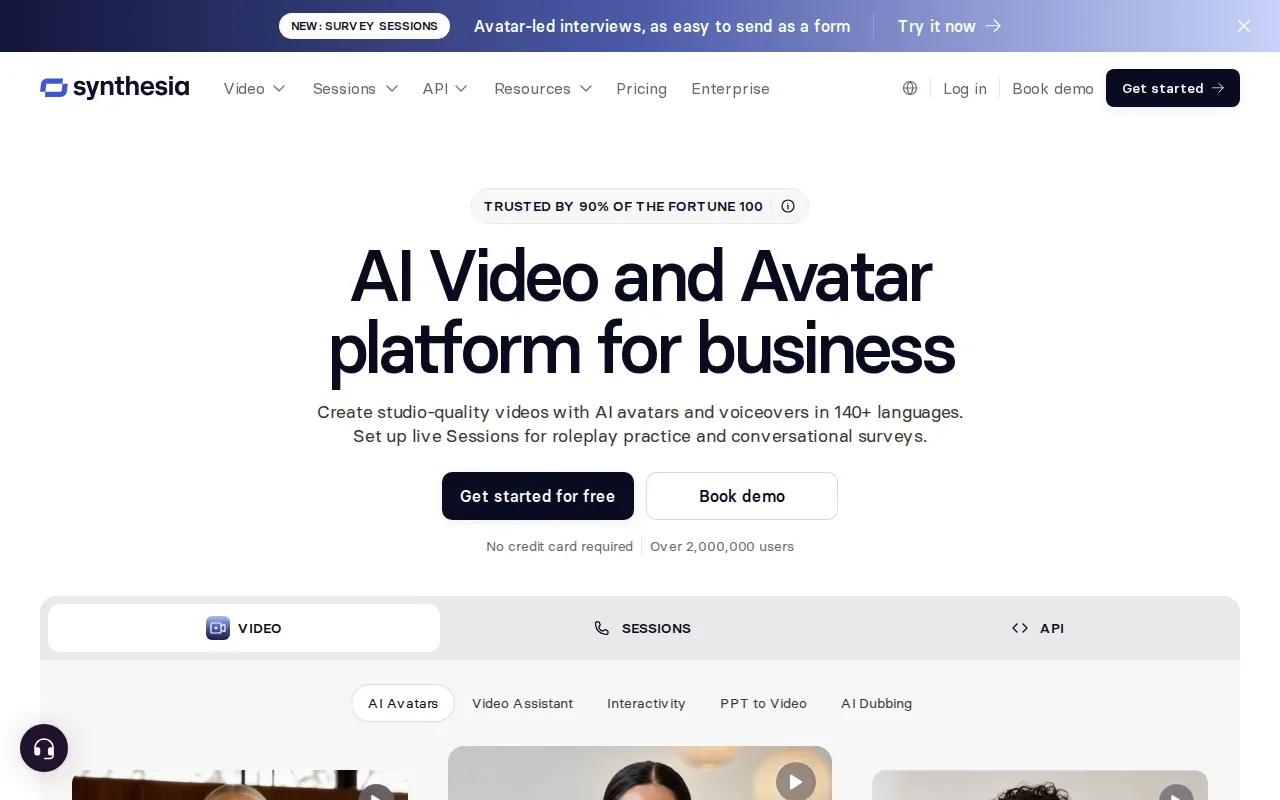
For a team explaining a product setup, a slide-based flow can make each step easy to review. The format can also help when an explainer needs regular script updates. Add captions when people may watch without sound. Captions can help people follow video with audio.
Choose this style when the spoken explanation carries the lesson. For a short ecommerce ad built around product movement, a video-first workflow may feel more direct.
8. Krea: Image, video, and 3D creation in one platform
Krea supports image, video, and 3D creation, along with editing and enhancement. That range can be useful when a project needs assets in more than one form. For example, a team might explore a product visual as a still before developing it into video.
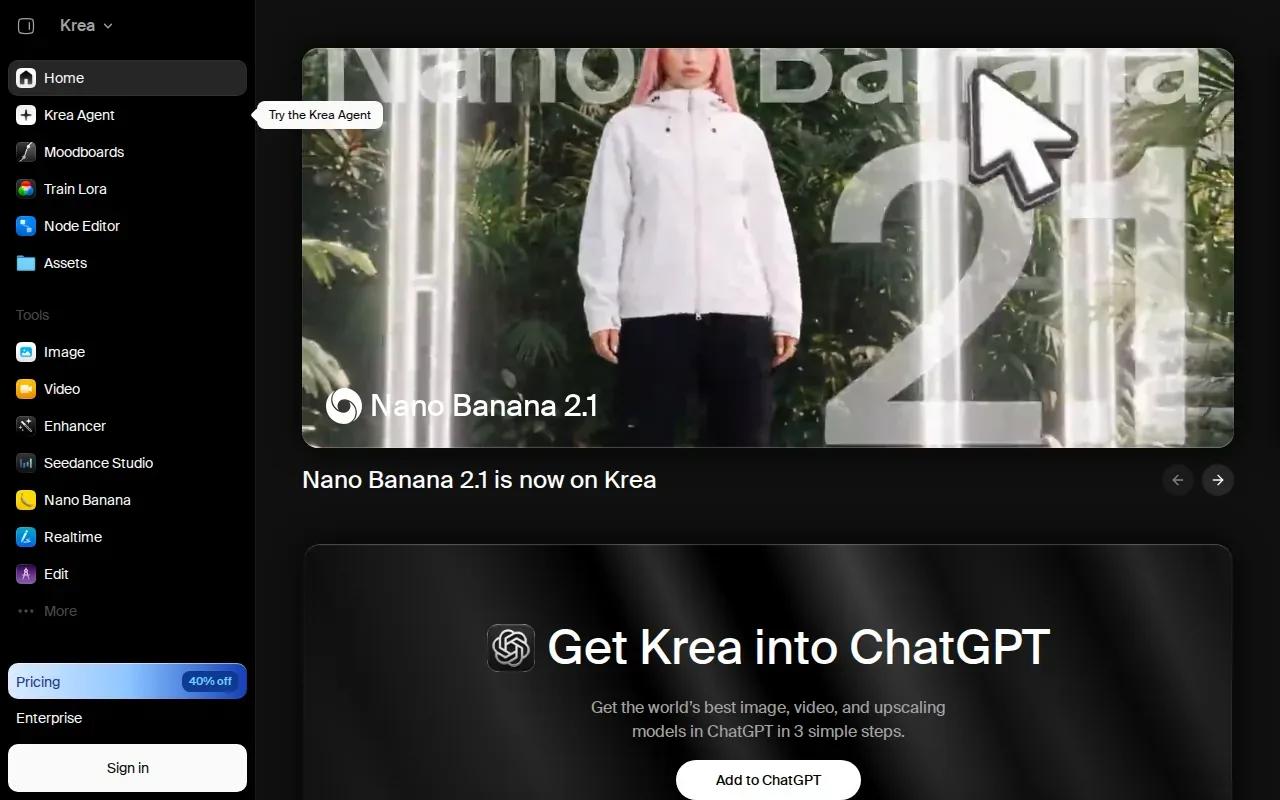
Test Krea on the work you need. Can you make the visual asset that fits your brief? Does the result look right for your placement? Those checks are more useful than choosing a tool based on a feature label alone.
If you’re starting from a product photo, OmniRender’s image-to-video tool comparison can help you think through reference-image workflows.
9. DaVinci: Access to multiple generative models
DaVinci brings access to multiple generative models in one platform. It includes Sora, Veo, Kling, and Flux among more than 50 models, alongside AI image and video generation.
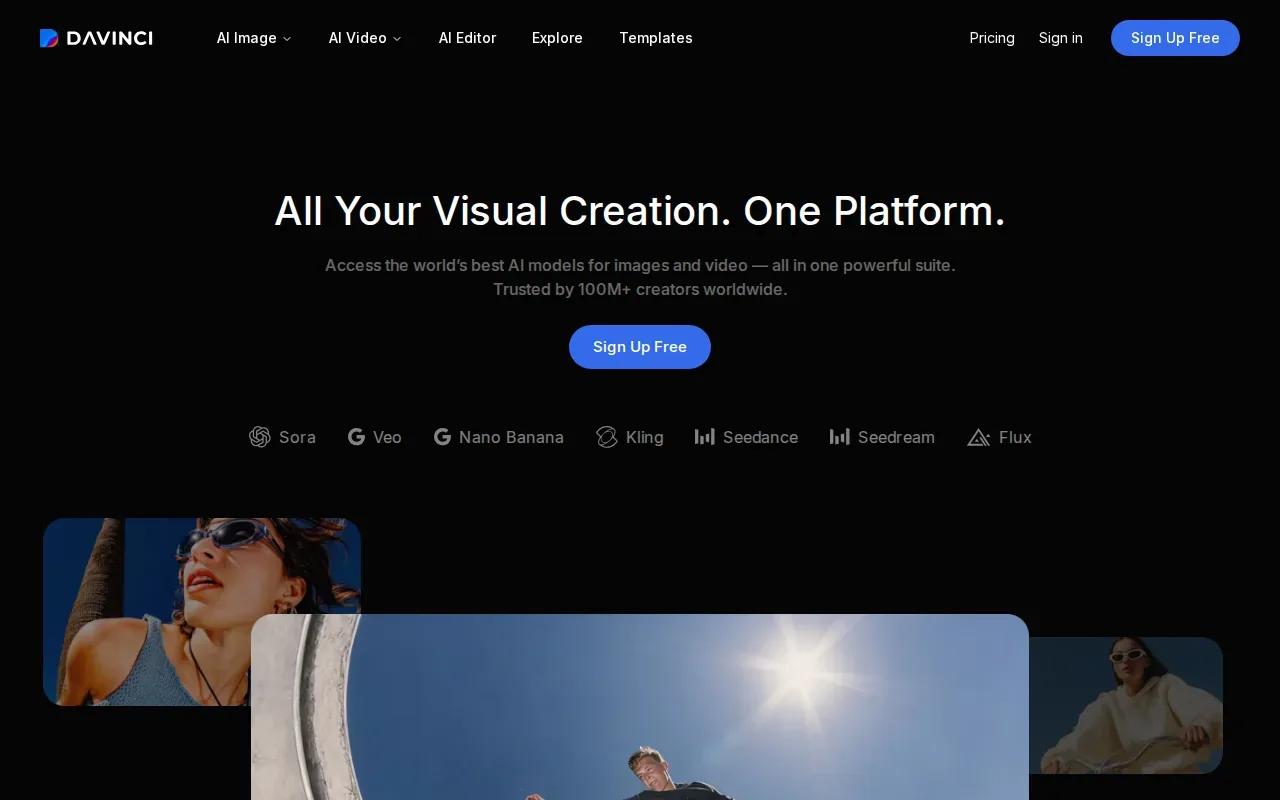
This setup may suit a creator who wants to compare model outputs without switching between separate tools. For product work, try the same brief across the models available to you, then compare which result best matches your desired style. Confirm current pricing, resolution, and licensing terms for the model and plan you choose.
One platform can make model testing easier, but the model itself still shapes the result. Keep the brief fixed while you test so you can judge the outputs on the same task.
10. JXP AI Video Generator: Multiple models with a free starting point
JXP AI Video Generator gives users access to several models, including Seedance 2.5, Wan 3.0, and Minimax H3. It can generate AI videos and images, and it’s free to start.
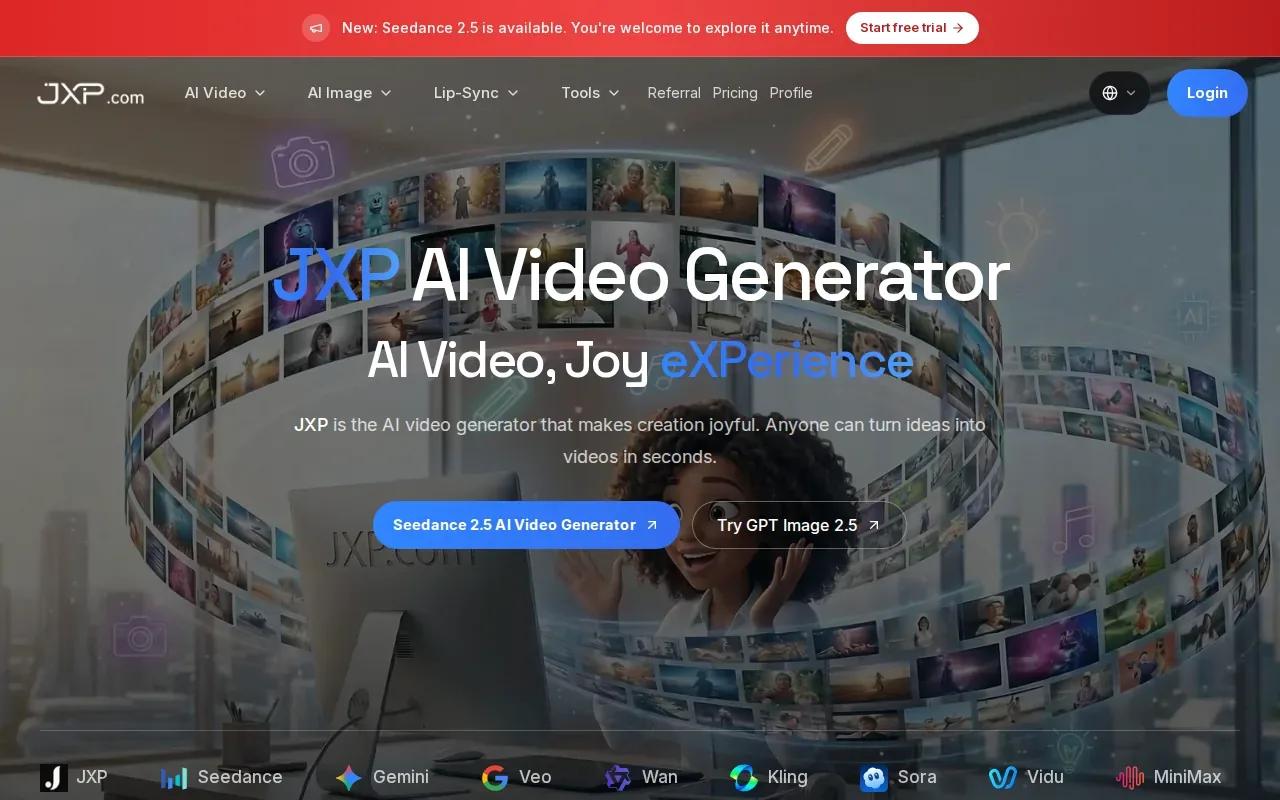
That can make it useful for an early creative test when you want to explore more than one model. Try a focused brief first, such as a product reveal or a simple social clip. Then assess whether the output is suitable for your actual use before planning a wider rollout.
Free access is a useful entry point, but it doesn’t by itself answer questions about commercial rights or final output limits. Review those terms before using a generated clip in a paid campaign.
AI Product Video Generator Comparison: Strengths and Checks
These tools don’t all solve the same production task. Some focus on short generated scenes, while others build around scripts or presenters. Use this comparison to narrow the shortlist, then test the likely match with your real product image or script.
| Tool | Good fit when you need | Check before committing |
|---|---|---|
| OmniRender | Image-led clips with sound and prompt edits | Verify current resolution limits and commercial-use terms |
| Runway Gen-4.5 | Character and scene consistency across clips | Commercial rights require a paid plan |
| Google Veo 3.1 | Realistic generation with synchronized audio | Commercial rights require a paid plan |
| InVideo AI | Script-led marketing videos with voiceover | Review the assembled footage and captions |
| Pika 2.5 | Short, stylized clips with a free plan | Free Basic output is limited to 480p |
| HeyGen | Presenter-led marketing content | There’s no free tier |
| Synthesia | Avatar-led training and explainers | Make sure a slide-style format fits your message |
| Krea | Work that spans images, video, and 3D | Test the specific asset type you need |
| DaVinci | Access to a range of generative models | Check the terms for the model you select |
| JXP AI Video Generator | Trying multiple models with a free start | Confirm usage terms before campaign use |
Resolution and licensing affect more than the final look. They can shape whether a clip is ready for an ad placement and whether your team can use it as planned. Check both before you build a batch of assets.
OmniRender is a browser-based app for creating videos from text or image references.
FAQ
What is an AI product video generator?
An AI product video generator is software that uses prompts, images, or scripts to make video content. Some tools generate short scenes, while others assemble a script-led video or add a presenter. For a product campaign, start by deciding whether you need a product shot, a spoken demo, or a quick social clip.
Can I use AI-generated product videos in ads?
Yes, some tools allow commercial use, but the rules depend on the tool and plan. For example, Runway Gen-4.5 and Google Veo 3.1 list commercial usage rights with paid plans, while Pika’s free Basic plan includes commercial use. Check the current terms for your account before publishing an ad.
Which tool should I use to turn a product photo into a video?
OmniRender supports image references for short videos, so it’s one option to test when you’re starting with a product photo. Other tools may suit you if you want a stylized clip or a broader image-and-video workflow. Use the same image and prompt across a small test, then compare how well each result preserves the product.
Are free AI video tools good enough for product ads?
A free plan can help you test a concept, but it may have limits on resolution or usage rights. Check OmniRender’s website for current free-plan availability and output limits. Confirm the commercial usage rights that apply; its free-versus-paid licensing terms are unclear. Check the output on the screen where your ad will appear before relying on it.
Conclusion
For product clips that start with text or an image and need built-in sound, try OmniRender first. Make one short draft with an actual product reference, review the output and applicable terms, then decide whether a paid plan fits your workflow.