A vague video prompt leaves the model guessing, and those guesses can cost you a generation. These AI video prompt examples give you a clear starting point for ads, anime, comedy, and explainers, plus a simple way to shape your own.
We analyzed 53 comments and questions from YouTube, Reddit and Quora about AI video prompts and found that 21% mentioned limitations of AI video generation capabilities.
Ready-to-Use AI Video Prompt Examples by Genre
A useful prompt describes what the camera can show. Name the subject, then give it an action with a clear start and finish. Add only the style and sound details that help the scene land.
Product ad
A close shot of a ceramic travel mug on a rain-speckled café table. A hand lifts it as steam curls into the window light. The camera tracks in slowly. Warm, natural color. Soft café hum, then a gentle music cue as the mug turns toward camera.
Attach a product photo when the shape or color must stay close to your real item. For more on that workflow, see how to turn a photo into a video.
Anime chase
A courier in a yellow rain jacket races across city rooftops at sunset. He lands, slides on gravel, catches his balance, then leaps over a narrow gap. Follow from behind before swinging to a side view. Hand-drawn anime look, bold sunset colors, wind and quick shoe scrapes.
Writing the action in order gives the model a chain of visible movements. “A courier running” leaves more open than “lands, slides, recovers, then jumps.”
Comedy
A tiny raccoon in an apron stirs batter in a bright kitchen. It pauses to inspect the spoon, sneezes into a puff of flour, then freezes with wide eyes. Hold the camera steady for the pause, then tilt down to the flour-covered counter. Light kitchen sounds, with a short comic music sting.
Comedy needs timing. Set up the calm moment first, then make the payoff easy to see.
Educational explainer
A clear 3D model of a water droplet moves through a simple diagram of the water cycle. It rises as vapor, gathers into a cloud, then falls as rain onto a green hillside. Slow camera moves between each stage. Clean blue and green palette. Gentle narration: "Water keeps moving through the world."
For an explainer, keep each beat focused on one idea. If the video has several facts, plan separate shots instead of cramming them into one clip.
Use these as starting points, not fixed recipes. Change the setting, subject, or mood, then keep the action clear.
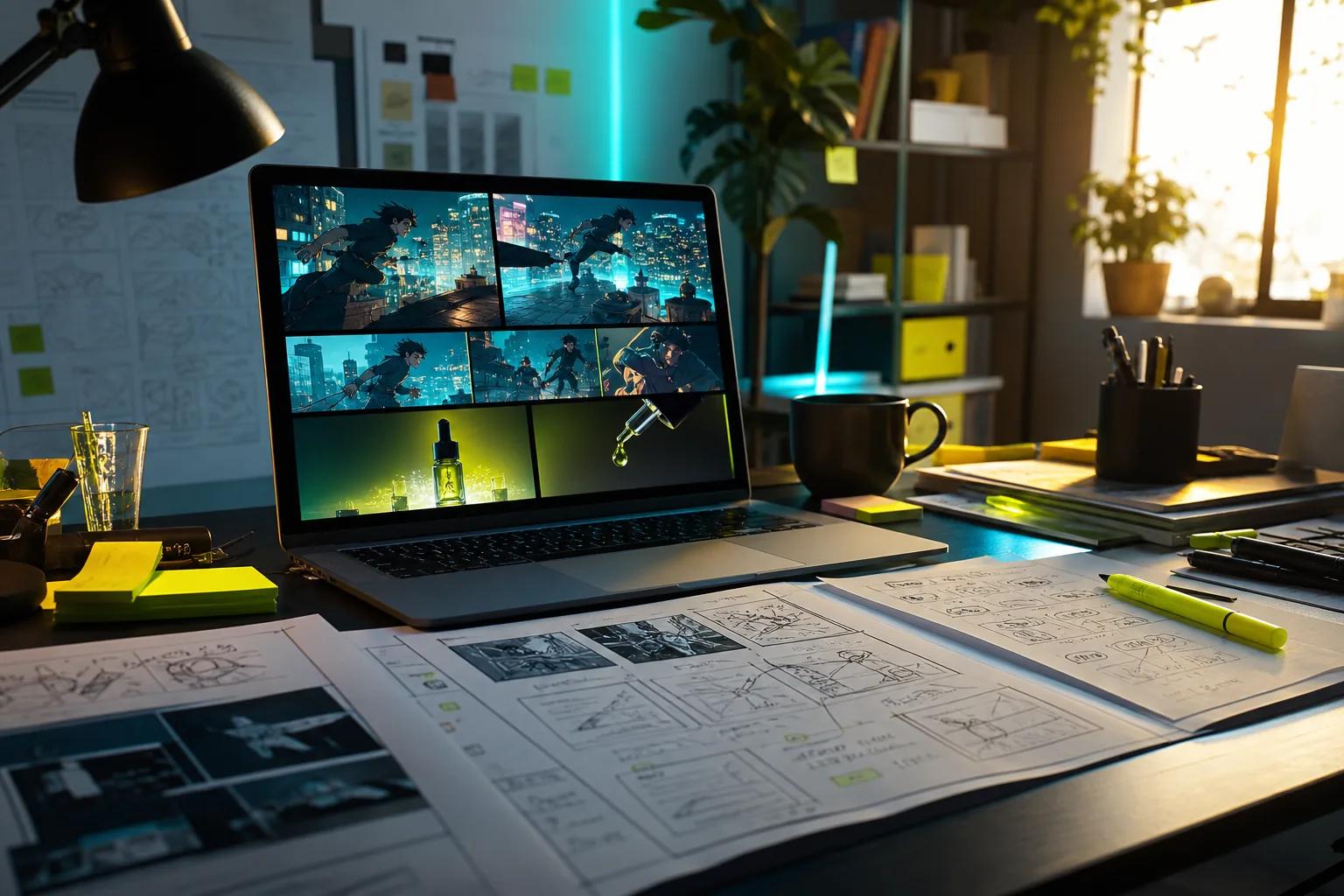
A Reusable Framework for Building Strong Video Prompts
Think of a prompt as a short shot brief. Prompt engineering is the practice of shaping instructions to guide a model’s output. For video, give the model details it can show or hear.
- Subject: Name the main person, object, or creature. Add a few details that matter, such as clothing, color, or age range.
- Setting: Place the subject somewhere specific. Say when it is, and name a detail that sets the mood.
- Action: Describe the movement in order. Use clear verbs, such as opens, turns, lifts, or steps back.
- Camera: Pick one main shot and one move. For example, start with a medium shot, then track left with the runner.
- Light and style: Describe the light source and the visual treatment. “Soft window light, natural colors” gives more direction than “cinematic.”
- Sound: Name the dialogue, music, or effect that matters. Put spoken words in quotation marks when the model supports dialogue prompts.
Here’s that framework in one line: "A [subject] in [setting] [action sequence], filmed as a [shot] with [camera move], [lighting and style], plus [sound cue]." Fill in the parts that shape your idea. Skip details that don’t affect the shot.
Specificity helps most when it removes a likely wrong guess. If a phone must remain on a desk, say so. If you want a slow camera move, name it. A short guide to camera moves for short videos can help you choose language for the motion you picture.
For image-to-video, don’t spend the whole prompt describing what the still already shows. Say what should move next, what should stay in place, and how the camera responds. A reference image can set the opening composition; the text can direct the change.
Advanced Prompt Resources for Timing, Audio, and Consistency
Once a basic prompt works, plan the clip as a few beats. This is especially useful for dialogue, quick action, or a reveal that needs to land at a certain moment. Write the beats in plain language first. Add time cues only when timing matters.
{"duration":"8 seconds","style":"warm, hand-drawn animation","beats":[{"time":"0-3s","action":"A small fox waits beside a lantern","camera":"slow push in","audio":"quiet night insects"},{"time":"3-8s","action":"The lantern glows and the fox looks up","camera":"tilt toward the light","audio":"soft chime, then music begins"}]}This is a planning outline, not a format every video model accepts. Some tools have set fields for duration or negative prompts; others work from natural-language instructions. Video tools differ in which settings they accept, so check the controls available in the tool you use.
Audio deserves its own direction. State whether you want room tone, music, a sound effect, or speech. For dialogue, keep the line short and add an action beat before or after it: "She looks down, takes a breath, then says, ‘I thought we had more time.’" That gives the scene a pause for the performance.
For a recurring character, keep a short continuity note: hair, clothes, key colors, and any item the character carries. Reuse it across scenes or attach a reference image if the tool supports one. Then describe the change in each new shot without rewriting the whole character.
OmniRender supports text and image references, prompt-based edits, and scene extensions. Its model can generate music, sound effects, and lip-synced dialogue with the video. If a clip needs to continue beyond its first take, the guide to extending a video with AI covers continuity-aware prompts.
Prompt Libraries, Generators, and Platform Editors
Prompt libraries help when you’re stuck on a starting idea. Browse by use case, then borrow the structure rather than copying every word. A prompt written for a still image may not direct motion, so add what should happen over time.
Prompt generators can expand a short idea with shot type, lighting, or camera movement. Treat the result as a draft. Remove details that fight your goal, and check that the action unfolds in an order the model can follow.
Platform editors can make revision less fussy. Some let you build a prompt in a dedicated composer; others use fields for style or timing. OmniRender is an independent, browser-based app that uses Gemini Omni models; its features and plans are separate from Google’s underlying technology, with no implied Google endorsement. Verify current pricing, credit allowances, resolution limits, and commercial usage terms for your intended use, and confirm whether licensing differs between free and paid plans in the current plan details and terms.
Interactive training calls for a different kind of plan. If a lesson needs a quiz or branching choice, map the decision points before writing scene prompts. A single generated clip can explain a concept, but the interactive path needs its own design in the authoring tool.
Keep a small prompt library of your own. Save the final prompt beside the finished clip, then note what changed in later versions. That record makes it easier to reuse a strong setup for the next ad or social post without treating every generation as a blank page.
FAQ
What should I include in an AI video prompt?
Include the subject, setting, action, camera direction, visual style, and any sound that matters. Describe movement in order so the model has a clear start and finish. You don’t need every detail in every prompt. Add the ones that prevent the result from drifting away from your idea.
How do I make AI video prompts more specific?
Replace broad mood words with visible details. Instead of saying “dramatic,” describe the light, camera move, or action that creates tension. Name what must stay in the scene, too. If the output keeps adding an unwanted object or effect, state what to avoid when the tool supports negative prompts.
Can I use an image as a reference for an AI video?
Yes, if your video tool supports image-to-video generation. Attach a clear reference image, then focus the text prompt on what moves next. Describe any camera motion and what should remain consistent. The tool’s input options vary, so check whether it accepts a still image or needs a different reference format.
Can I prompt music and dialogue in the same video?
Some video models generate sound with the visuals, while others need a separate audio step. When the model supports sound, name each cue and its timing. Keep dialogue brief, put the spoken line in quotation marks, and describe a pause or gesture around it when that beat matters.
Are AI video prompts the same for every model?
No. The core details are useful across tools, but controls and accepted formats differ. One model may take timecodes or reference images, while another may rely on a single text prompt. Start with a clear scene brief, then adapt it to the options in the tool you’re using.
Conclusion
Start with one example, then change a single detail at a time so you can see what shifts the result. When you’re ready to compare workflows, take a look at AI video generators compared for different projects.