Want to turn a script or still image into a moving scene without booking a set? AI filmmaking software can help you shape shots, generate video, and build a rough cut. Here are seven named options, starting with OmniRender, with clear notes on the work each one fits.
1. OmniRender
OmniRender is an independent app for making short videos from text prompts and image references. It suits social creators, marketers, ecommerce teams, and small production crews who need a scene with sound or dialogue.
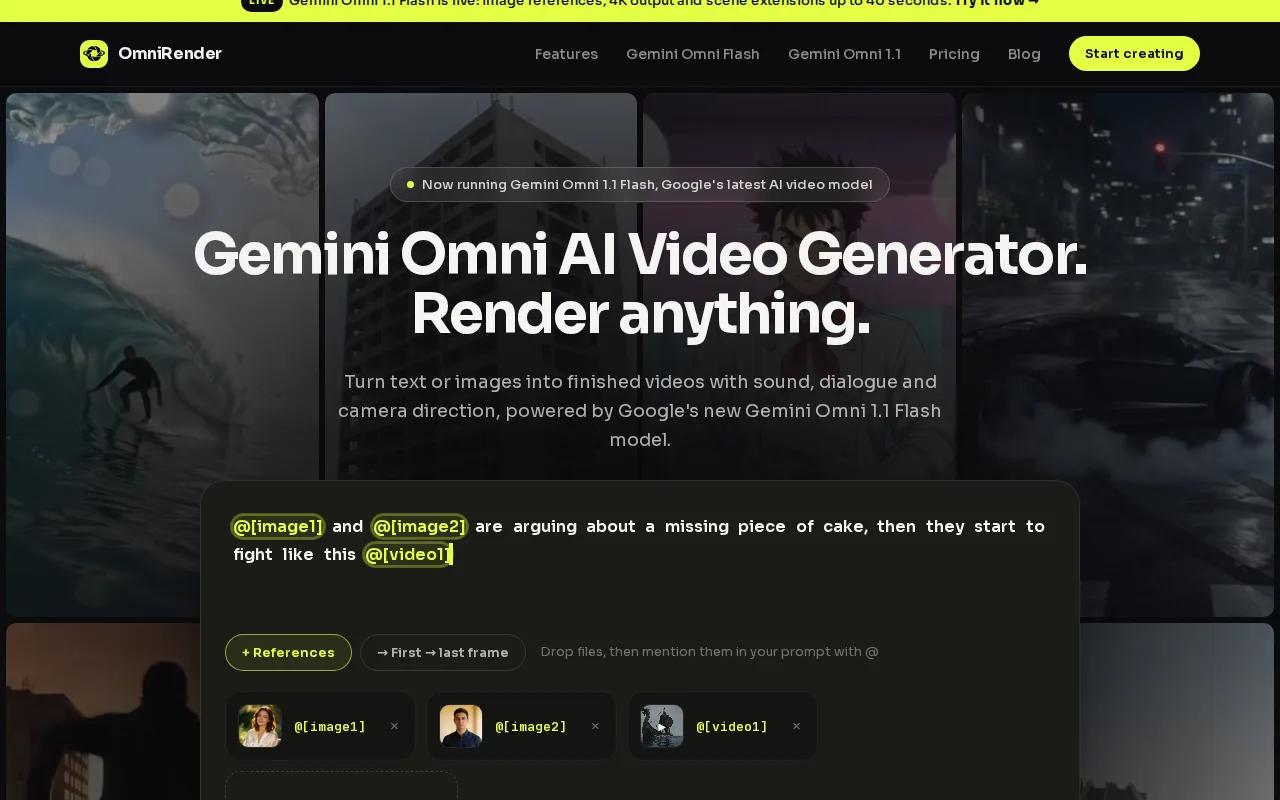
OmniRender can generate a clip with music, sound effects, or spoken dialogue synced to a character’s mouth. Add an image reference when a product or character needs a visual starting point. Then describe a change in a prompt. OmniRender is an independent app with its own studio and plans, separate from the underlying Google technology; it isn’t a Google product or endorsement.
For a vertical social post, start with a 9:16 prompt and a product photo, then review the generated shot before building another. The free plan makes up to 3 videos a month at 360p with no card; paid plans from $14 a month add 720p to 4K output.
For paid client work, use a paid plan: Creator, Studio and Agency each list a commercial licence. For a broader look at prompt-and-image workflows, see AI film generator tools for creators.
2. Google Veo: an all-around option for generated video quality
Google Veo is Google’s video-generation model family, including Veo 3.1 and Veo 3.1 Fast. It may suit creators who want to generate video within Google’s AI ecosystem and are already considering a Google AI subscription.
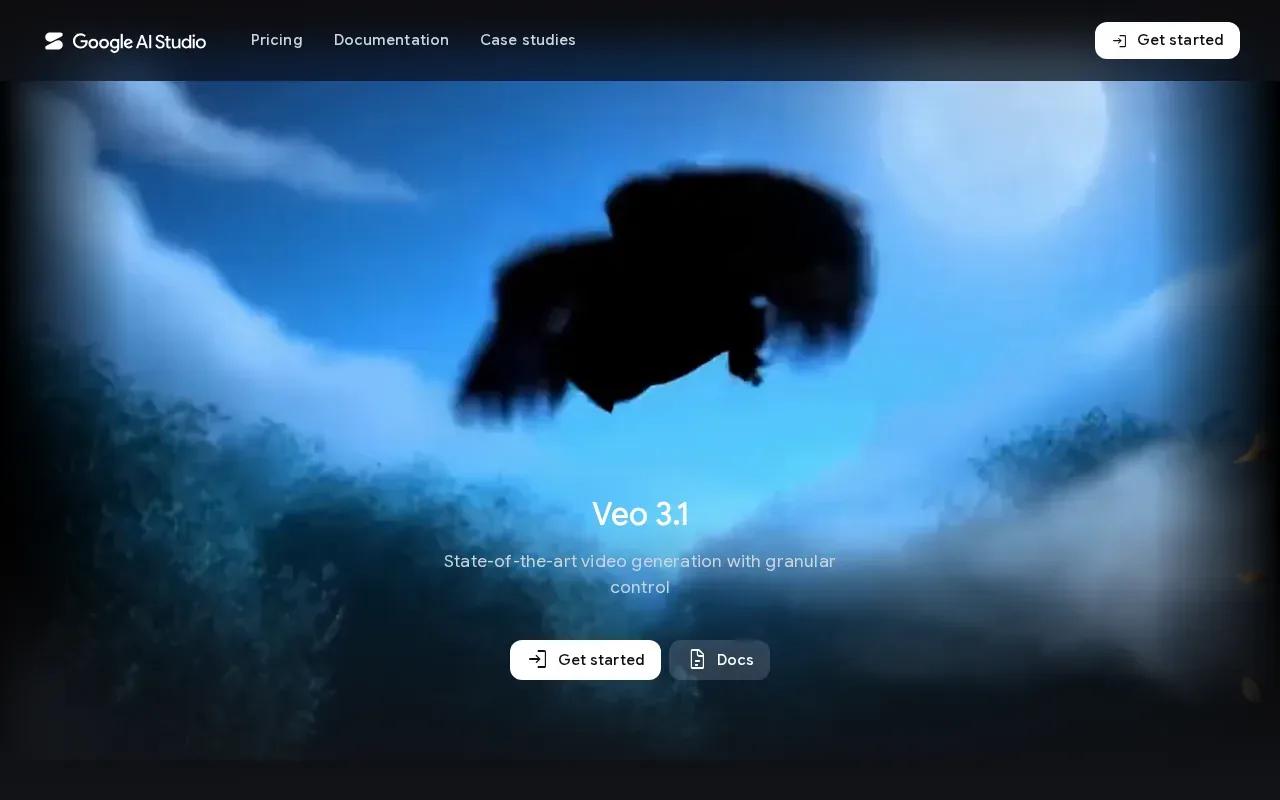
Veo is a model choice, not a complete filmmaking workflow by itself. Think about the job you need done after a shot renders: you may still need to arrange scenes, shape the edit, or place the result in a larger project. That distinction matters when you’re comparing a video generator with a workspace designed to carry a project across several stages.
Veo 3.1 Fast is available through Google AI Studio. It includes a quickstart for generating video, which points to a developer-facing route as well as the wider subscription context. Check the current model and access terms before planning a production around them.
Veo makes sense to investigate when you want to test Google’s video model and already use its AI subscription. If your project depends on dialogue timing or a particular export format, confirm those needs in the actual workflow before you commit.
3. Sora by OpenAI: text-to-video for imaginative scenes
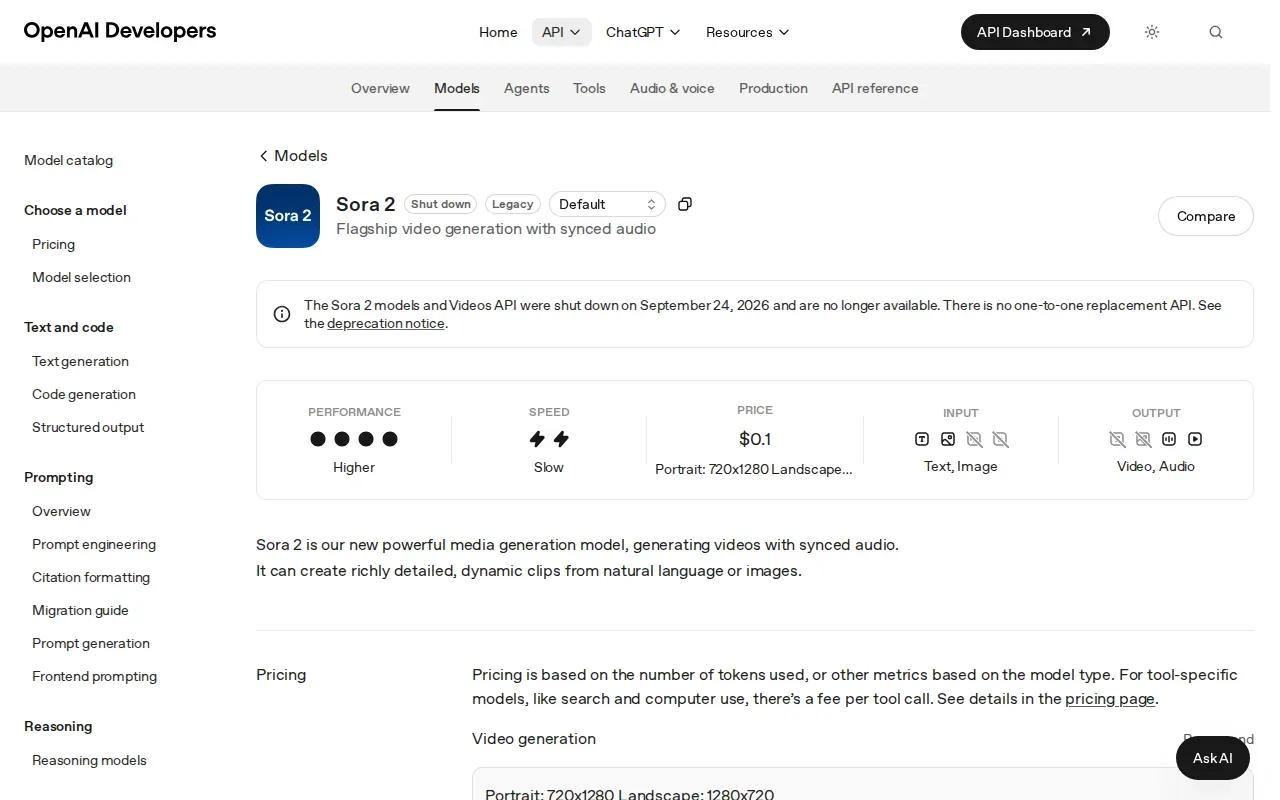
Sora by OpenAI is a text-to-video option for turning written scene ideas into generated footage. It may suit a creator who wants to explore a visual concept before deciding how to shoot or finish it.
A prompt can describe the subject and action you want to see. For example, you could ask for a lone cyclist crossing a rain-soaked bridge at dawn, then judge whether the result fits the mood of your film. Treat that render as a scene to review, not a finished sequence: filmmaking still includes choices about order, sound, pacing, and the final cut.
Pricing starts at $20 per month. Some users may find that steep when they run into the plan’s limits, so check what the current subscription covers and how much generation your project needs. Don’t compare the monthly price alone. A low-cost plan can still be a poor fit if it doesn’t match your expected output or production rhythm.
Sora belongs on a shortlist when text-led scene generation is the main job. For a project that needs a longer sequence, test how well the shots work together before you build the rest of your edit around them.
4. Krea: a workspace for generating and refining visual media
Krea is a creative workspace for generating, editing, and enhancing images, videos, and 3D work. It may suit creators who move between those formats while developing one campaign or visual idea.
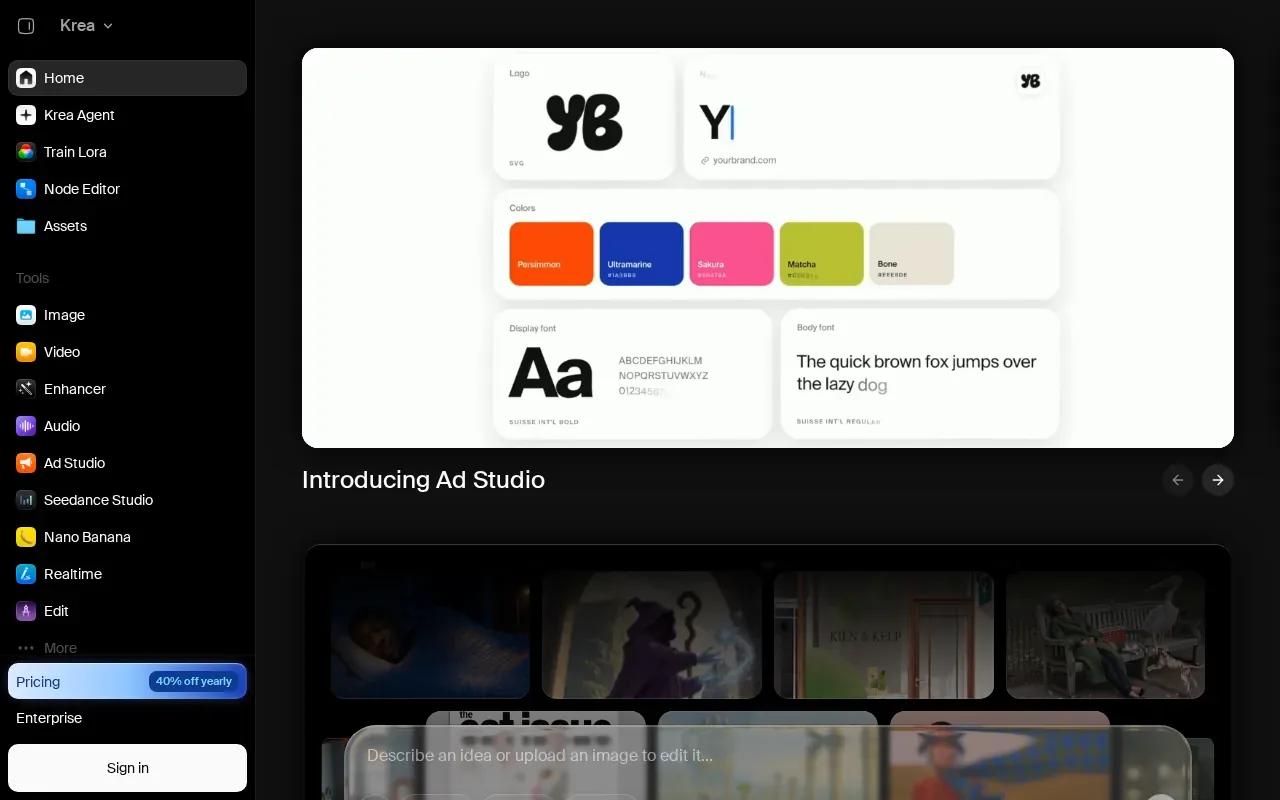
That wider scope changes the kind of workflow it supports. You might begin with a still image, refine its look, then move into video generation as the concept takes shape. A workspace that handles several types of visual media can help keep early exploration together, especially when the brief is still changing.
Krea also has an intelligent Krea Agent.
Krea is a fit to consider when your work spans stills, video, and 3D. If the deliverable is a spoken scene or a specific short ad, check that the workflow supports the exact output you need instead of judging it by the breadth of its creative workspace.
5. Synthesia: synthetic presenters for scripted videos
Synthesia is built for scripted videos where a synthetic presenter reads the words on screen. It suits teams making explainers, training pieces, or internal updates that need a presenter-led format.
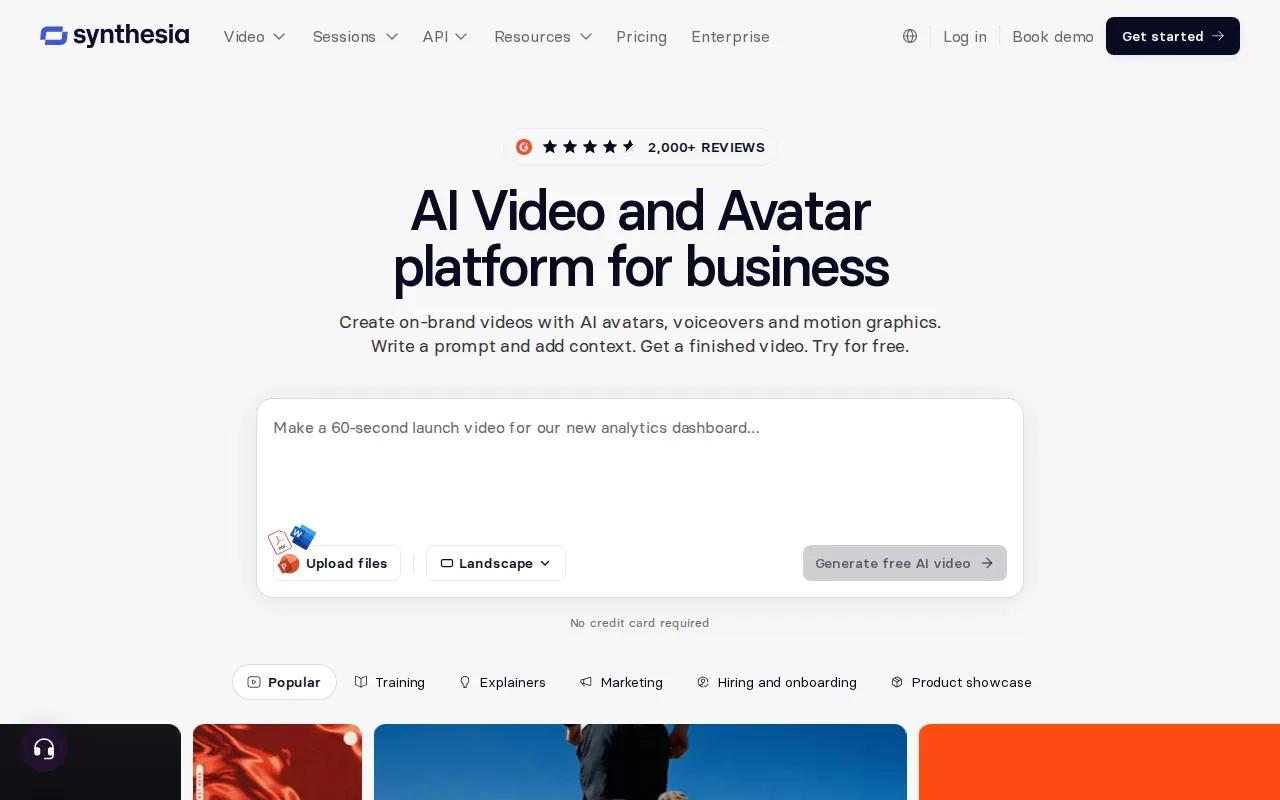
Synthesia offers more than 230 avatars and supports over 140 languages. That can be useful when a team needs a repeatable presenter format for scripts in different languages. It’s a different job from generating a cinematic scene or a product shot, so choose it for the human-presenter format rather than treating it as a general-purpose film studio.
Synthesia has a free tier with 10 minutes of watermarked video per month. Starter is $18 per month with annual billing, or $29 month to month. Creator is $64 monthly with annual billing, or $89 month to month; Enterprise pricing is custom. Check the current plan terms for the limits and output rights that apply to your use.
If the script is the main asset and a presenter needs to deliver it, Synthesia is a focused option. If the scene depends on a product moving through a setting, a text-to-video or image-to-video workflow may fit better.
6. JXP AI Video Generator: connected generation with built-in lip sync
JXP AI Video Generator brings text-to-video, image-to-video, reference-to-video, and avatar lip sync into one connected workflow. It may suit creators who want to move between those generation modes in one project.
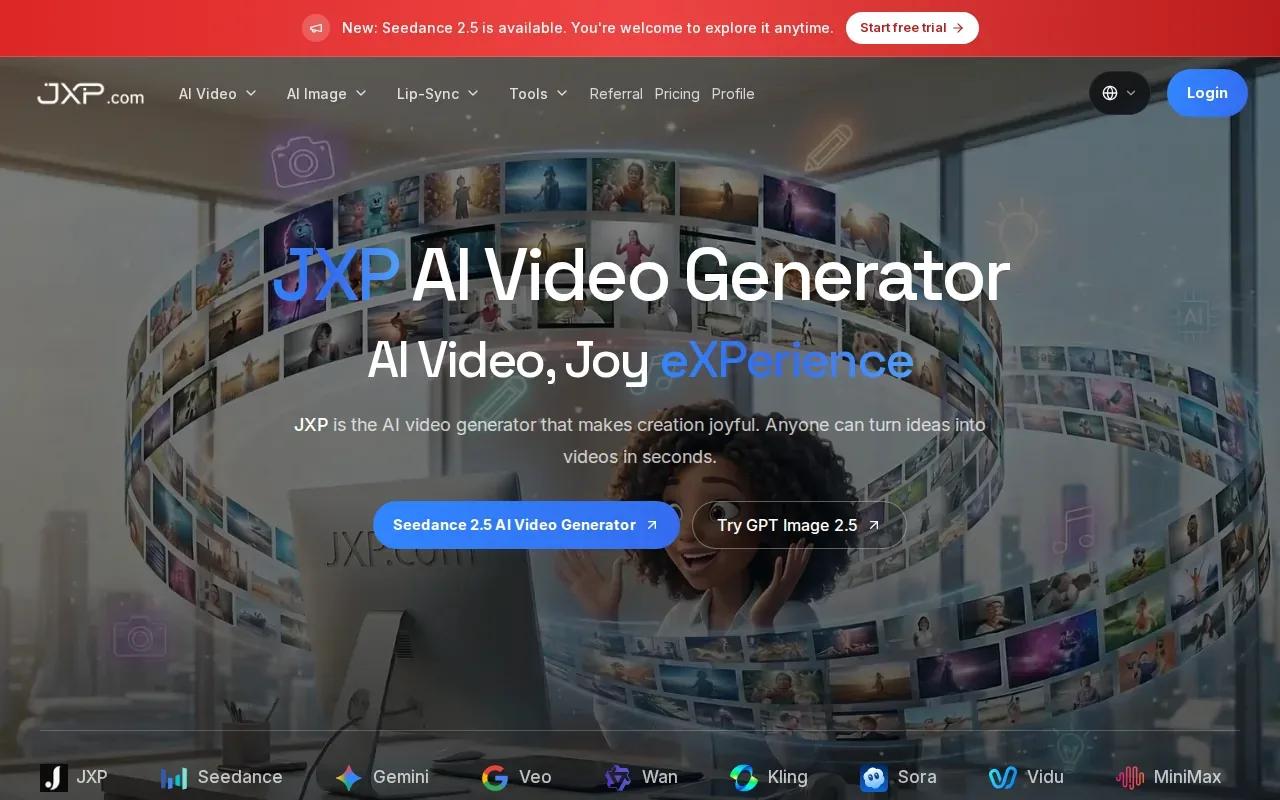
For example, you can start from a written scene idea, then use an image or other reference as the visual guide. Built-in lip sync is part of its workflow, which makes it relevant when a digital character needs to speak. JXP’s maximum resolution is HD, so compare that with the delivery size your project calls for.
JXP’s credit model includes pay-once credits that never expire. Subscription plans provide 20% more credits. That arrangement may suit irregular projects where you’d rather keep credits available between shoots, though you’ll still want to check the current credit costs for the clip settings you plan to use.
Choose JXP for a connected generation flow that includes avatar lip sync. If your project needs 4K output or a particular commercial licence, verify those terms directly before starting production.
7. M Studio: campaign concepts through a pitch-ready short cut
M Studio can turn a brief into a campaign concept, with AI storyboards, video generation, and tools to produce complete films. Its workflow may suit a team developing a campaign idea into a short film.
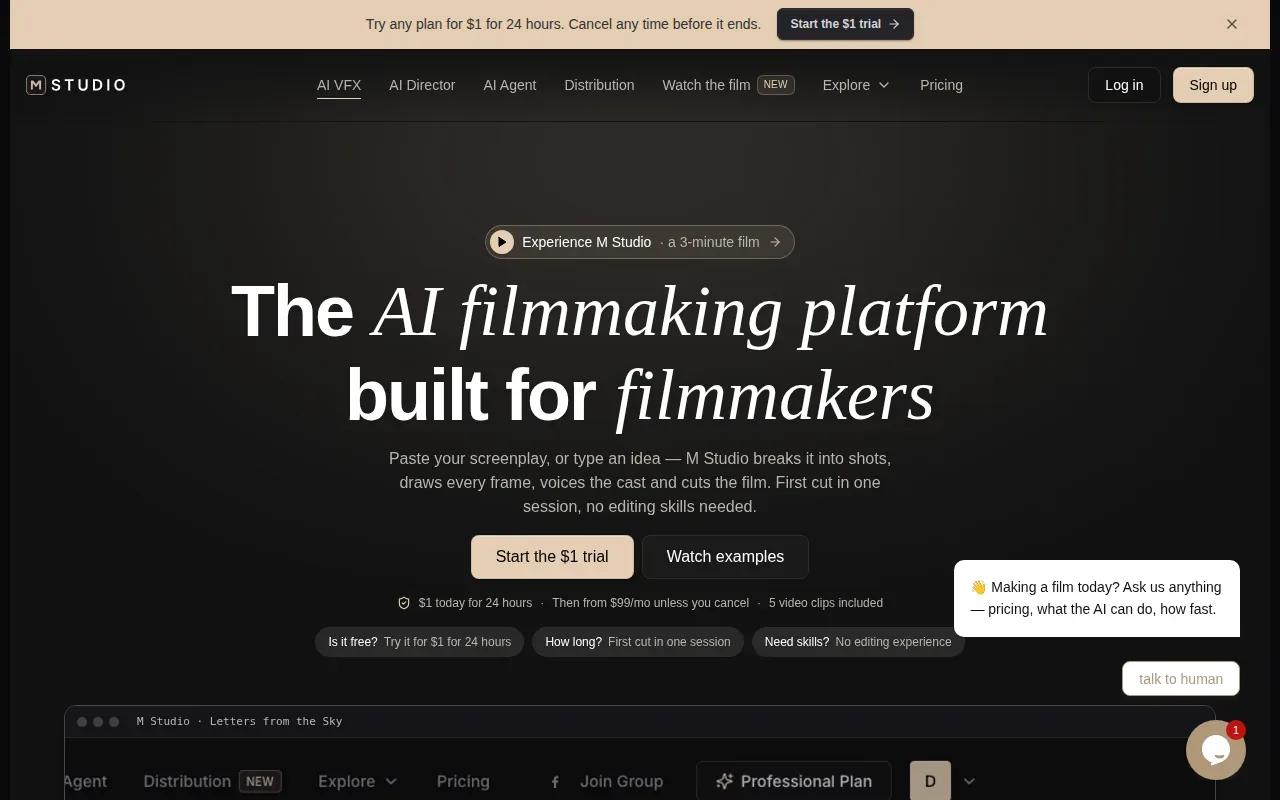
Start with a brief to get an ad script, shots, and a 30-second cut with a 4K export. M Studio also supports creating AI storyboards and generating video from text, giving teams ways to develop a written idea into visual material.
| Project need | M Studio workflow detail | Useful decision check |
|---|---|---|
| Plan a pitch | Brief to ad script, shots, and a campaign concept | Consider whether the script and shots fit the idea you want to present. |
| Build a short film | Create AI storyboards and generate video from text | Check that the generated visuals suit your intended sequence. |
| Export a cut | A 30-second cut with a 4K export | Confirm the export suits your project needs. |
Frequently Asked Questions
What is AI filmmaking software?
AI filmmaking software uses generative tools to help make or refine parts of a video project. Depending on the product, you might start with text or a reference image, generate a shot, then edit or arrange it. Some tools focus on one task, such as a synthetic presenter; others connect several stages of production.
Can I use AI-generated video for commercial work?
Sometimes, but the answer depends on the tool’s current terms and your plan. OmniRender’s paid plans, from $14 a month, list a commercial licence; the free plan is for testing. Read the terms for your specific project before publishing a client ad or selling a film.
Do I need a subscription to make AI films?
No, not always. OmniRender has a free plan with a few 360p videos a month and one-time credit packs from $50 that never expire, while JXP AI Video Generator includes credits that can be bought once and kept without expiry. Other plans may use subscriptions or a mix of billing types. Compare expected clip volume and output needs before you pay.
Can AI-generated clips be edited in a traditional video editor?
Yes, if the tool lets you export a file your editor can use. Export formats and handoff options vary by tool, so check them before building a workflow. OmniRender also supports downloading generated videos. Check the export format and resolution early, then test one clip in your existing editing workflow.
Conclusion
For short videos that need synchronized dialogue and sound, start by testing OmniRender with a simple prompt or image reference. For paid production, move to a paid plan, which adds up to 4K output and a commercial licence.