
An AI video presentation maker can turn a deck, script, or prompt into a video, but each tool takes a different route. These six options cover Workspace presentations, narrated slides, animated explainers, reusable characters, and on-screen presenters.
We analyzed 73 comments and questions from YouTube, Reddit and Quora about AI video presentation makers and found that 19% mentioned editable PPTX export.
1. Google Vids: Turn Workspace materials into presentation videos
Google Vids is Google’s presentation-video app. It suits companies that already use Workspace and want to build videos from existing materials.
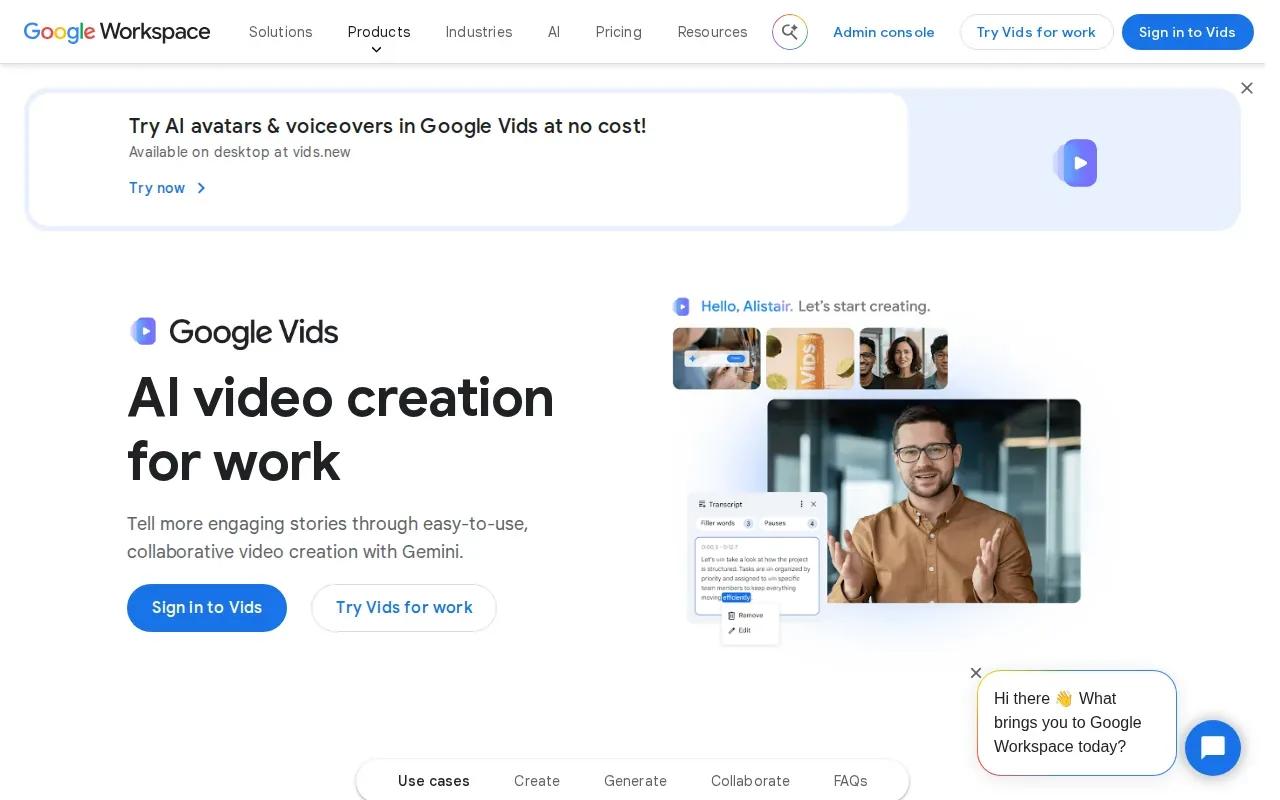
Gemini can draft an outline and suggest scenes from a prompt or an existing document. You can review and edit the generated voiceover script, then adjust the suggested media placeholders. For an internal update, that means you can start with an existing document instead of rewriting the whole message as a video script.
The broader Workspace workflow can also include screen and audio recording, and team permissions. That can help when a team needs to review a training video or share an update with staff. For a different workflow based on generated scenes, compare the options in these AI video maker tools for creators.
Google Vids is a natural fit when the source material already exists in a Workspace workflow. It’s less of a blank-canvas route than a way to turn existing work into a shareable video.
2. 2Slides: Create AI slides and videos with multiple voice options
2Slides is an AI slide and video creation tool. It’s suited to teams that want to move from a generated deck to a narrated video in one workflow.
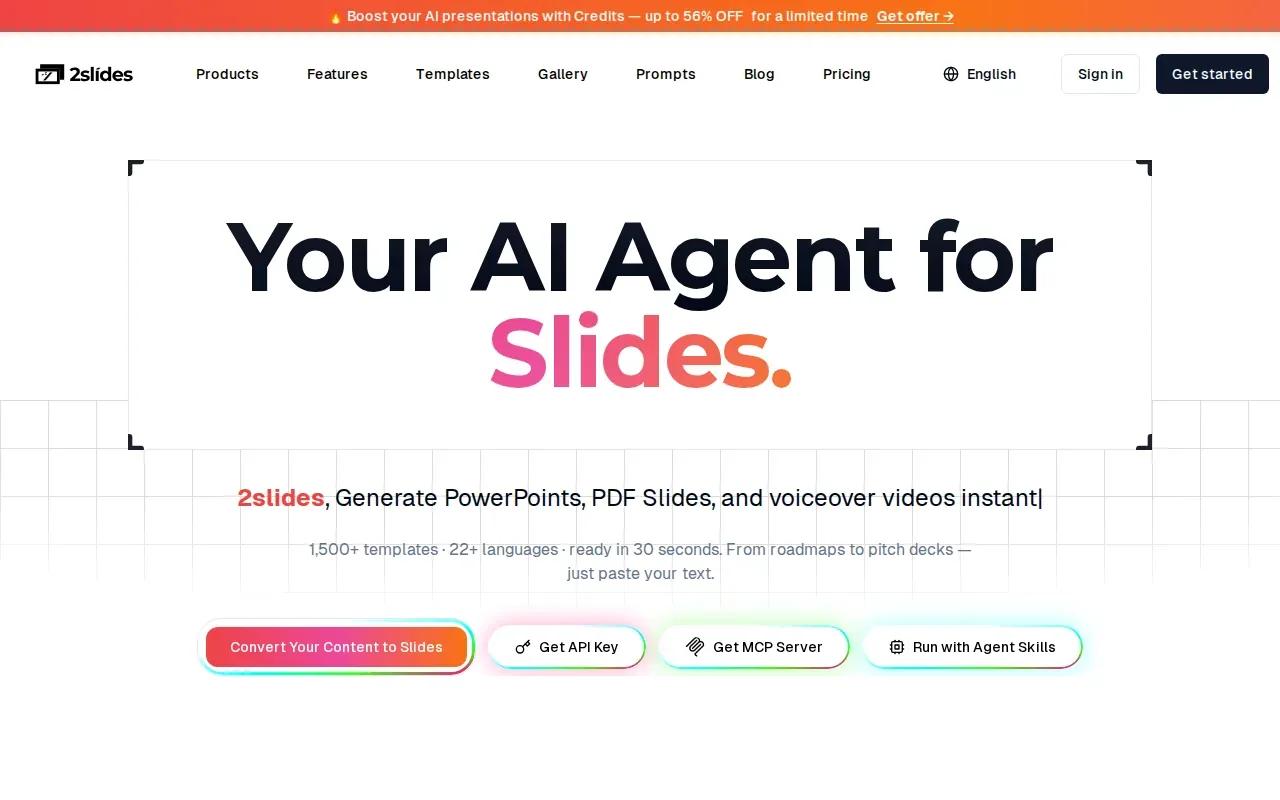
Its core path is simple: generate slides, then turn those slides into video. That can work well when a presentation needs to be watched on demand instead of delivered live. A sales team could use a narrated deck to explain a product to a prospect who can’t attend a meeting.
2Slides supports voice narration with optional background music. It also has a two-voice dialogue feature, which gives you another way to present a conversation or compare two points of view. That can make a script feel less like one long voiceover, though the finished result still depends on the slides and writing.
The tool supports 4K output and exports H.264 MP4 files, a format that works across many common video players. That gives teams room to make a high-resolution file for a large screen or customer-facing presentation. Check the export settings against the final place you’ll share the video.
Choose 2Slides if the deck is the heart of the video. If you need a character-driven scene or a filmed-style presenter, another tool on this list may fit better.
3. Powtoon: Make animated explainers with a recognizable cartoon style
Powtoon is a video and presentation tool with a familiar animated-explainer style. It suits teachers and internal communications teams that want cartoon characters, whiteboard scenes, or kinetic text.

This style can help make a process easier to follow. For instance, an internal video about a new workflow can show characters moving through each part of the task, rather than relying on a speaker to describe every step. The visual language is clear and distinct, so it works best when animation feels right for the topic and audience.
When planning a presentation video, consider the needs of your audience and workflow. For example, decide whether narration is important and whether text-to-speech would suit the way viewers will use the video.
Powtoon supports 720p output. That may suit classroom screens and internal viewing, while teams with a high-resolution export requirement should check whether that output fits their publishing needs. Think about the viewing context before you settle on an animated style.
For an explainer built around motion and characters, Powtoon gives you a clear visual direction. It’s a different kind of presentation from a realistic person speaking to camera.
4. Kapwing: Keep a character’s look and voice consistent across scenes
Kapwing is an online video editor with an AI character generator. It suits online coaches, creators, and entrepreneurs who want a recurring character in explainers or product walkthroughs.
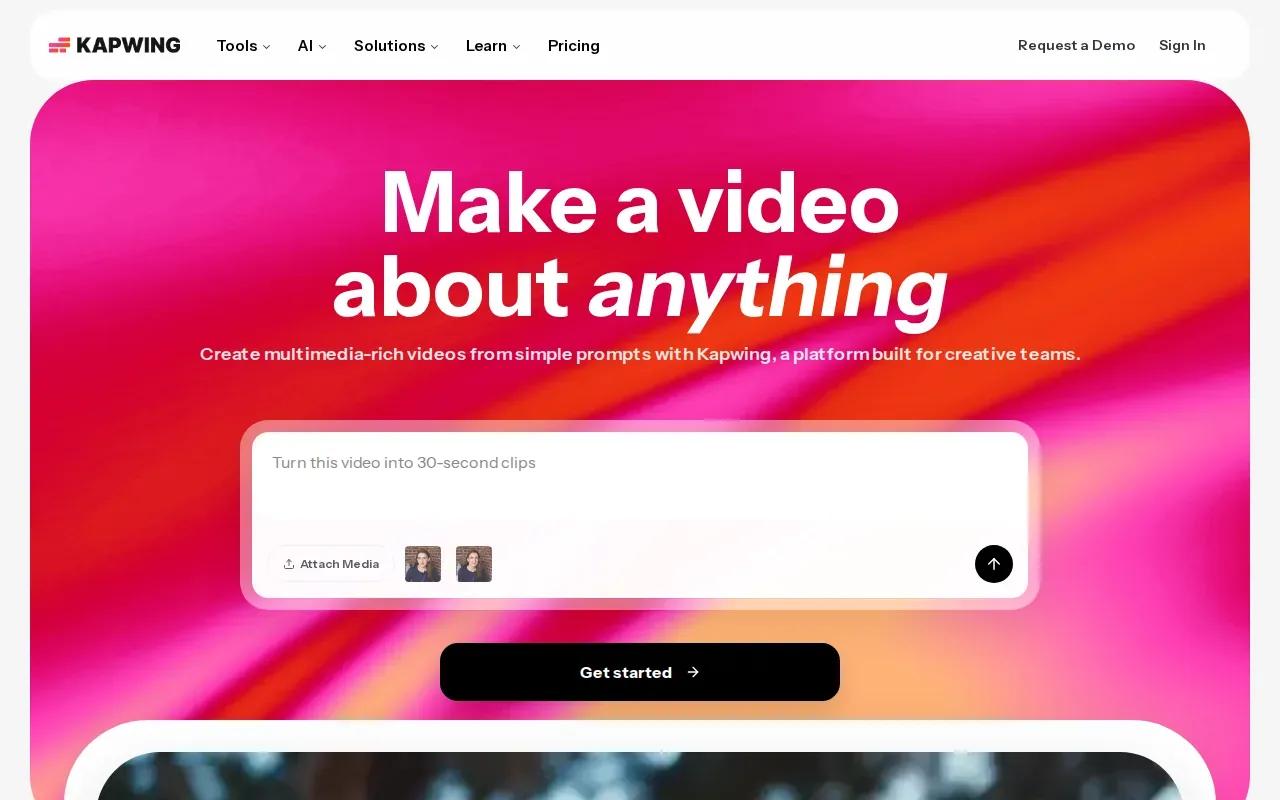
You can describe a character or use an image reference to guide its look. After you save the character, you can reuse it in image and video projects, rather than rewriting the same visual description each time. That can help when a series needs one recognizable face across several scenes.
Kapwing also supports voice choices and lip-synced speech for characters. Its presentation workflow can start with a blank canvas, a recording, or stock footage. You can then add subtitles, trim clips, and share a video link for review. Those editing tools make it a more flexible fit than a character generator alone.
Kapwing is free to start, and exports can reach HD. If you’re building an ongoing series, test the character workflow before planning a large batch of videos.
For presentation work that also needs character consistency, Kapwing can join scene creation and editing in one browser workflow. Its presentation tool also supports slide-style videos, which may suit a short talk with a few visual changes.
5. Synthesia: Build presenter-led training and onboarding videos
Synthesia turns a deck, document, script, or URL into a video with a realistic AI presenter. It suits HR, learning and development, and product teams that need repeatable training or onboarding videos.
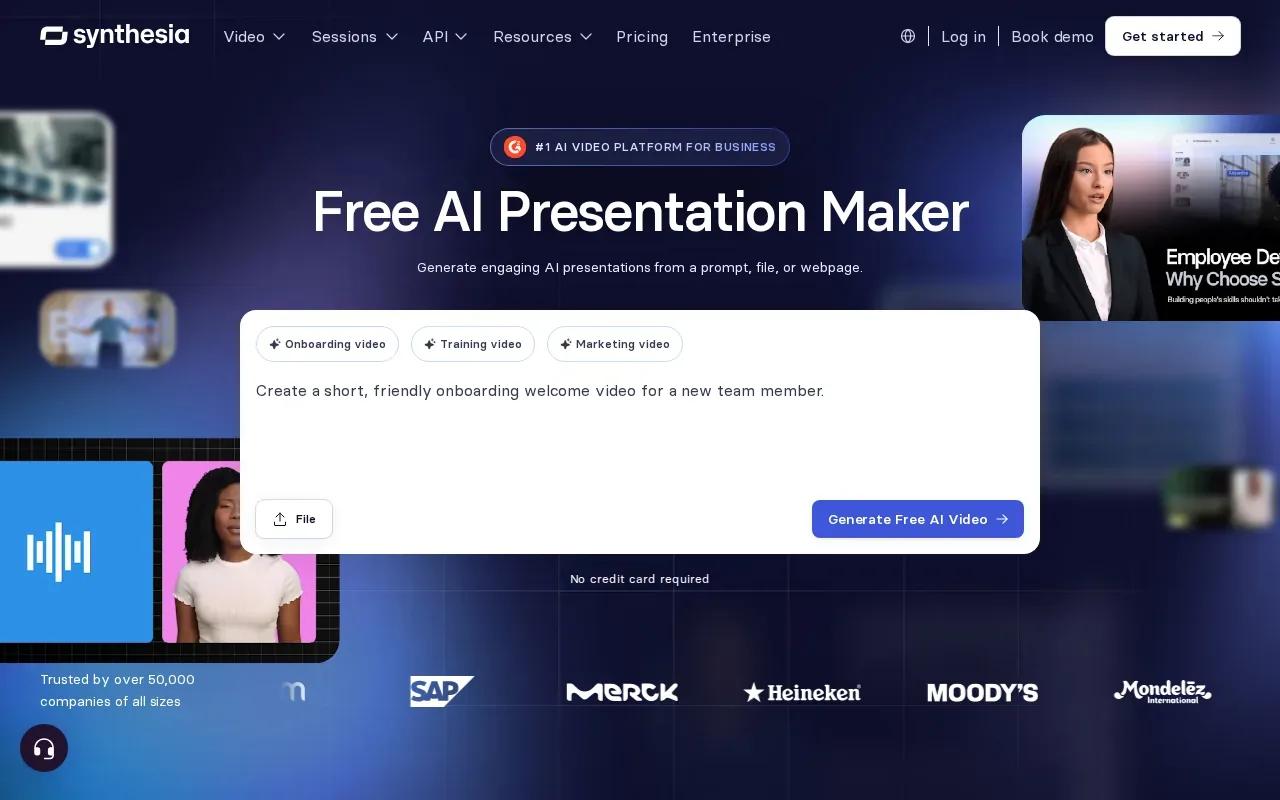
You can start with a PowerPoint, PDF, or plain text. Synthesia builds a structured draft with scenes, scripts, and suggested visuals. Then you can edit the wording, choose an avatar and voice, and add your branding before generating the video.
This can help when a policy or product changes often. Instead of recording a new speaker for every update, a team can revise the script and create a fresh version. That’s useful for onboarding modules, compliance lessons, or a product walkthrough that needs the same message across teams.
Synthesia supports video translation into more than 140 languages, with captions generated for each language. It can export standard presentations as MP4, and it supports sharing through a link or publishing to a learning management system. Interactive videos have a different sharing path and can’t be exported as MP4.
Its workflow is built around a presenter delivering prepared content. If the audience needs to see a human-like speaker explain a process, Synthesia fits that brief. For an explainer built from generated scenes instead, the AI explainer video options cover a different set of approaches.
6. HeyGen: Produce avatar-led presentations with lip-synced speech
HeyGen creates presenter-style videos from a script, outline, or text prompt. It suits teams that want an avatar to speak on screen without filming a new take for each video.
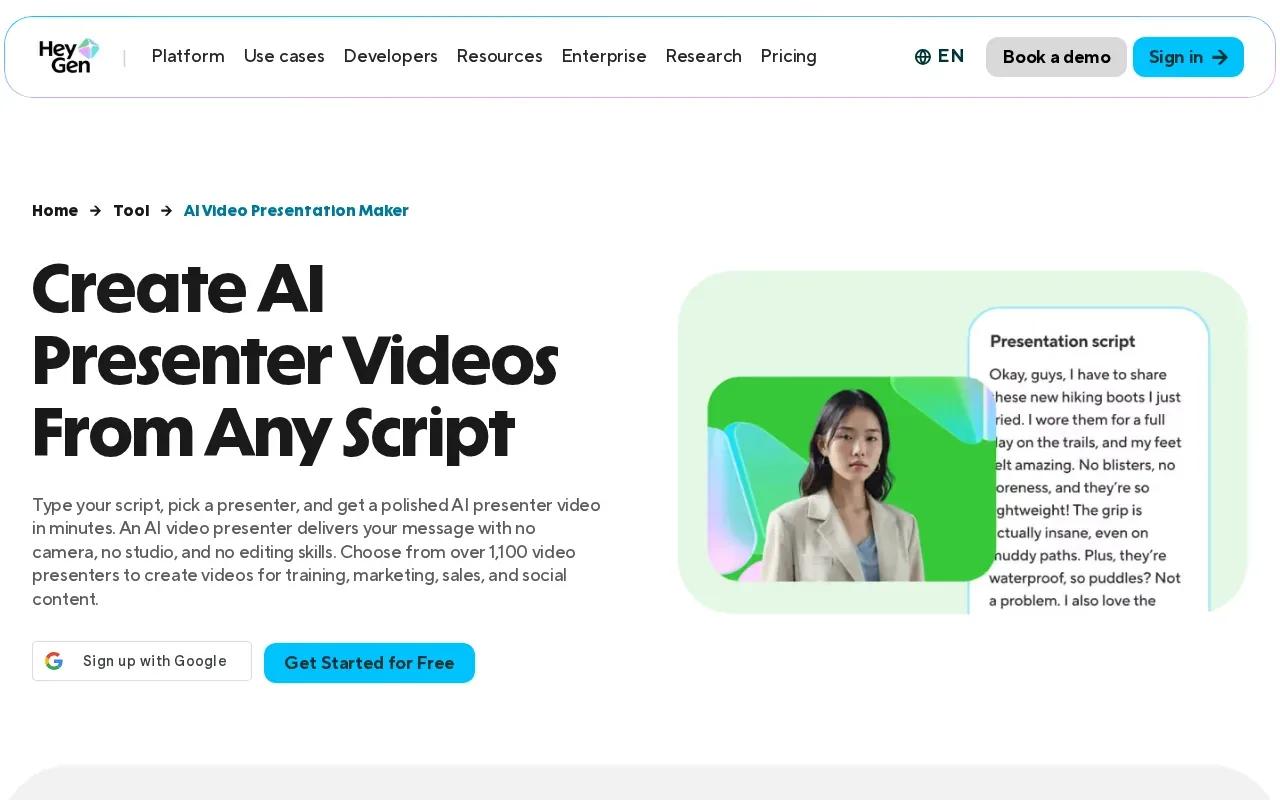
You can choose a presenter or create a custom avatar, then add a script and voice. HeyGen generates speech with lip sync and natural gestures. That can suit a product update or staff announcement where the words need to be delivered in a clear, repeatable way.
The workflow also supports changing the script and regenerating the video. That matters when details change after a product launch or a new process rolls out. Instead of scheduling another recording, you can update the text and produce a new version.
HeyGen’s free plan allows three watermarked videos a month, each up to one minute. Its Creator plan costs $29 per month. Check the current plan terms and output settings before you build a recurring publishing workflow around those limits.
HeyGen makes sense when the presenter is the main visual. If your video needs generated product scenes, sound, or a character who moves through a story, compare that brief with a scene-generation tool before choosing.
AI video presentation makers compared
The main choice is what you want viewers to see. A deck-based workflow keeps the slides central, while an avatar-led workflow puts a speaker on screen. An animation tool builds its own visual world.
| Tool | Good fit for | Starting point | Useful distinction |
|---|---|---|---|
| Google Vids | Workspace teams | Prompt or document | Gemini can draft an outline and scenes |
| 2Slides | Slide-to-video teams | AI-generated slides | Two-voice dialogue and 4K output |
| Powtoon | Animated explainers | Documents, presentations, or ideas | Cartoon and whiteboard style |
| Kapwing | Creators using recurring characters | Prompt, image reference, or recording | Saved character identity across projects |
| Synthesia | Training and onboarding | Deck, document, script, or URL | Presenter-led videos with translation tools |
| HeyGen | Avatar-led presentations | Script, outline, or prompt | Lip-synced avatar speech |
Gemini can draft an outline and scenes from a prompt or a document, making source material an important selection point alongside presenter style and final export needs.
OmniRender is a separate, browser-based app for short videos made from text prompts and image references. It uses Gemini Omni models, but its plans and app are independent of Google’s underlying technology. It’s better suited to social clips or product scenes than to turning a full slide deck into a narrated presentation.
FAQ
What is an AI video presentation maker?
An AI video presentation maker turns material such as slides, a document, or a script into a video. Depending on the tool, the result may use narrated slides, animation, or an AI presenter. Start by deciding what viewers need to see, then choose a workflow that can use your source material.
Which tool can turn a slide deck into a video?
Several tools here can work with slide-based material. Google Vids is Google's presentation-video app, while 2Slides generates slides and can turn them into video. Synthesia accepts PowerPoint files and can build a presenter-led video draft from a deck. The right fit depends on whether slides or a presenter should lead.
Can I make a presentation video without filming myself?
Yes. Synthesia and HeyGen can use AI avatars to present a script, while Google Vids can generate video elements and voiceovers. Powtoon can build an animated explainer instead. Review the first draft carefully, especially names, product details, and any instructions viewers need to follow.
Is OmniRender a presentation maker?
OmniRender is an independent AI video creation app, not a slide-to-video tool. It makes short clips from prompts and image references, with synchronized music, sound effects, and lip-synced dialogue. The free plan makes up to 3 videos a month at 360p with no card; paid plans start at $14 a month, add 720p to 4K output and list a commercial licence.
Conclusion
Choose the tool that matches the story format you need: slides, animation, or a presenter. If your goal is a short product or social clip rather than a deck-based presentation, try OmniRender in your browser and see whether its prompt-and-reference workflow fits your project.