The right AI video maker depends on what you need on screen: a speaking avatar, a product scene, or clips cut from a longer video. This shortlist compares ten tools by workflow, output, and fit, with OmniRender first for prompt-led short videos with sound and dialogue.
We analyzed 39 comments from Reddit and YouTube about AI video generators and found that 23% mentioned output quality inconsistencies and feature limitations.
1. OmniRender
OmniRender is an independent browser app for turning text prompts and image references into short videos. It uses Gemini Omni models, but its studio and plans are separate from Google’s underlying technology. It fits social creators, marketers, ecommerce teams, and small video crews who want to build a scene without installing editing software.
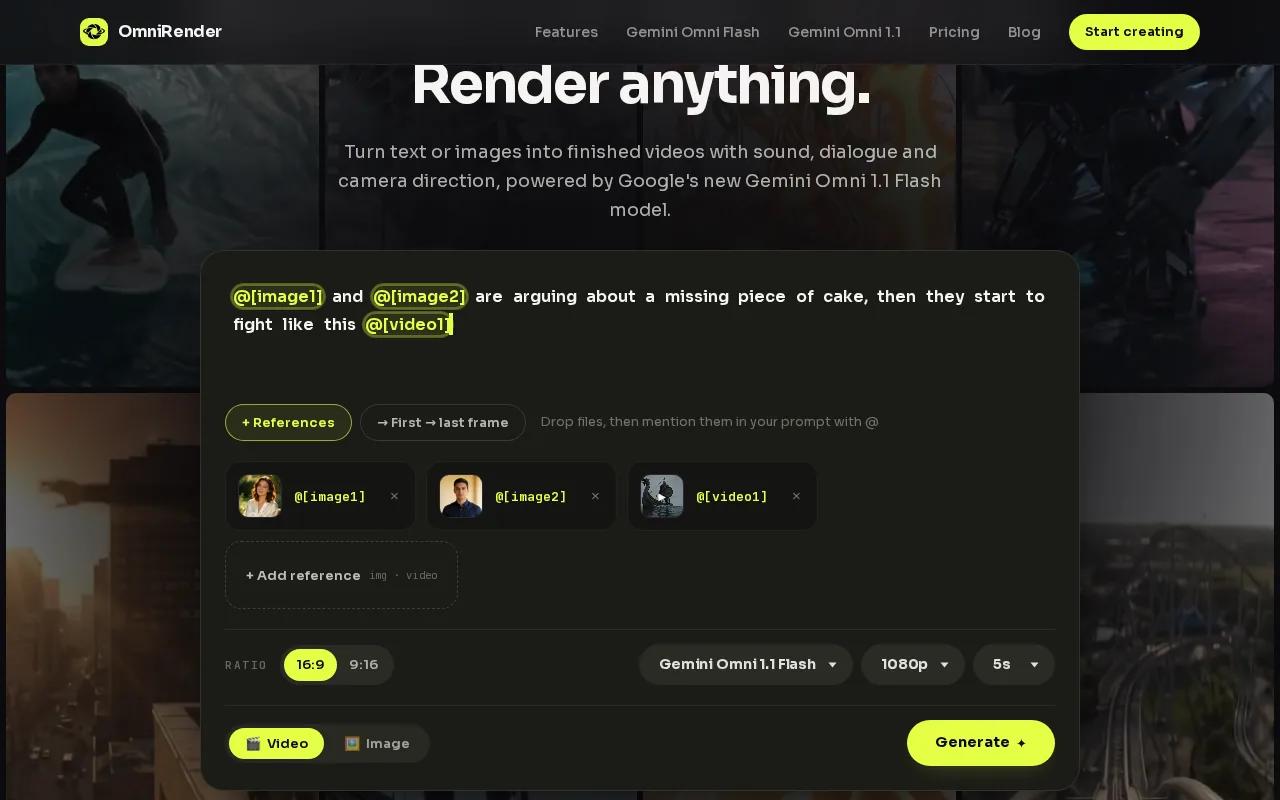
You can generate music, sound effects, and lip-synced dialogue with the picture. Then describe an edit in plain language or extend a scene while keeping its characters consistent. For a product ad, attach a product photo, describe the motion, and generate a short clip to review before posting.
The free plan includes a few 360p videos a month with no card. Paid plans start at $14 per month and list a commercial licence; the free plan does not list one. It’s a focused choice when generated sound and prompt-led edits matter.
If you’re still weighing different workflows, this related overview of choosing AI video generation platforms can help you narrow the field.
2. HeyGen: For avatar-led videos and localized training
HeyGen makes presenter-led videos from prompts, scripts, images, or audio. It suits teams that need a person on screen to explain a product or deliver training without filming a fresh take for every update.
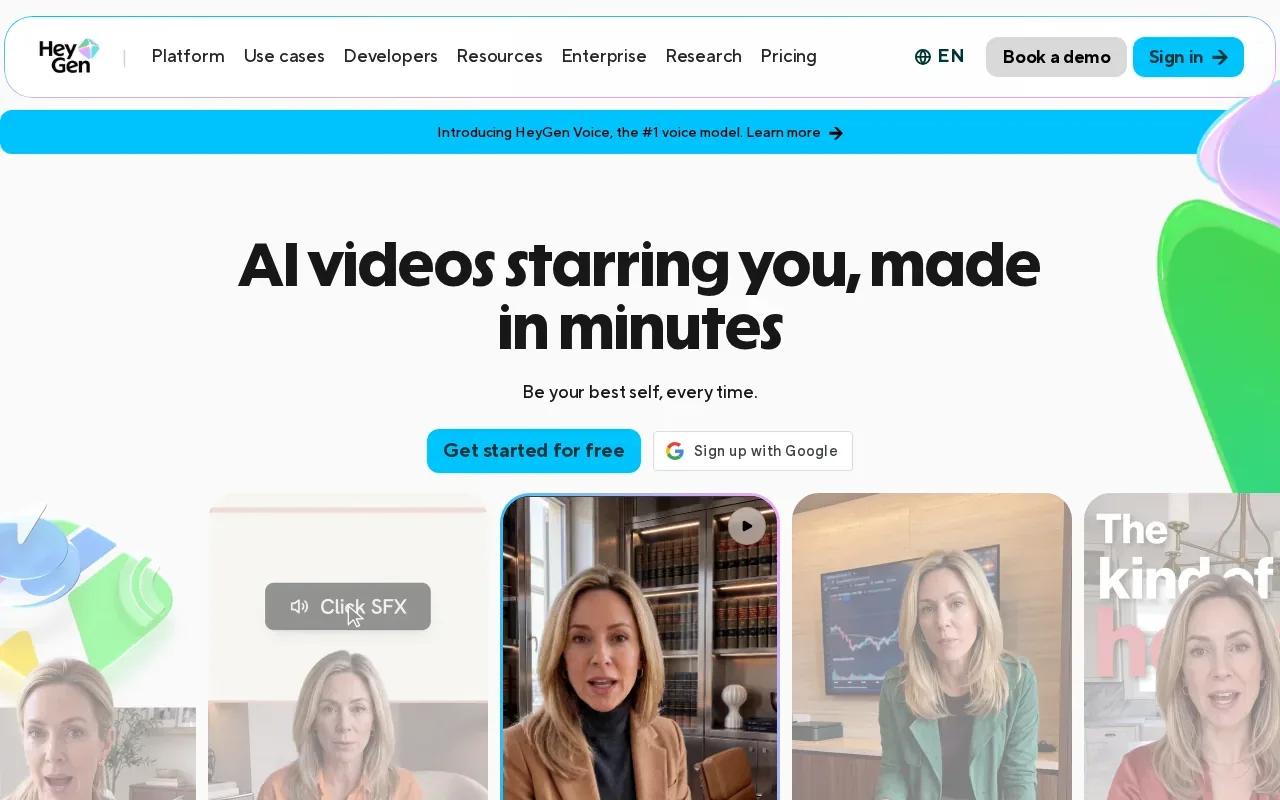
Its tools include custom avatars, voice cloning, and video translation with lip sync across 175+ languages and dialects. The platform also supports quizzes, branching, and SCORM export for training workflows. That can help when one lesson needs localized versions or a learner path that changes with an answer. Test a short sample with your own script before producing a large batch, especially if the spoken words need exact timing.
3. JXP AI Video Generator: For a broad, all-in-one workflow
JXP AI Video Generator puts several creative workflows in one studio. It’s a fit if you want to move between prompt-led video, image references, character work, and avatar lip sync in the same project.
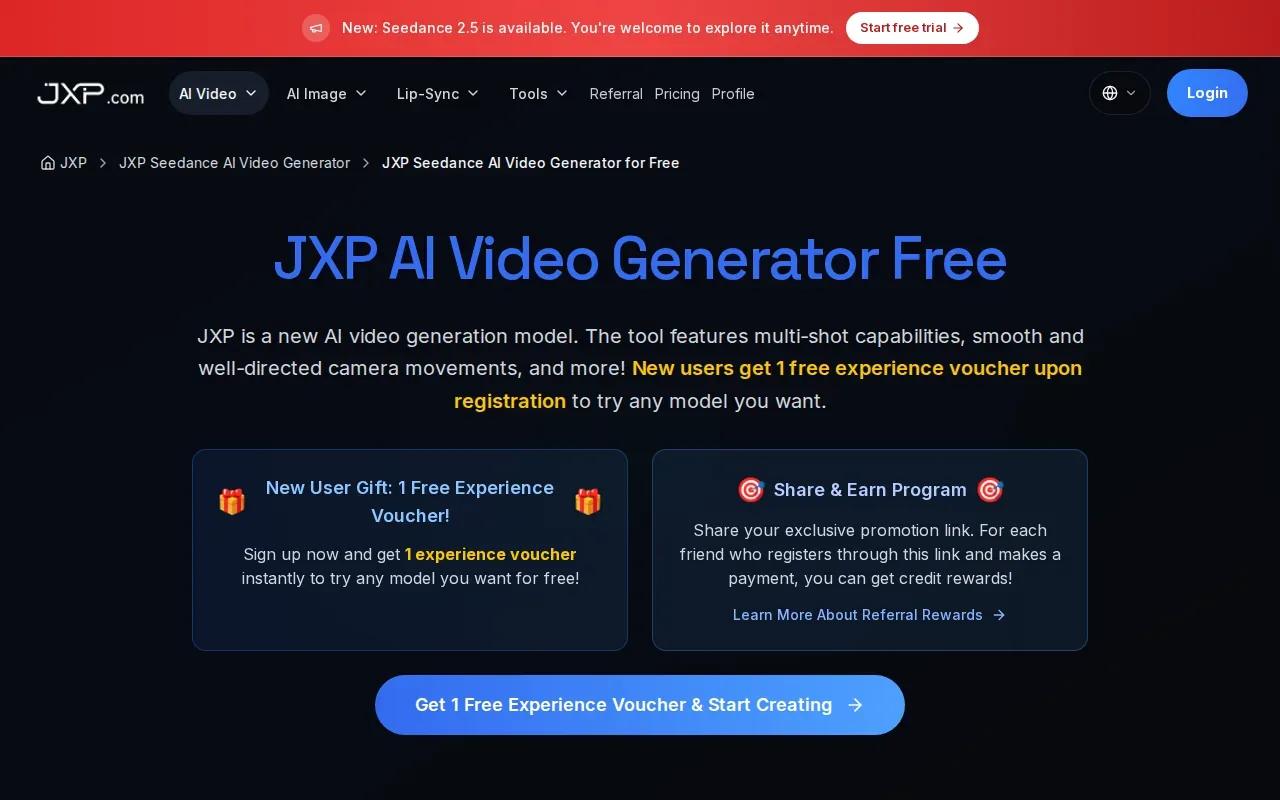
Its workflow includes text-to-video, image-to-video, reference-to-video, and Avatar LipSync. The available model and settings affect what you can make, so check the generation controls before uploading media or planning a longer clip. Its maximum video resolution is HD. Commercial use depends on your plan, chosen model, and rights to the source material, so review those terms before publishing paid campaign work.
4. Synthesia: For document-based presenter videos
Synthesia turns documents, PDFs, slides, and links into videos presented by an avatar. It suits training and internal communications teams that already have written material and need a person to deliver it on screen.
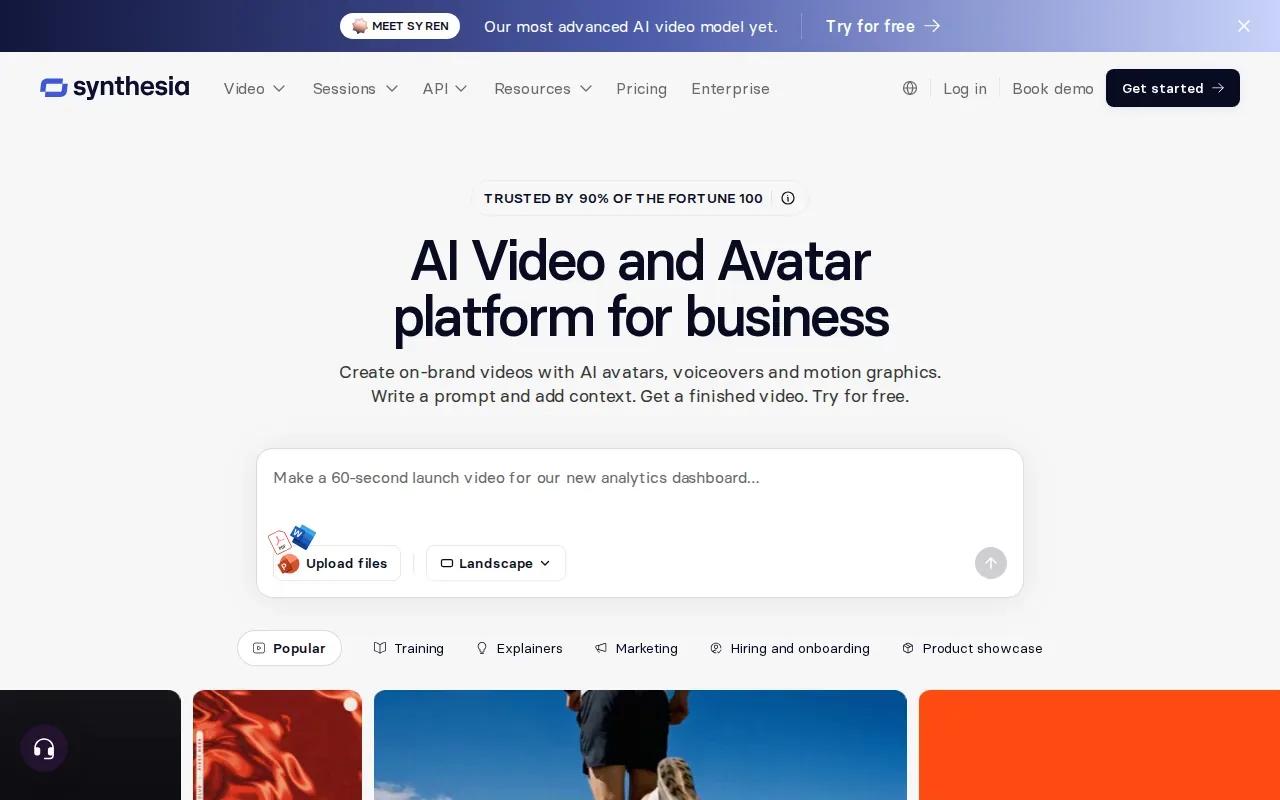
You can edit the source material into scenes, then make changes to a video that updates across shared links, embeds, and an LMS. The platform also supports SCORM export and LMS integrations. That makes it a useful fit for lessons that change often, such as onboarding or policy updates. Check whether a presenter-led format matches the material; a document turned into scenes won’t automatically make every topic engaging.
5. InVideo: For template-led marketing and social videos
InVideo pairs AI text-to-video with a large template library. It suits creators and small marketing teams who want a starting layout for an ad, tutorial, or social post rather than building every scene from scratch.
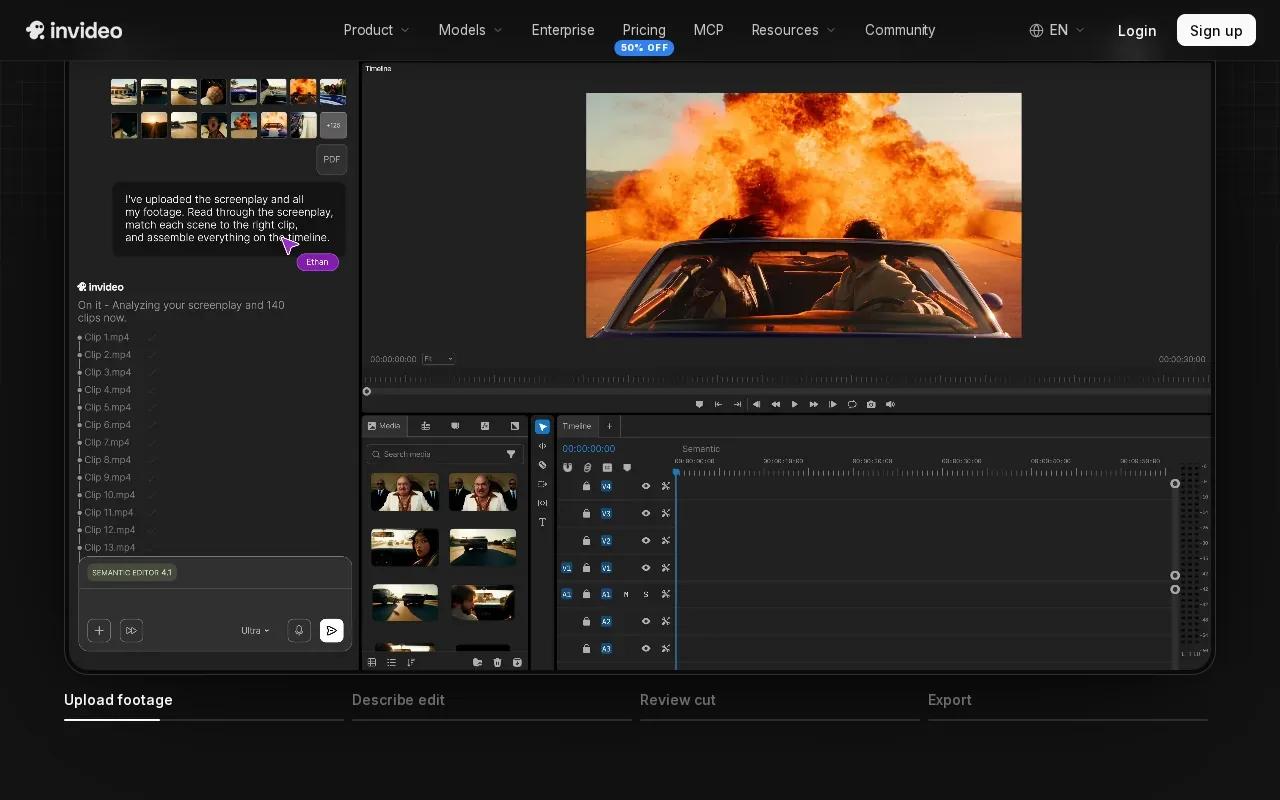
You can turn a prompt or article into a draft, add a voiceover, and bring in stock media from the editor. Its AI editing agent can also apply a direction across clips on a timeline. Review the chosen footage and script before publishing, particularly when the video makes specific product claims.
6. Pictory: For turning long-form content into short clips
Pictory is built to reshape existing material into shorter videos. It fits a creator or marketing team with webinars, blog posts, scripts, or recordings that could work as social clips or summaries.
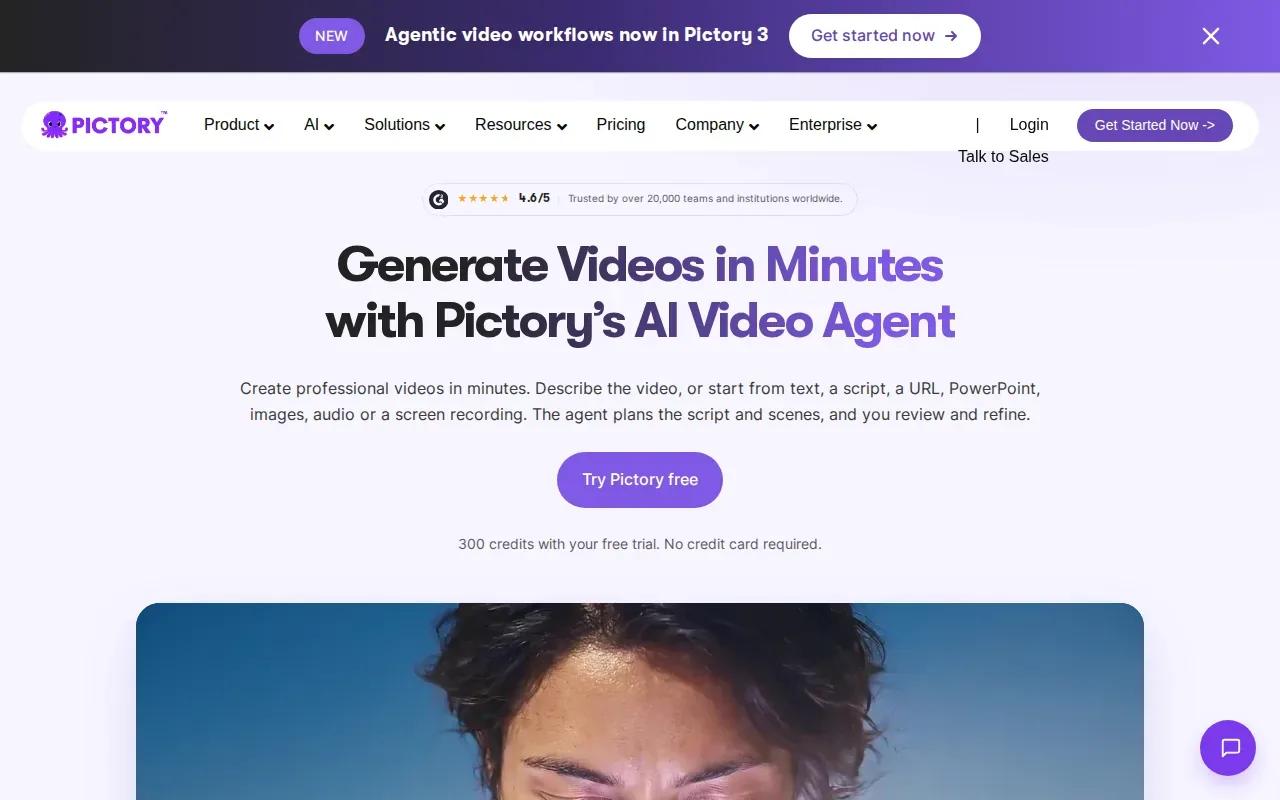
You can turn text, URLs, audio, and presentations into videos with generated visuals, captions, voices, or avatars. Pictory also supports text-based editing and can pull highlights from longer videos. For example, a webinar can become several short clips, each built around one useful point. Check the selected passages against the original recording so a short edit doesn’t strip away context.
7. Vyond: For templated animation and training content
Vyond is a browser-based animation and avatar editor for narrative-driven lessons, explainers, and workplace training. It suits teams that need scenes with characters and settings instead of a photorealistic presenter.
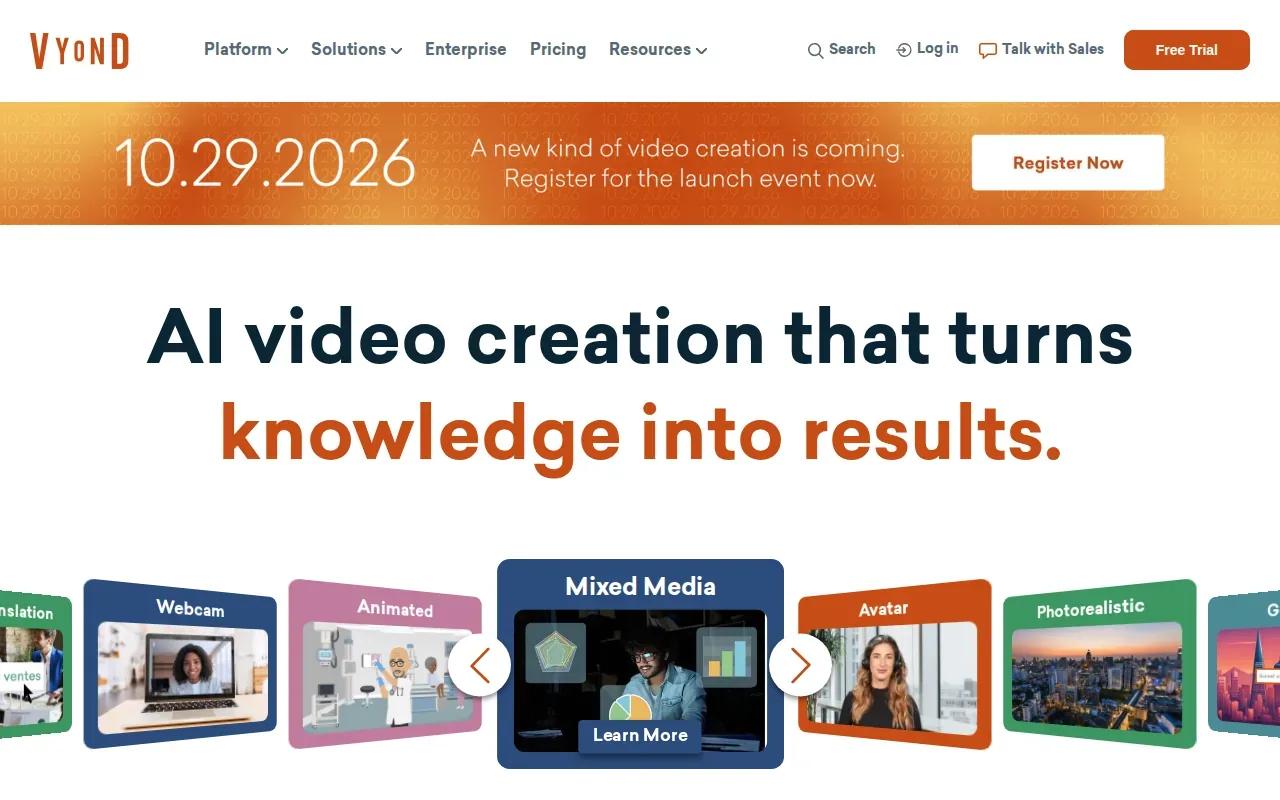
Its templates include characters, settings, and props that you can adapt. Vyond Go can turn an idea, document, or URL into a video draft. That can help an instructional designer show a process through a short scene, then revise the script or characters to fit the lesson. Vyond includes SCORM export. Pick it when animated storytelling fits better than a talking-head lesson.
8. OpenArt: For character creation and image-to-video variety
OpenArt combines image and video creation with character tools. It’s a fit for creators who need a recurring character to appear in new scenes, or who want to try different video models from one workspace.
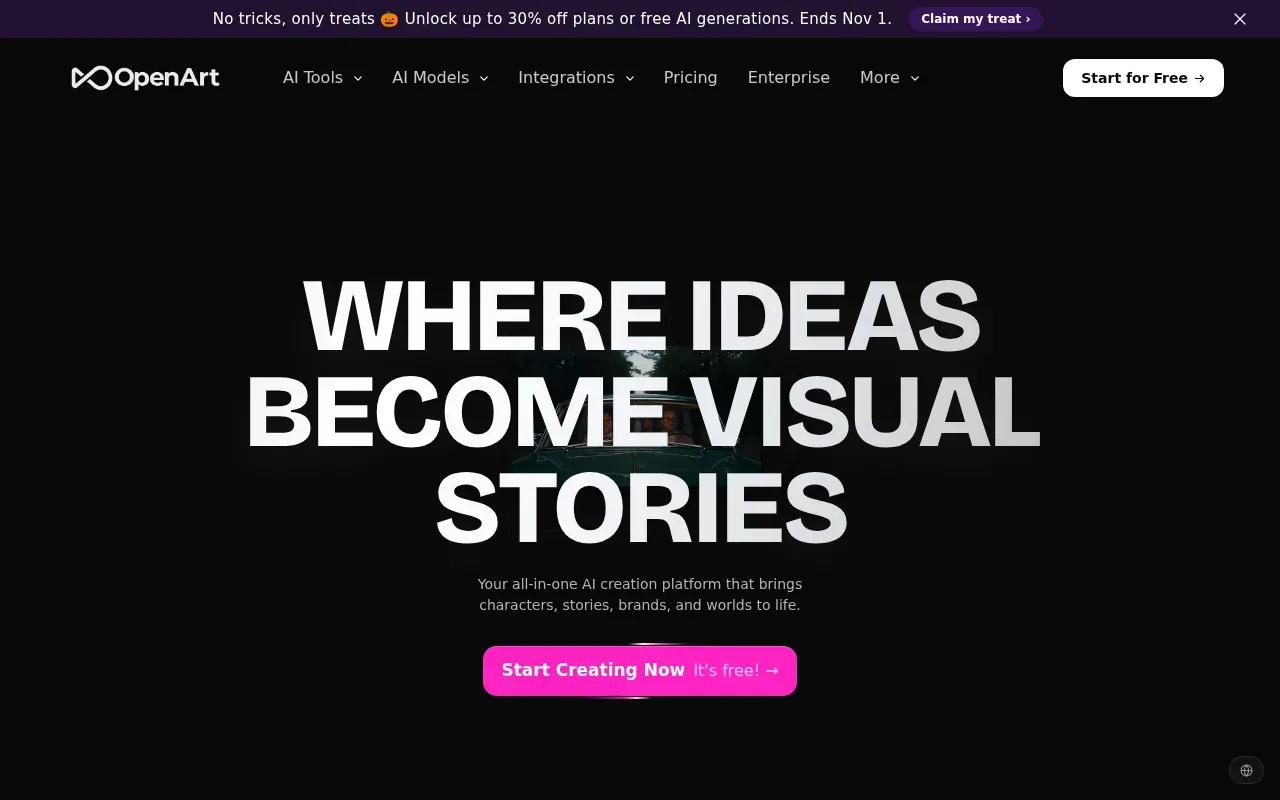
You can build a character from text or reference images, save it, then reuse it in later generations. Its video generator accepts prompts or reference images, and you can try different video models in one workspace. Check the terms for your source material and selected workflow before using an asset in a client campaign.
9. OmniVideo: For an all-in-one video creation workflow
OmniVideo is a browser-based generator for making images and videos from text prompts. It suits creators who want a direct prompt-to-visual workflow for a quick concept or campaign asset.
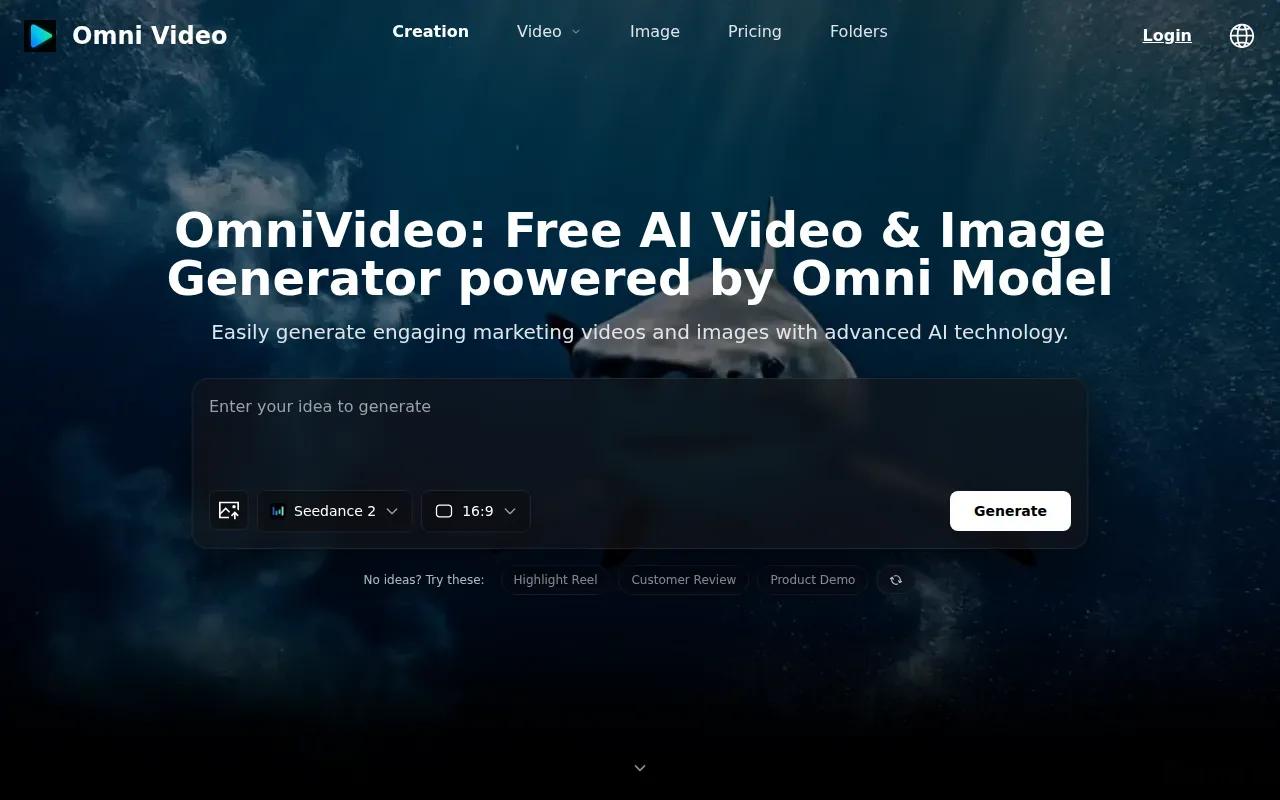
OmniVideo is an all-in-one AI platform. Check applicable licensing terms before using generated content commercially, and make sure your prompt and any source materials are cleared for your intended use. This is a straightforward option when you want to start with a written scene description.
10. Omni AI Video: For multimodal text, image, audio, and video inputs
Omni AI Video is built on the Omni AI Model, which handles text, image, audio, and video inputs. It suits creators who want to combine several kinds of reference material in one generation workflow.
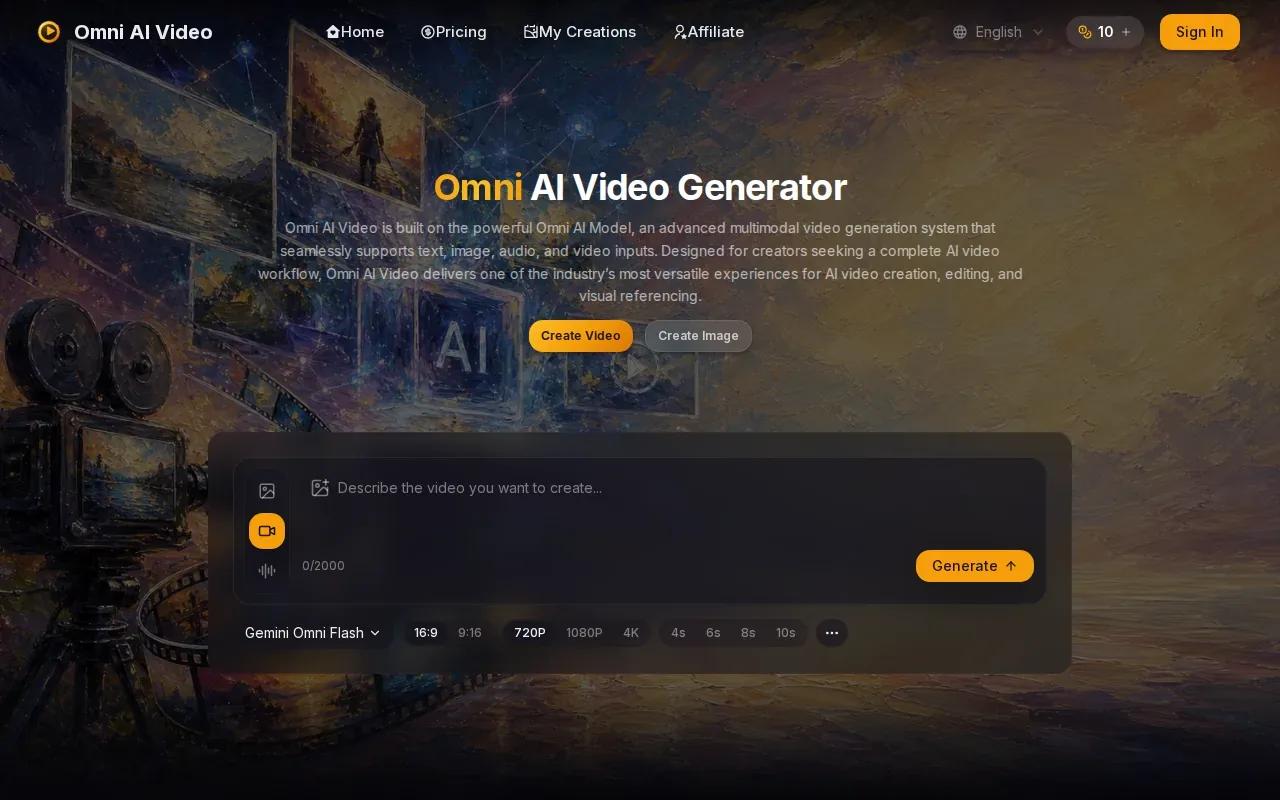
If your project depends on a particular combination of audio and visual references, test that setup before building a batch around it. Review the terms for the plan you choose before using outputs in client work.
How the AI Video Makers Compare
These tools don’t all make the same kind of video. A presenter tool can turn a script into a lesson, while a scene generator starts with a prompt or reference image. Use the table to match the workflow to the job rather than treating every tool as a substitute for the others.
| Tool | Best fit by workflow | Output or control detail | Check before publishing |
|---|---|---|---|
| OmniRender | Short scenes, social clips, and product ads | Generated sound, lip sync, prompt edits, and scene extensions | Confirm current plan and source-material terms |
| HeyGen | Avatar videos and localized training | Voice cloning and translation with lip sync | Test the script and language version |
| JXP AI Video Generator | Several creation workflows in one studio | Text, image, reference video, and avatar lip sync | Check model, settings, and usage rights |
| Synthesia | Document-based training videos | Avatar scenes with LMS and SCORM support | Make sure a presenter suits the content |
| InVideo | Template-led marketing and social content | Text-to-video, templates, and timeline editing | Review the script and selected visuals |
| Pictory | Repurposing longer source material | Video highlights, captions, and text-based editing | Check each clip against its source |
| Vyond | Animated lessons and explainers | Templates, characters, and SCORM export | Confirm the animation style fits the lesson |
| OpenArt | Recurring characters and varied image-to-video work | Character tools and several video models | Review terms for the model and source assets |
| OmniVideo | Prompt-led video and image generation | Text prompts for image and video creation | Confirm rights for any uploaded material |
| Omni AI Video | Mixed text, image, audio, and video inputs | Multimodal creation and reference workflows | Check paid-plan terms for commercial work |
For a quick budget test, start with the smallest clip that can prove the workflow. A short draft can reveal whether the character, camera direction, and lip sync work before you spend time on a longer version. If you’re mainly comparing free access, this overview of the best free AI video maker options focuses on how trial limits affect your first test.
FAQ
Which AI video maker is best for social media clips?
OmniRender is a strong fit when your social clip needs a generated scene with sound or dialogue. It supports short videos from text prompts and image references, with portrait and landscape formats. InVideo may suit you better when you want to start from a template, while Pictory fits clips cut from longer videos or written content.
Which AI video maker is good for training videos?
Synthesia, HeyGen, and Vyond each fit a different training style. Synthesia can turn documents and slides into avatar-presented videos, with LMS and SCORM support. HeyGen fits avatar-led lessons that need localization. Vyond is a fit when an animated scene makes the lesson easier to follow.
Can AI video makers create videos from images?
Yes, several tools in this list support image-based video creation. OmniRender accepts image references, while OpenArt supports image-to-video and saved characters. JXP AI Video Generator also offers image-to-video. Check the specific model and settings you plan to use, since supported inputs and output options can differ by workflow.
Can I use AI-generated videos for commercial work?
Some tools state commercial-use terms, but those terms can depend on the plan, model, or source material. OmniRender’s paid plans list a commercial licence and its free plan does not, while JXP says usage depends on the plan, selected model, and source rights. Read the current terms before using generated footage in ads or client work.
Are free AI video makers enough for business content?
A free plan can help you test a prompt or check whether a workflow fits. OmniRender’s free plan includes a few 360p videos per month without a card. For a campaign or client deliverable, check the plan’s output limits and the usage terms first, then make a test clip at the quality you expect to publish.
Conclusion
For prompt-led short videos with sound, dialogue, and edits, start with OmniRender. Try a small draft first, then check the output and current terms against your project. You can start creating with OmniRender in your browser.