Finding a free AI video maker is easy. Finding one that fits your clip, stays within its limits, and gives you an output you can use takes more care. Here are six options, starting with OmniRender, and the work each one suits.
We analyzed 67 reviews and comments from the App Store and YouTube about FREE AI video makers and found that 15% mentioned poor video quality and inaccurate prompts.
1. OmniRender
OmniRender is an independent, browser-based app for turning text prompts and image references into short AI videos. Its free plan includes a few 360p videos per month, with no credit card required. It uses Gemini Omni models, but it has its own app and plans. It isn't a Google product or an endorsement by Google.
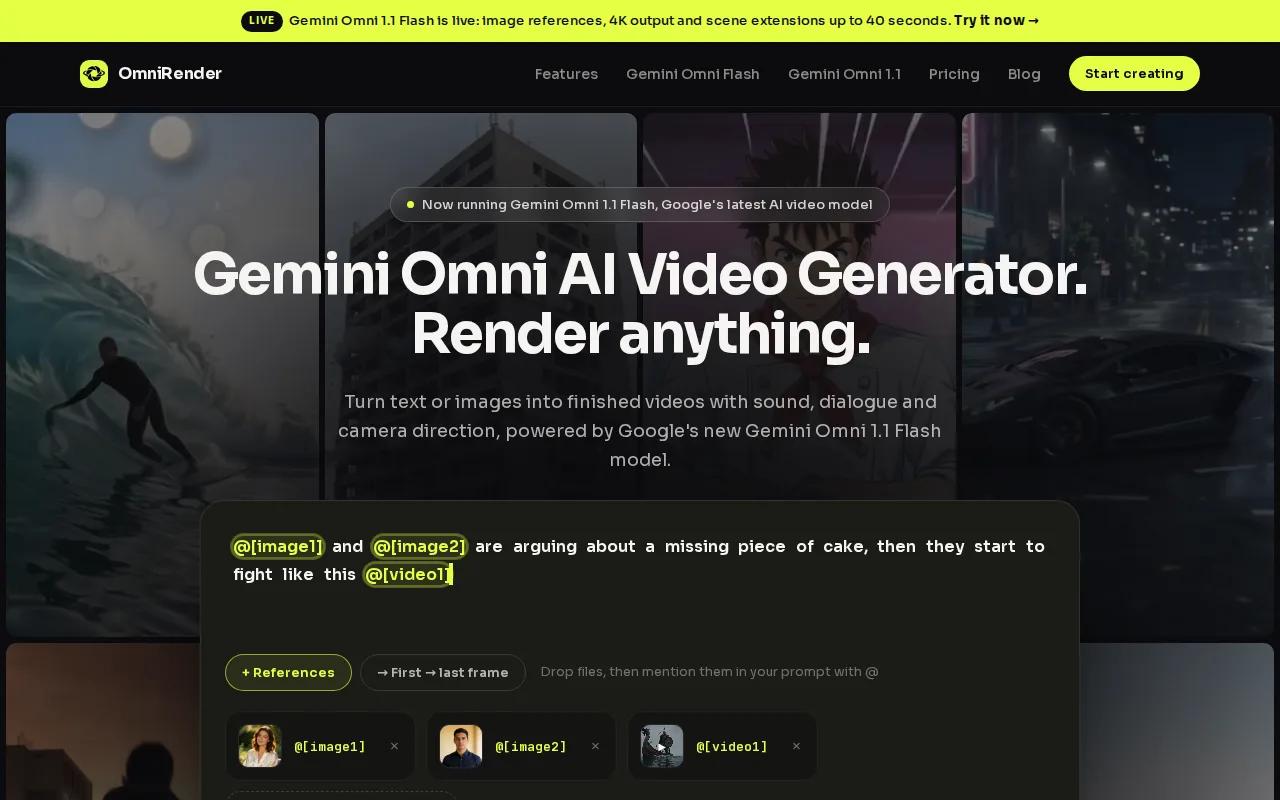
Use it when you need a short social clip or product spot, especially if sound or spoken lines are part of the scene. The video can include generated music, sound effects, and lip-synced dialogue. You can also edit a generated clip with a prompt or extend a scene, which helps when a first draft is close but needs a small change.
Try a short prompt first. For a product shot, describe the setting and the action, then attach a product image as a reference. A focused prompt makes it easier to judge whether the movement, lighting, and framing fit your ad. If you need a longer scene, extensions can build on a clip up to 40 seconds total.
The free plan is capped at 360p, so treat it as a way to test an idea before planning a higher-resolution export. Paid plans, from $14 per month, include a commercial licence; the free plan is for testing. The free plan has no visible watermark. That can matter when a clip needs to look clean in a quick social post.
For current access and plan details, visit OmniRender's video creation workspace. It is a sensible starting point if you want prompt-led video with sound, rather than a tool focused only on editing existing footage.
2. OpenArt: a credit-based option for trying AI video
OpenArt is an AI creation workspace for making images, video, voice, and audio. New accounts can try it with free credits, and its watermark-free output and commercial use rights come with paid plans.
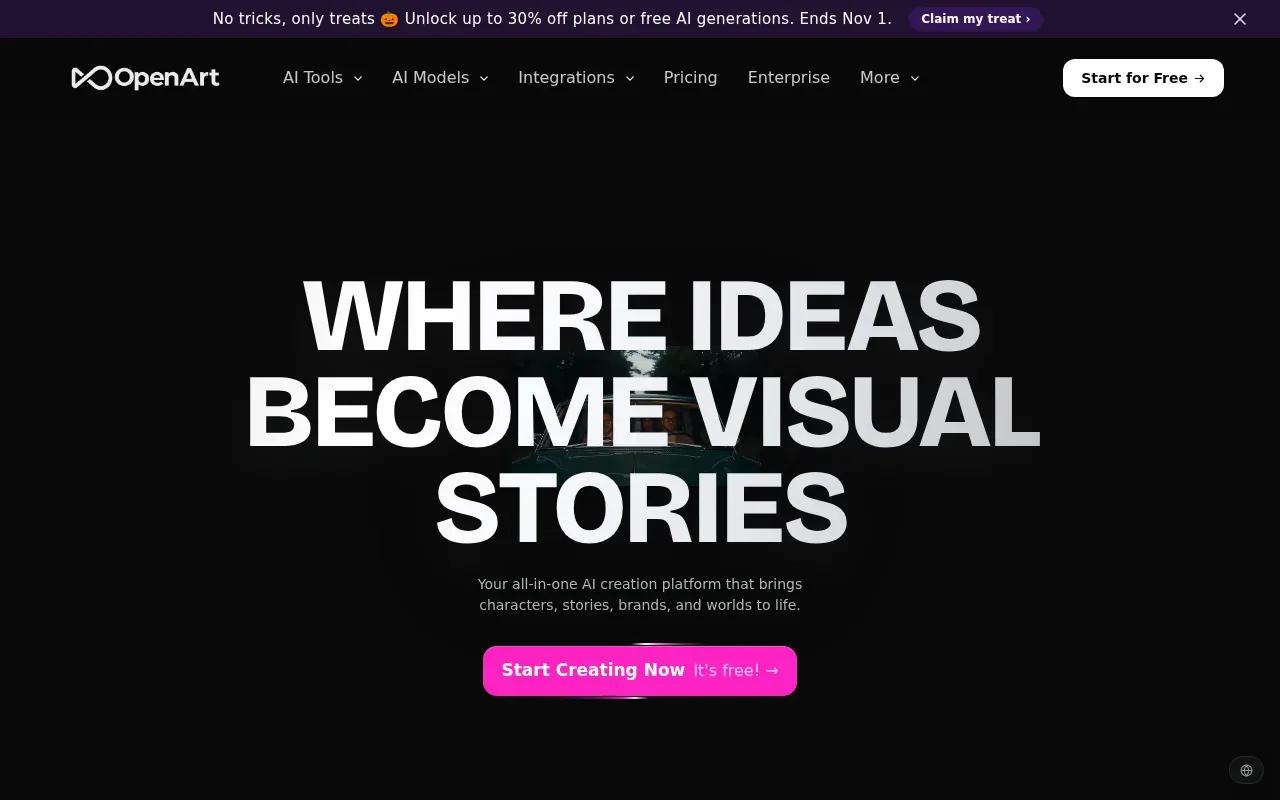
OpenArt suits creators who want images, video, and audio in one workspace and plan to keep a character consistent across several clips. Test one short idea with the free credits, then check whether a watermarked file is good enough before you build a workflow around it.
3. Krea: for exploring visual directions in one workspace
Krea is a creative workspace for comparing visual directions and trying more than one generation approach. Its free plan includes a daily compute allowance that refills every day. The video tools include text-to-video, image-to-video, and clip extension.
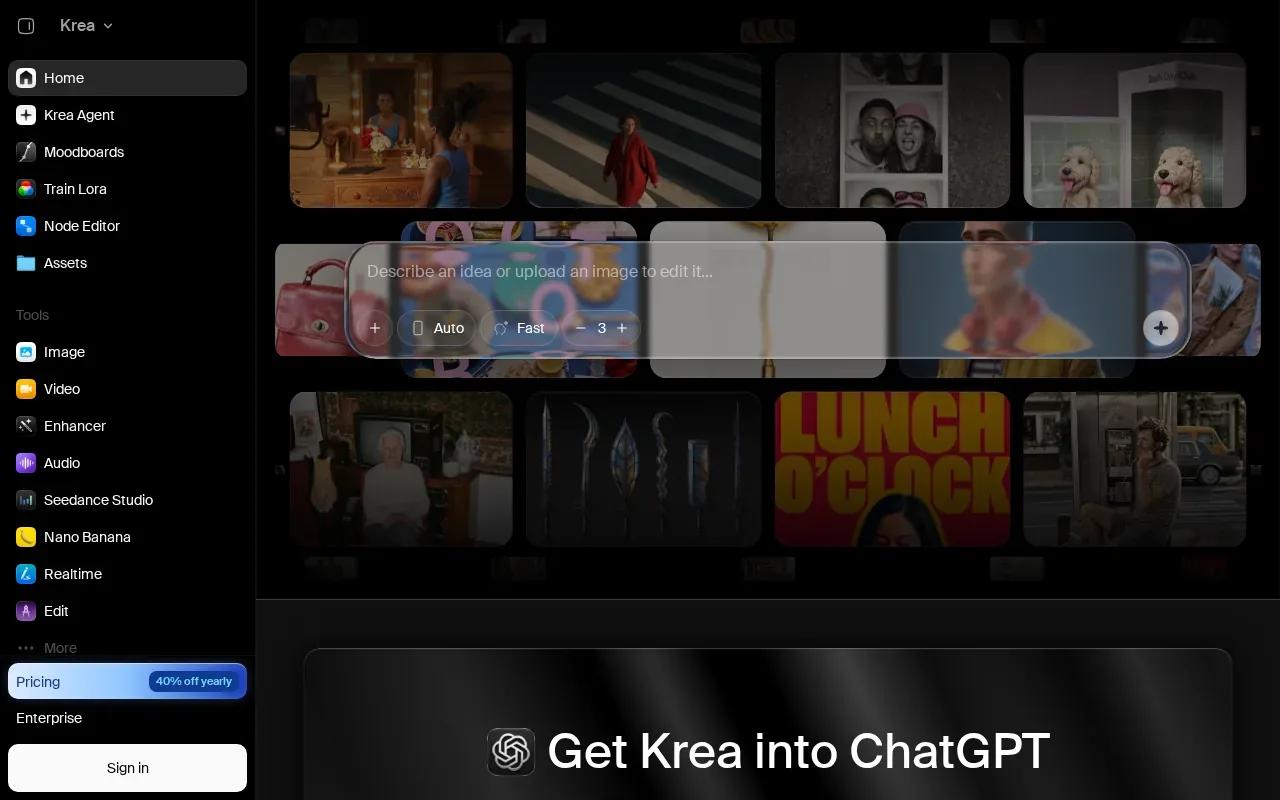
Krea fits the early part of a project, when you have a scene in mind but haven't settled on its look. You can test a prompt, compare results, then try a different model or input style. For example, begin with text for a fresh scene. If you already have a still image, use image-to-video to see how it handles motion from that frame.
The daily allowance gives you room to return and test ideas over time. But compute units aren't a fixed video count. The cost can depend on the model and task, so check the balance shown for the settings you choose before you start a batch of generations.
Clip extension may help when a short result needs more time, while model comparison can help you judge a visual direction before building a larger piece. Krea is best treated as a daily sandbox for exploration, not as a promise of a set number of finished clips.
If you're also weighing broader workflows and model access, this overview of choosing AI video generation platforms can help you sort tools by the kind of work you need to finish.
4. DaVinci AI: short-form video tools for ads and social
DaVinci AI is a unified AI suite for image, video, and voice creation. It runs in a browser and has iOS and Android apps. Its workspace includes more than 50 AI models.
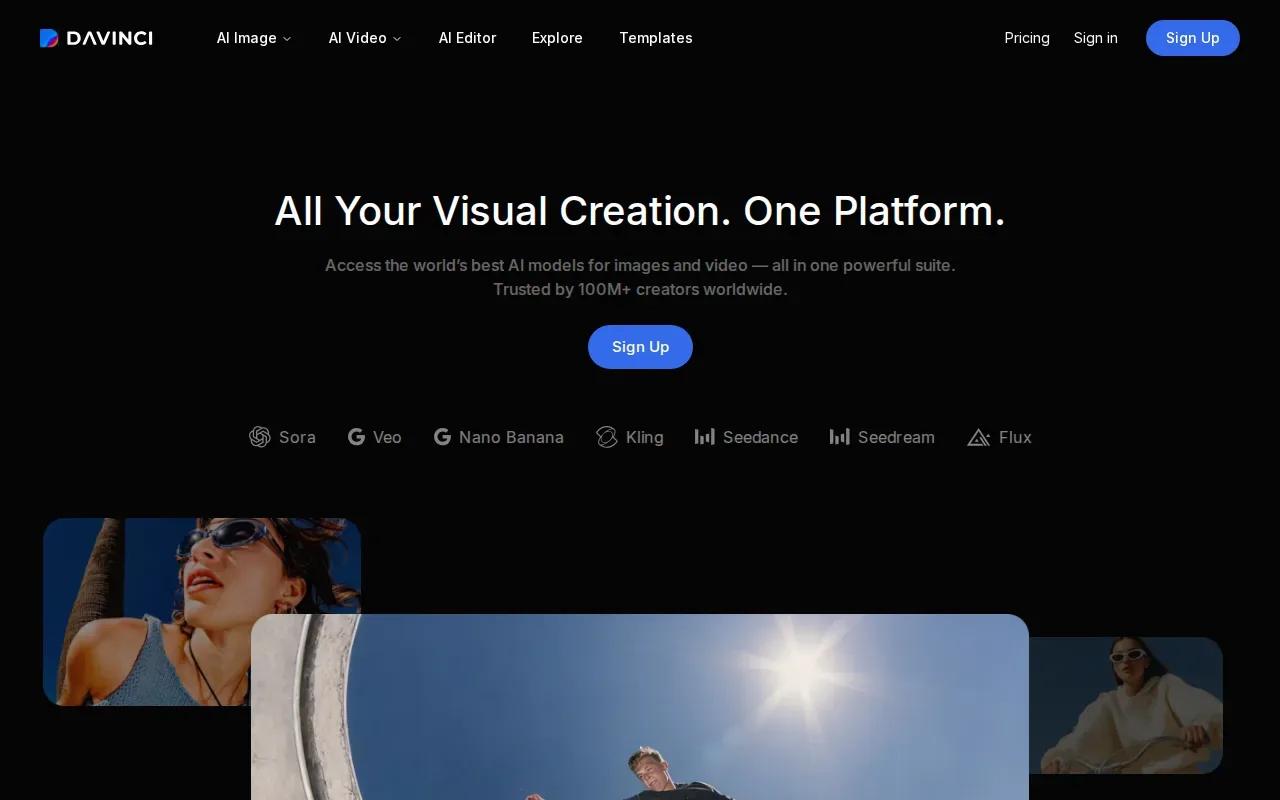
Its use case is short-form video for ads and social media. That makes it relevant when you're building a quick campaign clip or a post for a mobile feed. Access across browser and phone apps can also suit a team that starts work at a desk and checks drafts on a device.
The model range gives you a way to compare different generation approaches in one workspace. DaVinci AI lets you compare Seedance, Veo, Kling, and Flux before refining a result. Pick one scene and keep the brief steady while you test; otherwise, it's hard to tell whether a new result came from the model or a changed prompt.
DaVinci AI is a fit to consider when ad and social content is the main goal. As with any free plan, check the allowance and output terms shown in your account before you build a posting schedule around it.
5. JXP AI Video Generator: access to multiple generation models
JXP AI Video Generator is a service for making AI videos and images, with access to several generation models in one place. It is free to start.
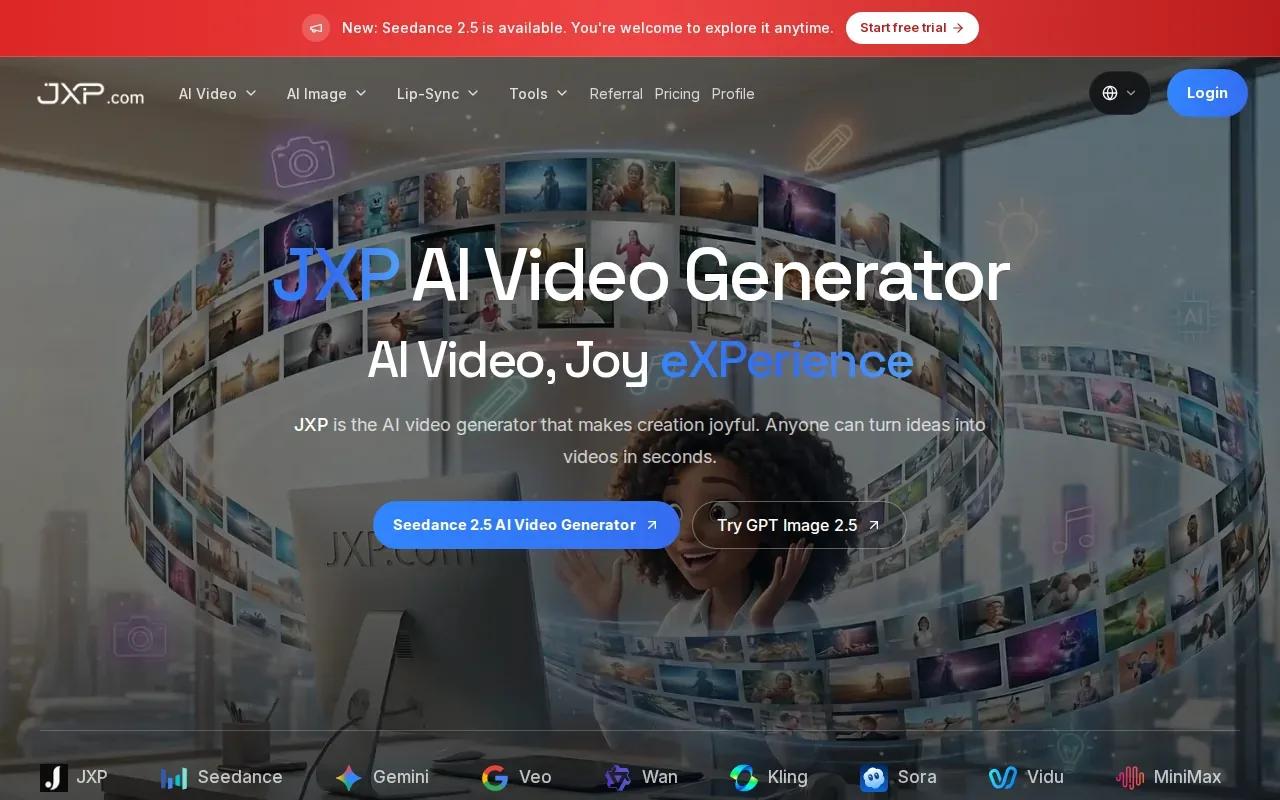
Its models include Seedance 2.5, Wan 3.0, and MiniMax H3, among others. If you're curious how different models handle the same idea, that range gives you a reason to test JXP with one clear prompt. Keep the subject and action simple, then compare the results on motion and scene consistency.
A quick test can help you decide if a model suits a short social clip or a product concept. For instance, ask for one clear action, such as a package turning toward the camera. Avoid adding several scene changes to the first prompt. A simpler brief makes it easier to spot what the model does well.
Check the plan and usage terms that apply to your account before using a generated clip in paid marketing.
6. OmniVideo: a basic free tier for quick tests
OmniVideo is a browser-based video generator with a free tier for basic features and premium plans for advanced tools. Watermark removal comes with its paid plans, and commercial use is listed on its higher paid plans.
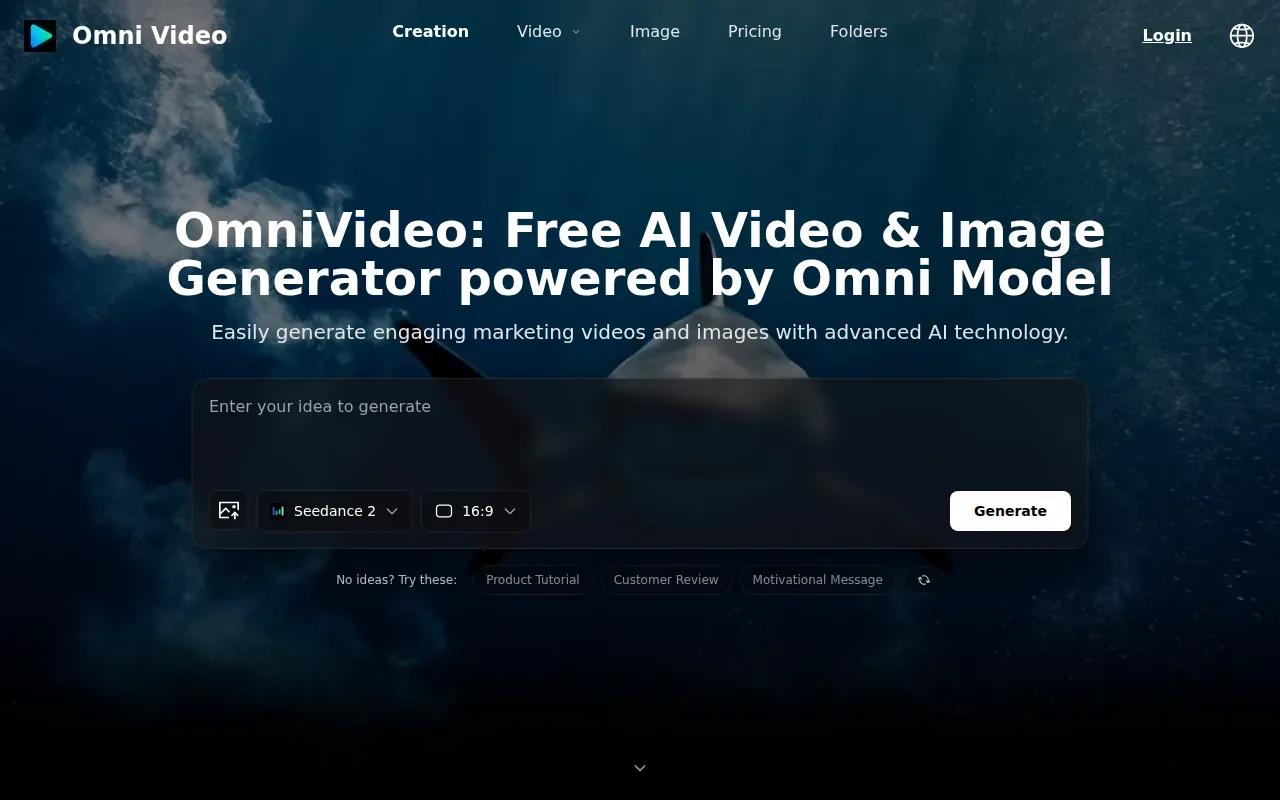
Treat the free tier as a way to test the interface and output quality before planning campaign assets. A short test can show whether the basic features meet the brief.
Use this comparison to match each option to the job, rather than treating a free label as a promise of equal output. The limits and strengths differ:
| Tool | Free access detail | Consider it when |
|---|---|---|
| OmniRender | A few 360p videos monthly; no card required; no visible watermark | You need a prompt-led short clip with generated sound or dialogue |
| OpenArt | Free starter credits; watermark-free output on paid plans | You need character consistency across multiple scenes |
| Krea | Daily compute allowance | You want to compare visual directions in one workspace |
| OmniVideo | Basic free tier; commercial use on higher paid plans | You want a quick browser test before paying |
For a social creator, the main choice is often between a small number of more directed generations and a workspace built for testing visual styles. For a brand team, commercial-use terms deserve a careful read before a clip reaches an ad account. Keep the final platform, resolution, and rights in view as you test.
FAQ
Which free AI video maker should I try first?
Start with OmniRender, an independent app, if you want generated sound or dialogue. Its free plan has no visible watermark.
Can I use free AI video makers for commercial projects?
Sometimes, but the answer depends on the tool and its current terms. OmniRender's paid plans include a commercial licence, and OpenArt and OmniVideo list commercial use on paid plans. Don't assume a free account grants the same rights.
Do free AI video makers add watermarks?
Some do. OpenArt and OmniVideo offer watermark-free output on paid plans, while OmniRender's free plan has no visible watermark. Check a sample export before choosing a tool for a client job or a public post. A watermark can change how polished a short ad feels.
Do I need a powerful computer to make AI videos?
No. OmniRender, Krea, DaVinci AI, and OmniVideo are browser-based, so their workflows run through a web browser. DaVinci AI also supports iOS and Android apps.
Conclusion
For a short clip with generated sound and a no-card entry point, start with OmniRender's free plan and test one 360p prompt. If the result fits your use, review the current plan details before making more. Explore free text-to-video workflows if you want to shape the next test around a prompt.