An AI explainer video generator can turn a prompt, script, or image into a video, but the output varies by tool. Some focus on talking presenters, while others build animated scenes or assemble stock footage. Here are six options, starting with OmniRender, and the kind of explainer each one can help you make.
1. OmniRender
OmniRender is a browser-based video creation app that turns text prompts and image references into short videos. It’s a fit when your explainer needs generated scenes, sound, or a character that stays consistent as the video develops.
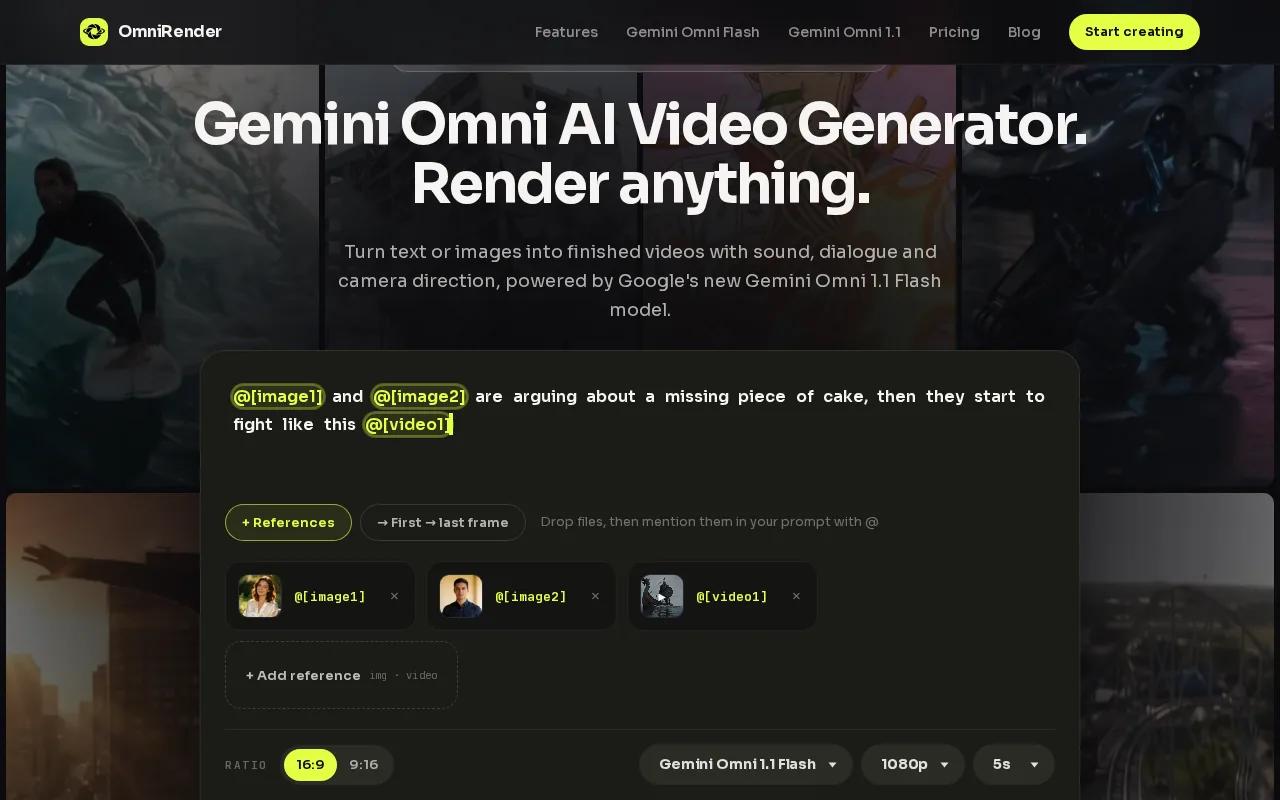
Describe the shot you want, or attach an image to guide it. The video can include synchronized music, sound effects, and lip-synced dialogue. If a scene needs a change, describe the edit in a prompt instead of rebuilding the whole idea from scratch. You can also extend a generated scene, with clips reaching up to 40 seconds in total.
That approach suits a short product explainer: show a product in use, add a line of dialogue, then adjust the scene if the first result needs a different camera move. For product ads and short-form video, portrait or landscape framing can help you shape the same concept for different channels.
OmniRender is an independent app with its own studio and plans, separate from Google’s underlying technology. The free plan makes a few 360p videos a month with no card required. Paid plans start at $14 per month for the Creator plan, and every plan includes a commercial licence.
Try it when you want to direct a scene with words and then make targeted changes without a full timeline edit.
2. Synthesia: presenter-led explainers without a camera
Synthesia turns a script into a presenter-led video without a camera, studio, or actor. It fits company explainers where viewers need a clear speaker, such as an employee training clip or a product overview.
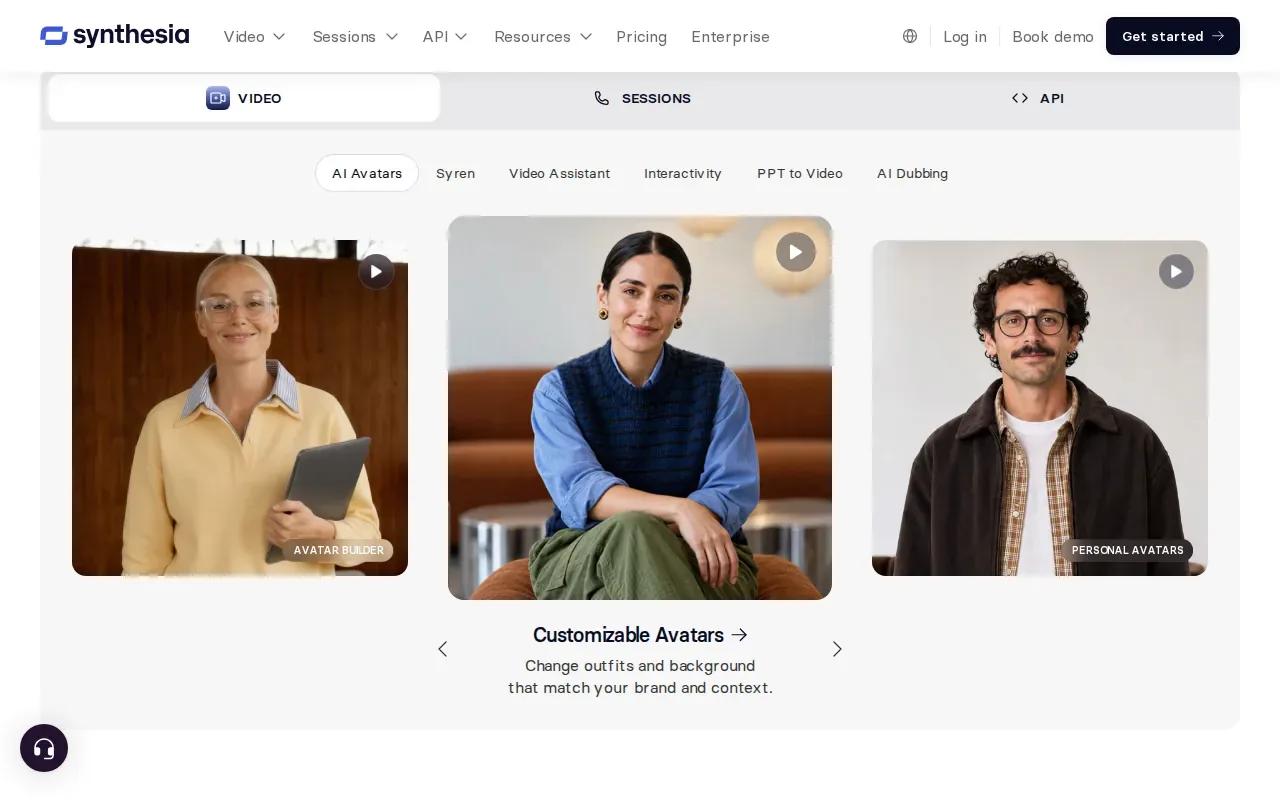
Its Pro plan includes more than 180 stock avatars. Pick a presenter, add your script, and build the video around spoken explanation rather than generated scenes. That can work well when the message is the main event and the visuals can stay simple.
For training teams, SCORM export gives you a way to add the finished video to a learning management system. That matters when a training clip needs to sit alongside other course material. A presenter can also make a policy update feel more direct than a text-heavy slide deck.
Choose Synthesia when a consistent on-screen speaker is more important than cinematic shots. It’s a different kind of explainer from a scene generator: the presenter carries the story, so write a script that sounds natural when read aloud.
3. HeyGen: fast talking-avatar videos and localization
HeyGen is built for talking-avatar videos, including versions adapted for different languages. It suits teams that need a person on screen to deliver a message, then want to reuse that message for other audiences.
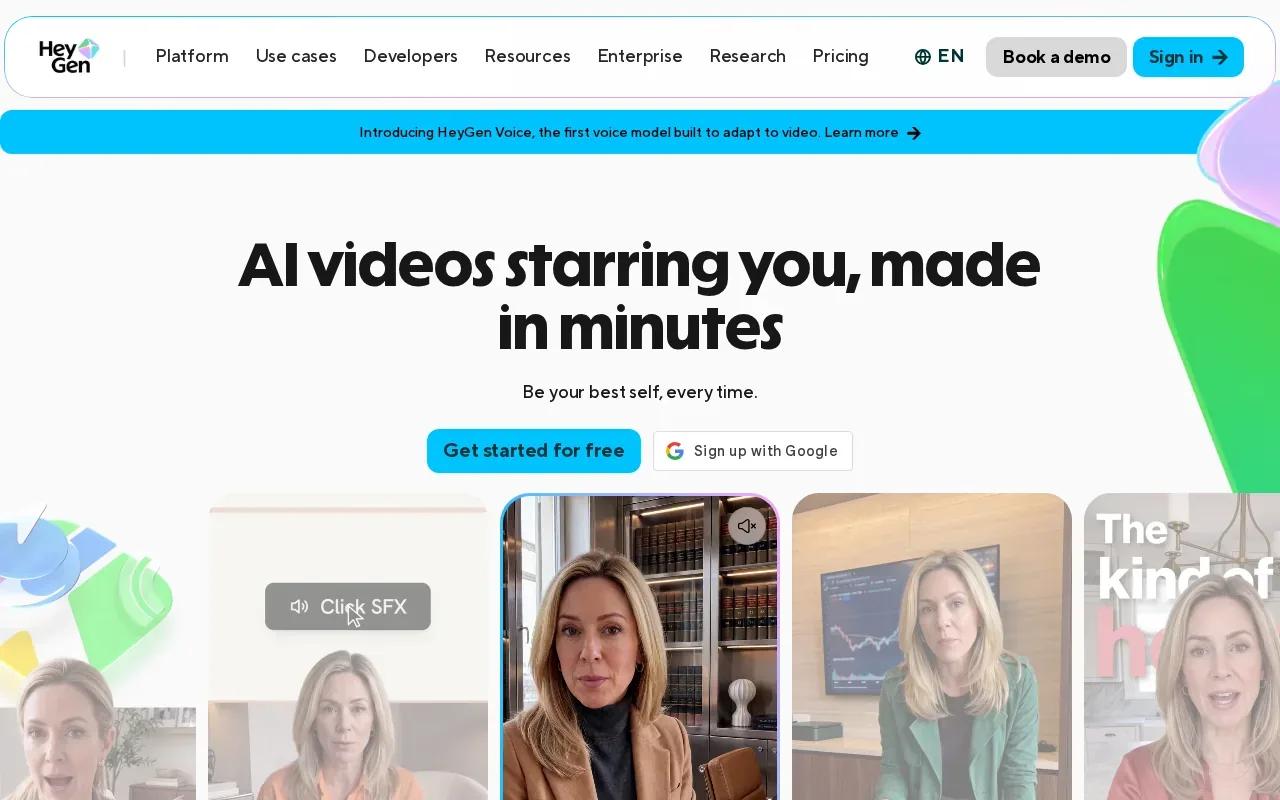
Its lip-sync workflow can match a speaker’s mouth to new audio. You can also use voice cloning and lip-sync translation for localized versions, so the spoken line and mouth movement stay aligned. Pro and Business plans export up to 4K.
Think of a product team updating a feature explainer. If one line changes, a talking-avatar format lets the team focus on revising what the presenter says. For a campaign aimed at more than one market, localization is a key part of HeyGen’s use case.
Pick it when the explainer depends on a presenter and translated speech. If you’re comparing it with OmniRender, focus on the kind of video you need: HeyGen’s strength is avatar-led speech and localization, while OmniRender builds short scenes from prompts and image references.
4. InVideo AI: prompt-to-video marketing production
InVideo AI automates a prompt-to-video workflow for marketing content. Give it an idea and direction, then it can produce a script, voiceover, visuals, subtitles, and music as part of the video draft.
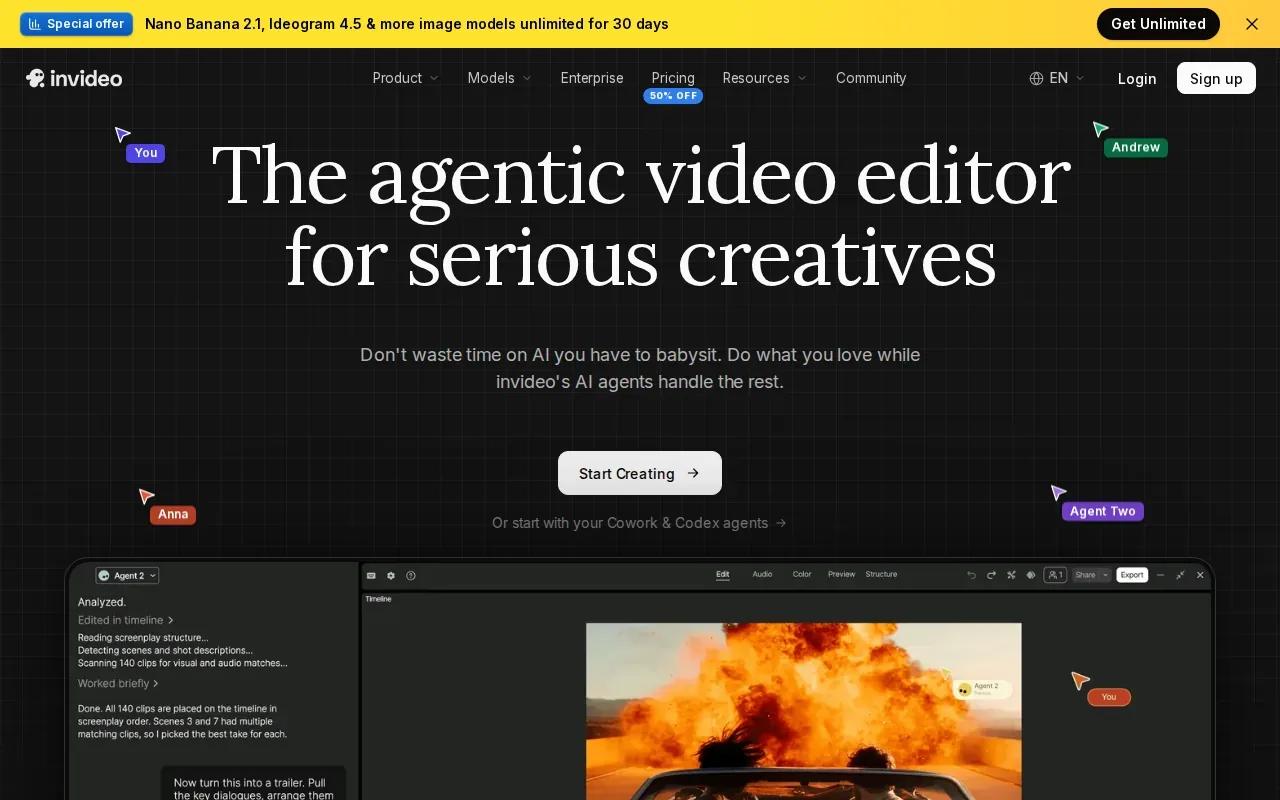
This can be useful when you have a campaign topic but don’t yet have a finished script or shot list. You can specify details such as the length, platform, or voiceover accent. After generation, text prompts can request edits, such as changing the voiceover or removing a scene.
For an explainer about a new service, that workflow can give you a first cut to review before you spend time refining every scene. The process runs from prompt to generation, then editing and publishing. It’s aimed at a broad marketing workflow, not only at one style of explainer.
Keep a close eye on the draft. Automated visuals and narration still need a human check for accuracy, pacing, and brand fit. Choose InVideo AI when you want the system to assemble much of the first version from a prompt.
5. Pictory: turn written content into stock-footage videos
Pictory converts written material into video with stock footage. It’s a natural option when you already have a blog post, script, or other text and want to reshape it as a narrated video.
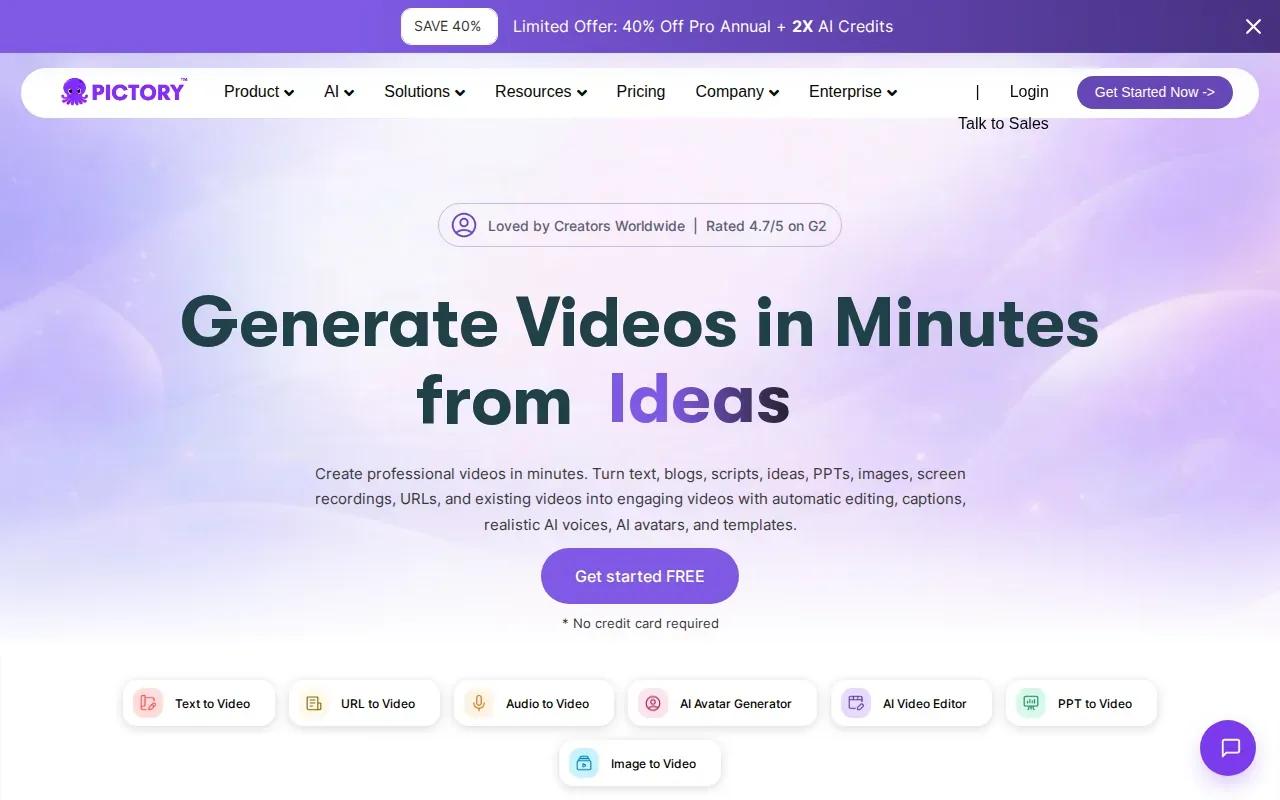
That makes it useful for repurposing. A content team can start with an existing article, then turn its main points into a video rather than writing a new concept from a blank page. Pictory’s plans also cover script or URL video generation, PowerPoint conversion, and scene-by-scene voiceover uploads.
For a product explainer, the key choice is whether stock footage can carry the message. If your text explains a process that viewers can follow through narration and supporting visuals, this format may be enough. If the story depends on a precise generated character or a custom scene, another workflow may fit better.
Use Pictory when the written source is ready and the job is to turn it into a video. Review the scene choices to make sure each visual supports the point being explained.
6. Animaker: character-based and whiteboard explainers
Animaker is designed for animated explainers that use characters, whiteboard elements, or arranged scenes. It fits a lesson or process explanation where the visuals need to show an action, not just illustrate narration.
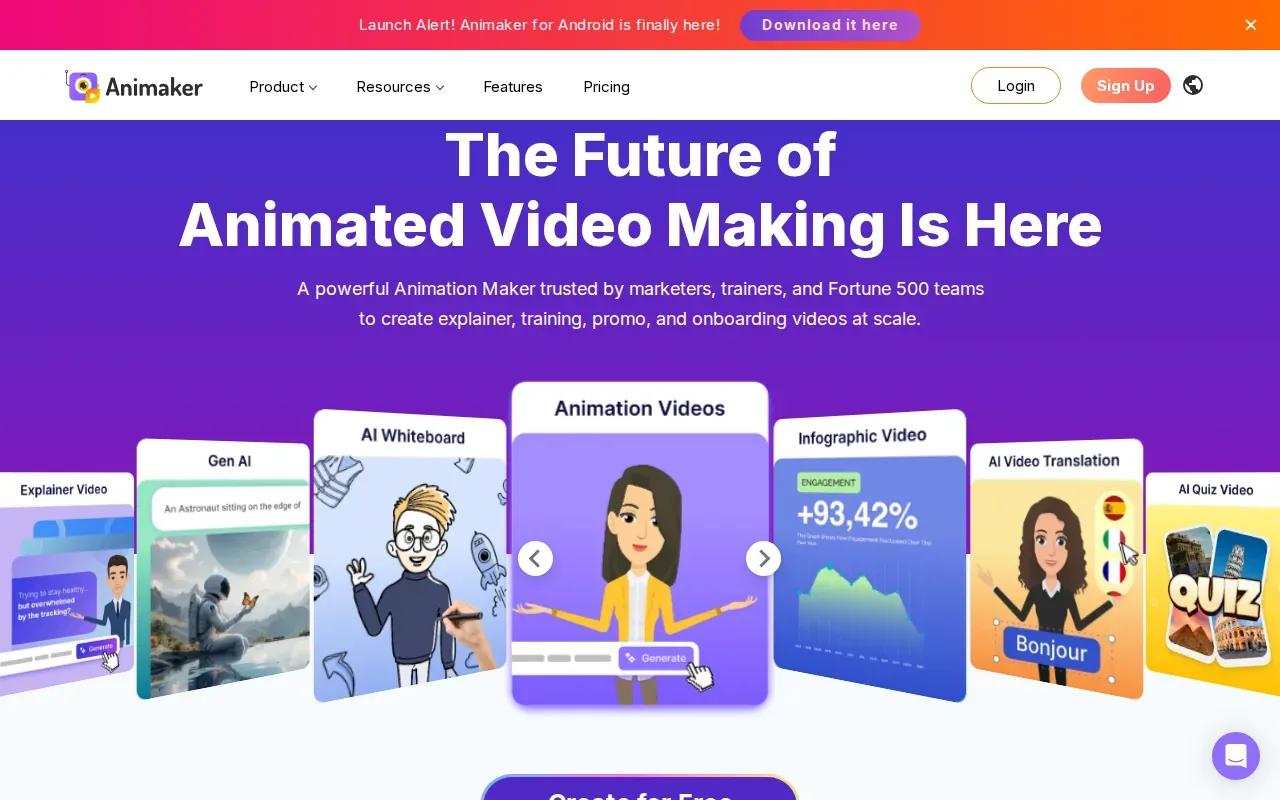
Its whiteboard workflow starts with a category such as explainer, training, marketing, or education. You can enter a prompt or begin with a sample, then use advanced editing to refine the result. The whiteboard tool includes a library of characters with many actions and expressions, along with templates and other visual assets.
Animaker also offers AI voices and subtitles, plus exports in formats such as MP4, GIF, and WebM. The whiteboard style can make a step-by-step idea easier to follow: a character can demonstrate a task while the narration explains what to do.
Choose Animaker when you want a drawn or character-based look and prefer to arrange the explanation as scenes. It gives you a more structured animation workflow than a tool that mainly generates a short video scene from a prompt.
Compare the AI explainer video generators at a glance
Start with the shape of the video you need. A presenter-led update, a narrated article, and a custom animated scene call for different workflows. This table can help you narrow the shortlist before you test a draft.
| Tool | Good fit for | Starting point | What to check in a draft |
|---|---|---|---|
| OmniRender | Prompt-directed short scenes | Text prompt or image reference | Character continuity, dialogue sync, and scene changes |
| Synthesia | Presenter-led training or explainers | Script and avatar | Whether the speaker and delivery suit your message |
| HeyGen | Talking avatars and localized speech | Avatar video, audio, or script | Lip sync on your own sample |
| InVideo AI | Prompt-led marketing videos | Video idea and production details | Script accuracy and scene relevance |
| Pictory | Videos based on existing text | Script, article, or URL | Whether the footage supports each point |
| Animaker | Character and whiteboard animation | Prompt or sample prompt | Scene timing and clarity of the visual steps |
Before settling on a tool, test it with the script or topic you’ll actually publish. A draft about your product will reveal more than a generic sample, especially when it includes terms, names, or actions that must stay clear.
If your work is centered on product footage, this related comparison of AI product video tools can help you look at a more specific use case.
Frequently asked questions
What is an AI explainer video generator?
An AI explainer video generator is a tool that helps turn a prompt, script, image, or written page into a video that explains an idea. Depending on the tool, the result may have a presenter, animated characters, stock footage, or generated scenes. You’ll usually need to review the draft and correct any parts that don’t fit your message.
Which tool should I use for a presenter-led explainer?
Synthesia or HeyGen may suit a presenter-led explainer. Synthesia is built around script-driven avatar videos and includes SCORM export for training. HeyGen focuses on talking avatars, lip-sync changes, and localized speech. Pick based on whether your main need is a training-style presenter or translated talking-avatar content.
Can I make an explainer video from a blog post?
Yes. Pictory is built to convert written content into video with stock footage, and its workflows include scripts and URLs. Before generating, trim the source to the points viewers need. A long article may have more detail than a short explainer can carry, so choose the key message first.
What should I check before using OmniRender?
OmniRender has a free plan with a few 360p videos a month and no card required. Paid plans start at $14 per month, credits scale with resolution, and every plan, including the free one, comes with a commercial licence. Check that you have the rights to any images you upload.
Conclusion
Choose the tool that matches the video’s format: presenter, stock-footage narration, or animation. For prompt-directed scenes with sound and lip-synced dialogue, start with OmniRender and test a short draft with your own idea.