A clip can end just before the moment you need. AI video extension tools generate new footage after an existing clip, guided by the scene and your prompt. Here are six options, starting with OmniRender, with key differences in scene control, audio, access, and output.
We analyzed 40 comments and questions from Reddit, YouTube and Quora about AI video extension and found that 18% mentioned consistent visual quality.
1. OmniRender
OmniRender is an independent, browser-based AI video app built on Gemini Omni models. It suits creators who want to make short clips, then continue a scene, edit it with a prompt, or add synced sound.
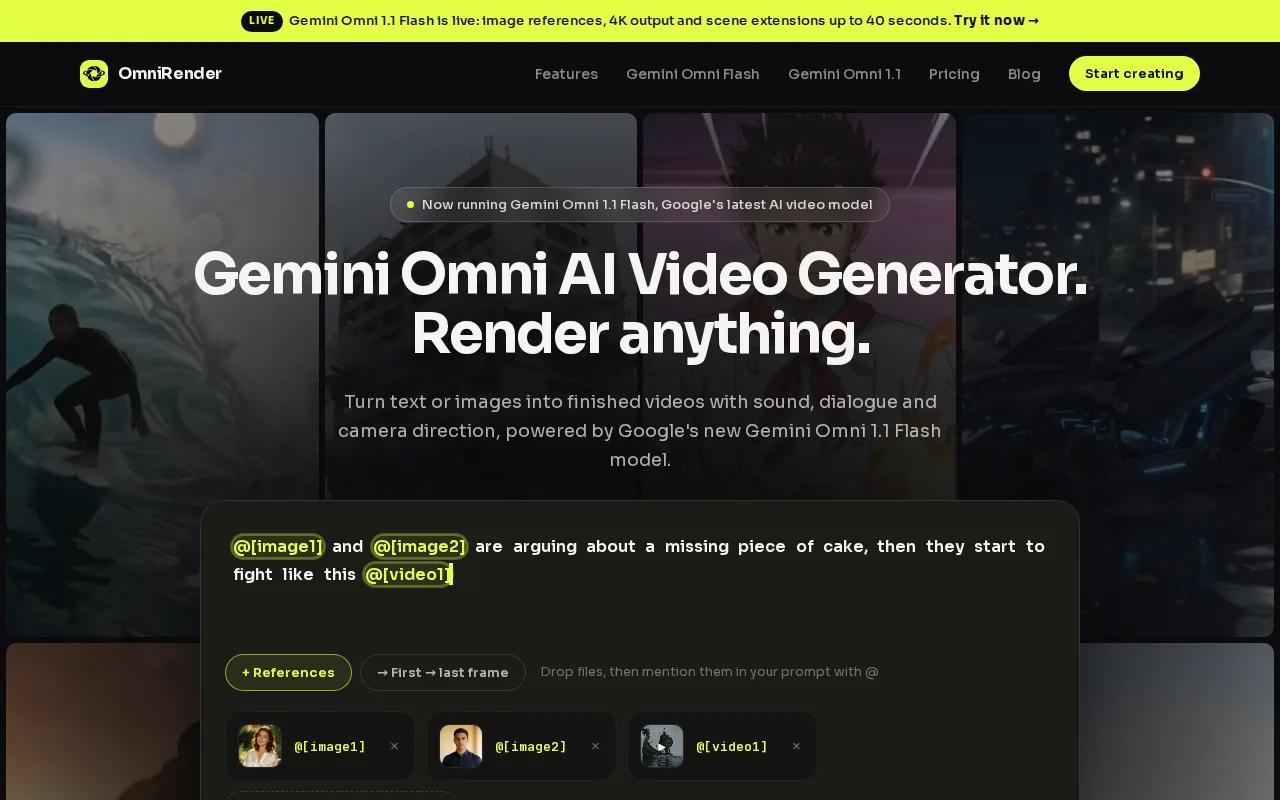
Its Extend action adds a 10-second continuation to a studio-generated video, with a total length of up to 40 seconds. The model reads up to 10 seconds of prior context, which can help keep motion, characters, lighting, and audio consistent as a scene continues.
OmniRender can generate music, sound effects, and lip-synced dialogue with the picture. You can also make prompt-based edits, such as changing one scene detail while asking the rest of the video to stay the same. For an ad, that could mean adjusting a product shot without rebuilding the whole clip.
Gemini Omni is the underlying model family; OmniRender is an independent app with its own plans, not a Google product or endorsement. The free plan includes a few 360p videos each month, with no card required. Paid plans start at $14 a month and include higher resolutions, with 4K output available. Paid plans list a commercial licence. Extensions run in 10-second steps up to 40 seconds total on Gemini Omni 1.1 Flash.
If you want to test a short continuation, the step-by-step video extension workflow explains how to prompt and review the join.
2. FreeMaker: multi-model control with scene extension
FreeMaker combines scene extension with a multi-model creative studio. It may suit creators who want to guide a continuation with a prompt and choose between available video engines.
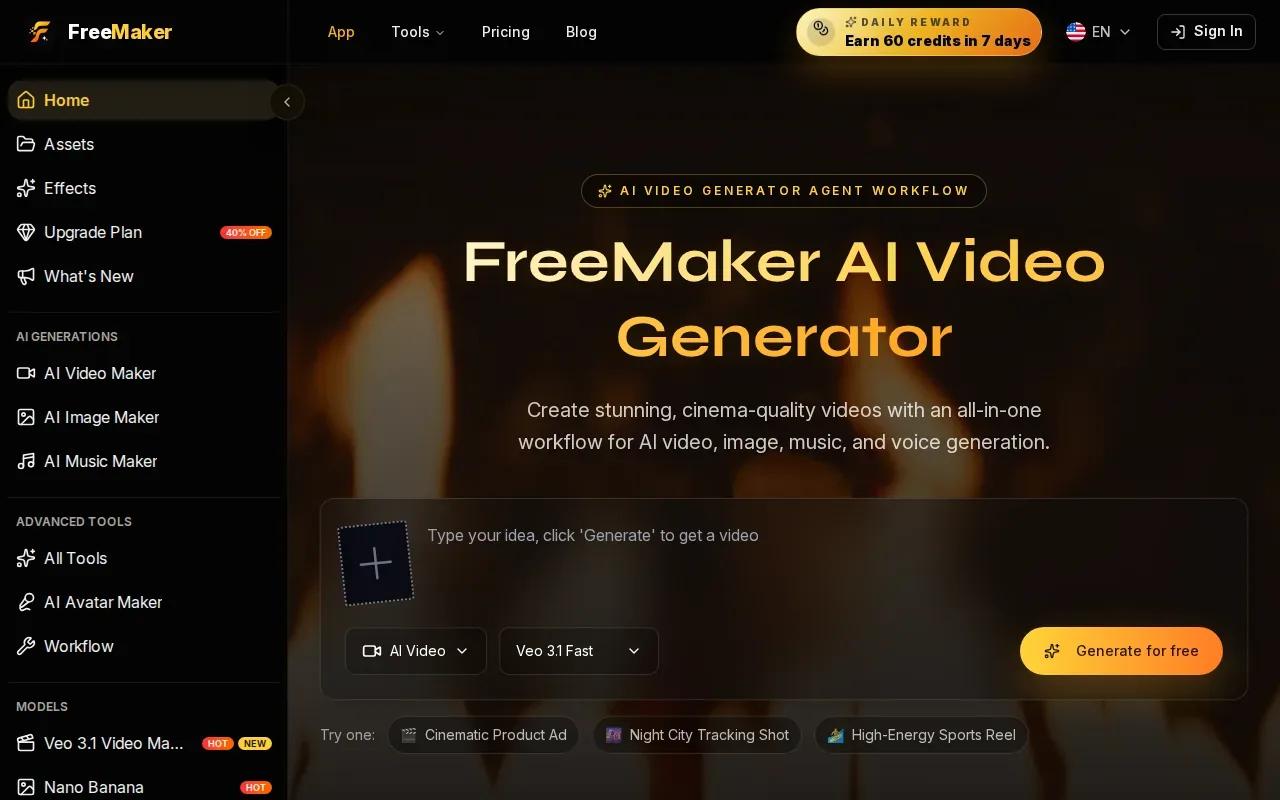
For an extension, FreeMaker asks you to upload a clip and describe what happens next. Its smooth clip extension can help creators build serialized content.
The prompt can name a next action, camera move, or mood shift. For example, you might ask for a person to keep walking as the camera slowly pans left. FreeMaker’s scene extension aims to keep motion, lighting and subject consistent.
Its model list includes Veo 3.1 and Seedance 2.0, and you can try it free with credits, so check the credit cost before starting a run.
The broader studio supports text-to-video, image-to-video, and scene extension. That can help when you’re building a short sequence from a still reference, then need extra footage to complete a beat. For a serialized story, keep each prompt focused on one next action; asking for several new events at once gives the continuation more chances to drift.
Choose FreeMaker if model choice and prompt control matter more to your workflow than keeping everything inside a single-model extension tool.
3. Runway: motion control for cinematic extensions
Runway is a browser-based AI video studio for filmmakers, editors, and creative agencies. Its video models, now led by Gen-4.5, focus on motion quality and prompt adherence.

That focus makes Runway worth considering when the shot’s movement matters as much as the subject. A slow camera push toward a doorway, for example, needs a continuation that respects the direction and pace already in the footage. Motion control can be useful when you’re shaping that visual feel.
Runway also has Act Two lip-sync dialogue. That may help when a scene calls for a character to speak, though lip sync alone doesn’t tell you whether a particular extension workflow will preserve all the details you need. Preview the full join and check the mouth movement against the audio before using it in a finished edit.
For a film-like shot, write a prompt that carries forward what’s already there: the subject’s action, camera direction, and light. Then add one new beat. “The cyclist keeps moving past the trees as the camera tracks beside her” gives a clear continuation without asking the scene to change setting at the same time.
Runway is a fit to assess when you want to shape motion in a browser-based video workflow. Test the exact shot type you plan to publish, not just a still preview.
4. Kling AI: a web-based option with a free tier
Kling AI is a web-based video generator from Kuaishou Technology.
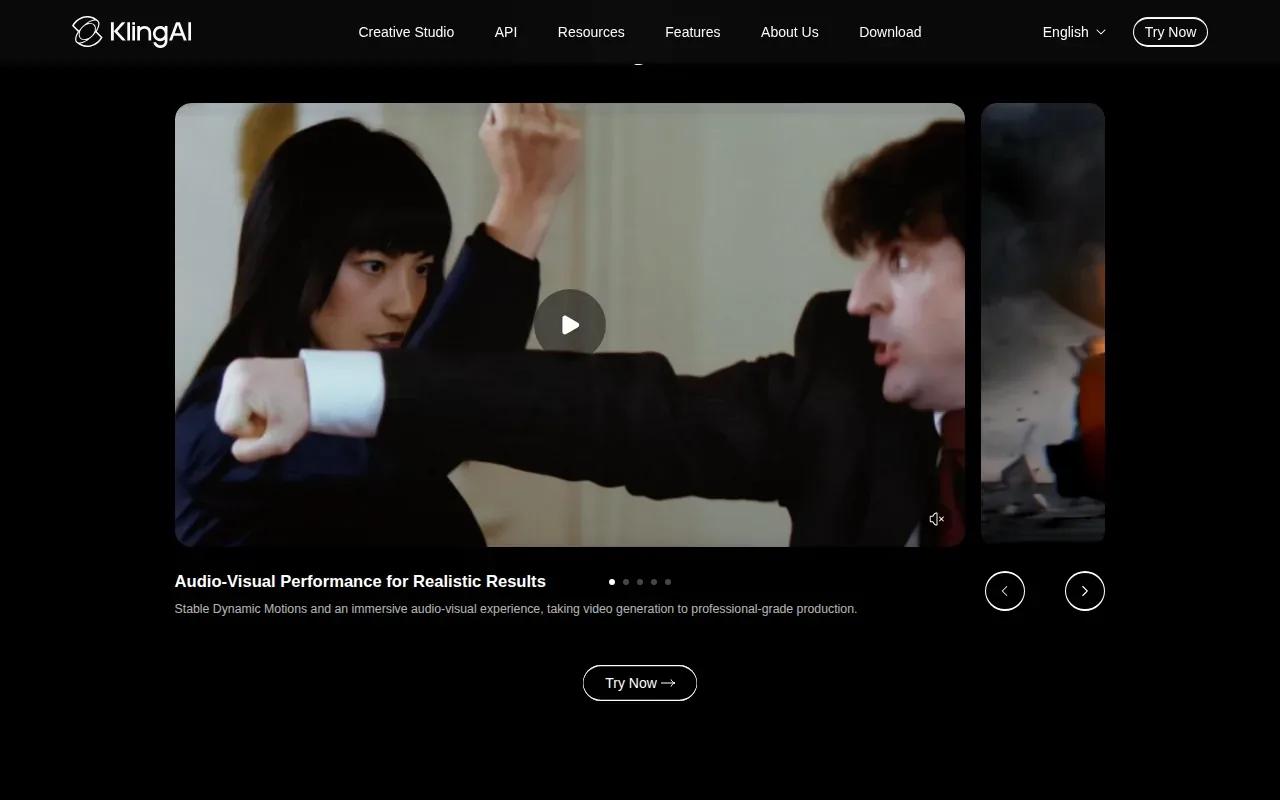
When writing a prompt, a simple structure can help: name one main subject, then say what that subject does. For example, identify a person standing in snow and describe how they lower a hand or turn to look away.
Kling offers a free tier alongside paid plans.
For smoother results, start with a source clip whose final moment has clear movement. A steady walk gives the model a simple direction to continue; a fast cut or heavy blur leaves more room for the scene to change unexpectedly. Generate a short pass first, then decide if the next continuation earns its place.
5. AI Video Extender by Kapwing: an extension-focused web tool
AI Video Extender by Kapwing is a browser-based tool for continuing a clip by describing what should happen after its ending. It may suit creators who want to extend footage and then assemble or refine it in the same editing environment.
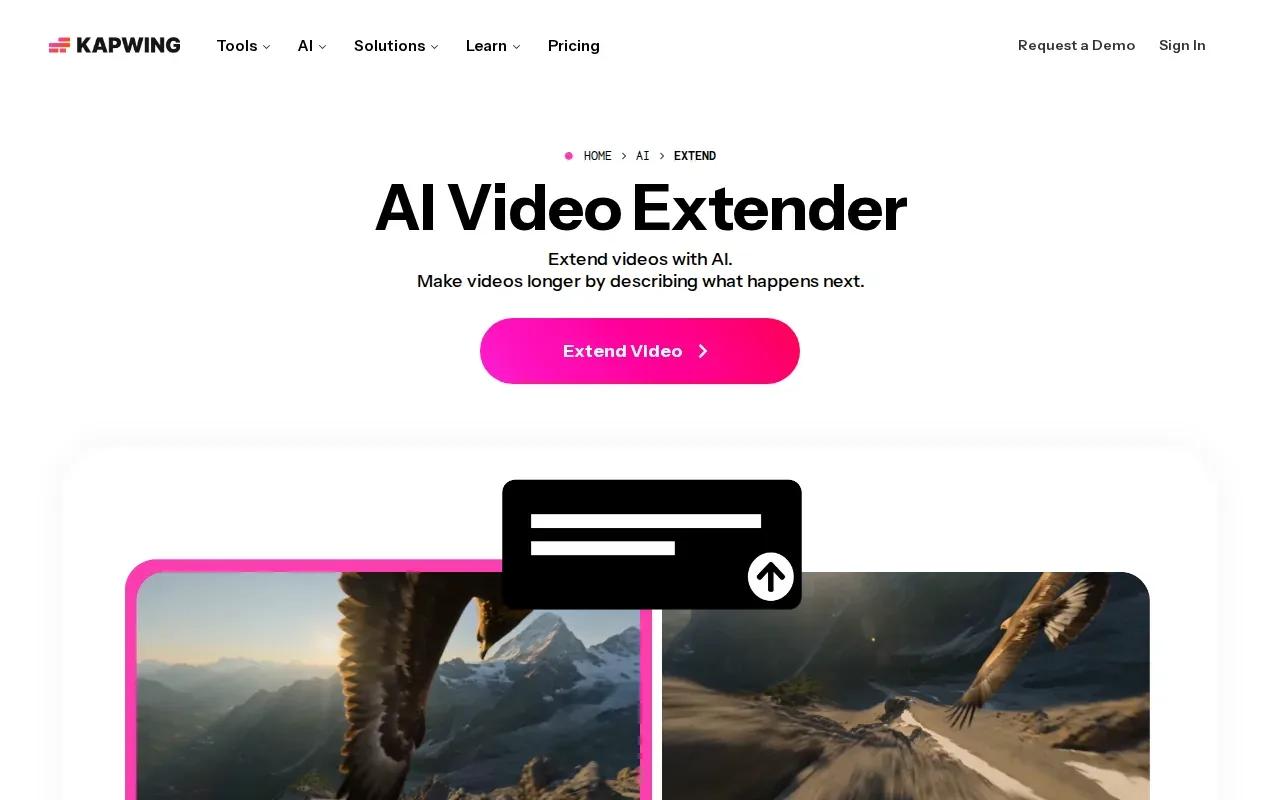
Kapwing’s workflow starts with a video upload and a text prompt. You can describe an action, camera move, or character detail to carry forward. The result starts from the source clip’s end frame, and you can review it before joining it with the original.
It can help when a product reveal needs another beat, a character’s action stops too soon, or an establishing shot needs more room for narration. You can also trim the source to a point where you want the continuation to take a different direction.
Kapwing’s AI toolkit is free to try without watermarks and runs on credits, with each feature costing a set number. The extender includes full commercial rights. The tool can export MP4 or MOV files, and the wider editor can help join the source and extension or adjust the final cut.
Prompt the next moment, not the whole story. A direction like “continue the close-up as the bottle turns toward the window, keeping the same warm light” gives the model a clear action and a detail to preserve. Then inspect the transition at normal speed. A face, object, or camera path can shift at the seam even when the first frame looks right.
6. AI Video Extender by ClipTrend: a dedicated clip-extension option
AI Video Extender by ClipTrend is a clip-continuation option within ClipTrend’s online studio. The studio groups video tools into workspaces and lets users switch among supported models.
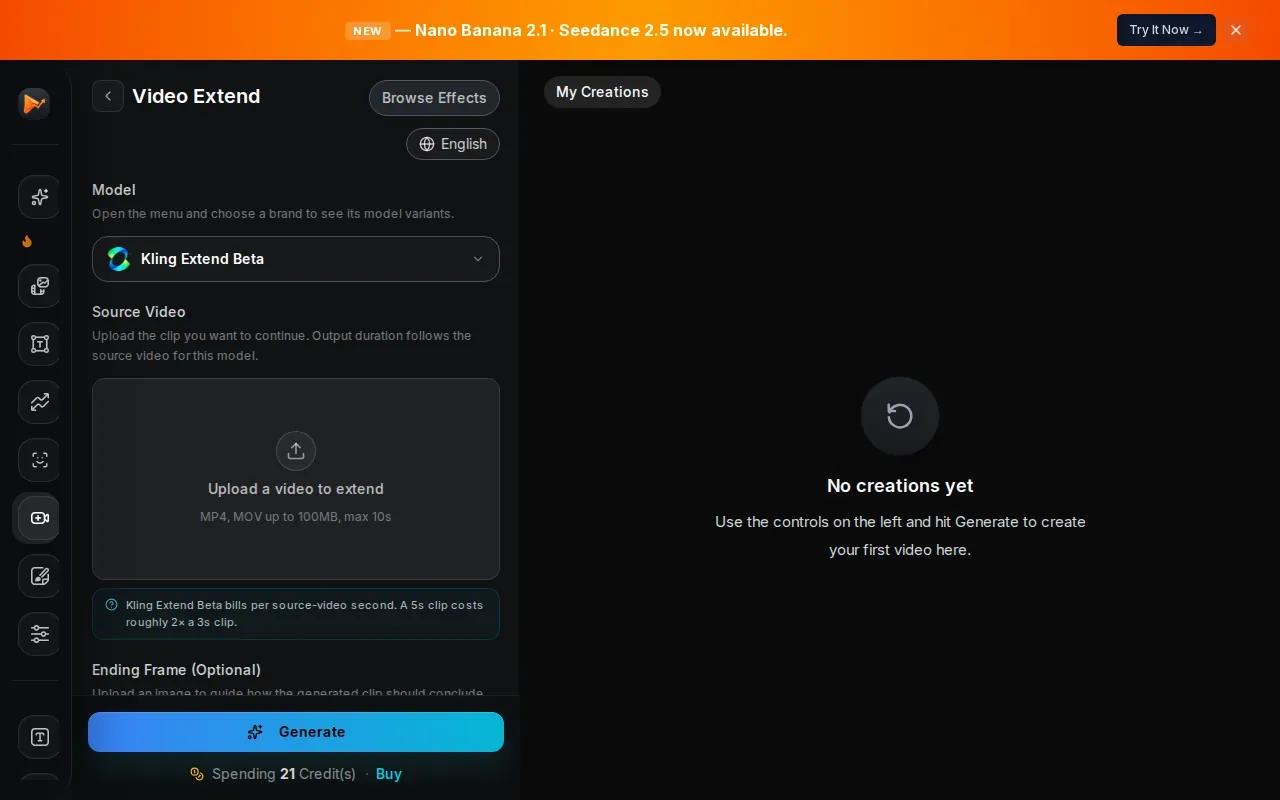
ClipTrend’s extension feature continues an existing clip with AI-matched extra seconds. Its broader studio supports video generation from text or images, along with prompt-driven edits. It works with clips from other AI tools or phone footage.
The table below shows how the capabilities may fit different jobs. It’s a workflow lens, not a claim that every model supports every task.
| Workflow need | ClipTrend detail | What to check before a run |
|---|---|---|
| Continue an existing clip | AI-matched extra seconds | Preview the join for changes in subject or scene |
| Choose a generation model | Several models across workspaces | Confirm the selected model fits the shot |
| Make a social clip | Online studio for short AI videos and effects | Match the frame shape to the destination |
| Use an output commercially | Commercial-safe MP4 exports | Watermark-free on every tier |
ClipTrend exports watermark-free MP4s on every tier, with pay-as-you-go credit packs from $19.90. Check the credit cost and the terms for your intended use before building a repeat workflow around it.
One useful test is a short, low-stakes clip with simple motion. If a person turns or a camera pans, check whether those details hold at the join. A clean result can be a starting point for another pass, but inspect every seam before chaining continuations.
FAQ: AI Video Extension Tools
What is AI video extension?
AI video extension adds newly generated frames after an existing clip. The model uses the source footage as context, then follows a prompt or its own reading of the scene. It’s different from slowing a clip down or repeating its last frames. Review the join, since motion or details can shift in the generated section.
How do I write a prompt to extend a video?
Describe the subject, what it’s doing now, and the next action. Add the camera move and key details to keep, such as the setting or light. Keep the prompt focused. “The person keeps walking toward the door as the camera follows from behind” gives a clearer direction than “make this longer.”
Why does an AI video extension look different from the original?
An extension can change a face, object, background, or camera path, especially when the source ends in a fast move or blur. Try a cleaner clip ending and ask the model to preserve the details that matter. Watch the full clip at normal speed, then pause at the join to spot sudden shifts.
Can I extend a clip more than once?
Some tools support multiple continuations. OmniRender supports extensions to 40 seconds total in 10-second steps. Each added segment creates another join to review. Check the tool’s current limits before planning a longer story or ad.
Are AI video extenders free?
Some tools offer free access, but limits differ. OmniRender’s free plan includes a few 360p videos a month with no card required, and Kapwing is free to try without watermarks. Check each tool’s terms before using a clip commercially.
Conclusion
For a workflow that needs scene continuation, prompt edits, and synced dialogue, OmniRender is a good place to start; choose another option if its controls better match your shot. Try one short continuation first, review the join, and then check the current plan details before making it part of a regular production routine.