Changing a video voice can mean swapping a speaker, dubbing a clip, or making a new scene with dialogue. Those are different jobs. Here are five tools for the first two, plus a note on when OmniRender fits a fresh, AI-generated scene instead.
We analyzed 58 comments and questions from YouTube, Reddit and Quora about AI Video Voice changers and found that 14% asked about privacy and ethical concerns.
1. AI Voice Changer by Higgsfield: for AI-generated video workflows
AI Voice Changer by Higgsfield replaces speech in an existing video, while its other tools handle voice generation and lip sync. It suits creators who want to update a voice without rebuilding the video edit.
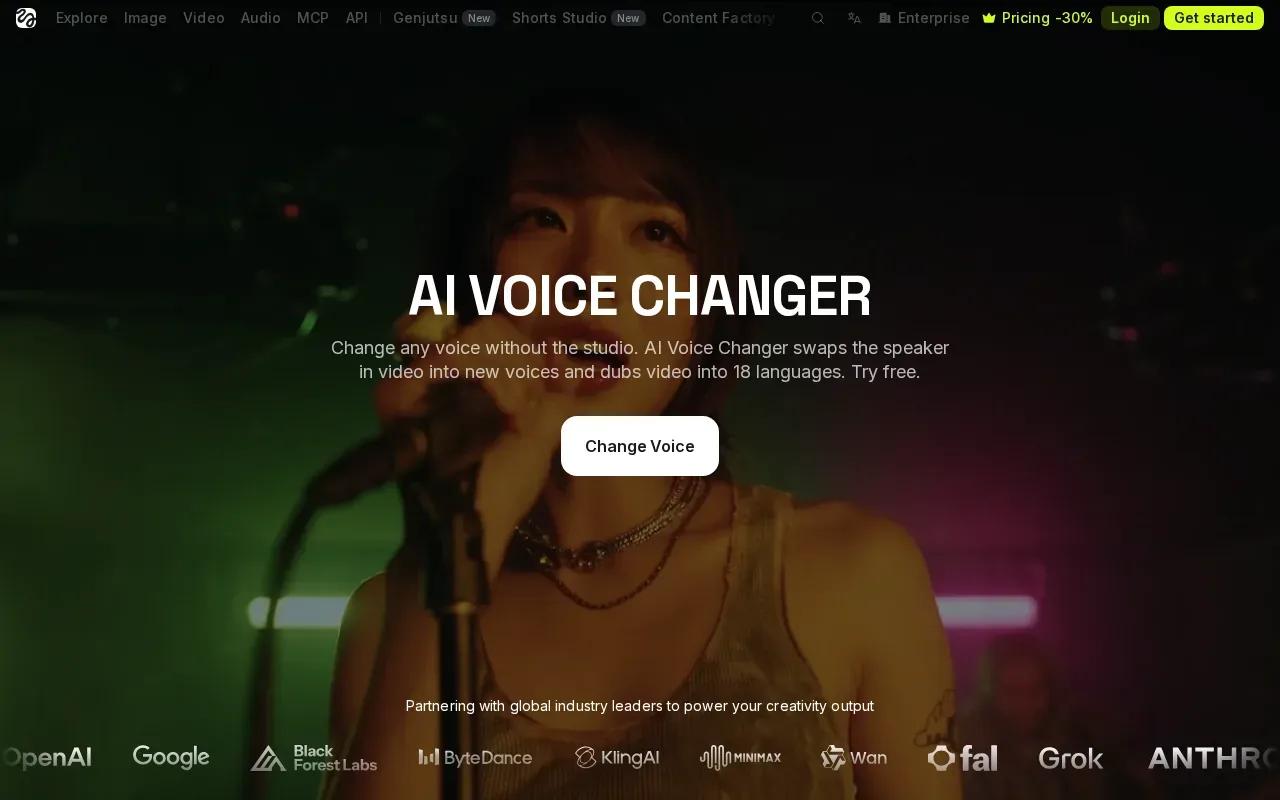
Upload a clip, choose a preset or a voice you have permission to use, then preview the replacement. The words and delivery timing can stay aligned with the original. For a scripted read, Seed Audio lets you adjust speed, pitch, and volume. That can help a short line fit a cut without shifting the whole sequence.
Higgsfield keeps voice work separate from mouth animation. Use only your own voice or one you have permission to clone.
This split matters when you already have footage. Swap the narration first, then decide if the speaker’s mouth needs a new sync pass.
Higgsfield is a fit when the original cut is worth keeping and only the voice needs to change. For a new scene, start with a video generator instead.
2. Video Voice Changer by Flixier: for browser-based clip editing
Video Voice Changer by Flixier uses text-to-speech to replace a clip’s original voice with AI narration. It suits creators who want to work in a browser-based editor rather than install a desktop app.
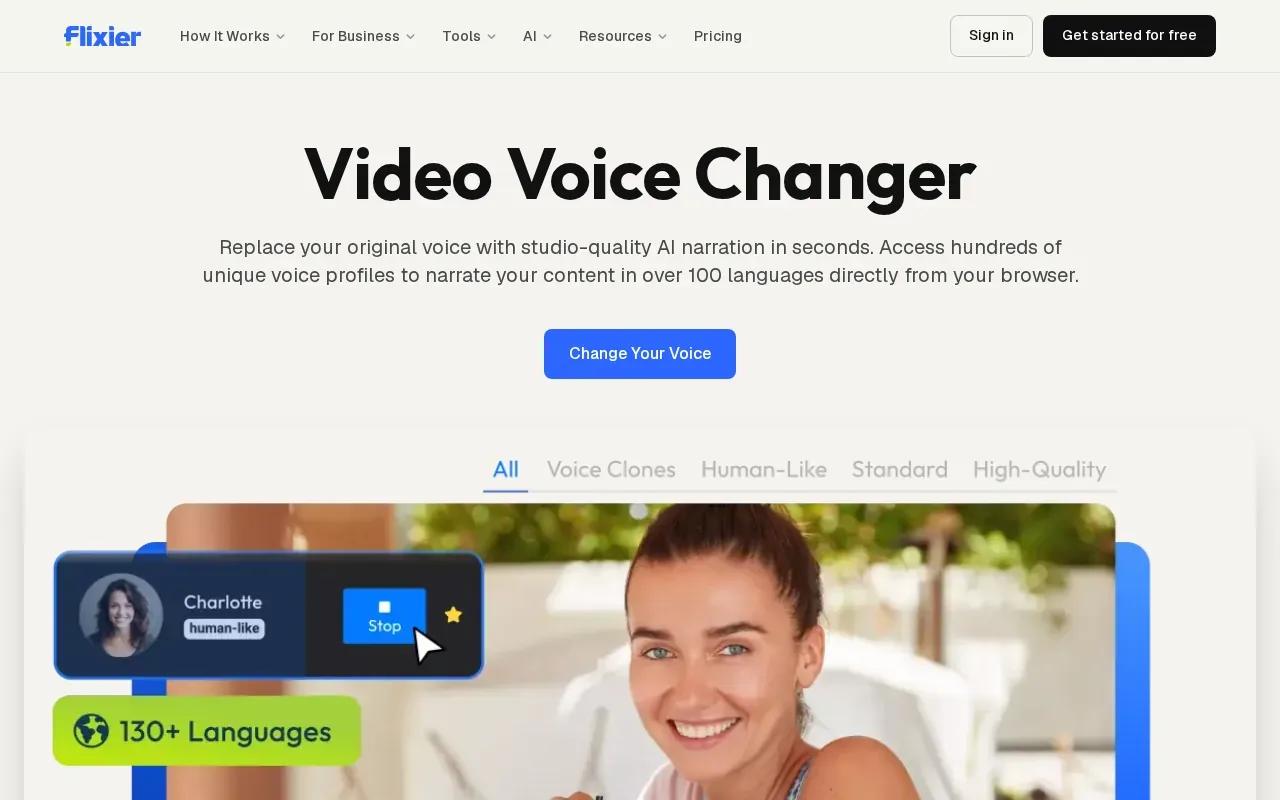
The workflow starts with an imported video. Open the text-to-speech tool, paste the narration, choose a voice, then place the generated audio on the timeline and export. Flixier supports more than 100 languages and accents. That gives marketers a route to localized narration, while educators can use a consistent voice for a set of lessons.
The text-first approach is useful when you want to rewrite the words as well as change the speaker. It differs from a speech-to-speech swap, where the new voice follows your recorded words, pauses, and emphasis. If you already have a performance you like, check whether a script-based replacement preserves the timing you need. A line that runs long may mean adjusting the cut or shortening the script.
Flixier’s browser editor also has audio editing tools for trimming, splitting, and layering tracks. You can refine the generated narration against music before export.
Choose this workflow when you have a clear script and want the browser editor to handle the new narration and final timeline. If the recorded performance itself matters, a voice-to-voice tool may keep more of your original delivery.
3. AI Voice Changer by HeyGen: for presenter-led videos
AI Voice Changer by HeyGen re-speaks an audio recording in another voice while keeping its words, pacing, and pauses. It suits teams making presenter videos, training lessons, or ads where a spoken performance should feel deliberate.
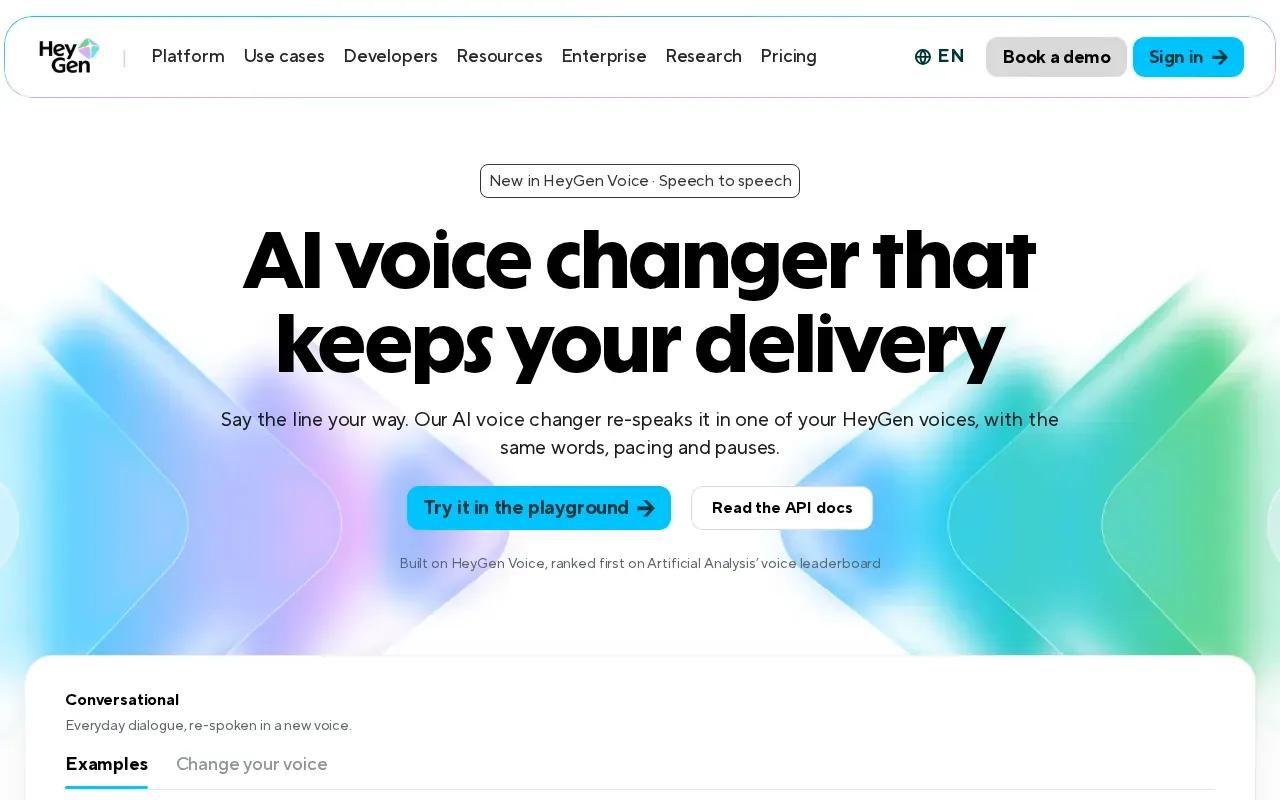
Record or upload a take, then choose a voice from your workspace or use a voice clone available to you. The converted audio is the same length as the recording, which can help it fit an existing edit.
That makes it useful when the speaker’s delivery is part of the message. A trainer can act out a line with the right emphasis, then apply a consistent narrator voice across a course. A marketer can record a short take and change its voice without reworking the whole scene. The API returns a WAV file.
HeyGen’s voice changer works from a recording. It doesn’t translate that recording by itself; translation is a separate workflow. The voice changer also isn’t designed for live audio, so it’s for recorded edits rather than real-time streaming. For more on the difference between lip sync workflows, see AI lip sync generator options for creators.
Record one speaker at a time and keep music out of the source take. That gives the voice conversion a cleaner starting point. Preview a short passage before applying the process to a full lesson or campaign.
4. AI Video Voice Changer by VMEG AI: for multilingual video workflows
AI Video Voice Changer by VMEG AI changes a video’s voice and supports translation into other languages. It suits creators and teams adapting existing clips for viewers in different markets.
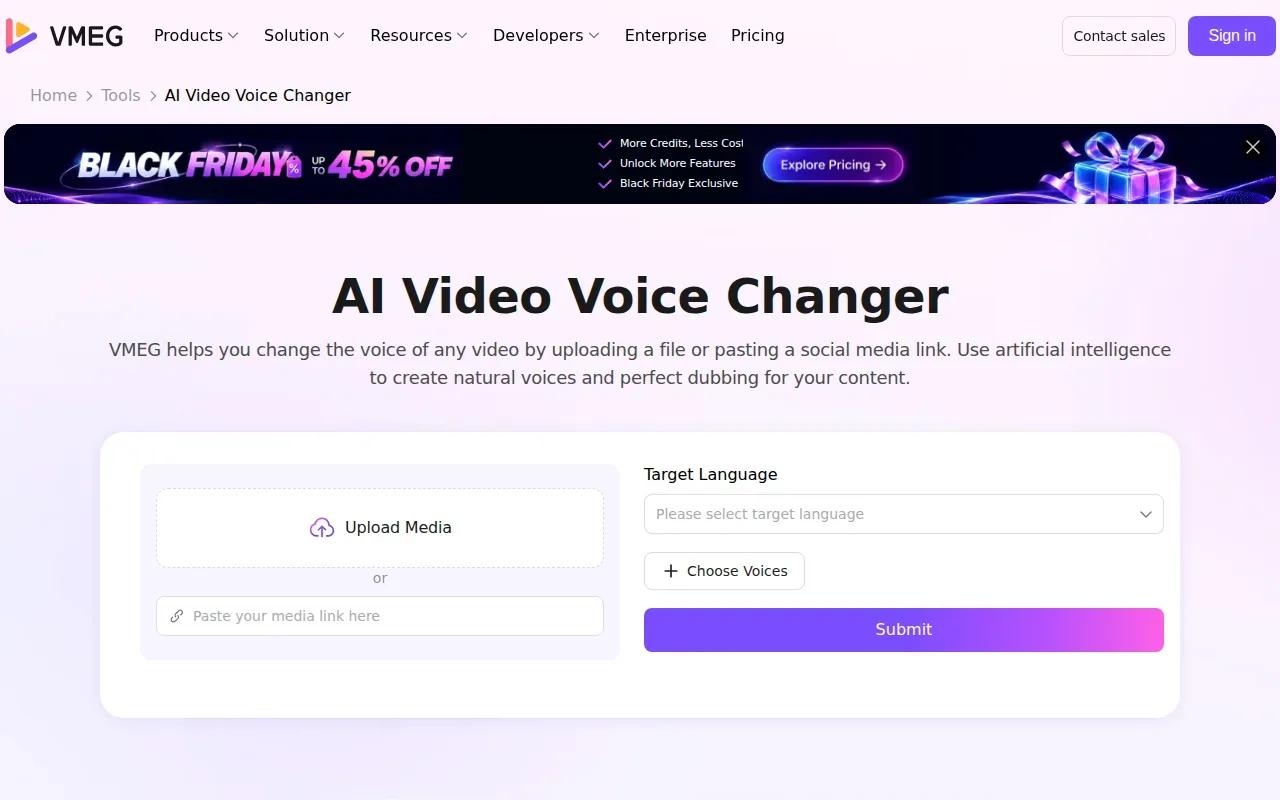
Start by uploading a video or pasting a supported social media link. Select the source or target language, then choose a voice from VMEG’s library. When the job is ready, review the transcript in its editing studio. You can proofread the words or change the selected voice before exporting an MP4 or SRT file.
VMEG’s library has more than 7,000 voices across more than 170 languages. Its workflow also includes voice cloning and lip sync. For a product demo, that could mean checking the translated product name in the transcript, choosing a suitable voice, then reviewing the speaker’s mouth movement before exporting.
It’s a post-production tool, not a real-time voice changer. That makes it a better match for a finished recording than a live stream or an on-the-fly call. The transcript review step is worth keeping in the workflow, especially when a clip includes product terms, names, or claims that need exact wording.
5. AI Voice Changer by CapCut: for social-first edits
AI Voice Changer by CapCut applies voice filters and audio controls within a video editing workflow. It suits creators making short social clips who want to test a vocal effect and finish the edit in one place.
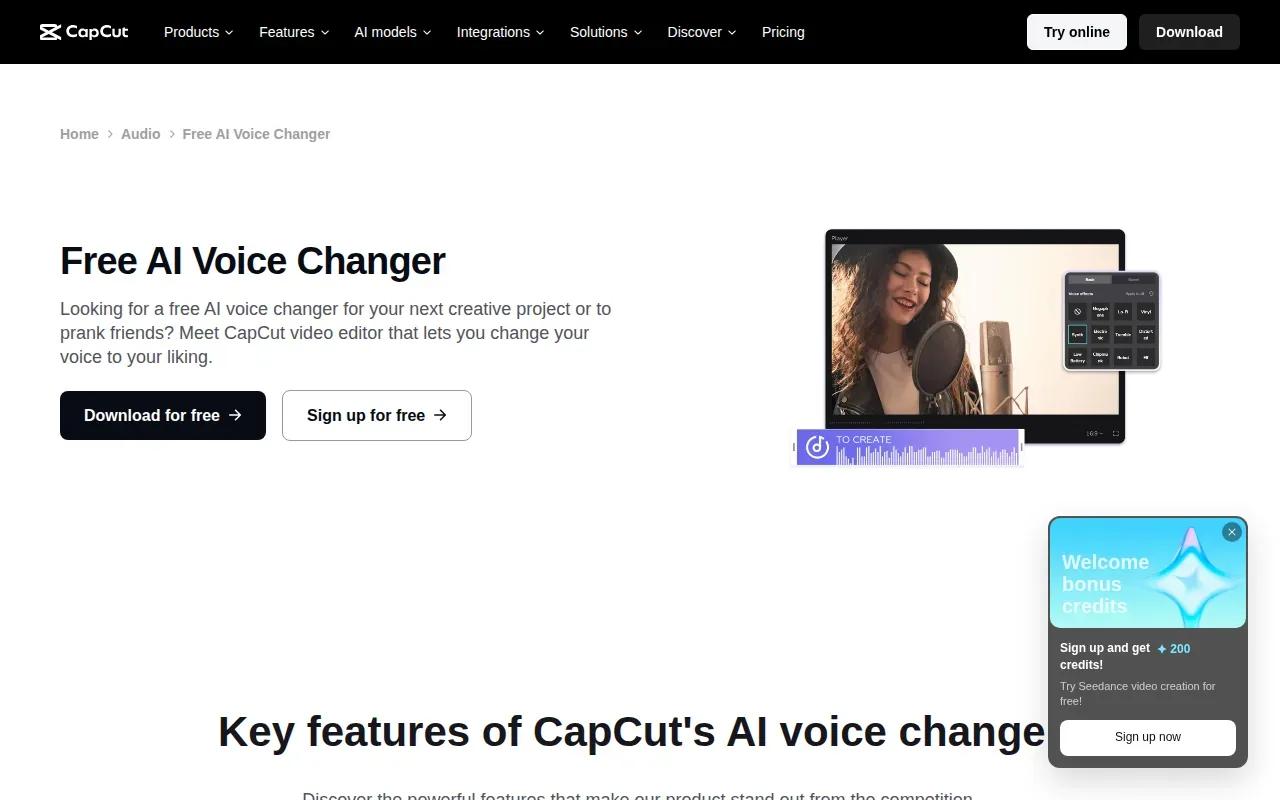
Import a video or audio file into a project and add it to the timeline. Open the audio controls, choose Voice changer, then preview a filter. CapCut has a library of voice effects, such as robot and chipmunk styles, that you can audition before keeping one.
Those options work for a character bit, a playful game clip, or a quick shift in narrator style. For a calmer product explainer, a strong filter may feel distracting, so preview the effect against the full clip. CapCut also has background noise reduction. Use it after choosing the effect if background sound competes with the speech.
CapCut’s voice filters are distinct from a multilingual dubbing workflow. Its broader tools include text-to-speech in multiple languages, while the filter controls focus on changing the sound of audio already in the project. Before publishing a branded or client video, check that the voice, music, and source recording are cleared for your intended use.
For a social-first edit, the main benefit is staying in the timeline while you test voice effects. It’s a straightforward choice when the edit matters as much as the voice itself.
Compare the 5 AI video voice changer tools
The right fit depends on what you’re starting with. A finished clip with a recorded performance calls for a different workflow than a script that needs new narration or a scene that hasn’t been made yet.
| Tool | Best fit by workflow | Voice approach | Useful detail |
|---|---|---|---|
| AI Voice Changer by Higgsfield | Replace speech in an existing video | Voice swap, presets, or a permitted clone | New voice matches the original timing |
| Video Voice Changer by Flixier | Scripted narration in a browser editor | Text-to-speech replacement | More than 100 languages and accents |
| AI Voice Changer by HeyGen | Recorded presenter or avatar scene | Speech-to-speech conversion | Converted audio keeps the source timing |
| AI Video Voice Changer by VMEG AI | Translating and re-voicing existing clips | Voice library, cloning and lip sync | 7,000+ voices in 170+ languages; MP4 or SRT export |
| AI Voice Changer by CapCut | Social video edits and voice effects | Voice effect filters | Background noise reduction |
Use a speech-to-speech workflow when your own timing and emphasis matter. Choose text-to-speech when the script is ready and you want to shape the voice from the words. For localization, review the transcript and listen for names or terms that must stay exact.
OmniRender is an independent app that generates a new video scene with sound, including lip-synced dialogue, rather than changing a voice in an existing recording. Its free plan includes a few 360p videos a month with no card required, and paid plans start at $14 a month and list a commercial licence. For a scene that starts from a still, see these AI image-to-video with audio workflows.
Frequently Asked Questions
How do I change a voice in a video with AI?
Import the video into a tool that supports voice replacement, choose whether to use a script or an existing recording, then select a voice and preview the result. Review timing against the edit. If the speaker’s mouth is visible, check lip sync too. Export only after listening to the full clip, not just the first line.
Can AI video voice changers translate and dub a video?
Some can. Flixier supports text-to-speech in more than 100 languages and accents. Language support alone doesn’t guarantee a good dub. Check names and key terms in the transcript, then listen for pace and fit before exporting a version for another audience.
Can I change a voice in real time during a live stream?
The tools covered here focus on editing recorded clips or generating audio for video. VMEG AI’s voice changer is a post-production tool, and HeyGen’s voice changer works from a recording rather than live audio. If live use is your goal, confirm that a tool supports real-time input before planning a stream around it.
Is it safe to clone someone’s voice?
Only clone or reproduce a voice when you have permission from the person whose voice it is. A voice can identify someone, so don’t use a clone to mislead viewers or imply that a person said something they didn’t. Keep the original recording and intended use in mind, and review the tool’s rules before publishing.
Can OmniRender replace a voice in a finished video?
OmniRender is designed to generate new short videos from prompts or image references, with synchronized sound and lip-synced dialogue. It is not a voice replacement tool for finished footage. If you need to change an existing speaker’s voice, use one of the five editing or dubbing workflows above.
Conclusion
Match the tool to your starting point: a recorded performance, a script, or a finished clip for translation. OmniRender generates new scenes with dialogue synced to the visuals.