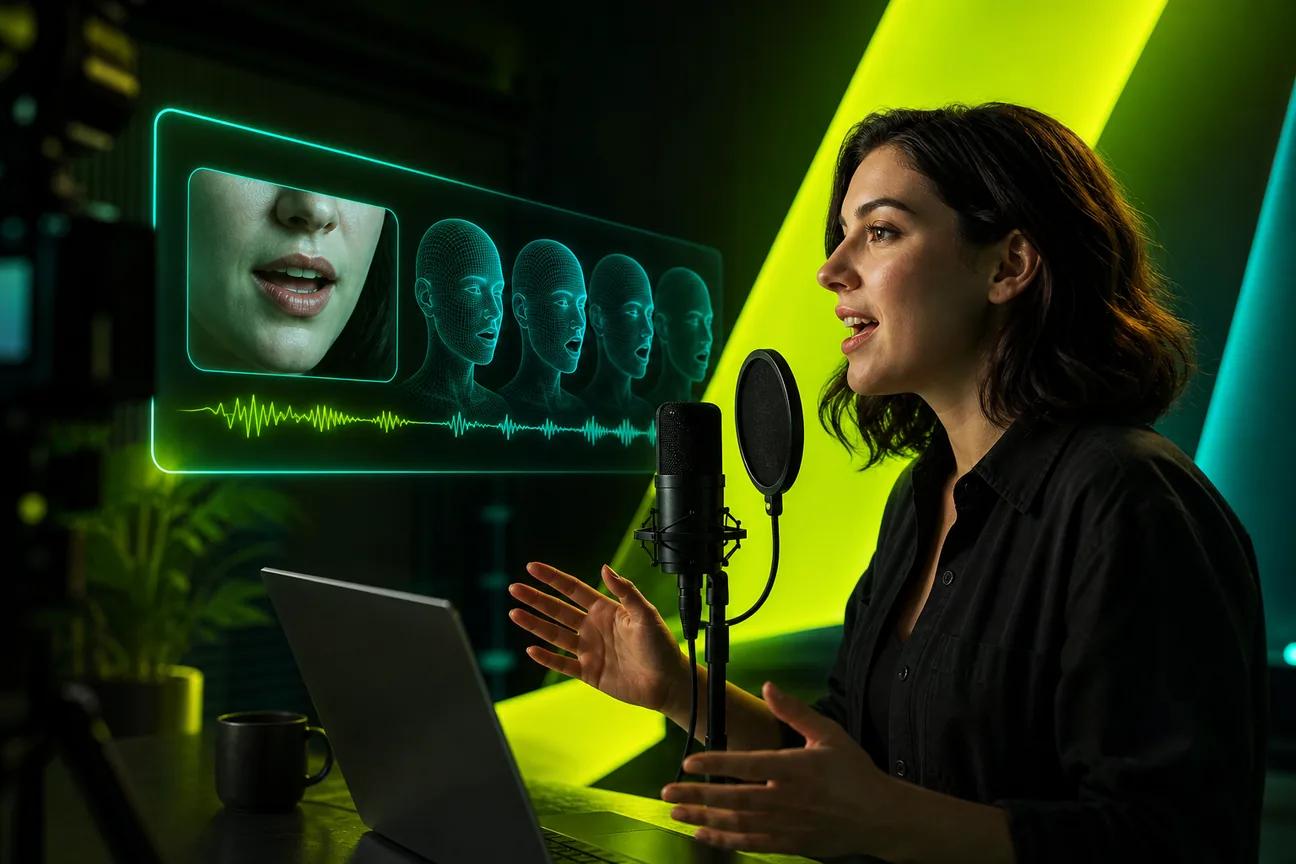
An AI lip sync generator can make a character speak, but the right tool depends on what you’re starting with: a prompt, a photo, or finished footage. OmniRender names the Gemini Omni model behind its lip-synced dialogue and supports consistent characters across scenes. Here are seven tools, with a closer look at where each fits.
We analyzed 50 comments and questions from YouTube, Reddit and Quora about AI lip sync generators and found that 16% mentioned mouth timing and frame desync.
1. OmniRender
OmniRender is a browser-based video generator that turns text prompts and image references into short videos with synchronized dialogue. It’s a fit for creators who want to build a scene and its speech together, rather than begin with a finished talking-head clip.
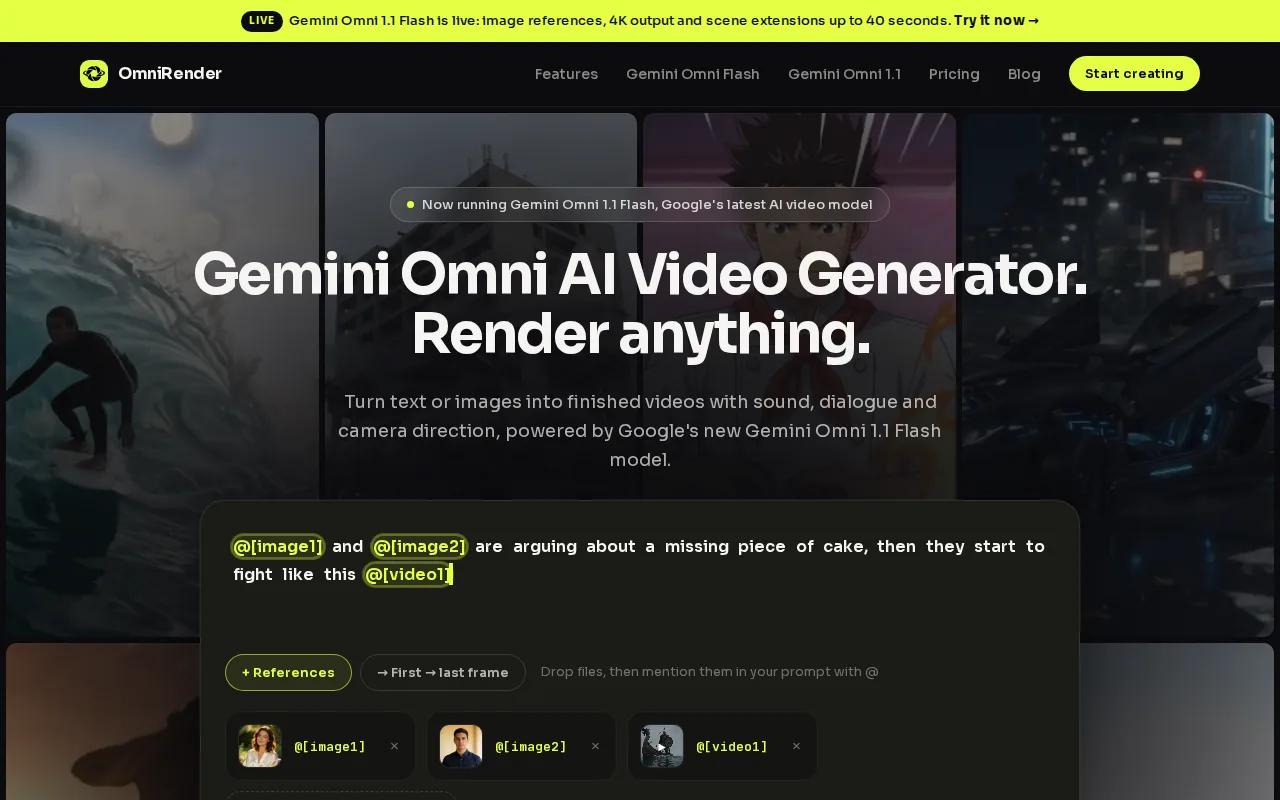
OmniRender is an independent app, not a Google product or an endorsed service; its features and plans are distinct from the underlying technology. Describe the scene, add an image reference if needed, and put spoken words in quotes. The model can generate dialogue with matching lip movement, along with music or sound effects. You can then edit a video with a text instruction or extend a scene while keeping character details consistent.
Confirm current pricing, credit allowances, resolution limits, and commercial usage rights before use; free-versus-paid licensing is unclear here.
If your idea starts with a still image, this comparison of image-to-video generators can help you think through reference-image workflows. To try the browser-based studio, start with OmniRender’s free plan.
2. Kling AI: Lip sync for supported character videos
Kling AI has a Lip Sync tool for supported character videos. It suits you if the visual is already made and you want to add a new voice without rebuilding the scene.
Use a supported character video and check the generated lip sync against the audio. Keep the spoken line within the clip’s time. A long script squeezed into a short shot can sound rushed; pauses in the recording can leave the character’s mouth still. Review the whole clip after generation, not just the first sentence. Watch fast words and the ends of phrases, where timing slips are easy to spot.
This is an add-on workflow for an existing character video. If you need the scene itself generated with dialogue, OmniRender’s prompt-based workflow is a different starting point.
3. Vozo AI: Dubbing and multilingual localization
Vozo AI is a video localization tool with subtitles, AI dubbing, and lip sync for more than 160 languages. It’s aimed at teams adapting existing videos for viewers in different language markets.
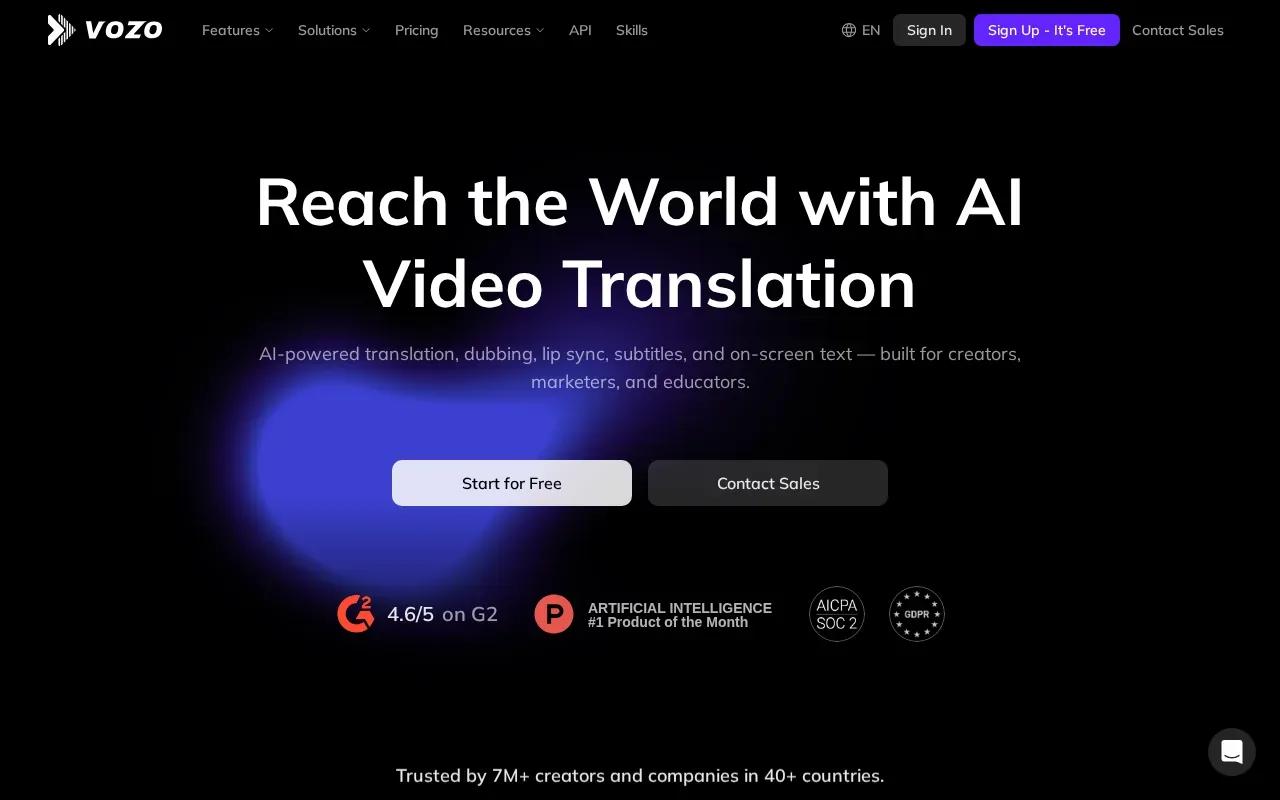
That workflow differs from making a character speak in a newly generated scene. You begin with a video to localize, then use dubbing and synchronized mouth movement to make its translated version feel more suited to the new language. Subtitles provide another way to carry the translated message on screen.
For a product demo, lesson, or recorded message, localization can help you prepare versions for audiences who don’t use the original language. Still, check the final video closely. Names, technical terms, jokes, and short phrases can be hard to translate cleanly. Confirm that the dubbed line says what you intend before posting or sharing it with customers.
Pick this route when the source video is already approved and the main task is adapting it. For original social clips where you want to shape the visual and dialogue together, start with a video creation tool instead.
4. HeyGen: Avatar-led marketing and learning videos
HeyGen supports script or audio input for lip-synced videos, including talking-photo and avatar formats. It’s suited to marketing and learning content where a presenter needs to deliver a script without filming each version.
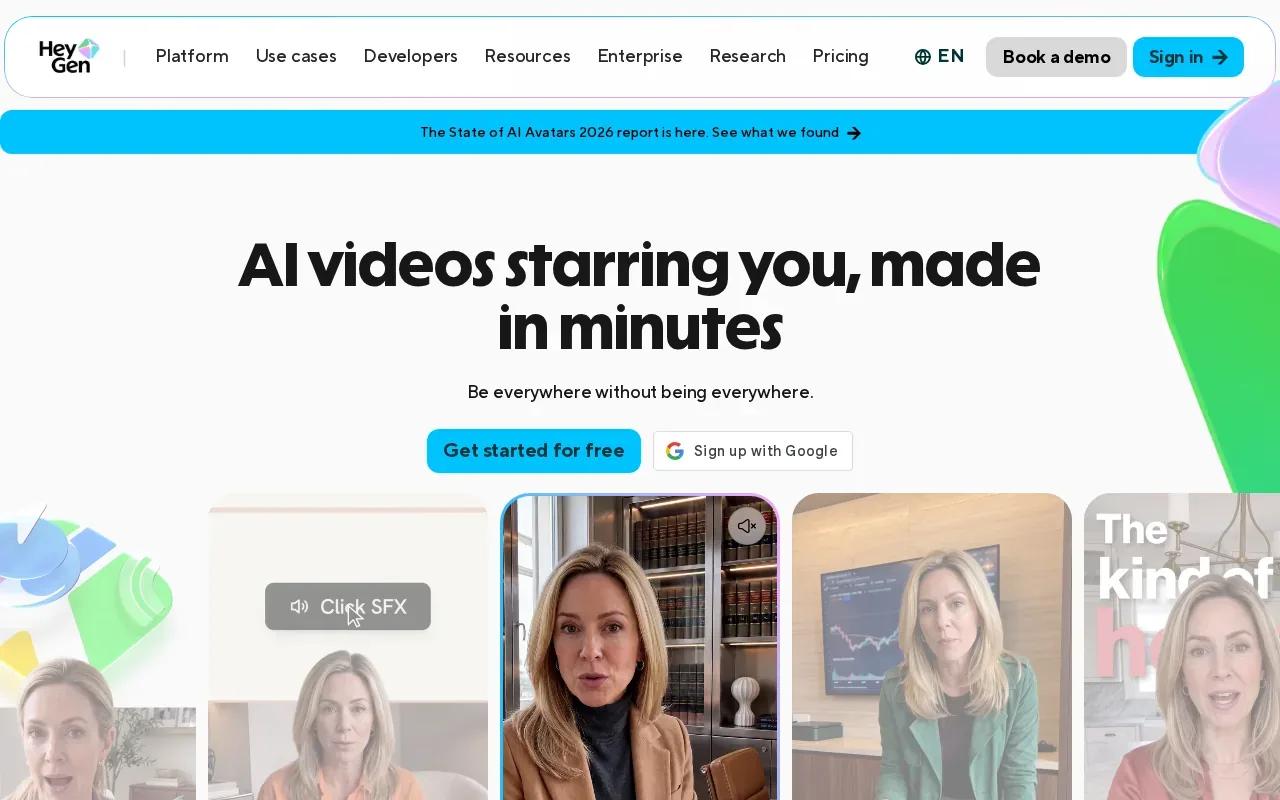
You can upload a voice recording or type a script, then use a photo or avatar as the speaker. HeyGen supports lip sync. For translated videos, the product can re-voice the speech and sync the speaker’s mouth to the new audio. That can help when you need localized versions of the same lesson or campaign.
Plan caps vary, so check the current plan details before building a long training video or a batch of social posts.
Avatar-led clips can work well for a product explainer or course update. For a broader look at tools for different video tasks, see AI video generators compared for creators.
5. Sync Labs: Lip sync from a separate voice recording
Sync Labs takes a video and an audio track as separate inputs, then generates lip movements to match the recording. It’s a fit for creators who already have footage and want to use a specific voice take, including for dubbing.
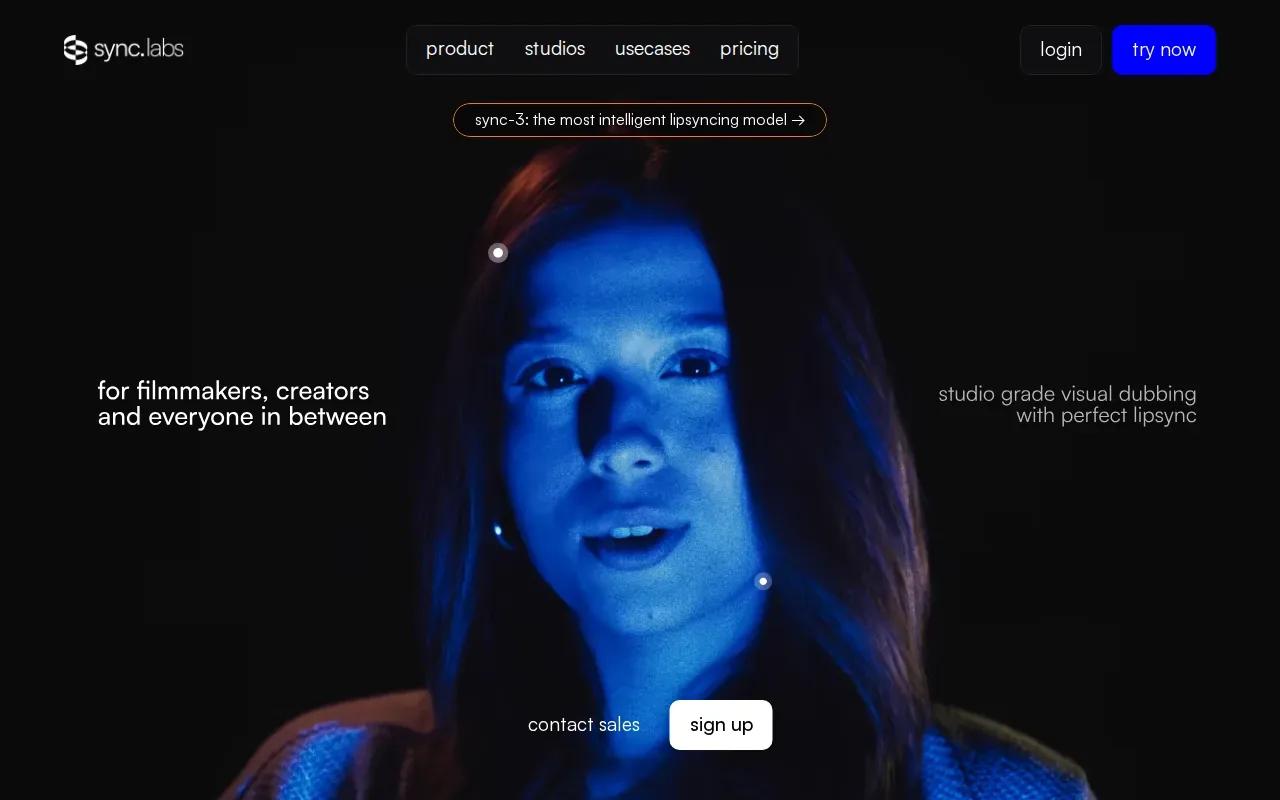
You can work in its web studio or connect through an API. A clear, well-lit face and clean audio are important inputs. A frontal or near-frontal view is a good choice for several models.
For a natural result, use a voice track with little background noise and keep the audio and video lengths close. If the lips drift, check the duration match and sync mode before changing the visual. If several people appear, select the intended speaker where that feature is available. For a long video, review transitions between processed segments as well as the dialogue itself.
This separate-audio approach gives you control over the voice recording. It also means the source video needs to be ready before the lip sync pass.
6. PixVerse: Short-form and music-video experiments
PixVerse supports lip sync. It may suit creators exploring short-form scenes or music-video concepts, especially when they want to test how a character looks while speaking or singing.
It doesn’t provide enough detail here to compare its supported inputs, clip limits, export resolution, or price. So treat it as a tool to test against your own source material rather than assuming it will fit a specific production requirement.
For a music clip, check whether the mouth movement follows the lyric clearly across the whole shot. For a short social post, make sure the framing works in the format you plan to publish. If the character changes between takes, compare the face, clothing, and lighting before stitching the clips together.
If you’re building the visual from a prompt or a reference image, consider whether you need full scene generation as well as a lip-sync pass. That distinction can save time when you’re deciding how to make a short clip.
7. CapCut: Lip sync with a familiar editing workflow
CapCut has a free AI lip sync tool that aligns voice and video. It’s a useful option to consider when you want to add a speaking moment.
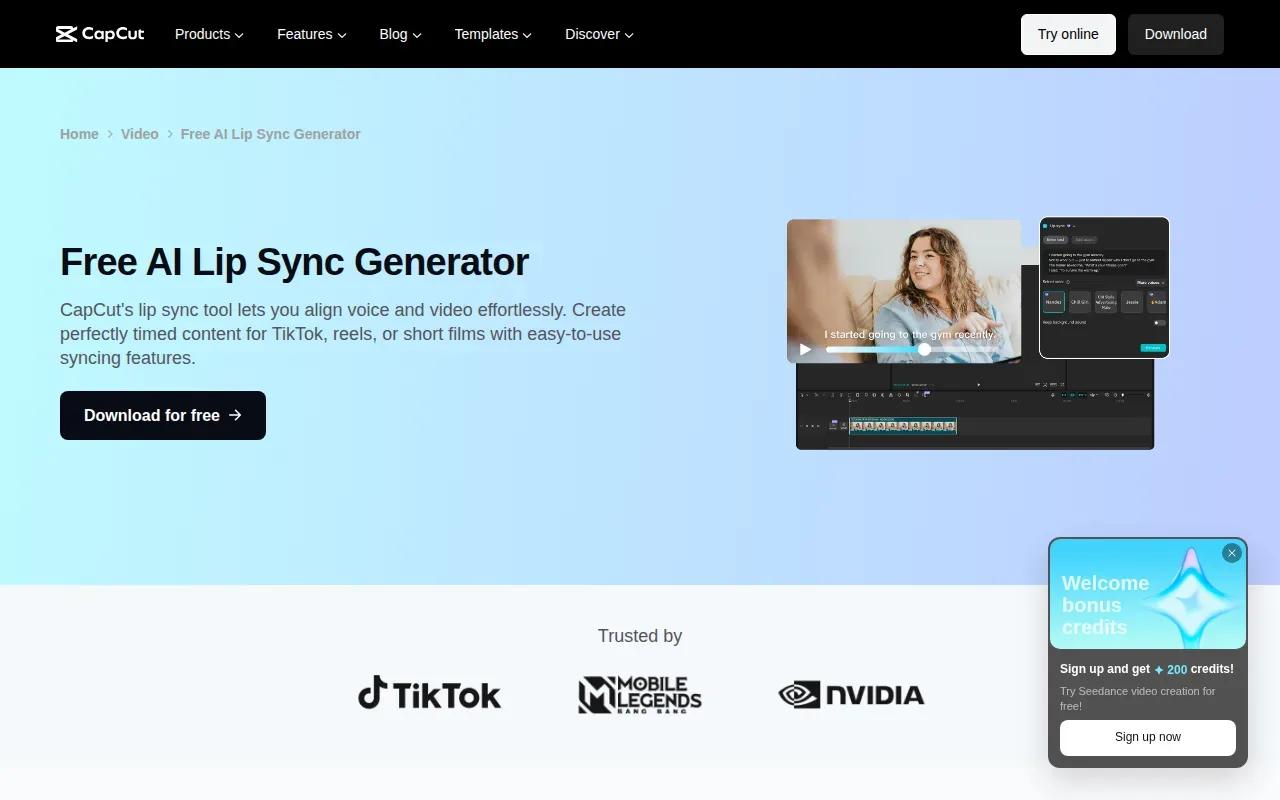
Before publishing, check the export settings that apply to your account.
Use the table to match your starting point to a workflow. It compares the stated role of each tool, not measured output quality.
| Your starting point | Tool to consider | Why it may fit |
|---|---|---|
| Prompt or image reference | OmniRender | Generates a video with synchronized dialogue and scene sound. |
| Supported character video | Kling AI | Adds speech or singing to an existing character clip. |
| Video for another language | Vozo AI | Combines localization, dubbing, subtitles, and lip sync. |
| Presenter script or photo | HeyGen | Supports script or audio input and talking-photo videos. |
| Finished footage plus voice file | Sync Labs | Accepts separate video and audio inputs. |
| Short-form editing workflow | CapCut | Offers a lip sync tool. |
CapCut offers lip sync. If you need to generate the character and scene too, compare that workflow with OmniRender before you settle on an editing-only path.
Ready to make a character speak in a generated scene? Explore OmniRender and test a short prompt before committing to a full piece.
FAQ
How do AI lip sync tools work?
AI lip sync tools match a speaker’s mouth movement to speech or singing. Depending on the tool, you may provide a finished video and audio file, type a script, or start with a character image. The tool generates or adjusts mouth movement, then you review the clip and export it. A clear face and clean audio make the result easier to judge.
Can I use my own voice recording?
Yes, some tools accept a separate voice recording. Kling AI and Sync Labs describe workflows that let you upload audio, while HeyGen also supports audio input. Use a clean recording and check that its length suits the video. Listen and watch the finished clip together, especially around pauses and fast speech.
Which tool works for dubbing a video into another language?
Vozo AI focuses on video localization with subtitles, AI dubbing, and lip sync for more than 160 languages. HeyGen also describes translating and re-voicing videos, with lip sync for the new audio. The right fit depends on your source video and target language. Review names and key terms in the final version before sharing it.
How can I make lip sync look more natural?
Start with a clear view of the face, even lighting, and a clean voice track. Keep the audio length close to the video length. Then review the full clip for timing drift, odd mouth shapes, or expressions that don’t match the words. If the sync feels off, check the source and audio timing before changing other settings.
Does OmniRender make lip-synced dialogue?
Yes. OmniRender can generate short videos with dialogue and matching lip movement through Gemini Omni models. You can describe a scene in a prompt and put the spoken words in quotes. Confirm current pricing, credit allowances, resolution limits, and commercial usage rights on OmniRender’s website; free-versus-paid licensing is unclear.
Conclusion
If you want to build a scene and its dialogue together, start with OmniRender; if you already have finished footage, choose a tool built around that input. Try a short generation first, review the mouth movement and export settings, then start with OmniRender’s free plan if it fits your workflow.