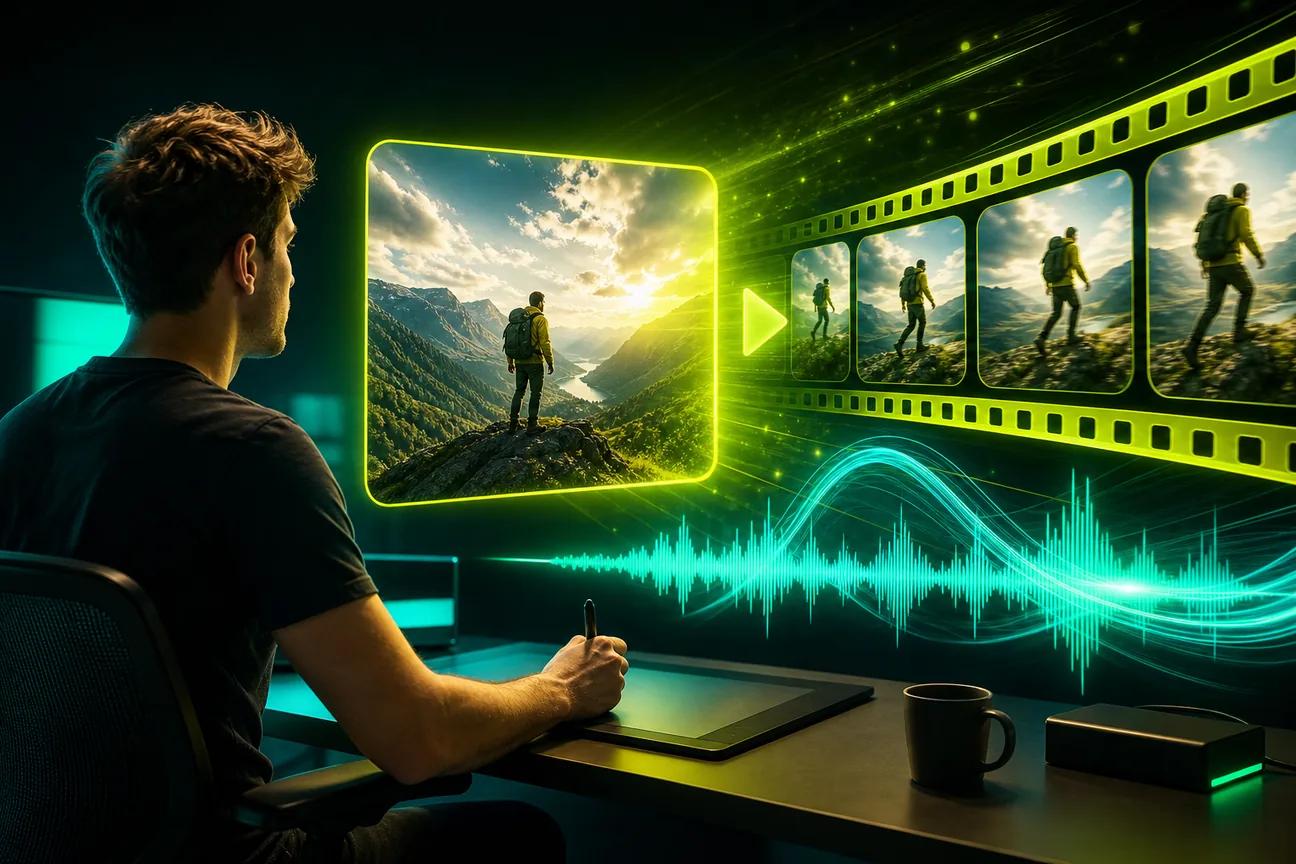
AI image-to-video with audio can turn a still photo into a moving clip with sound already in place. The difference between tools comes down to how they handle speech, music, image references, and edits. Here are five named options, starting with OmniRender.
1. OmniRender
OmniRender is an independent, browser-based app for making short videos from text prompts and image references. It uses Google’s Gemini Omni models, but OmniRender has its own app and plans. Google develops the underlying model; OmniRender isn’t affiliated with or endorsed by Google.
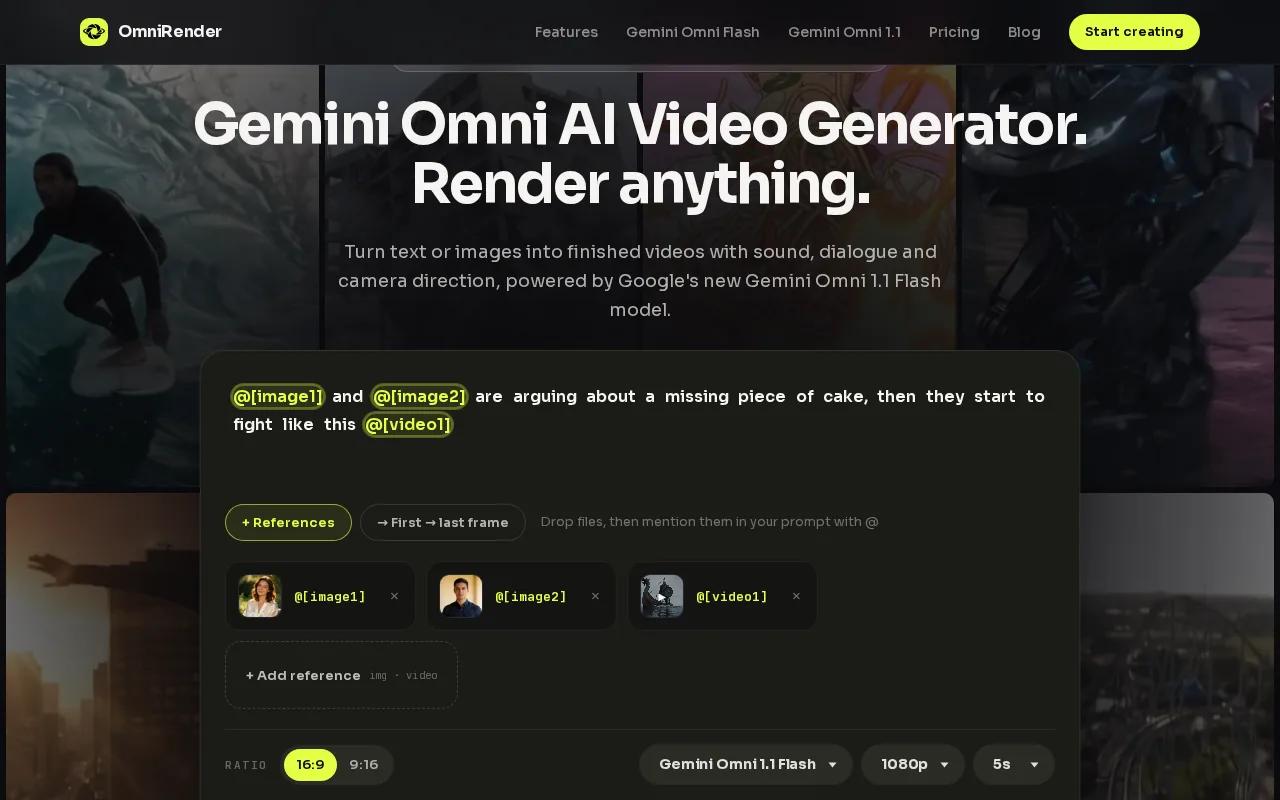
For a product ad, attach a product photo and describe the motion, camera move, and any spoken line. The video can include generated music, sound effects, and dialogue with matching lip movement. That means you can review the clip with its sound in place, rather than planning to sync a separate voice track afterward.
Gemini Omni 1.1 Flash makes clips from 3 to 10 seconds per generation. You can extend a finished scene up to 40 seconds, or ask for a change in plain language. For example, you might request a closer camera move while keeping the subject and lighting steady.
The free plan gives you up to 3 videos a month at 360p with no card required, and paid plans start at $14 a month with output up to 4K. Every plan includes a commercial licence.
If your workflow starts with a still, a reference image can guide a generated scene. OmniRender fits creators who want the image, motion, and sound handled in one browser app. It’s a strong starting point when a short clip needs dialogue or a quick edit after the first render.
2. OpenArt: Built-in lip-sync and voiceover options
OpenArt combines video generation with audio and editing tools. Its video output reaches 4K, with clips up to 15 seconds, and it includes built-in lip sync. It also has AI voiceovers in more than 30 languages, voice cloning, an original music library, and sound effects such as footsteps and rain.
That mix suits a creator who already has an image and needs a short speaking clip or narrated product scene. Add a reference image, then use a voiceover or dialogue with lip sync. For a product post, you could start with a still and make the item move while a voice explains one feature. The music library and effects can help fill the sound bed around the speech.
OpenArt also lets users build and reuse Characters from reference images or text. That can help when the same person needs to appear in more than one clip. Its audio tools include automatic audio-video sync, which is useful when you want speech and picture to land together rather than patching timing by hand.
For a campaign with several versions, you can vary the script or visual direction while keeping a character reference in the workflow. OpenArt clips run up to 15 seconds, so plan a longer story as a set of shorter scenes if needed. Its combination of voice options and lip sync makes it a fit for presenter-style content as well as image-based ads.
Choose OpenArt when you want several audio controls alongside character references. If your main need is a short image-led clip with a spoken line, check the mouth movement and timing before using the result in a campaign.
3. Vidu Q3: Native audio generation for image-led clips
Vidu Q3 is an AI video generation model with native audio, faster motion quality, and stronger prompt control. For an image-led clip, start with a still image and describe the motion and sound you want to generate with it.
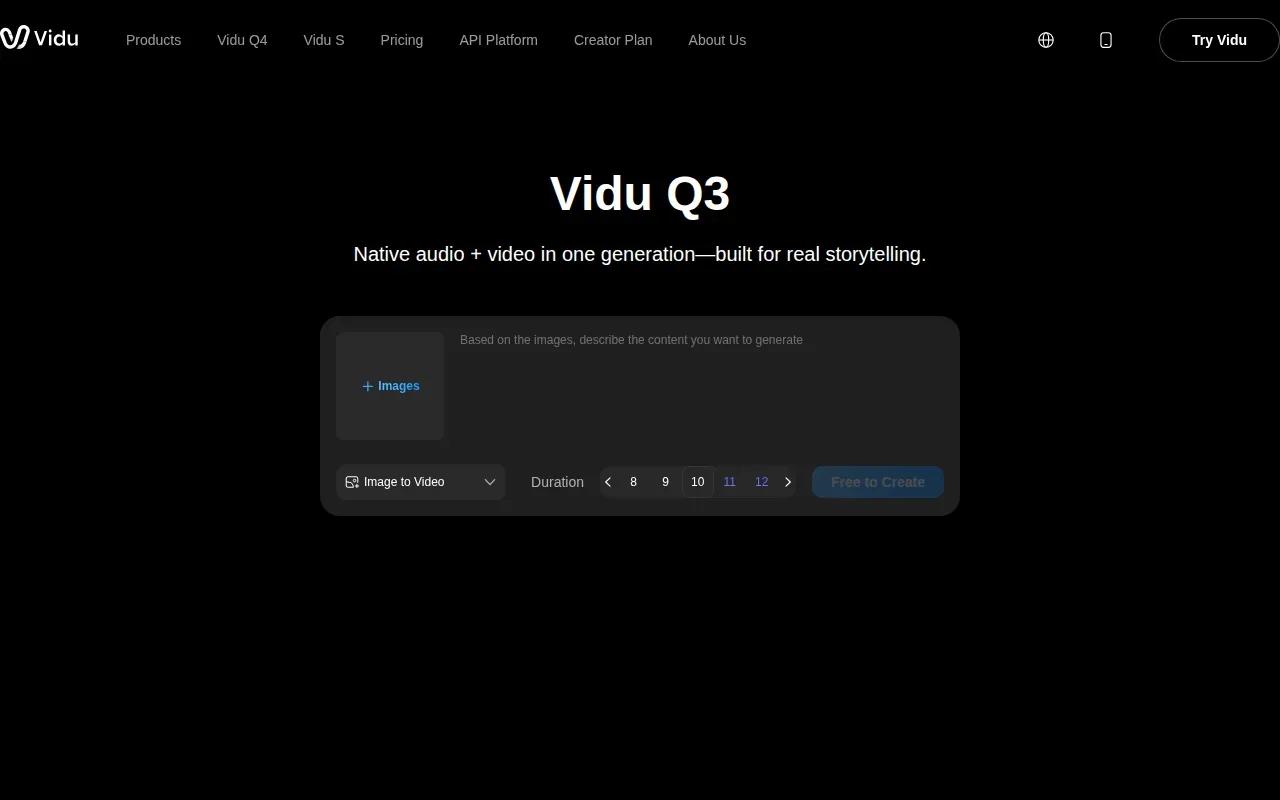
This can suit an approved product photo, character sheet, or concept image that needs movement without losing its visual anchor. A skincare product shot, for example, could begin with a slow camera push and end with a short music cue. A character image could guide a small head turn or a change in expression. Keep the prompt focused on what stays the same and what should move.
Stronger prompt control can help you describe when an action or sound should happen. For a short ad, you can describe a product reveal and its sound in one prompt. Review the result to see whether the motion and audio match your direction.
One useful way to plan an image-led prompt is to name the subject first, then describe one action and the camera move. Add the sound direction after that. This keeps the main motion clear.
Vidu Q3 is worth considering when the source image is already approved and the clip needs sound generated with the picture. Review the subject’s shape and framing after generation, especially for product visuals where small changes can affect how the item looks.
For a broader look at the still-image side of the process, OmniRender’s photo-to-video workflow explains how to guide movement with a reference and a prompt.
4. Pika
Pika is an image-to-video tool known for its playful Pikaffects. The effects let you inflate, melt, crush, or explode the subject. It’s a different kind of fit from a tool centered on realistic product motion or spoken dialogue.
Use it when the point of the clip is a bold visual gag or a quick effect. Imagine a social post where an everyday object suddenly inflates or melts. A single still image can be the starting point, then the effect becomes the main event. That approach works best when the visual twist is the hook, rather than a detailed voiceover.
Pika’s image input support makes it relevant to creators starting with a photo or illustration. Its free plan has no monthly credits, so you buy credit packs, and it carries no commercial licence. Starter is $10 a month for 900 credits, and a commercial licence starts with the Creator plan at $35 a month.
The key decision is the kind of audio the project needs. Pika supports image input and offers visual effects. If your brief depends on lip-synced dialogue, compare tools with explicit speech features before settling on a workflow.
5. DramaPixel: A combined image, video, and music workspace
DramaPixel is an AI creative workspace that brings image, video, and music generation together. It supports reference images and videos, and its character consistency feature is designed to keep a character consistent across generations.
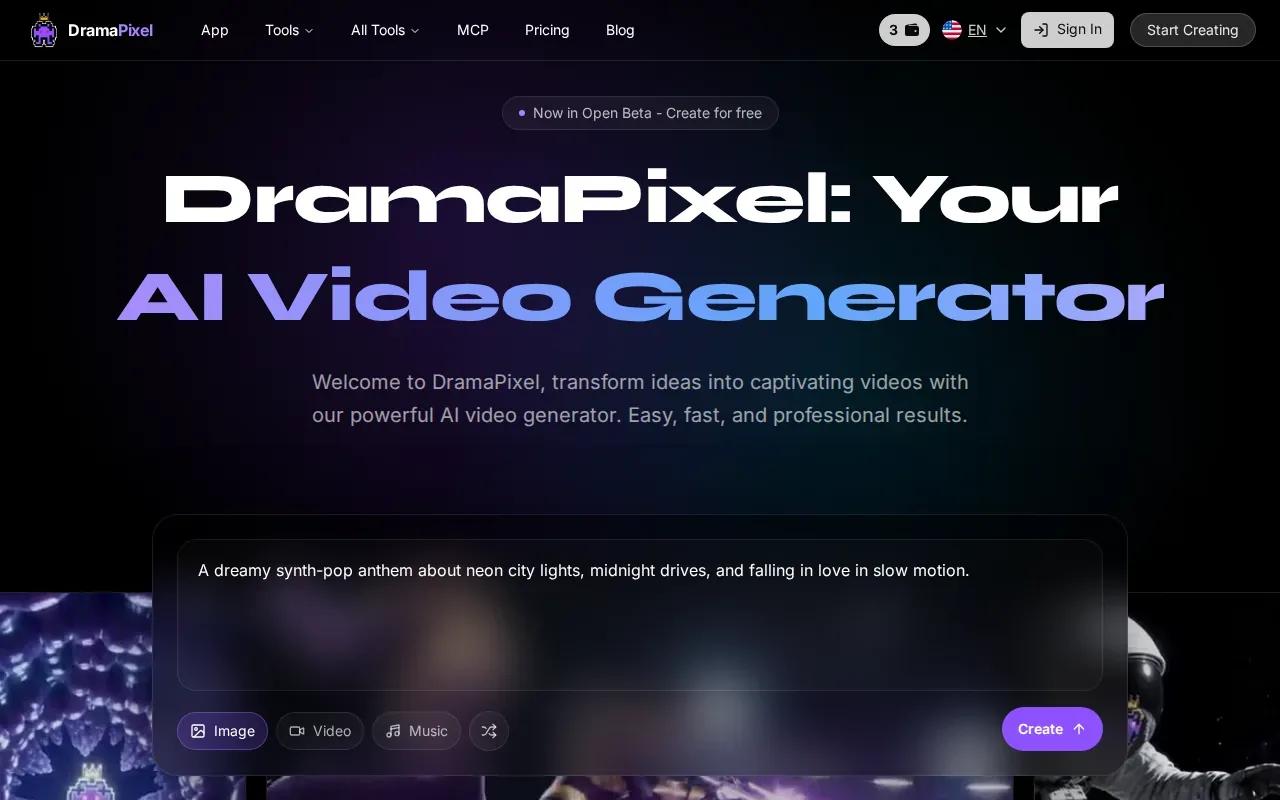
That makes it relevant for creators building character-led clips or seasonal campaign visuals from photo assets. A small team could use the shared workspace to move from an image concept into video, then work on music in the same interface. DramaPixel also has tools for adjusting scenes and adding intros or outros.
The table below matches the capabilities to common production needs. It’s a workflow view, not a claim that every project will need every feature.
| Project need | Relevant DramaPixel capability | What to review |
|---|---|---|
| Campaign visuals from photo assets | Reference image and video inputs | Check that the generated scene still fits the source image. |
| Character-led content | Character consistency across generations | Review the character’s look from clip to clip. |
| Sound alongside video work | Video and music generation in one workspace | Listen to the soundtrack with the finished scene. |
New signups receive free credits to try core generation features. Every paid plan includes commercial usage rights and watermark-free exports. If you’re making content for a client, confirm that the plan you choose covers the way you intend to use the output.
DramaPixel’s appeal is its combined creative workspace, especially if character consistency matters across a set of scenes. It’s a sensible option to assess when you want image, video, and music tools under one roof.
Frequently Asked Questions About AI Image-to-Video With Audio
Can AI turn a photo into a video with sound?
Yes, some AI video tools can animate a photo and generate sound with the video. The sound may include music, effects, voiceover, or spoken dialogue, depending on the tool. Check whether the specific workflow supports image input and the type of audio you need. If lip sync matters, look for that feature by name and review the result before publishing.
Which tool can add lip sync to an image-to-video clip?
OmniRender and OpenArt both have lip-sync features. OmniRender generates dialogue with matching lip movement, while OpenArt includes lip sync alongside voiceover options. A good test is to use a short line and a clear face reference, then check the mouth movement against the audio before committing to a longer scene.
Can I make an image-to-video clip for free?
Yes. OmniRender’s free plan includes a few 360p videos each month and doesn’t require a card. DramaPixel gives new signups free credits to try its core features. Pika’s free plan runs on credit packs you buy and isn’t for commercial use.
How long can an AI image-to-video clip be?
It depends on the tool. OmniRender generates clips of 3 to 10 seconds per take and can extend a scene up to 40 seconds. OpenArt makes videos up to 15 seconds, while Vidu Q3 can generate a complete 16-second video in one run. Plan the clip around the platform limit and split longer stories into scenes if needed.
Are AI-generated videos safe to use in ads?
Check the tool’s commercial-use terms and the rights for every image, voice, and other asset you provide. Every OmniRender plan includes a commercial licence, as does every DramaPixel subscription. Pika’s licence starts with its Creator plan, so its free plan isn’t for commercial use.
Conclusion
If your image-led clip needs dialogue, music, and sound effects in sync, start with OmniRender. It combines image references with native audio and prompt-based edits, and its free plan gives you a way to test the workflow. Add an image, describe one clear action, and try a short generation before you plan the full campaign.