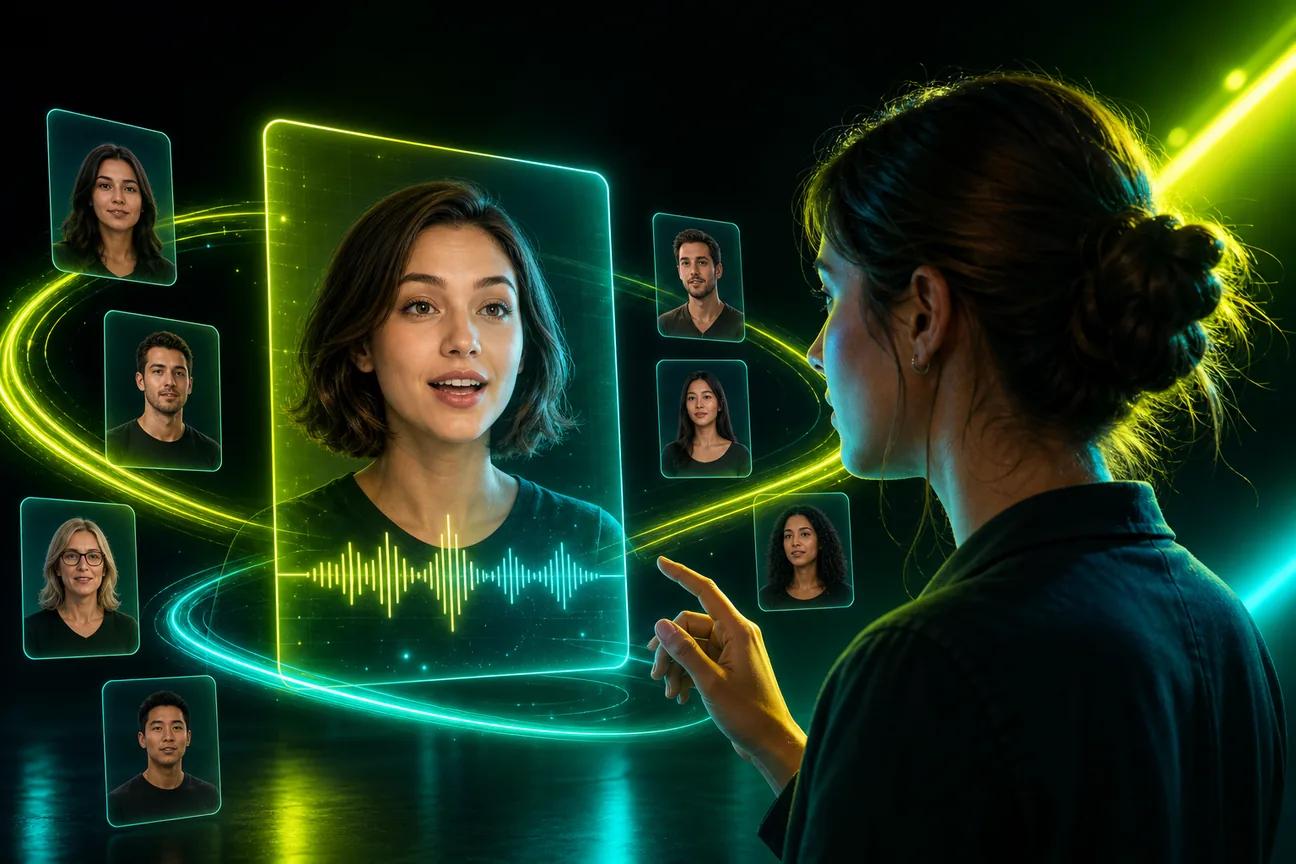
A still portrait can become a speaking clip without a camera or a filming day. An AI talking photo generator can add voice and motion, but the tools differ in how much control they give you after the first render. Here are five options, starting with OmniRender, and the jobs each one suits.
We analyzed 51 comments and questions from YouTube, Reddit and Quora about AI talking photo generators and found that 31% mentioned support for user-provided media.
1. OmniRender
OmniRender is a browser-based AI video app that turns prompts and image references into short clips with sound and lip-synced dialogue. It suits creators who want a talking image, a product shot, or a character clip they can adjust with written instructions.
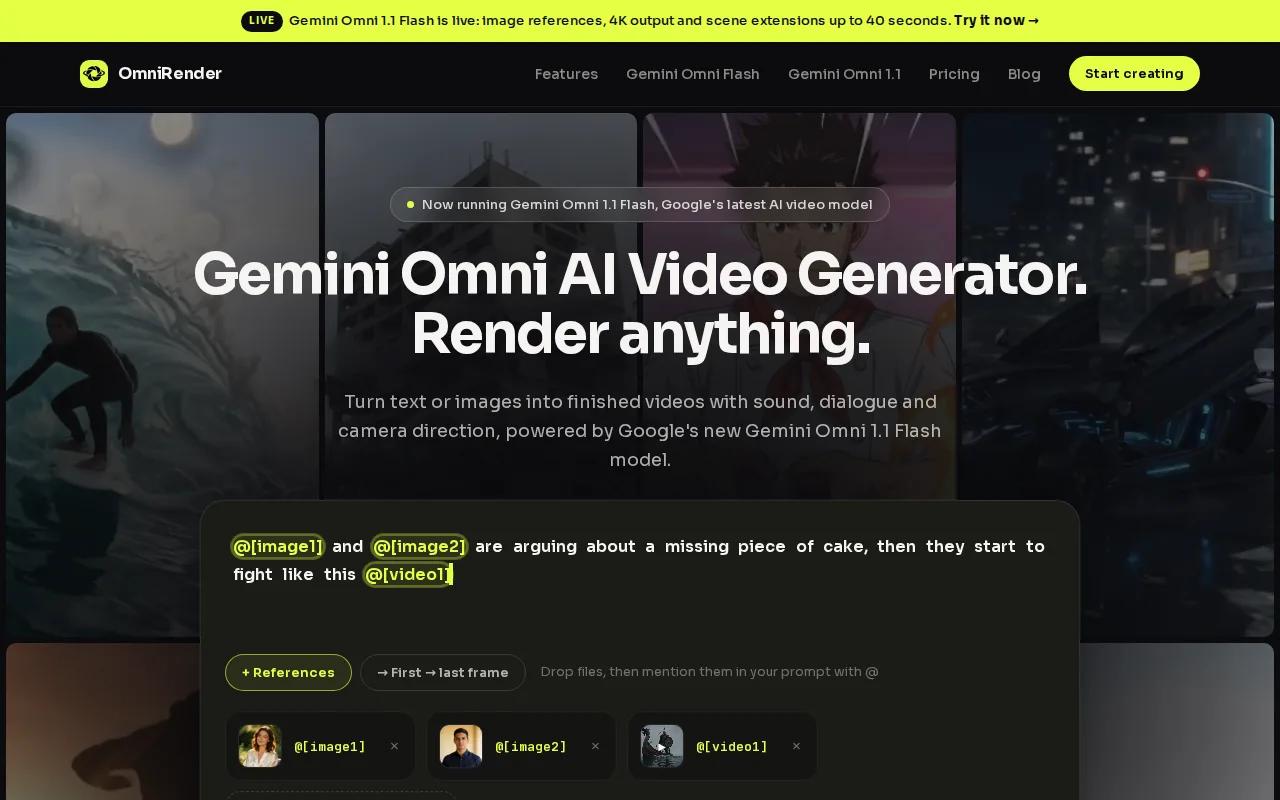
Start with a photo or another image reference, then describe the action and any spoken line in your prompt. Put dialogue in quotation marks. The Gemini Omni model can generate the video with dialogue and matching lip movement, so you can review the result without filming a presenter or syncing audio by hand.
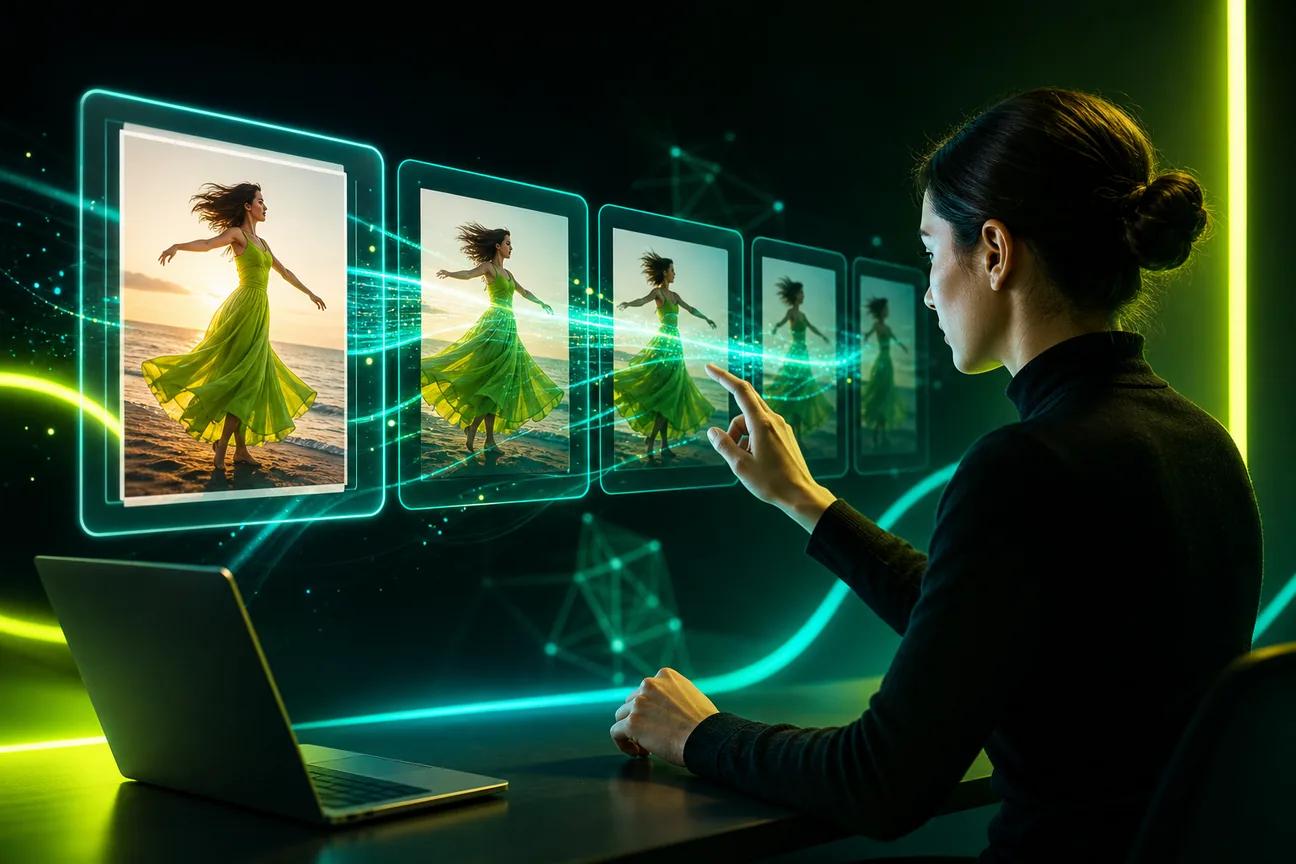
When a face, product, or character needs to stay close to the source image, attach that image as a reference. If the first result needs a change, describe the edit in a sentence. You can also extend a generated scene, which helps when a short clip needs more room for an introduction or product message.
OmniRender is an independent app that provides access to Gemini Omni models. It isn't a Google product or an endorsement from Google. Check the OmniRender video creation app for current plan details, resolution limits, and commercial-use terms; free-versus-paid licensing may need clarification.
For a vertical social post, set a 9:16 frame, keep the spoken line short, and watch the face closely in the preview. A clear reference and one simple action give the model less to juggle.
2. Kling VIDEO 3.0: image references for visual consistency
Kling VIDEO 3.0 is an image-to-video option for creators who want a photo to move while keeping the subject’s look consistent. Its image reference can guide the clip, and it supports native audio.
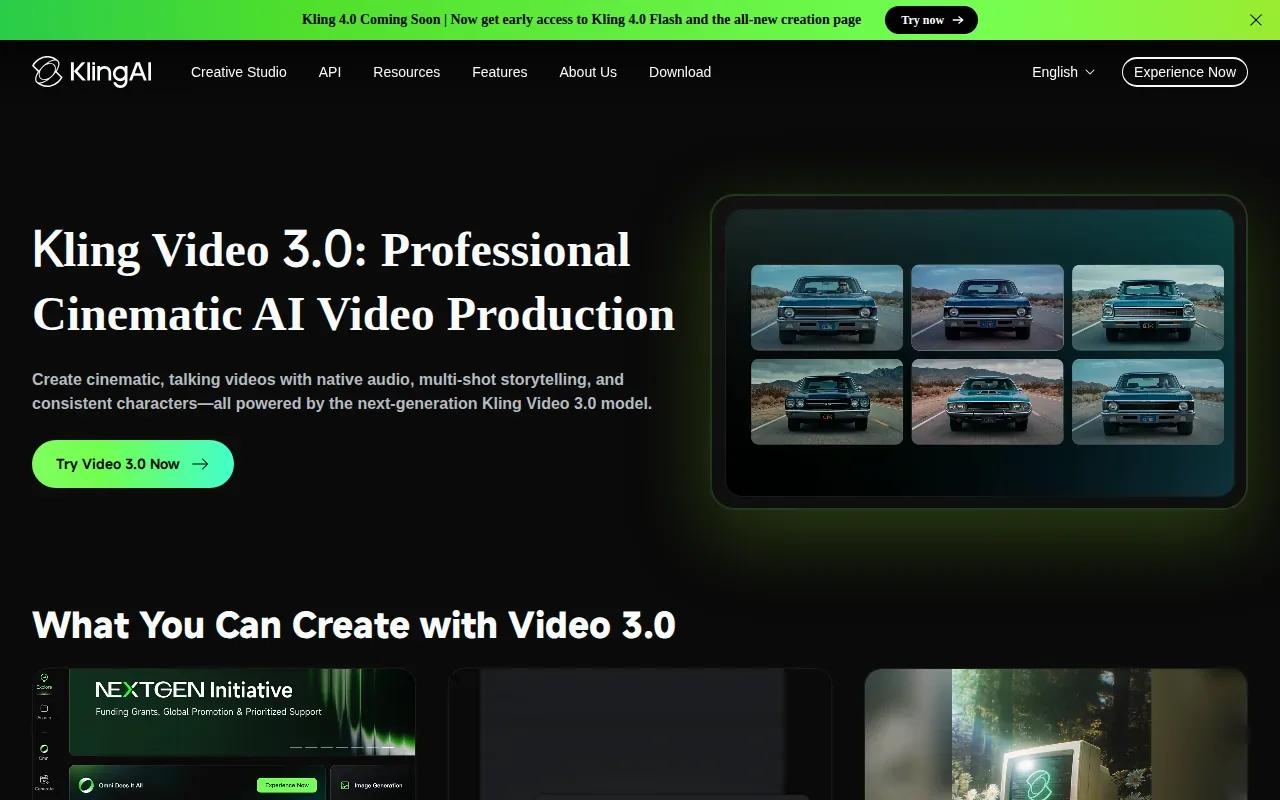
Give it a portrait or product image, then prompt the action you want. For a speaker clip, that might mean a small head turn followed by a short line to camera.
For a speaker clip, preview the facial motion and spoken line to see whether they fit the brief. A short test can help you assess the result before using it in a campaign.
Creators making a connected set of clips should check the reference-image workflow before settling on a prompt. OmniRender’s AI lip sync generator overview can also help you think through how spoken lines fit into a short video brief.
Kling’s image-reference workflow can help keep the subject visually consistent across a clip. Preview facial motion and the spoken line before posting; a technically synced mouth can still feel off if the expression doesn’t fit the message.
3. DomoAI: a creative option for animated photo clips
DomoAI is a talking-avatar tool with options for realistic portraits, anime looks, and original characters. It may suit social creators, musicians, or educators who want a more stylized clip than a standard talking-head video.
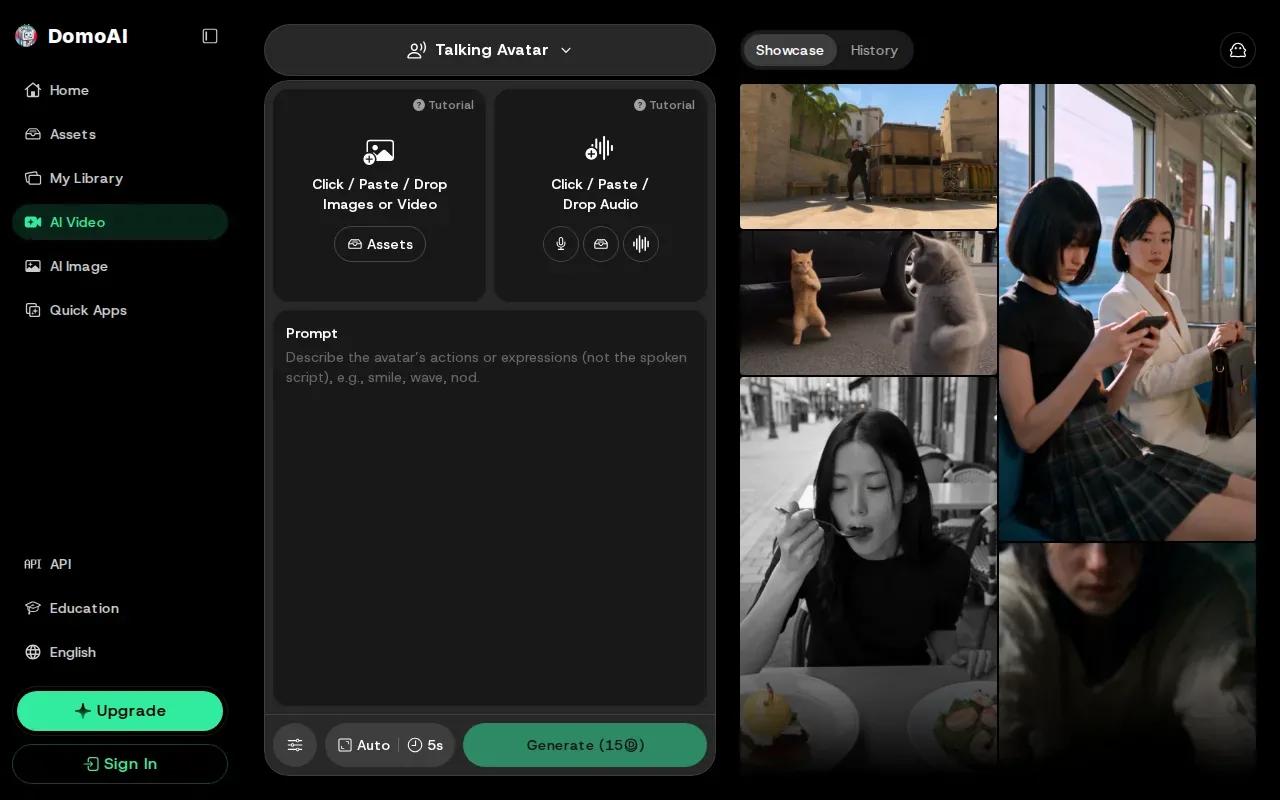
The tool describes text prompts for directing actions, such as making a subject laugh or adding motion to a scene. You can choose among male, female, and character voices. It also says users can upload a song or vocal track for automatic lip sync, which gives creators a route for a short music or performance clip.
Talking-avatar videos offer 4K upscaling for export. For a lesson or internal training clip, a mascot or illustrated character could make the visual tone feel less formal than a presenter recording.
There’s a workflow choice here: use a text prompt to set the scene, then add a voice or track and review the mouth movement against the audio. If you plan to use a real person’s image or voice, make sure you have permission and the needed rights. DomoAI itself calls out proper licensing for both.
Pick this option when style and performance matter as much as a realistic portrait. Keep the first test short, especially if you’re trying a new character or music track.
4. Talking Photo AI by HeyGen: a presenter-focused option
Talking Photo AI by HeyGen focuses on turning a photo into a presenter-style avatar. It may fit marketing, business updates, or training content where a speaker needs to address viewers without a new camera session for every version.
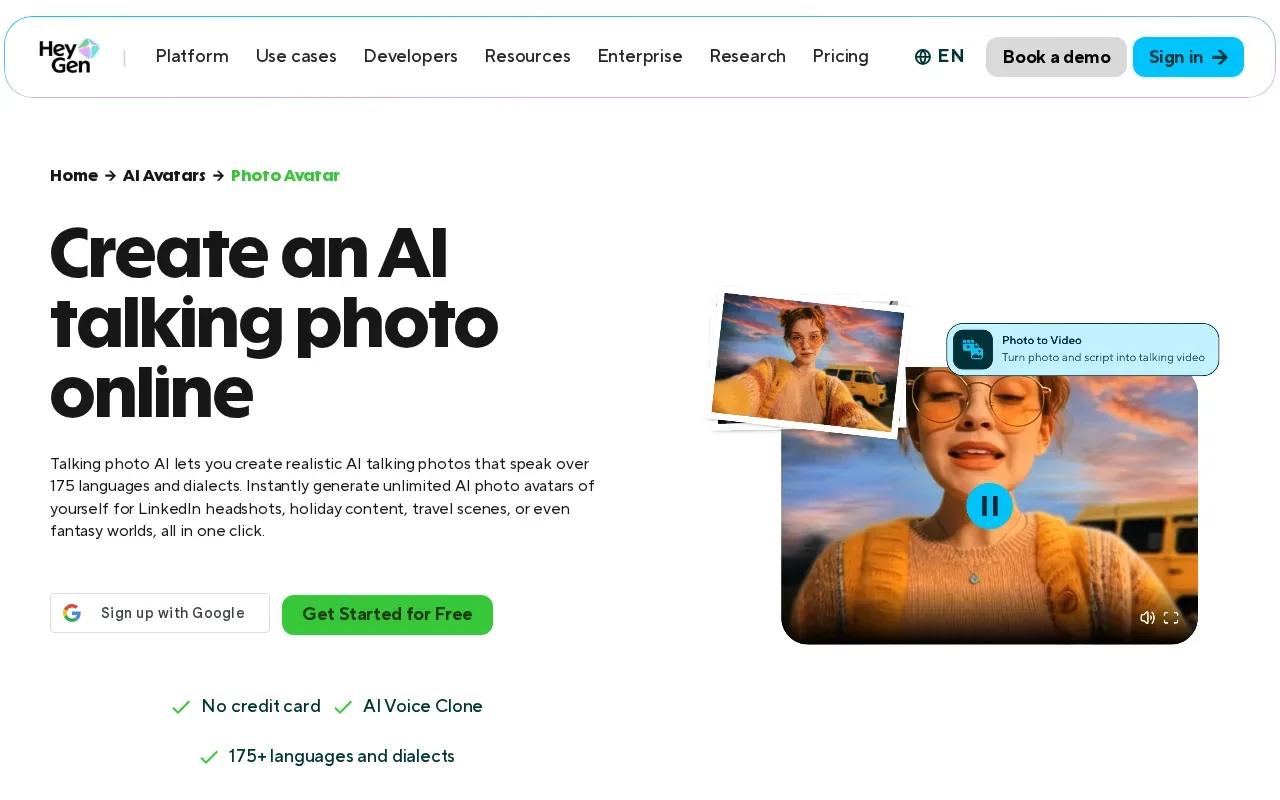
HeyGen describes a workflow that starts with a photo and a script. You can use text prompts to shape the scene or look, then generate the avatar video with voice sync and facial movement.
Look Packs provide preset styles such as professional, lifestyle, holiday, and fantasy. That can save time when you need to shift one avatar between a staff update and a more casual social post.
HeyGen says its talking-photo feature supports more than 175 languages and dialects. It also describes downloading or sharing content on Instagram, TikTok, YouTube, and LinkedIn. If you’re making a training clip, draft the script first, then check names and key terms in the generated speech before sharing.
For presenter-focused work, test a few lines with different emotional tones. A short, plain script makes it easier to spot odd timing or gestures before you build a longer lesson.
5. AI Talking Photo by Magic Hour: an option to check for fast creation
AI Talking Photo by Magic Hour is an option to consider when you’re looking for a dedicated talking-photo workflow. It belongs on a shortlist for creators who want to compare a focused photo-to-speech tool with broader video apps.
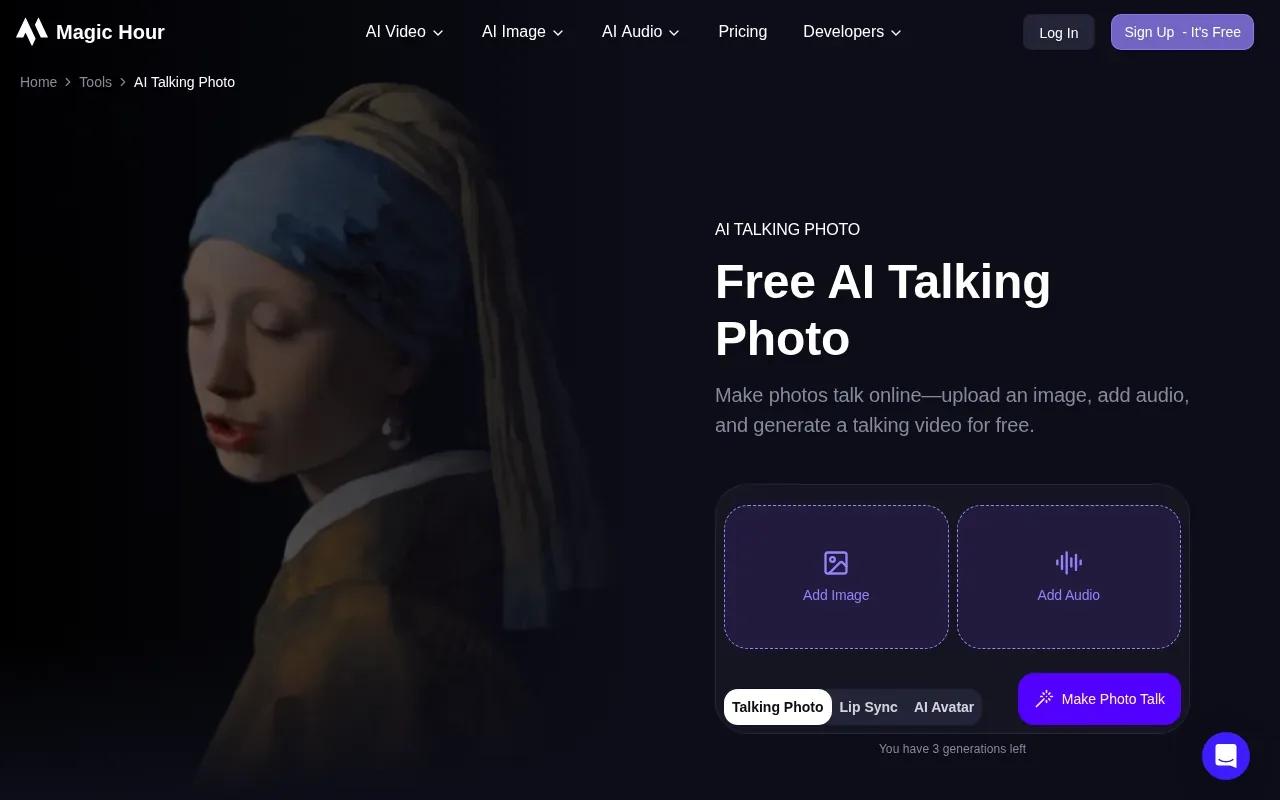
Before you build a full campaign around any talking portrait tool, test one clear photo with a short line of dialogue. Use a front-facing image with a visible mouth, and listen to the audio while watching the face. This quick check can reveal timing issues that are easy to miss when you review only the still image.
Think about the full job, too. A social clip may need a vertical frame and a clean export, while a training video may need a calmer delivery and more time for each point. Write down the final format and intended audience before you start, so you can judge the generated clip against the place it will actually appear.
For a wider photo-to-video workflow, OmniRender’s guide to turning a photo into a video covers how an image reference can guide motion. The same planning habit helps with talking clips: decide what should move, what should stay still, and what the speaker needs to say.
Use a short test to check the result before you spend time polishing a longer script. For any tool, confirm the rights that apply to your photo, voice, and planned use before publishing.
Compare the 5 AI Talking Photo Generators at a Glance
This table focuses on workflow fit, not a universal score. Output resolution and sharing details can matter as much as lip sync, especially when you already know where the clip will be posted.
| Tool | Useful fit | Notable detail | Check before publishing |
|---|---|---|---|
| OmniRender | Short clips with dialogue and image references | Prompt-based edits and scene extensions | Free plan is 360p; paid plans start at $14/month |
| Kling VIDEO 3.0 | Image-led clips with speaker or camera direction | Reference images and native audio | Review plan and output needs |
| DomoAI | Stylized portraits, characters, or music clips | Confirm image and voice rights | |
| Talking Photo AI by HeyGen | Presenter-style communication | Look Packs and support for over 175 languages and dialects | Check the script and generated delivery |
| AI Talking Photo by Magic Hour | Dedicated talking-photo workflow | Compare it with broader video tools using a short test | Confirm output and usage terms for your project |
FAQ
How do you make a talking photo with AI?
Upload a photo, add a script or voice track, then generate and review the video. A clear portrait helps the tool read the face. Keep the first spoken line short, and watch the mouth while listening to the audio. If the tool supports prompts, describe the expression or simple motion you want rather than stacking several actions.
Which tool can make a photo speak with lip sync?
OmniRender, Kling VIDEO 3.0, DomoAI, and Talking Photo AI by HeyGen offer talking-video or lip-sync features. Their workflows differ: some focus on presenter avatars, while others pair image references with broader video generation. Make a short test with your own kind of photo before choosing for a larger project.
Can I use a talking photo for TikTok or Reels?
Yes, a generated talking portrait can work for short social posts if the tool’s export fits your target format. Check the frame shape and preview the file on a phone before posting.
Do AI talking photo tools need a camera recording?
No, a talking-photo workflow can start with a still image and a script or audio track. That can cut out a filming session, though you’ll still need to review the result and may need to revise the prompt. Use a photo and voice you have permission to use, especially when the video represents a real person.
Can I use AI talking photos in ads or training?
Yes, these clips can suit ads, lessons, and internal training, but check the tool’s license and your rights to the source photo and voice. OmniRender’s site says its plans include a commercial license. Other tools may have different terms, so read the current rules for your account before using a generated video in paid or public work.
Conclusion
For a workflow that combines image references, lip-synced dialogue, and edits by prompt, start with OmniRender.