An audio-to-video AI generator can turn a song, podcast, or voice track into a video without making you build every shot by hand. The catch is that tools handle audio in different ways: some sync a presenter to speech, while others use a track to shape visuals. Here are nine options, plus a look at where OmniRender fits when you want generated video with sound.
We analyzed 55 comments and questions from YouTube, Quora and Reddit about audio to video AI generators and found that 51% asked about limitations of audio to video generation.
1. HeyGen: For avatar-led videos with synchronized dialogue
HeyGen turns an audio recording into a talking video with an avatar or a single-person image. It suits a recorded voiceover that needs a visible speaker, such as a training update or a localized presenter clip.
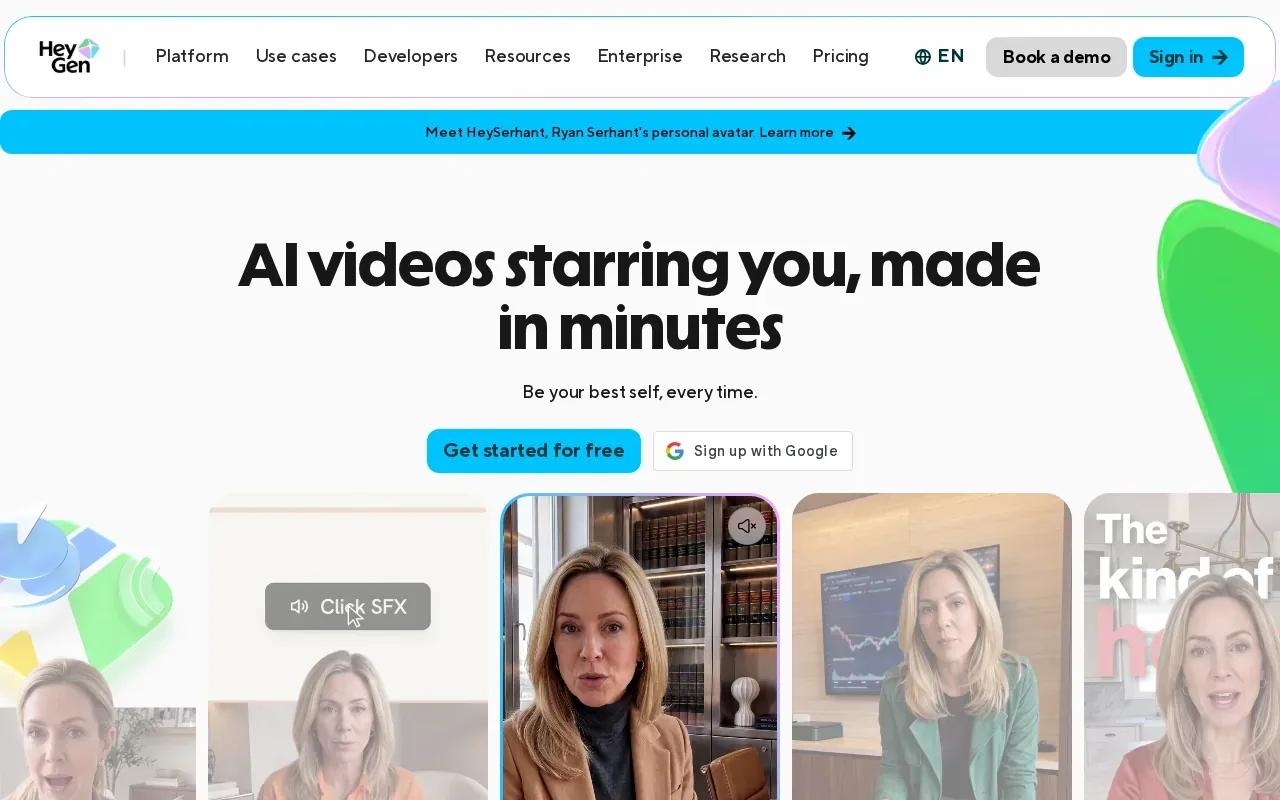
Its audio-to-video workflow can use an uploaded audio asset or a public audio URL. The output follows the length of the audio, up to 30 minutes per request. You can also set the frame shape and choose 720p or 1080p output.
HeyGen starts free with three videos per month, and its maximum resolution is 4K. Its lip sync is described as holding from the first word to the last. For comparisons of speaking-photo workflows, see these AI talking photo generator tools and AI lip sync generator options.
2. CapCut: For fast social-ready audio and video edits
CapCut combines audio-led avatar videos with a wider editing workflow. It can sync an uploaded track to an avatar, then let you adjust the scene in a timeline. That can work well when your final post needs more than a talking head.
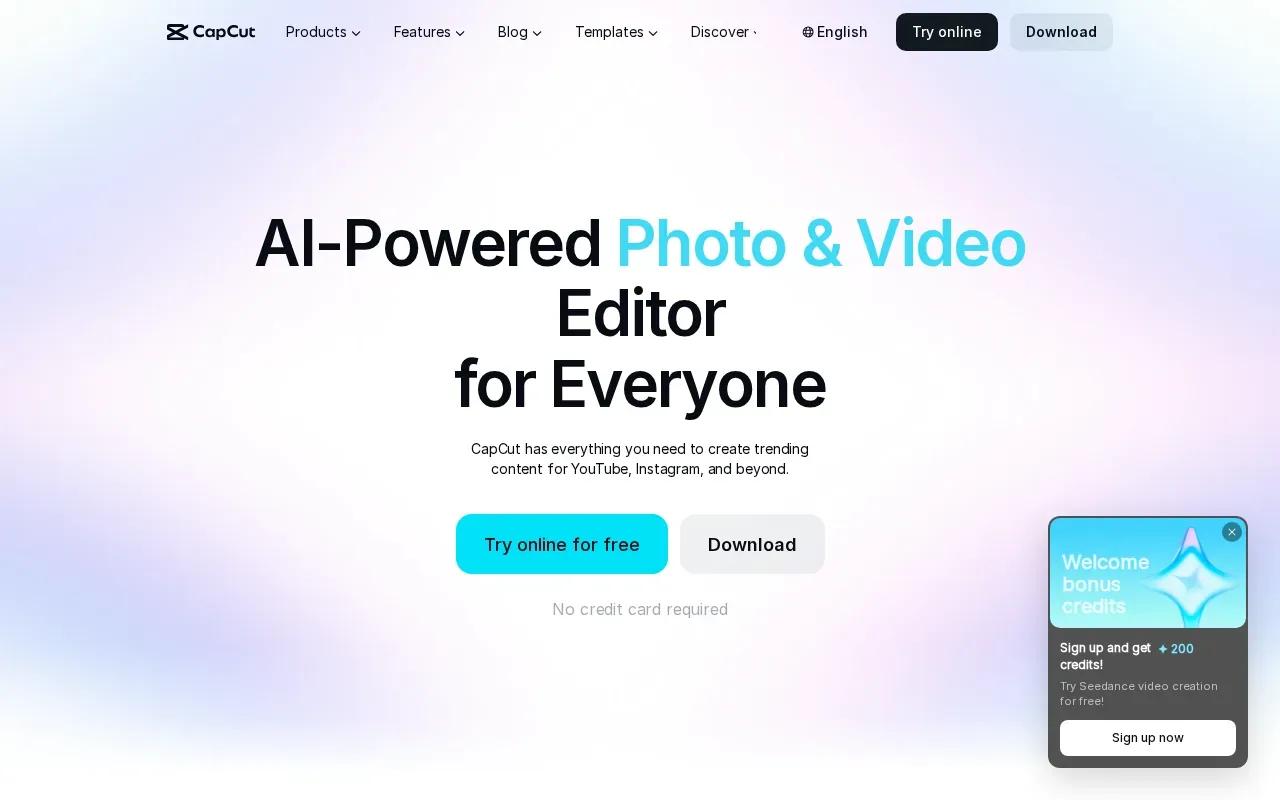
The editing flow supports captions, voiceovers, music, and export settings. CapCut’s auto captions sync subtitles to speech, and its text-to-speech tool can turn written copy into narration. You can then set export preferences such as resolution, format, and frame rate. Its social workflows are aimed at short-form posts, including Reels and Shorts.
CapCut is free, exports without a watermark, and lists synced lip movements among its audio-to-video features. It’s a useful fit if you want to shape the whole edit after the audio and visuals come together.
3. DomoAI: For generating stylized scenes from creative inputs
DomoAI is an AI creative studio for generating and restyling video from text, images, or footage. It suits creators who want to shape the look of a music visual or turn existing footage into a different style.
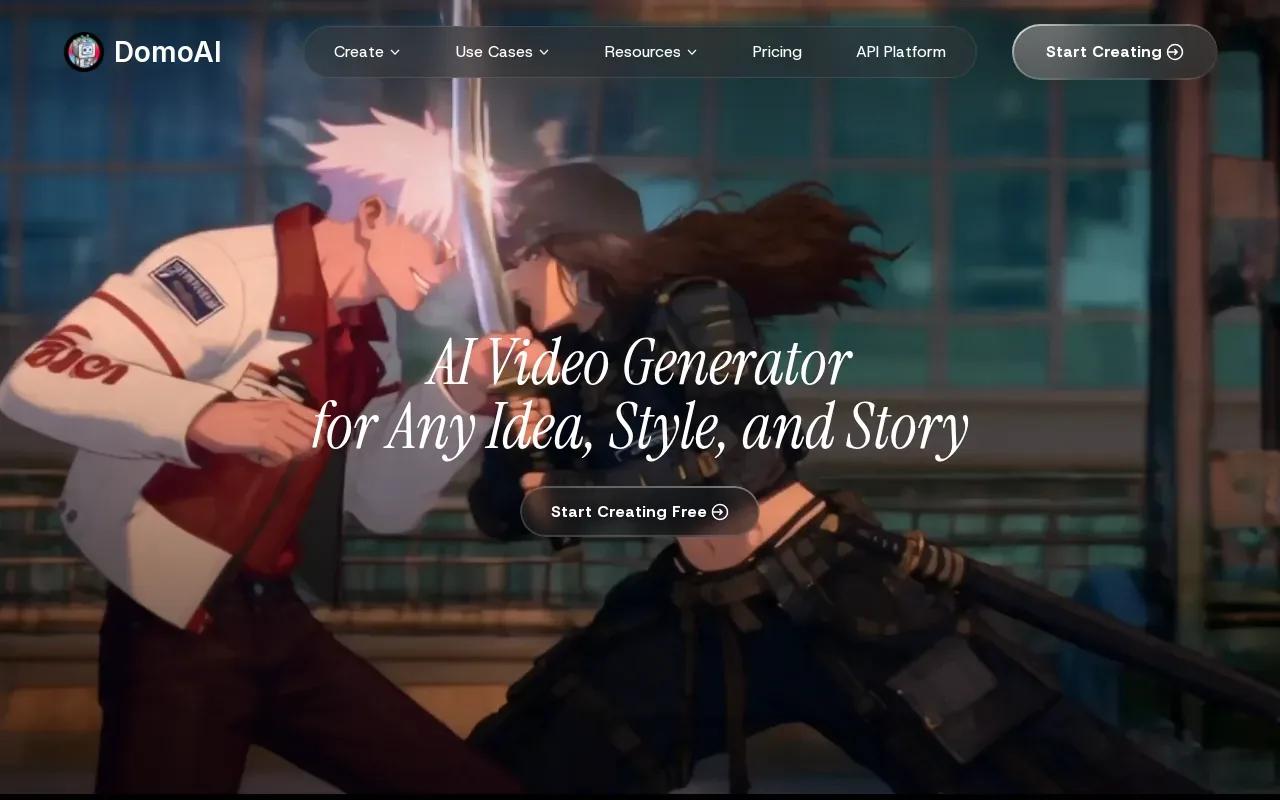
DomoAI lets you create videos from text, images, or footage. You can also use reference images or video to guide a result. That gives you more than one way to build a clip: start with an idea, bring in a still, or use footage you already have.
DomoAI’s Basic plan costs $13 per month, or $9 per month with annual billing, for 600 credits. Its maximum resolution is 4K. Check how the credit cost changes with the model and output settings before planning a batch of clips.
4. Mootion: For creators exploring audio-led AI video workflows
Mootion turns podcasts, music, voice recordings, or narration into videos with AI-generated visuals, scenes, and animations. It’s worth considering when your source audio already carries the story and you want scenes to follow its tone and pace.
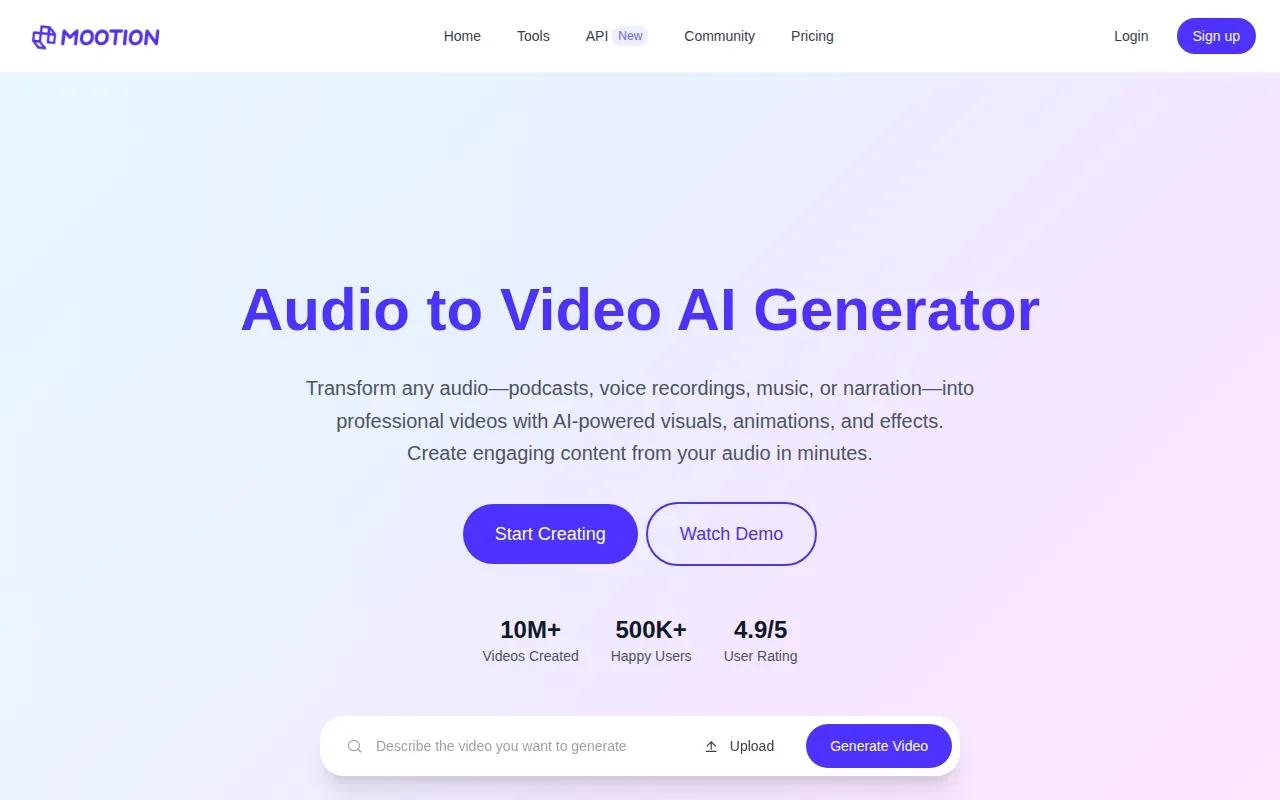
The workflow starts with an audio upload. Mootion analyzes the material, then generates visuals that match its narrative and mood. You can adjust the result with templates, avatars, or effects before downloading a finished video. That can suit a podcast excerpt or a lesson where a sequence of visuals helps hold attention.
Mootion’s Standard plan is $15 per month when billed monthly. Annual billing lists the same plan at $12 per month. Check credit use against your typical audio length before committing to a regular publishing schedule.
5. Plazmapunk: For turning music into visual-first video concepts
Plazmapunk is included here as an option to explore for music-led visuals. This kind of workflow is a natural match for artists who want a visual concept to accompany a track, rather than a presenter reading a script.
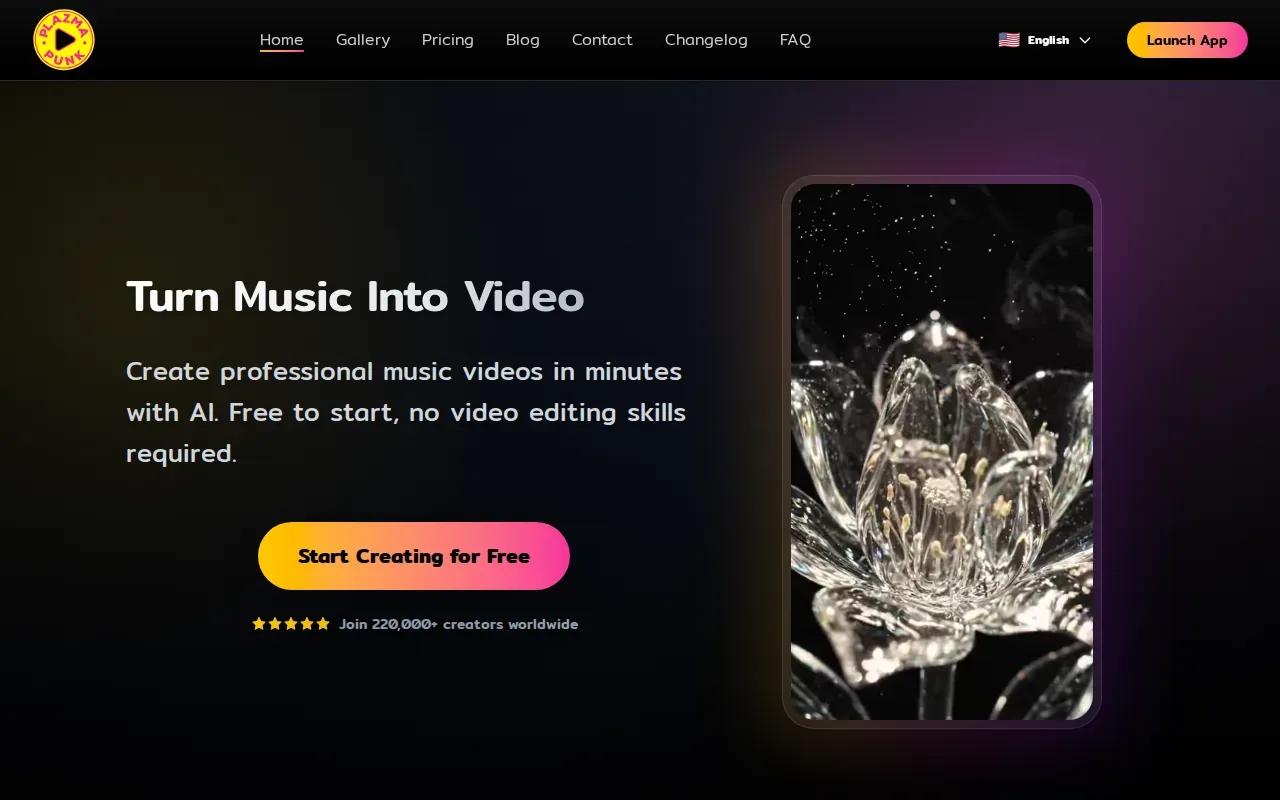
Before building a full release video, test a short section of the song. Listen for where the mood shifts, then check whether the visual direction feels right at those points. A strong match should support the track’s feel, not simply place unrelated motion behind it.
For any music-based generator, also check the output format and usage terms before publishing. Rights to the finished video don’t automatically settle rights to the song, samples, or other material you provide.
6. VibeMe AI: For music-focused short-form video experiments
VibeMe AI is built around turning audio into visual clips, especially music visuals and social teasers. It suits musicians or marketers who want to try several visual styles for the same song before settling on a direction.
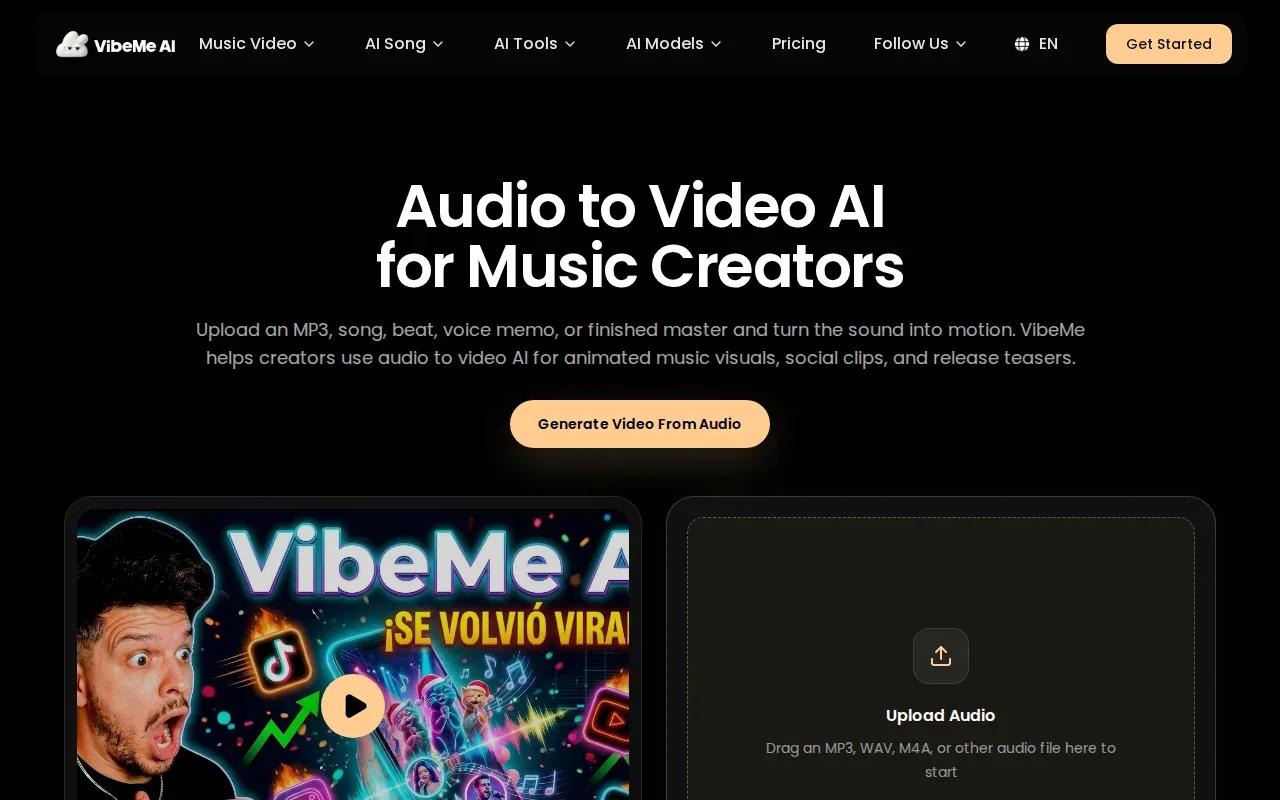
Upload an MP3, WAV, or M4A file, then add a short creative note. You can describe the mood, setting, color, character, or camera movement. The tool can generate animated loops, abstract visuals, or performance-style scenes, which gives you room to test different approaches against the same chorus or beat.
Its plan affects generation capacity, export quality, and watermark options, so check those terms if you need a clean file for a release page or campaign. The workflow also includes a storyboard stage before generation.
7. Magic Hour: For a browser-based mix of AI video tools
Magic Hour brings many AI tools for video and images into one place. Its documented set includes face swap, lip sync, talking photos, templates, generation, and editing. That mix can help if your project may need a few different kinds of AI work.
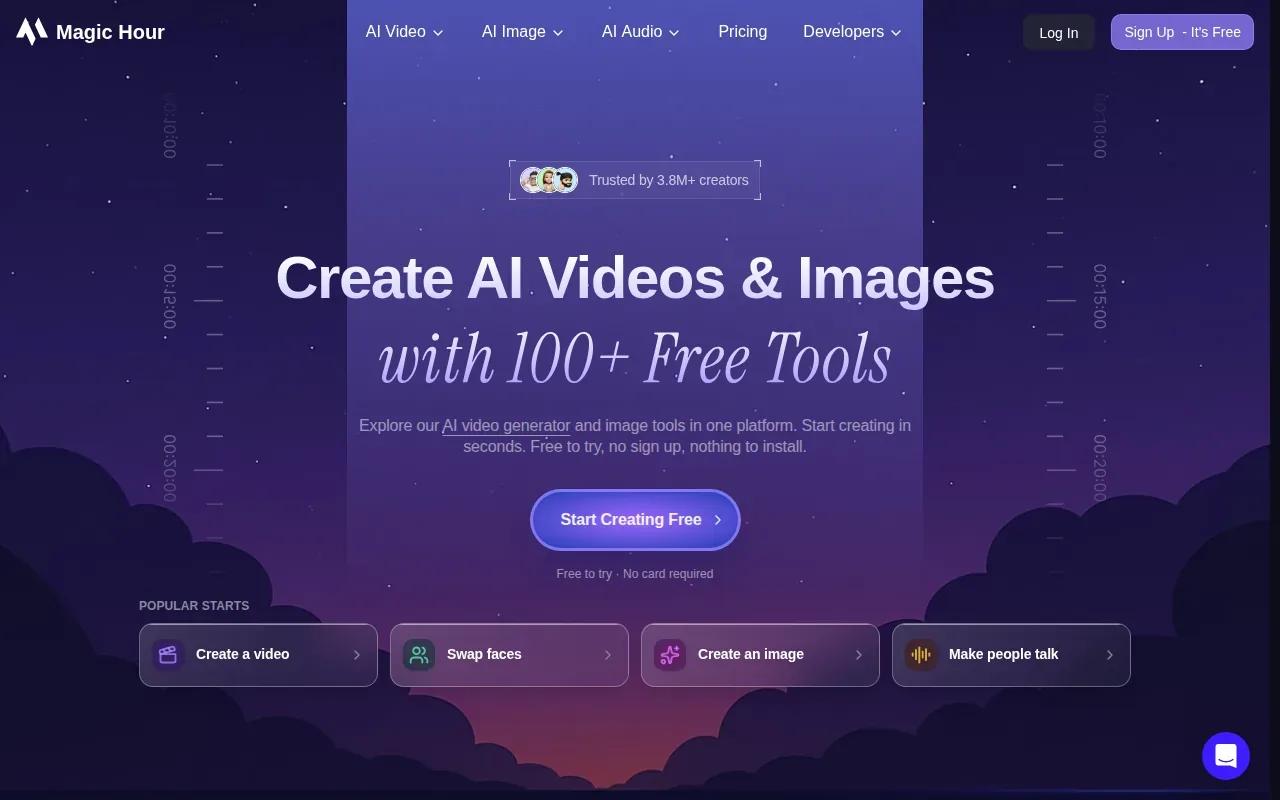
For audio-led video, think first about what should control the result. A spoken track may call for a talking photo or lip-sync workflow. A music track may need generated visuals that follow its structure. Those are different jobs, even if both start with an audio file.
Its credits roll over, and it says it refunds credits for errors. The service is available on the web and mobile.
8. Filmora by Wondershare: For AI generation alongside timeline editing
Filmora by Wondershare pairs AI features with timeline editing on desktop and mobile. It fits creators who want to work through the edit themselves after generating or importing material.
Its caption tools can generate animated captions from speech, then let you adjust style and timing. The broader editor also includes effects, audio tools, and a timeline for arranging footage.
Filmora’s free editing features can export video with a watermark. Check the current plan and AI-credit terms before you start a large batch of captioned clips, since the software’s features and credit rules affect the workflow.
9. Synthesia: For presenter-style videos and training content
Synthesia is geared toward presenter-led business videos, especially training. It can turn written materials such as PDFs, slide decks, and web pages into videos with an AI presenter and narration.
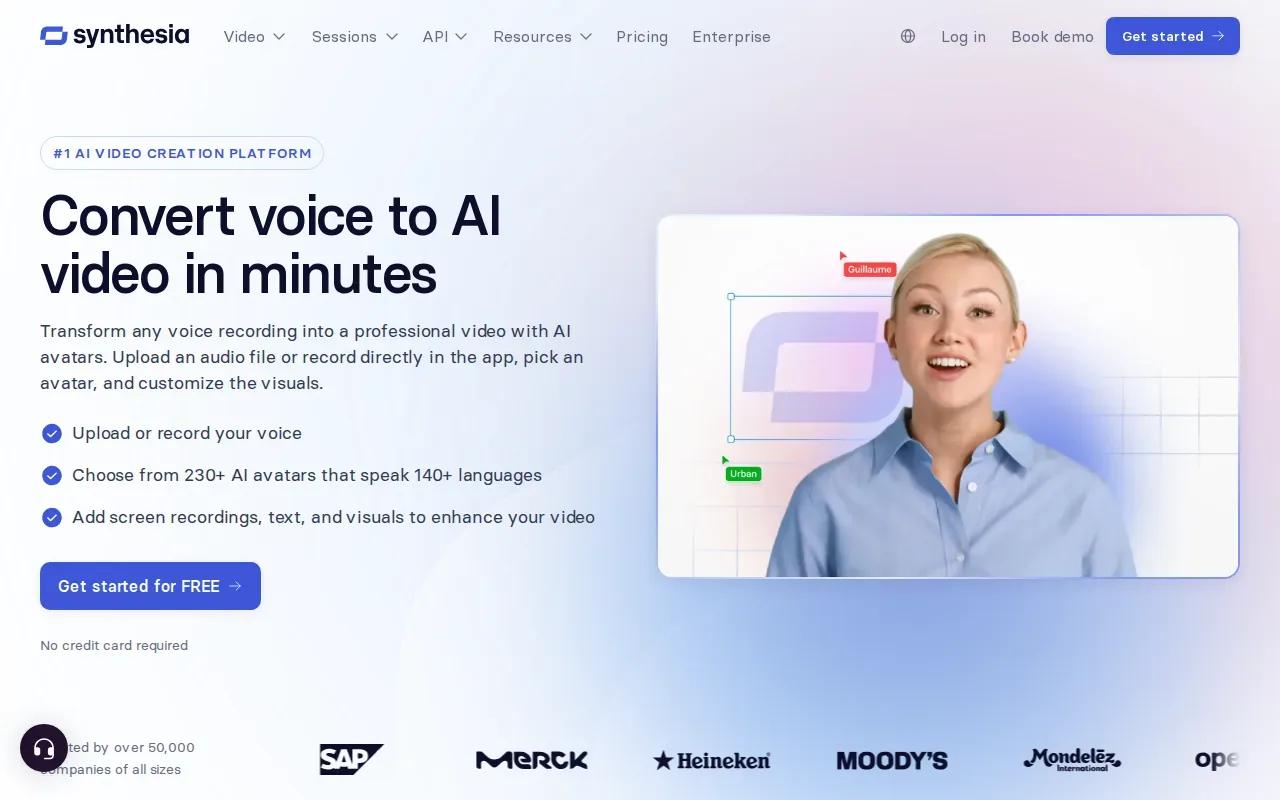
For teams, the useful part is how a lesson can be revised. The training workflow lets you update video content without arranging a new shoot. You can also change the avatar, colors, fonts, or layout, then share or embed the finished video.
Synthesia’s Starter plan is listed at $29 per month, or $18 per month with annual billing. The annual plan includes 120 minutes of video per year. Check the plan terms for the amount that matches your work.
How the 9 audio-to-video AI generators compare
The main choice is what role the audio plays. With an avatar tool, the recording drives a speaker’s mouth and delivery. With a music-focused workflow, the track guides the visual direction. A timeline editor gives you more control after generation, while a training platform is built around clear presenter-led lessons.
| Tool | Audio’s role | Good fit when | Detail to check |
|---|---|---|---|
| HeyGen | Drives avatar or image lip sync | Your voice track needs a visible speaker | Monthly video allowance and output settings |
| CapCut | Syncs with an avatar or edit | You want to refine a social post in a timeline | Captions and export settings |
| DomoAI | Works alongside creative references | You want stylized or restyled visuals | Credit cost for your chosen settings |
| Mootion | Guides generated scenes and animations | Your audio has a clear story or mood | Credits needed for your project length |
| Plazmapunk | Music-led visual concept | You’re exploring a visual direction for a track | Export and usage terms |
| VibeMe AI | Provides the base for generated music visuals | You want to test short clips and styles | Export quality and watermark options |
| Magic Hour | Depends on the selected AI workflow | You need a mix of AI video tools | Which tool matches the audio task |
| Filmora by Wondershare | Feeds captions and timeline edits | You want hands-on editing after generation | Watermark and AI-credit terms |
| Synthesia | Supports presenter-led video | You’re making training or business content | Minutes included in your plan |
OmniRender takes a different route: it generates short video with native music, sound effects, or lip-synced dialogue, then lets you request edits with a prompt. It’s an independent browser app using Gemini Omni models, with its own access and plans.
FAQ
How does an audio-to-video AI generator work?
An audio-to-video AI tool uses sound as an input for a video workflow. It may sync speech to an avatar, transcribe speech for captions, or use a track’s mood and pacing to guide generated visuals. Upload your audio, choose the type of video you want, review the result, then export it. The exact workflow depends on the tool.
Can I make a video from a podcast or song for free?
HeyGen starts free with three videos per month, and CapCut is free. Check the current export and usage terms before publishing, especially if the video is for a paid campaign.
What audio and video formats should I check?
Check the chosen tool’s accepted audio formats before uploading. VibeMe AI lists MP3, WAV, and M4A. Also check the export format and frame shape. A vertical clip may suit a social post, while a landscape file may fit a course or website.
Will the finished video match every beat?
Don’t assume it will. Some tools use audio to guide a broad visual mood or scene flow, while avatar tools focus on matching speech to a face. Test a short section with a clear change in rhythm or speech. Review the export at normal speed, then decide whether you need to adjust the timing in an editor.
Can I use AI-generated audio-to-video content commercially?
Commercial use depends on the tool’s plan and current terms, as well as the rights to your source audio and other inputs. A free export doesn’t automatically clear music, samples, voices, or images for commercial use. Review the provider’s license before publishing an ad or client project, and use source material you’re allowed to share.
Conclusion
Choose the tool by the job: HeyGen for an audio-led presenter, CapCut for timeline edits, or a music-focused workflow for track-driven visuals. OmniRender pairs generated scenes with sound and prompt-based edits. Review the clip, then check the plan and usage terms before making more.